
How to Make Study Notes From PDF Using AI: Easy 6-Step Guide
You download a 70-page lecture PDF on a Sunday night. By exam week, you’ve highlighted half of it, saved three different “summaries,” and you still don’t know what you actually need to remember.
If you’ve ever generated a tidy AI summary and then realized during a mock test that you couldn’t answer a basic question from the source material, this article is about why that happens — and how to make study notes from PDF using AI in a way that actually holds up under exam pressure.
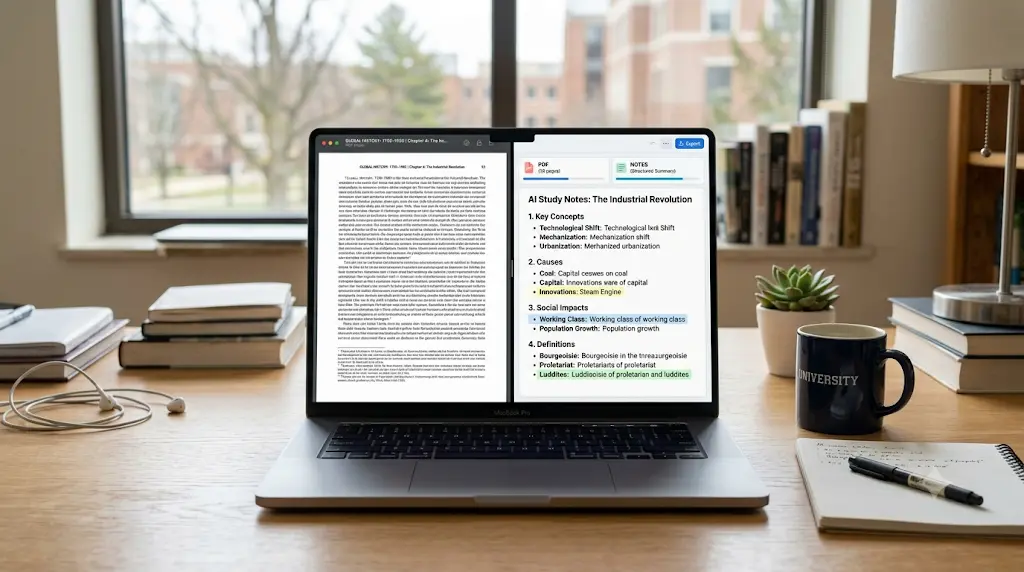
Can AI turn a PDF into study notes? Yes. AI can identify a PDF’s key concepts, definitions, formulas, and examples, and reorganize them into structured notes. But the first output you get is usually closer to a summary than to real study notes. A shorter document isn’t automatically a more useful one.
That distinction — summary versus study notes — is the whole point of this guide. Study notes are organized for retrieval, not just compression. You need to look at them a week later and recall the concept immediately, not re-read a paragraph to relearn it.
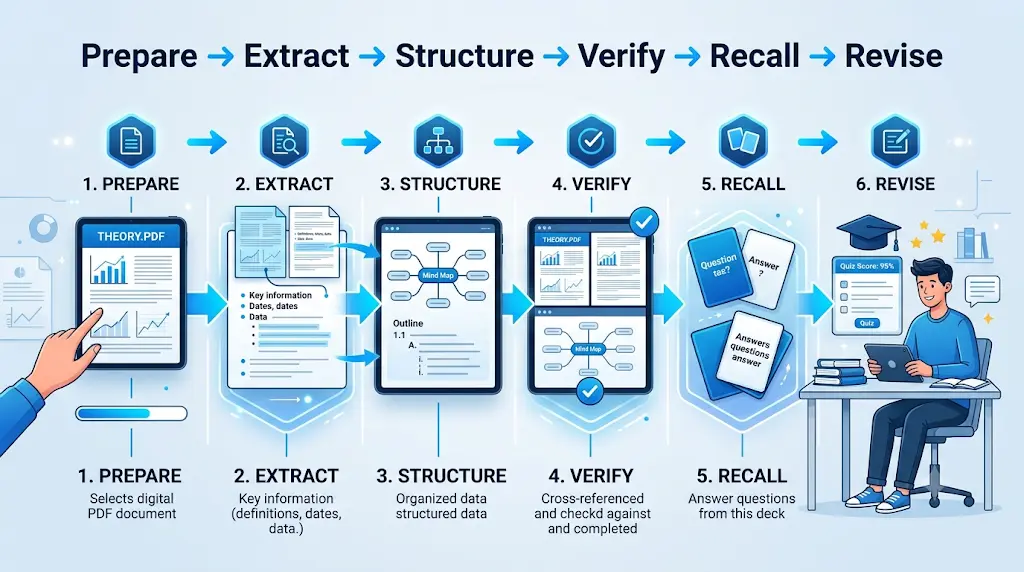
This is the Prepare → Extract → Structure → Verify → Recall → Revise method: six steps to turn any textbook chapter, lecture slide deck, or research paper into notes you can actually study from — not just notes that look organized.
What Kinds of PDFs Can AI Turn Into Study Notes?
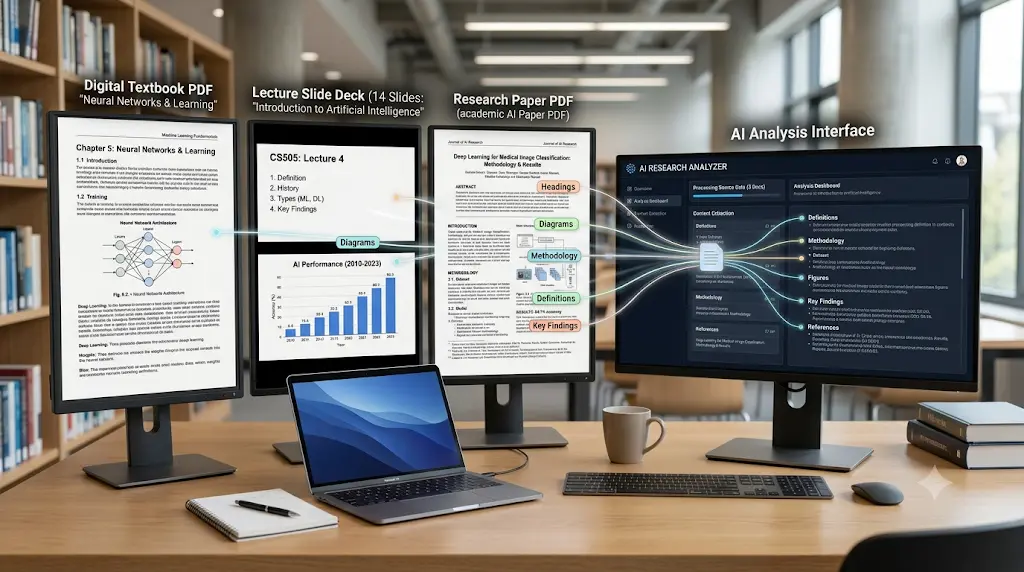
Not every PDF needs the same treatment. The right approach for making study notes from a PDF with AI depends on what kind of document you’re feeding it.
Textbook Chapters
Dense, linear, full of definitions and examples. AI tends to do well here, because the structure — headings, sub-headings, worked examples — already exists in the source. The main job is compression and reorganization, not interpretation.
Lecture Slides
Slides are often fragments. A single bullet point with no surrounding context is normal on a slide but confusing to an AI tool that has to guess what connects it to the slide before and after. This is a specific failure point worth watching for: a professor might explain a diagram out loud in class, but the PDF only shows the diagram with a one-line caption. AI reading the slide alone can interpret that caption differently from what was actually taught — which is exactly the kind of gap verification is meant to catch.
Research Papers
Structured but dense — abstract, methodology, findings, limitations. AI is genuinely useful for a first pass through a research paper, but exact statistics, methodology details, and direct quotations should always be checked against the original text before you cite or memorize them.
If you often forget what you studied after a few days, you are not alone. Our guide on AI Tools for Students Who Struggle to Remember Lessons: 7 Powerful Study Hacks for Better Learning in 2026 shares practical AI-powered methods to improve memory retention and recall.
Scanned or Image-Based PDFs
These need OCR (optical character recognition) before an AI tool can read them at all. Not every AI PDF-to-notes tool handles scanned documents well, and some fail silently — producing an empty or garbled summary with no clear warning that the extraction didn’t actually work. Check this specifically before relying on a tool for a scanned textbook or a handwritten lecture packet.
How to Make Study Notes From a PDF Using AI
This is the core workflow for how to make study notes from PDF using AI. Each step matters. Skipping straight to Step 3 — the prompt — is exactly what produces the disposable, forgettable summaries most “AI study hacks” content settles for.
Direct answer: To make study notes from a PDF using AI, define your study goal first, upload the PDF to a source-grounded tool, use a structured extraction prompt instead of “summarize this,” reorganize the output into a concept-based hierarchy, verify key facts against the original document, and convert the final notes into flashcards or quiz questions for active recall.
Feeling overwhelmed by a huge syllabus before exams? Discover How to Revise an Entire Syllabus with AI and learn a step-by-step strategy to revise smarter, faster, and with less stress.
Step 1: Define Your Study Goal Before You Upload Anything
What you ask AI for should depend on what you actually need it for:
- Quick revision → ask for a one-page summary of only the highest-weight topics
- Exam preparation → ask for structured, hierarchical revision notes
- Memorization → ask for flashcards, not paragraphs
- Understanding a hard concept → ask for a plain-language explanation with an analogy
- Practice → ask for questions and answers, not more notes
A student who opens a 100-page PDF and asks an AI tool to “summarize this” often gets back 4,000 words of dense text — technically shorter than the original, but no clearer about what to actually revise. Defining the goal first is what prevents that.
Step 2: Choose a Tool That Matches the Job
Don’t default to whatever chatbot you already have open. Source-grounded tools — ones that answer only from the document you uploaded, with citations back to specific passages — are the safer choice for exam prep. General-purpose chatbots are faster to reach for but more likely to blend in outside knowledge without flagging it.
Step 3: Use a Structured Prompt to Extract Study Notes From Your PDF
This is where most students lose the most value in the whole process.
Weak prompt: “Summarize this PDF.”
That prompt has no instruction about structure, depth, or what to prioritize — so the AI defaults to a generic paragraph summary, which compresses information without organizing it for recall.
Better prompt:
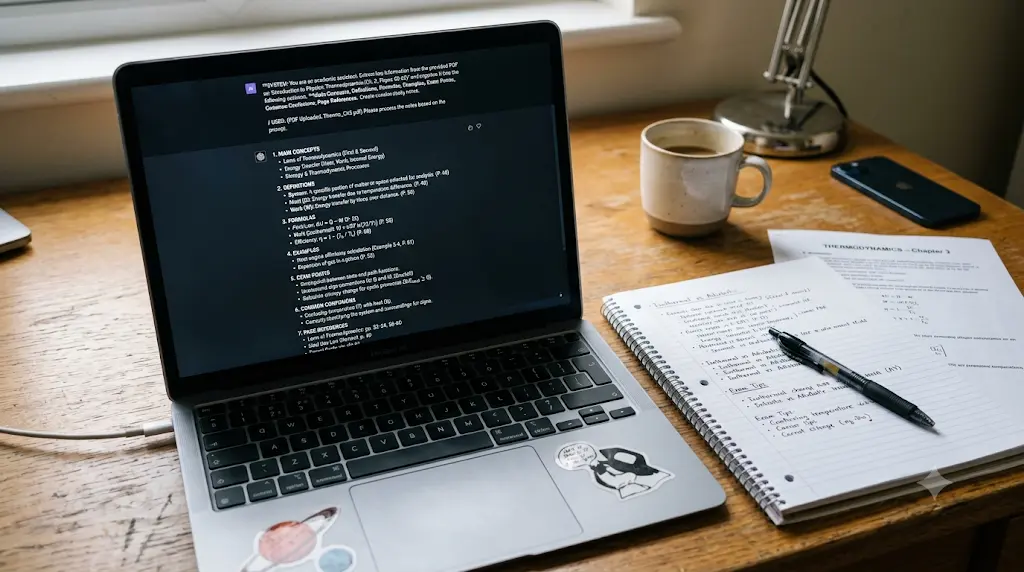
“From this PDF, extract: (1) main concepts and subtopics, (2) definitions in plain language, (3) formulas and their variables, (4) worked examples, (5) points the professor is likely to test, (6) anything confusing or ambiguous in the source, and (7) the page or section each point comes from. Keep it in bullet-point hierarchy, not paragraphs.”
The second prompt works because it tells the AI what shape the output should take, not just how long it should be. Asking explicitly for page or section references is also what makes Step 5 — verification — possible later, without re-searching the whole PDF for a single fact.
Step 4: Turn the Raw Output Into Actual Study Notes
Here’s the difference in practice. Say the source PDF is a four-page textbook section on photosynthesis.
Bad AI output (a summary):
“Photosynthesis is the process by which plants convert light energy into chemical energy. Chlorophyll in the chloroplasts absorbs sunlight, which is then used to convert carbon dioxide and water into glucose and oxygen. This process is essential for plant growth and the oxygen cycle on Earth.”
That’s accurate. It’s also nearly useless three weeks later, because there’s nothing in it shaped for testing yourself.
Better output (actual study notes):
- Topic: Photosynthesis
- Definition: Process converting light energy into chemical energy (glucose)
- Key process: Light absorbed by chlorophyll in chloroplasts drives the reaction
- Formula: 6CO₂ + 6H₂O + light energy → C₆H₁₂O₆ + 6O₂
- Example: A leaf in direct sunlight photosynthesizes faster than a shaded leaf — light intensity is a limiting factor
- Common confusion: Photosynthesis and respiration are opposite processes, not the same reaction run backward — respiration happens in mitochondria, in both plants and animals
- Recall question: What are the three limiting factors of photosynthesis, and why does removing one slow the whole reaction?
Same source material, same AI tool — the difference is entirely in the structure. One is a shorter version of the textbook. The other is something you can quiz yourself on tomorrow morning.
If the AI’s raw output doesn’t already look like the second version, restructure it yourself, or explicitly ask the tool to reformat it into that hierarchy. This one change — turning a paragraph into a retrieval-shaped structure — does more for exam performance than switching between any two AI tools.
Finally, if you want a complete AI-powered learning toolkit, read AI Tools for Students Free: 10 Powerful and Smart Tools to Study Faster in 2026 for essential tools that support studying, note-taking, revision, and exam preparation.
Step 5: Verify AI-Generated Notes Against the Original PDF
This is the step most “AI study hacks” content skips.
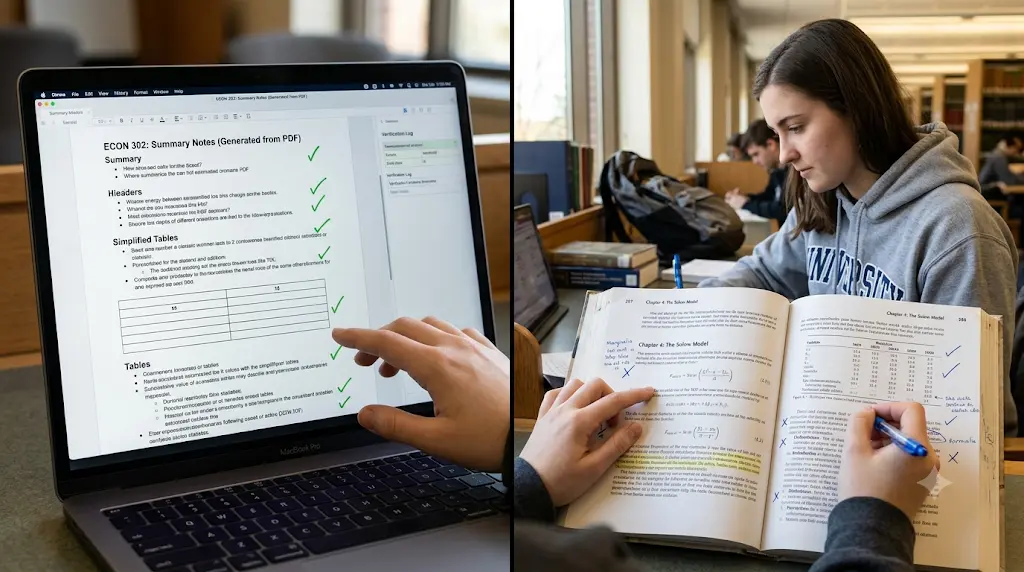
What AI Still Gets Wrong in PDF-Based Notes
AI models don’t fail randomly — they tend to fail in specific, predictable places:
- Tables — rows and columns can get flattened or mismatched when converted to plain text
- Formulas — a variable can be swapped, dropped, or misattributed, especially in dense STEM material
- Diagrams — a chart or figure referenced only by caption is often reinterpreted rather than read
- Footnotes and citations — these are easy for AI to drop entirely or attach to the wrong claim
- Scanned or low-quality text — OCR errors turn one character into another (a “1” read as an “l”, for instance) without any visible warning
- Similar-looking technical terms — terms that differ by one word (e.g., two syndromes, two economic models) get conflated
- Context split across pages — a definition on page 12 and its exception on page 14 may not get connected
A formula that gets summarized with one wrong variable is a realistic way to lose marks — not because the student didn’t study, but because they memorized what the AI wrote instead of what the textbook said. That’s exactly why this step exists.
Specifically re-check:
- Numbers, statistics, and dates
- Formulas and their variables
- Technical definitions and terminology
- Direct quotations
- Research findings and methodology details
Google’s own NotebookLM documentation describes its answers as grounded in your uploaded sources with citations back to the originating passage, which is what makes spot-checking faster. OpenAI is similarly direct that ChatGPT’s Study Mode is meant to guide learning rather than hand over a final answer, and that uploaded files follow the same behavior — including the same possibility of errors — as the rest of ChatGPT. Treat that as the standard for any AI-generated note, from any tool, not just these two.
Step 6: Convert Notes Into Active-Recall Material
Notes you only reread are notes you’ll forget. Push them one step further:
PDF → Notes → Flashcards → Quiz → Identify weak areas → Re-review only those
Ask for more than generic questions. A useful follow-up prompt is: “Based only on this PDF, create questions that test definition, explanation, comparison, and application — not just recall of a single fact.” Those four question types roughly mirror how exams actually test understanding:
- Definition — what is it?
- Explain — why does it work that way?
- Compare — how is it different from a related concept?
- Apply — how would you use it in a new problem?
Several tools now generate this kind of material automatically. NotebookLM’s documentation describes flashcard and quiz generation built directly from your uploaded sources. RemNote’s product pages describe AI-generated flashcards and quizzes created directly from uploaded PDFs, tied into a spaced-repetition scheduler that resurfaces cards right before you’re likely to forget them.
Why AI Summaries Alone Don’t Make Good Study Notes
A summary compresses information. Study notes organize information for retrieval under exam pressure — a genuinely different job, even when both come from the same AI tool.
Direct answer: AI-generated summaries alone don’t make good study notes because a summary only shortens information, while study notes need to be structured for active recall.
Use this four-layer check on any AI-generated notes before you trust them for revision:
- Understand — could you explain each concept out loud, in your own words, without looking?
- Connect — do you know how this topic relates to the ones before and after it?
- Recall — can you answer a question about it without the notes in front of you?
- Apply — could you use this concept in a problem, essay, or exam scenario you haven’t seen before?
If AI-generated notes only pass the first check, they’re a summary. Passing all four is what makes them study notes.
Many students struggle because they do not have a structured study schedule. If that sounds familiar, check out AI Tools for Creating a Study Timetable Automatically: 9 Powerful and Smart Solutions for Students in 2026 to learn how AI can create a personalized timetable in just a few minutes.
AI-Generated Notes Quality Checklist
Before you trust a set of AI-generated notes for revision, run through this list. It takes about two minutes and it’s worth bookmarking.
Ask yourself:
- Does every major topic from the PDF appear in the notes?
- Are formulas copied correctly, variable by variable?
- Are important exceptions and edge cases included, not just the general rule?
- Are definitions faithful to the source wording, not loosely paraphrased in a way that changes the meaning?
- Can you locate the original page or section for each major claim?
- Can you answer a recall question about the topic without looking at the notes?
If more than one or two of these come back “no,” the notes need another pass — either more verification, or a better extraction prompt.
Which Workflow Should You Use?
The right process for turning a PDF into study notes with AI changes depending on the document and your timeline, not just the tool.
- A short, 10-page PDF → summarize, then generate recall questions directly — no need for the full six-step process
- A 50-page textbook chapter → work section by section, not the whole chapter at once
- Lecture slides → generate notes, then explicitly check for missing context between slides
- A research paper → extract claim, evidence, and methodology separately, and verify statistics against the original
- A scanned PDF → run OCR first, and manually confirm the extracted text before trusting any AI summary of it
- Exam tomorrow → skip straight to high-yield notes plus a short quiz — don’t try to build a full flashcard system overnight
- Exam in three weeks → build full structured notes, convert to flashcards, and review on a spaced schedule rather than cramming later
What Prompt Should You Use to Turn a PDF Into Study Notes?
Beyond the extraction prompt in Step 3, two follow-up prompts are worth keeping on hand:
- For restructuring: “Reformat this into: Topic, Key Concept, Definition, Example, Common Confusion, and one Recall Question per concept.”
- For self-testing: “Based only on this PDF, create 10 questions that test definition, explanation, comparison, and application — not just recall of a single fact — and don’t give me the answers until I ask.”
How to Turn AI-Generated Notes Into Flashcards and Quizzes
Once your notes are structured, most modern AI study tools can generate flashcards or quizzes directly from them, instead of you writing cards by hand one at a time. NotebookLM’s documentation describes flashcard and quiz creation from your uploaded sources, and RemNote’s product pages describe the same for PDFs specifically, tied into its spaced-repetition review system. The practical workflow: generate the cards, delete or edit the ones that don’t match how you’d phrase the concept yourself, then review on a schedule rather than all at once the night before an exam.
Which AI Tools Are Best for PDF Study Notes?
Don’t pick a tool by brand recognition — pick it by which part of the workflow you actually need help with. Every tool below can help you make study notes from PDF using AI, but no single one is flawless, and each has a real limitation worth knowing before you spend time on it.
If I had to point most students toward one setup, it wouldn’t be the flashiest option. A plain PDF → structured notes → quiz system that you actually use every week beats an impressive AI mind map that gets generated once and never opened again.
NotebookLM (Google)
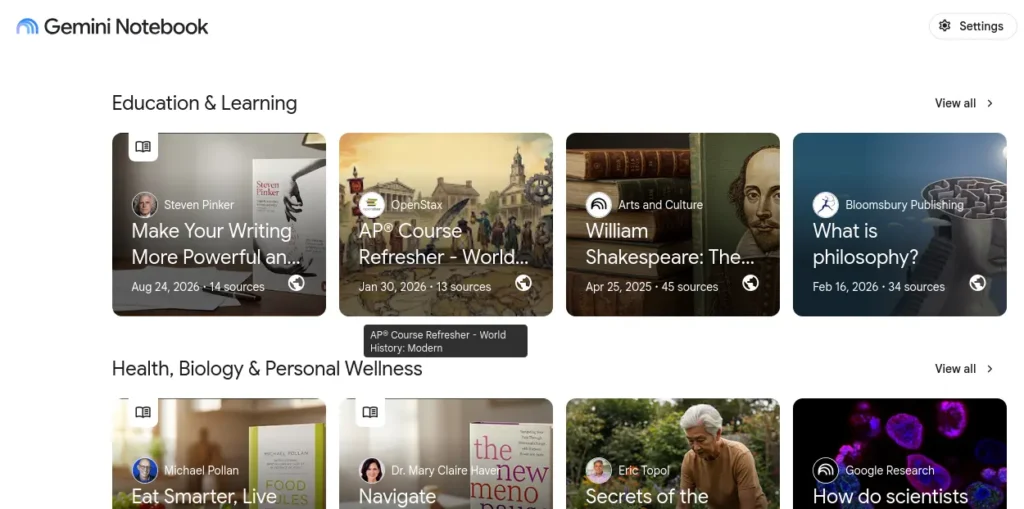
Best for: source-grounded study notes with citations
Strengths: Answers are grounded only in your uploaded documents, reducing the risk of AI adding outside — possibly wrong — information.
The free tier is genuinely usable: 100 notebooks, 50 sources per notebook, 50 chat queries a day, plus flashcards, quizzes, and audio and video overviews included at no cost.
Watch out for: Google renamed the product to “Gemini Notebook” in mid-2026, so you may see either name — the underlying tool is unchanged. Paid tiers aren’t sold standalone; they come bundled inside a Google AI subscription, starting around $4.99/month as of this writing, which is more than most students need just for PDF notes. Choose this if: your priority is keeping every answer tightly tied to your own lecture PDFs, with a citation you can click back to.
ChatGPT Study Mode (OpenAI)
Best for: working through a concept with guided, question-based tutoring rather than a flat summary
Strengths: You can upload PDFs and course materials directly, and Study Mode is available across all ChatGPT plans, including the free tier. It asks questions back instead of just handing over an answer, which suits understanding a hard concept more than quickly extracting a note set.
Watch out for: Study Mode uses the same message and rate limits as regular ChatGPT, and file-upload limits depend on your plan — it isn’t a dedicated document tool, so long PDFs and multi-document comparison aren’t its strength.
Choose this if: you’re stuck on one confusing concept and want to be walked through it, not just handed a summary of it.
RemNote
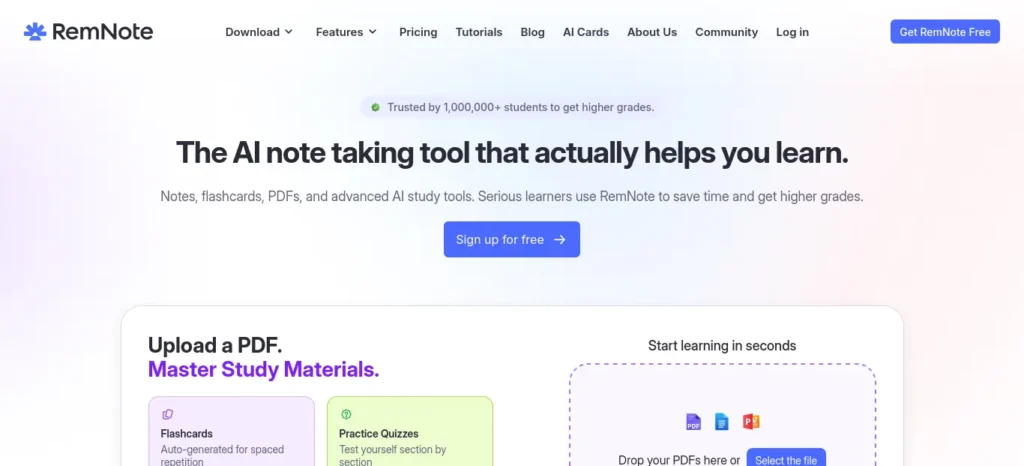
Best for: turning notes into a long-term flashcard and spaced-repetition system
Strengths: A genuinely usable free plan with unlimited notes and flashcards, plus a small number of AI credits and annotated PDFs each month, and a built-in exam scheduler that resurfaces cards before you’re likely to forget them.
Watch out for: Free-tier PDF annotation is capped at a small number of documents per month, and heavier AI use — auto-generated summaries and questions — is metered through monthly credits. Daily users will likely need the paid tier.
Choose this if: you want notes and flashcards to live in the same system, reviewed on a schedule, instead of scattered across separate apps.
Mapify
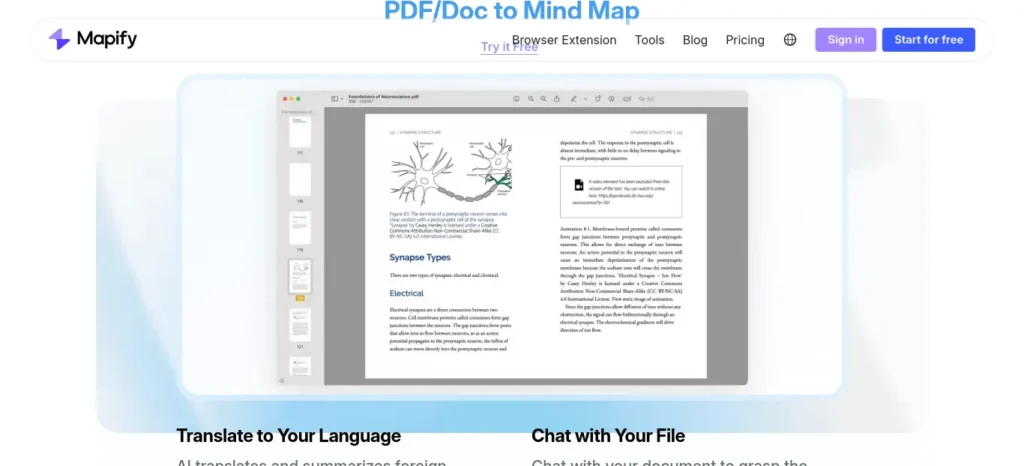
Best for: visual learners and subjects with lots of interconnected ideas — biology, history, management theory
Strengths: Converts a PDF directly into a mind map rather than linear notes, which helps when the relationships between concepts matter as much as the concepts themselves.
Watch out for: The free plan is credit-based and caps out after roughly five document conversions before you hit a paywall. A mind map on its own isn’t a complete revision system — you’ll still want a recall step layered on top of it.
Choose this if: you keep forgetting how topics connect to each other, more than forgetting the topics individually.
Humata
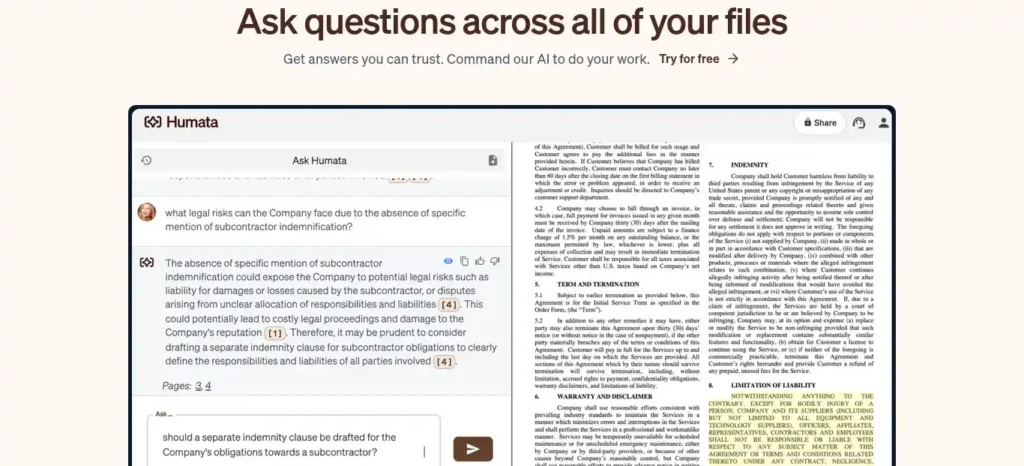
Best for: research papers and dense academic PDFs, where you mainly want to interrogate the document rather than get a full note set
Strengths: Every answer is grounded in the uploaded document with page-level citations, which is exactly the kind of traceability research papers need.
Watch out for: The free plan caps out at a modest number of pages per month, so it’s better suited to a handful of research papers than a full semester’s textbook reading.
Choose this if: you’re writing an assignment or thesis section and need to trace every claim back to a specific page.
NoteGPT

Best for: a fast first-pass transformation of a long PDF or lecture recording before you decide it’s worth deeper study
Strengths: Handles PDFs, YouTube lecture recordings, and web articles in one place, with mind maps and flashcards generated alongside the summary.
Watch out for: The free plan is limited to a small number of AI requests per month, and it’s a broader content-summarization tool rather than a dedicated academic note system. Its free-tier limits have shifted more than once in 2026, so verify the current number on its own pricing page.
Choose this if: you have a pile of unsorted PDFs and recordings and just need to triage which ones deserve a proper study session.
YouLearn AI
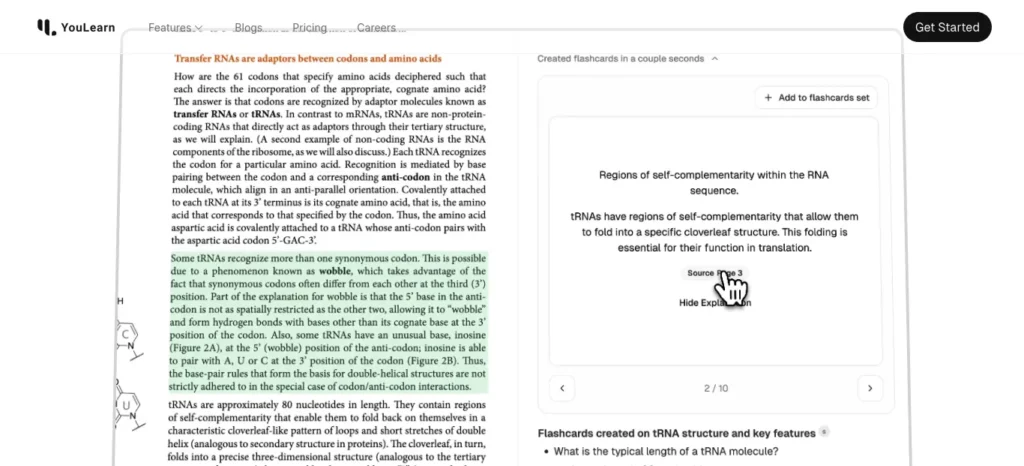
Best for: a PDF-to-tutor workflow — notes, then interactive Q&A, then a practice test on the same material
Strengths: Combines note generation with an AI tutor chat and auto-generated practice exams from the same uploaded document, covering more of the Prepare-to-Recall pipeline in one tool than most competitors.
Watch out for: Free-tier daily limits on uploads and chats are tight, and reported pricing for the paid tier varies noticeably across sources — confirm the current number on YouLearn’s own pricing page before subscribing.
Choose this if: you want one tool to take you from “here’s my PDF” all the way to “quiz me on it,” without switching apps between steps.
Which Tool Should You Choose?
Use this as a quick decision path rather than researching all seven tools from scratch:
- Need a fast, free, source-grounded summary with citations? → NotebookLM
- Want to be quizzed and guided rather than handed an answer? → ChatGPT Study Mode
- Want notes to become a long-term spaced-repetition flashcard system? → RemNote
- Studying something with lots of interconnected concepts? → Mapify
- Working mainly with research papers or academic PDFs? → Humata
- Need a quick first-pass summary of a long or messy document? → NoteGPT
- Want notes, tutoring, and a practice exam from the same PDF? → YouLearn AI
How Indian Students Can Use AI to Study From PDFs
The workflow above applies whether you’re working from an engineering lecture PDF, a B.Tech unit-wise syllabus, an MBA case study, NEET or JEE reference material, an NCERT chapter, or a university question bank — the six steps don’t change. What changes is how you use the free tiers.
Because most of these tools’ free plans are capped by daily or monthly usage rather than by feature, batch your PDFs by subject and exam date rather than uploading everything the moment you receive it. That way your limited free credits go toward the material you’ll actually be tested on soonest. If your coursework is bilingual, most tools will follow the language of your prompt reasonably well — for example, asking for an explanation “in simple Hindi” alongside the English notes — though quality on regional-language output varies by tool and is worth testing on a single page before you rely on it for a full chapter.
Common Mistakes When Using AI to Make Study Notes From a PDF
- Asking for a summary instead of structured notes. You get something shorter, not something you can recall from.
- Skipping verification on numbers, formulas, and dates. These are exactly what AI is most likely to get subtly wrong.
- Uploading a scanned PDF to a tool that doesn’t support OCR. You’ll get a garbled or empty output with no warning that the extraction failed.
- Never converting notes into recall practice. Rereading feels productive. It isn’t the same as being able to retrieve the answer cold.
- Uploading an entire semester’s PDFs in one sitting. This burns through free-tier limits fast and produces notes too broad to actually revise from — batch by exam, not by convenience.
Most of these mistakes come from treating the process as one step instead of six. Learning how to make study notes from PDF using AI properly means slowing down at exactly the point where it feels fastest to skip ahead — right after the AI hands you its first, unstructured output.
Preparing for semester exams? Don’t miss our detailed guide on the best AI tools for students that can help you summarize notes, create flashcards, solve doubts, and revise faster before exams.
How to Check AI-Generated Notes for Accuracy
Direct answer: To check AI-generated study notes for accuracy, pick a handful of specific claims — a number, a formula, a definition — and confirm each one against the exact page or section the AI cited in the original PDF, rather than trusting the notes as a whole. Treat this as a five-minute habit, not a one-time audit.
- Pick 3–5 specific claims per document — a number, a formula, a definition.
- Open the original PDF to the page or section the AI cited.
- Confirm the claim matches; if the tool didn’t give you a page reference, ask it to.
- If even one check fails, re-verify the whole section by hand rather than assuming the rest is fine.
- Flag anything you couldn’t verify and bring it to class or a study group rather than memorizing it as-is.
A 10-Minute PDF-to-Revision Workflow
For the night before a quiz, or a quick session between classes:
- Upload the PDF section — not the whole document — to a source-grounded tool (2 min)
- Use the structured extraction prompt from Step 3 (1 min)
- Reformat the output into Topic → Concept → Definition → Example → Recall Question (2 min)
- Spot-check two or three specific facts against the PDF (2 min)
- Generate 5–10 flashcards or quiz questions from the notes (2 min)
- Self-test once before closing the laptop (1 min)
Frequently Asked Questions
Can AI make study notes from a PDF? Yes. AI can turn a PDF into structured study notes by extracting concepts, definitions, formulas, examples, and questions. AI-generated notes should still be verified against the original document before you rely on them for exam preparation.
What is the best AI for turning PDFs into study notes? There’s no single best tool — it depends on the job. NotebookLM is strongest for free, source-grounded summaries with citations; RemNote is strongest for turning notes into long-term flashcard review; Humata suits research papers specifically.
Can ChatGPT make notes from a PDF? Yes — you can upload PDFs directly and Study Mode works across all ChatGPT plans, including free, though it’s more of a guided Q&A experience than a dedicated note-formatting tool.
Can NotebookLM create study notes from PDFs? Yes. It generates summaries, flashcards, and quizzes from uploaded sources, with citations back to the specific passage each answer came from, and its core study features are available on the free tier.
Can AI summarize a 100-page PDF? Most tools can, though very long documents are usually better split into sections — a single summary of 100 pages tends to be too broad to revise from directly.
Can AI create flashcards from a PDF? Yes. Several tools, including NotebookLM and RemNote, generate flashcards directly from uploaded PDFs, which you can then edit or delete before adding them to a spaced-repetition review schedule.
How accurate are AI-generated study notes? Generally strong on structure and coverage, but not reliable enough to skip verification — always double-check numbers, formulas, dates, and direct quotations against the source PDF.
Can AI read scanned PDFs? Only if the tool includes OCR — text recognition for scanned or image-based pages. Not every tool supports this on its free tier, so check before relying on it for a scanned document.
How do I make exam notes from a PDF? Use a structured prompt that asks for concepts, definitions, formulas, and likely exam points with page references, then reformat the output into a Topic → Concept → Example → Recall Question hierarchy rather than leaving it as a paragraph summary.
Can I turn PDF lecture slides into revision notes? Yes, though slides often lack context between bullet points, so verification matters more here — ask the AI to flag anything that seems disconnected from the surrounding slides rather than guessing at the connection.
Is it better to summarize a PDF or make study notes? Make study notes. A summary is shorter text; study notes are structured for retrieval, which is what actually helps during an exam.
How can I check AI-generated notes for mistakes? Spot-check a handful of specific facts — numbers, formulas, definitions — against the exact page the AI cited, rather than trusting the notes as a whole.
Final Takeaway
AI isn’t the study method. It’s the transformation layer between a source PDF and active recall — the part that used to take an hour of retyping and highlighting now takes ten minutes. The reading, the verifying, and the actual recalling still have to be yours.
If you remember one thing about how to make study notes from PDF using AI, make it this: don’t use AI to avoid studying — use it to remove the tedious work between the PDF and the studying itself.
Prepare → Extract → Structure → Verify → Recall → Revise. Keep that sequence, and which specific tool you pick matters a lot less than whether you follow all six steps.
About the Author
Nandhakumar is the founder and content creator behind FutureFastAI, a website focused on practical AI tools, study strategies, productivity, and technology for students.
He researches and tests AI tools to understand how they can be useful for studying, research, writing, exam preparation, and everyday productivity. His goal is to turn complex AI features into simple, practical guidance that students can actually use.
Through FutureFastAI, Nandhakumar shares step-by-step tutorials, AI tool comparisons, study workflows, and practical tips designed especially for students and beginners.
Areas of focus: AI Tools for Students · Study Productivity · AI for Learning · Student Technology · AI Workflows
Editor Policy
FutureFastAI follows a clear editorial process to ensure our content is accurate, useful, original, and easy to understand. Articles are researched using reliable sources and reviewed for factual accuracy, clarity, and relevance before publication. We update content when important information, tools, features, or pricing changes.
We do not intentionally publish misleading, copied, or factually unsupported information. Any opinions or recommendations are clearly presented as such.




2 Comments