Best AI Tools for Beginners With No Technical Skills: 8 Easy Hidden Gems
Pricing and plan limits checked: October 6, 2026. Editorial ratings reviewed: October 6, 2026. AI plans change often, so confirm details on each tool’s official page before you pay. Rupee figures use roughly ₹95 per US dollar, the approximate rate in September 2026.
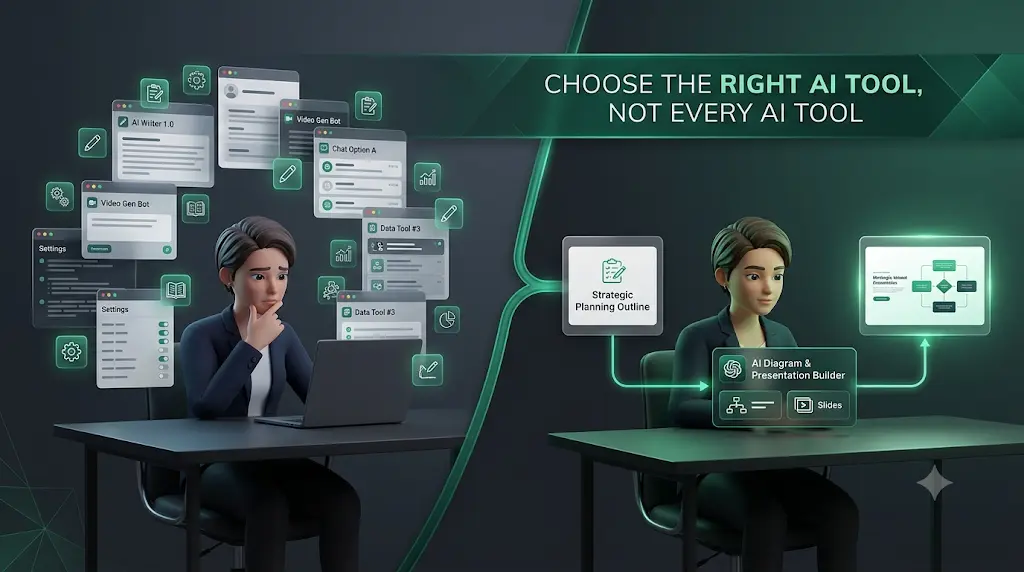
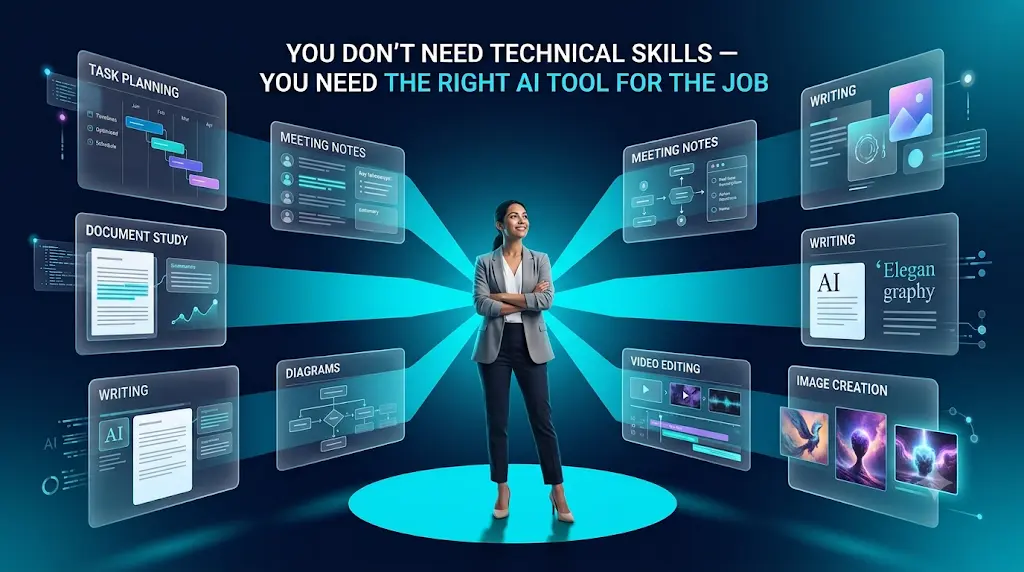
You don’t need to know coding, understand machine learning, or spend a weekend learning complicated software to get real value from AI. You just need the right tool for the job, and that is exactly where most beginners get stuck.Most people give up on AI because they try everything at once. Learn the best free AI tools for beginners and start with one simple tool that builds real confidence.
Maybe you opened ChatGPT, stared at the empty box, and wondered what you were supposed to type. Or you tried a tool, hit a paywall on day two, and closed the tab.
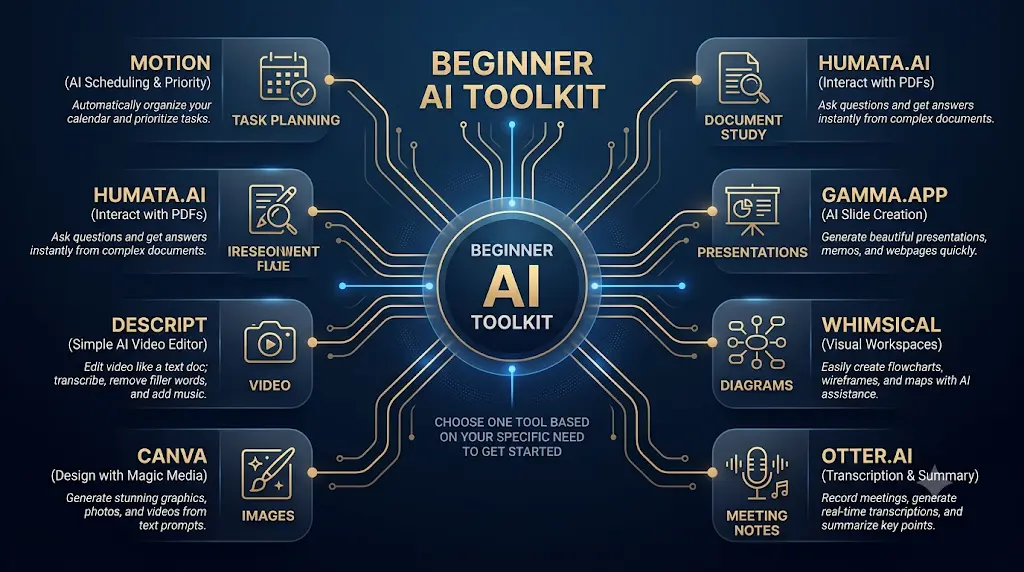
The best AI tools for beginners with no technical skills are built around one clear job: you paste something in, click once, and get something usable back. This guide covers eight of them. Each solves an everyday problem (an overwhelming to-do list, studying from documents, slides, diagrams, meeting notes, writing, video, and images). For each tool you get the first task to try, what happens when you first open it, the free-plan limits, the price in dollars and rupees, and one honest limitation.
A quick note on “hidden gem.” Most of these tools are not unknown. They are simply talked about far less than general assistants such as ChatGPT (from OpenAI), Google Gemini, and Claude (from Anthropic), or the AI search tool Perplexity. A few come from big companies but rarely reach beginners. That gap is what this list fills.
Jump to a tool: Goblin.tools · Gemini Notebook · Gamma · Napkin AI · Fathom · Wordtune · Clipchamp · Microsoft Designer
Quick Answer:
Where Should a Complete Beginner Start?
If you’ve never used AI before, start with a task-specific tool rather than trying to learn several general-purpose assistants at once. Goblin.tools is a simple starting point for task planning, Gemini Notebook is useful for studying from your own documents, Gamma suits presentations, and Napkin AI turns written ideas into diagrams.
The right choice depends more on what you want to accomplish than on which AI brand is most popular.
What Are the Best AI Tools for Beginners With No Technical Skills?
The best AI tools for beginners with no technical skills are task-specific tools with simple interfaces and a usable free plan. Goblin.tools suits task planning, Gemini Notebook suits studying from documents, Gamma suits slides, Napkin AI suits diagrams, Fathom suits meeting notes, Wordtune suits writing, Clipchamp suits video, and Microsoft Designer suits images.Most beginners don’t waste money on AI—they waste time choosing the wrong tools. Discover the free AI tools that beginners can start using today and build confidence from your very first AI experience.
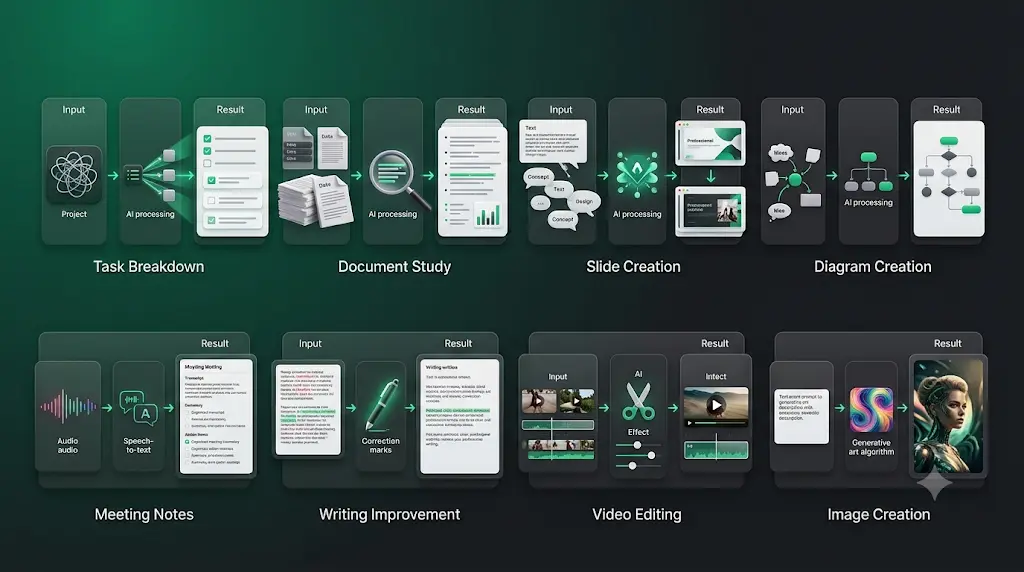
Best AI Tools for Beginners With No Technical Skills: Best-by-Need Table
| If you need to… | Start with | Difficulty | Free? | Main limitation |
| Break down a task | Goblin.tools | Very low | Yes | Can over-split |
| Study documents | Gemini Notebook | Low | Yes | Usage limits |
| Create slides | Gamma | Very low | Yes | Credits don’t refill |
| Create diagrams | Napkin AI | Very low | Yes | Watermark |
| Take meeting notes | Fathom | Low | Yes | Advanced AI capped |
| Polish writing | Wordtune | Low | Yes | 10 rewrites a day |
| Edit video | Clipchamp | Low | Yes | Premium assets paid |
| Make images | Microsoft Designer | Low | Yes | Shared credits |
Quick Comparison Cards
Best for: task planning ·
Difficulty: ★★★★★ ·
Setup: very low ·
Start here: Magic ToDo
Best for: studying from your own files ·
Difficulty: ★★★★☆ · Setup: low (Google account) ·
Start here: one chapter
Best for: slide decks ·
Difficulty: ★★★★★ ·
Setup: low ·
Start here: a 5-slide outline
Best for: diagrams from text ·
Difficulty: ★★★★★ ·
Setup: low ·
Start here: one paragraph
Best for: meeting notes ·
Difficulty: ★★★★☆ ·
Setup: medium (connect an account) ·
Start here: one short call
Wordtune ·
Best for: clearer writing ·
Difficulty: ★★★★☆ ·
Setup: low ·
Start here: one email
Best for: video with AI captions ·
Difficulty: ★★★★☆ ·
Setup: low ·
Start here: a 30-second clip
Best for: images and graphics ·
Difficulty: ★★★★☆ ·
Setup: low ·
Start here: one social post
Why Not Just Use ChatGPT for Everything?
General-purpose AI assistants such as ChatGPT, Gemini, Claude, and Perplexity are flexible, but flexibility creates its own problem for beginners: you have to decide what to ask, how to structure the task, and which workflow to follow. Task-specific tools reduce those decisions by building the workflow into the product.
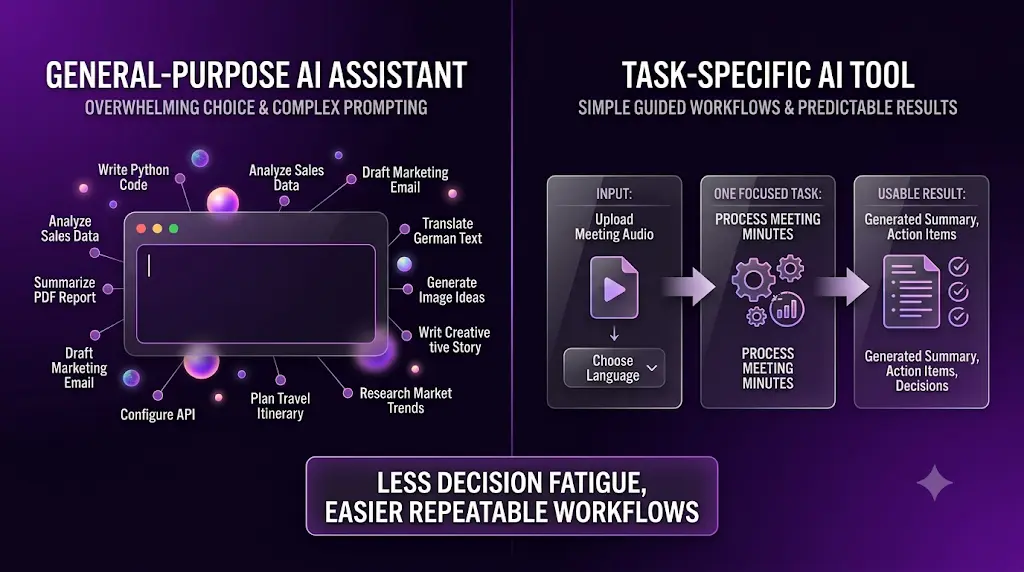
| General AI assistant | Task-specific tool |
| Broad capability | Narrower purpose |
| You design the workflow | Workflow is often built in |
| More flexibility | Less decision fatigue |
| Good for exploration | Good for repeatable tasks |
That makes task-specific tools natural ChatGPT alternatives for beginners who feel stuck at a blank prompt box. It does not make them better in every way. If you already know what to ask, a general assistant can do much of this work too.If you want AI to do more than just answer questions, discover these AI Tools for People With No Coding Skills that can save you at least one hour every day.
Popular AI Tools vs Hidden-Gem AI Tools
A hidden gem isn’t automatically better than a popular tool. Its advantage is usually specialization.
- ChatGPT: breadth across many tasks
- Perplexity: AI search with linked sources
- Claude: long-form writing and reasoning
- Specialized tools: one focused workflow with fewer decisions
If you want to explore, use a general assistant. If you want a repeatable result with minimal setup, a specialized tool is often the easier start.
How Were the Best AI Tools for Beginners With No Technical Skills Chosen?
Every tool had to pass five checks: a low learning curve, a real free plan (not a short trial), pricing you can find without a sales call, a distinct job that a general chatbot does less conveniently, and active development.
Several popular candidates were left out because their free-plan or pricing information conflicted across sources, or because their paid plans were too expensive for a beginner. Where information was uncertain, this guide says so.Using AI for the first time can feel confusing, but you don’t need to be tech-savvy—this beginner-friendly guide shows you exactly where to start.
The FutureFastAI Editorial Scoring Framework
Each tool received scores on eight dimensions. The weights are below.
| Criterion | Weight |
| Beginner usability | 25% |
| Practical usefulness | 20% |
| Setup friction | 15% |
| Free accessibility | 10% |
| Output checkability | 10% |
| Differentiation | 10% |
| Value | 5% |
| Ongoing development | 5% |
Output checkability means how easily a beginner can review and correct the result, for example by comparing it to a source or editing it directly.
Beginner friction (rated Low, Medium, or High) measures how much setup, account creation, configuration, terminology, and experimentation a first-time user needs before getting a useful result.
What Is Verified and What Is Editorial
Each tool section separates two kinds of information:
- Verified facts: plans, limits, features, and prices, checked against official pages where they could be read, with the source named.
- FutureFastAI assessment: scores, friction ratings, and recommendations. These are editorial judgments based on the framework above and the product’s published design. They are not laboratory measurements, and they are not the result of hands-on benchmark testing.
Where a price could not be confirmed, each tool shows a pricing confidence level: High means an official page confirms it, Medium means independent sources agree, and Low means sources conflict, so no exact figure is given.
8 Easy AI Tools for Beginners With No Technical Skills, Reviewed
1. Goblin.tools:
Best for Turning an Overwhelming Task Into Small Steps
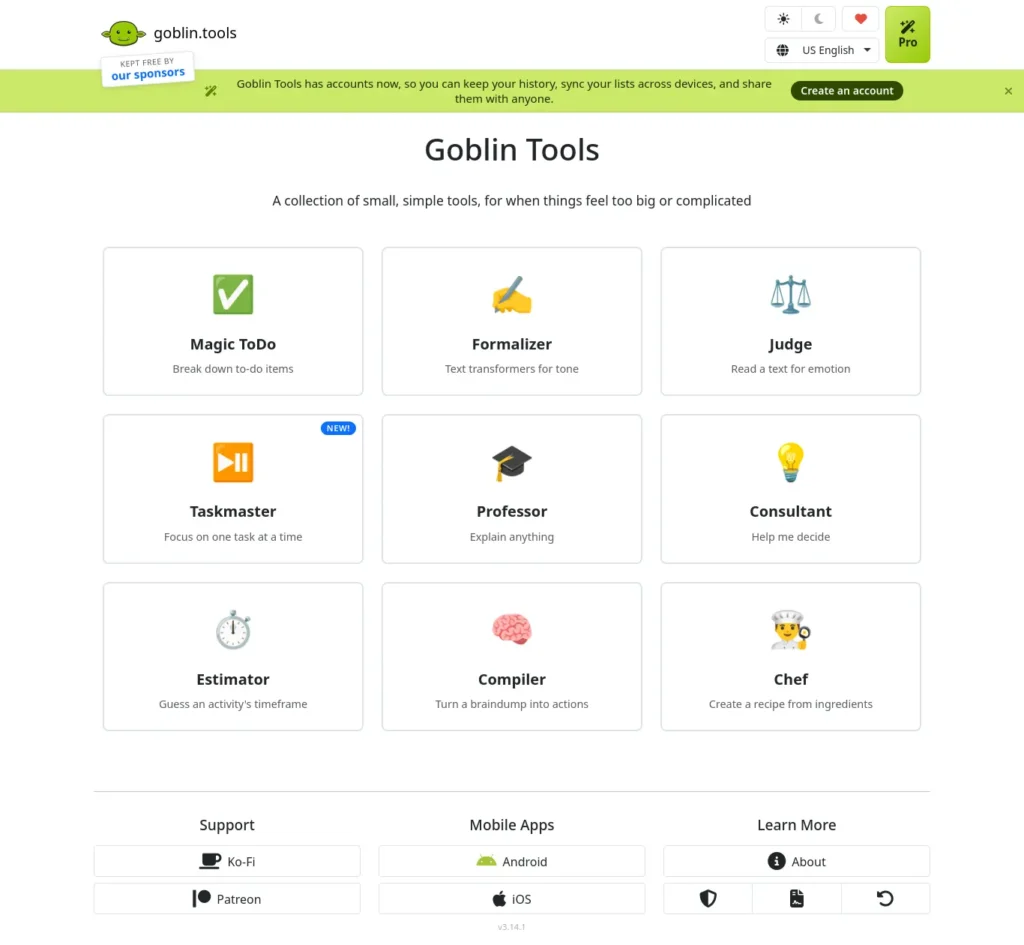
Goblin.tools is a collection of small, single-purpose AI tools, made by independent developer Bram De Buyser, for “when things feel too big or complicated,” as its homepage describes it. It works for anyone who stalls at “where do I even start?”
Best first task: Break down one task you’ve been avoiding.
Don’t start with: Your entire semester plan.
Start with: One assignment.
First-time experience: Based on the product’s published design, the home page lists nine tools, each opening on its own page, so there is nothing to configure. A beginner types a task into Magic ToDo and gets a list of steps. You can break any step down further.
Your first three steps: 1) Open Magic ToDo. 2) Type one task in plain words. 3) Adjust the “spiciness” setting if you want finer steps, then copy the list.
Beginner reality check: Expectation: the tool does the task for you. Reality: it only plans the steps. You still do the work.
Verified facts (checked October 6, 2026)
- Tools: Magic ToDo, Formalizer, Judge, Taskmaster, Professor, Consultant, Estimator, Compiler, and Chef.
- Free plan: The site says everything not listed under Pro “stays free for everyone,” and describes itself as kept free by sponsors. No sign-up was needed to view the tools.
- Pro: $3 per month (also listed as €3 or £3), with a one-week free trial. Pro adds cross-device list sync, your last 50 results on each tool, saved templates and tones, and custom instructions. At about ₹95 per dollar, that is roughly ₹285 a month.
- Mobile apps: Android and iOS apps exist. The site banner listed $2.99.
- Pricing confidence: High, from Goblin.tools’ Pro page.
FutureFastAI assessment (editorial)
- Beginner friction: Low. Estimated time to first useful result: about 2 minutes (an estimate from the steps required, not a timed test).
- Scorecard: Ease 9.8/10 · Value 9.5/10 · Beginner fit 8.4/10 ·
Overall 9.0/10
- Skill level: Beginner: Excellent · Intermediate: Good · Advanced: Limited
Best for: ✓ Beginners ✓ Overwhelmed students ✓ Quick planning
Not best for: ✕ Full project management ✕ Calendar sync and reminders
What could improve: A clearer way to see which results are saved before you close the tab would help first-time users.
Choose it if a task feels too big to start.
Skip it if you want a full task manager.
Consider instead: a calendar or to-do app for reminders.
Try this: In Magic ToDo, type “Prepare for my first job interview.”
2. Gemini Notebook (Formerly NotebookLM):
Best for Studying From Your Own Documents
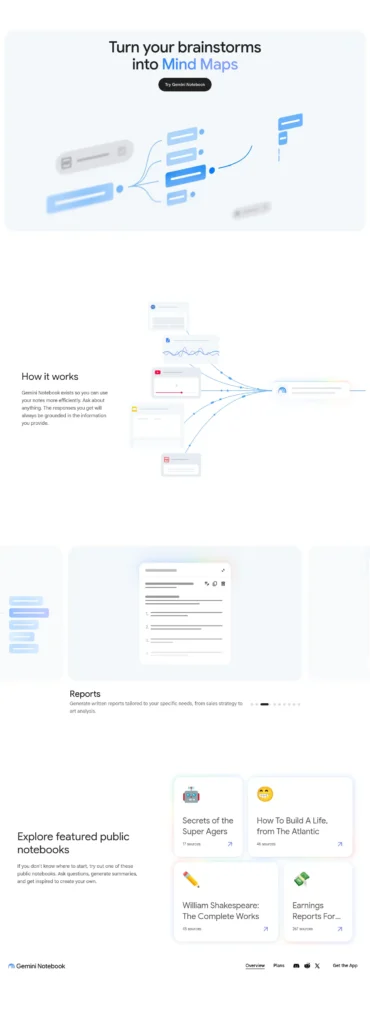
Gemini Notebook is Google’s AI research and note-taking tool that answers questions using the sources you upload, such as PDFs, notes, and documents. Google renamed it from NotebookLM on July 16, 2026. It remains a standalone product, and notebooks sync with the Gemini app.
Best first task: Summarize one chapter.
Don’t start with: A full semester of notes.
Start with: One chapter.
First-time experience: The core workflow is to create a notebook, add a source, and ask a question. Because answers are grounded in your own sources, a beginner can check them against what they uploaded. Results improve when you state your goal and how detailed you want the answer.
Your first three steps:
1) Sign in with a Google account.
2) Upload one PDF or paste your notes.
3) Ask for a summary, then ask follow-up questions.
Beginner reality check: Expectation: it knows everything about my topic. Reality: it knows what you upload, so weak sources give weak answers.
Verified facts (checked October 6, 2026)
- Rename: Reported by several outlets from Google’s announcement, including Neowin and The Next Web. Old NotebookLM links redirect to the new address.
- Free plan: Free with a Google account. An independent tracker lists 100 notebooks, 50 sources per notebook, and 50 chat queries per day. Another report says Google changed limits from September 2, 2026, so check the numbers inside the app.
- Paid access: Higher limits come bundled with Google AI plans. Google AI Pro was listed at $19.99 per month in US dollars (about ₹1,900). Google bills by country, so check Google’s India page for the rupee price.
- Pricing confidence: Medium. Independent sources agree on Pro, but limits were changing.
FutureFastAI assessment (editorial)
- Beginner friction: Low to Medium (needs a Google account and good source files).
- Estimated time to first useful result: about 5 to 10 minutes.
- Scorecard: Ease 8.5/10 · Value 8.5/10 · Beginner fit 9.2/10 ·
- Overall 8.8/10
- Skill level: Beginner: Excellent · Intermediate: Excellent · Advanced: Good
Best for: ✓ Students ✓ Document-based questions ✓ Checking answers against sources
Not best for: ✕ Questions beyond your sources ✕ Live web research
What could improve: Beginners would benefit from clearer in-product warnings before they approach free-plan caps.
Choose it if your information already lives in PDFs or notes.
Skip it if you need answers from the open web.
Consider instead: an AI search tool such as Perplexity.
Try this: Upload one chapter and type: “I have never studied this topic. Explain the five most important ideas in simple language, then quiz me with five questions.”
3. Gamma:
Best for Turning a Prompt Into a Slide Deck
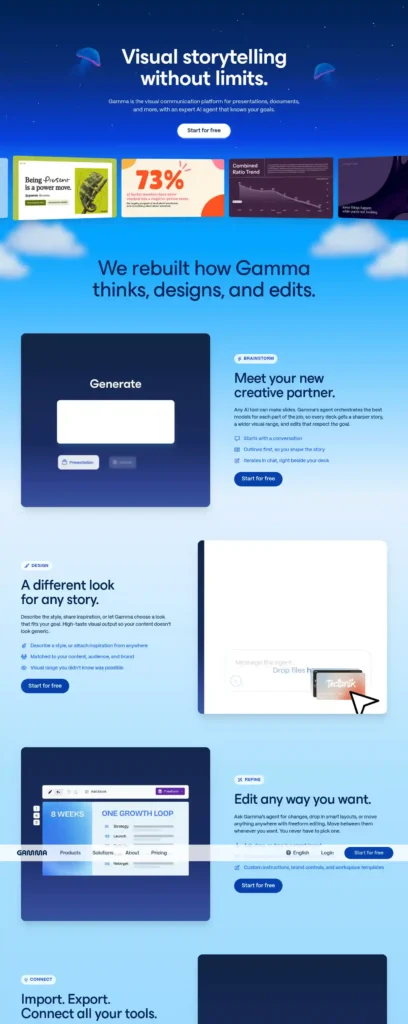
Gamma is an AI presentation and web-page maker that builds a structured, designed deck from a short description, so you don’t have to design each slide.
Best first task: Generate a short outline for a class presentation.
Don’t start with: A 20-slide deck.
Start with: A 5-slide outline.
First-time experience: The workflow starts with a prompt, then Gamma proposes an outline you can edit before it builds the deck. A beginner edits words, not layouts. The result looks presentable at first glance but still needs fact-checking.
Your first three steps: 1) Describe your topic in one or two sentences.
2) Review and edit the outline.
3) Generate the deck, then fix facts and remove filler.
Beginner reality check: Expectation: the first deck is ready to present. Reality: it is a strong draft that needs your examples and corrections.
Verified facts (checked October 6, 2026)
- Free plan: Multiple independent trackers report 400 one-time AI credits that don’t refill, up to 10 cards per prompt, and Gamma branding on output. One tracker estimates about 40 credits per AI-created deck, or roughly 10 decks in total.
- Paid plans: Per seat, per month. Gamma’s help center states that Pro includes 4,000 monthly credits.
- Pricing: Gamma’s pricing page shows prices by location, and independent sources disagree on current US dollar figures. Check Gamma’s pricing page when you’re ready to upgrade.
- Pricing confidence: Low for exact prices. Free-plan facts are consistent across sources.
FutureFastAI assessment (editorial)
- Beginner friction: Low. Estimated time to first useful result: about 5 minutes.
- Scorecard: Ease 9.0/10 · Value 6.8/10 · Beginner fit 7.9/10 ·
- Overall 8.3/10
- Skill level: Beginner: Excellent · Intermediate: Good · Advanced: Limited
Best for: ✓ Class presentations ✓ Quick drafts ✓ Simple web pages
Not best for: ✕ Strict college templates ✕ Heavy manual formatting
What could improve: Showing credit cost before each action would make the free plan easier to plan around.
Choose it if you need a good-looking deck quickly.
Skip it if your course requires a specific template.
Consider instead: a traditional slide app with your institution’s template.
Try this: “Create a 5-slide presentation for a college class on how solar panels work. Use simple language and one example per slide.”
4. Napkin AI: Best for Turning Text Into Diagrams and Infographics
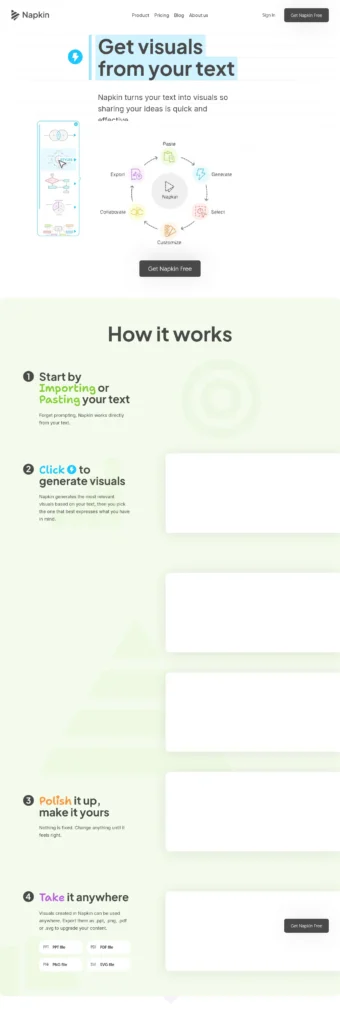
Napkin AI is a browser-based tool that reads your text and generates editable diagrams, flowcharts, mind maps, and infographics, so you don’t need drawing or design skills.
Best first task: Turn one paragraph into a flowchart.
Don’t start with: A 10-page report.
Start with: One process in one paragraph.
First-time experience: A beginner writes or pastes text, selects a passage, and generates visual options. Editing a generated visual does not use credits, so you can adjust freely.
Your first three steps:
1) Paste a paragraph describing a process.
2) Select the text and generate a visual.
3) Pick an option and edit the labels.
Beginner reality check: Expectation: it creates a full presentation. Reality: it makes individual visuals. Pair it with a slide tool.
Verified facts (checked October 6, 2026)
- Free plan: 500 AI credits per week, unlimited editing, unlimited file imports, unlimited PNG and PDF export, and Napkin branding on visuals.
- How credits work: Napkin’s pricing page says about 1 credit is charged per word selected for generation. That means the free weekly credits cover roughly 500 words of selected text per week (a calculation from the official rate, which may change).
- Plus: $9 per person per month (about ₹855). Includes 10,000 credits per month, unlimited PPT and SVG export, 3 custom styles, and branding removal.
- Pro: $22 per person per month (about ₹2,090), with 30,000 monthly credits.
- Pricing confidence: High, from Napkin’s pricing page. Older articles list $12 and $30, so older figures you see elsewhere may be out of date.
FutureFastAI assessment (editorial)
- Beginner friction: Low. Estimated time to first useful result: about 5 minutes.
- Scorecard: Ease 8.8/10 · Value 8.0/10 · Beginner fit 8.2/10 ·
- Overall 8.4/10
- Skill level: Beginner: Excellent · Intermediate: Good · Advanced: Limited
Best for: ✓ Explaining processes ✓ Reports and notes ✓ Non-designers
Not best for: ✕ Posters and photo editing ✕ Full slide decks
What could improve: A visible credit counter before generation would help beginners avoid surprises.
Choose it if your writing needs a clear visual.
Skip it if you want to design posters.
Consider instead: Microsoft Designer for graphics.
Try this: Paste a paragraph about the steps of your project and ask Napkin to visualize it as a flowchart.
5. Fathom: Best for Meeting Notes You Don’t Have to Type
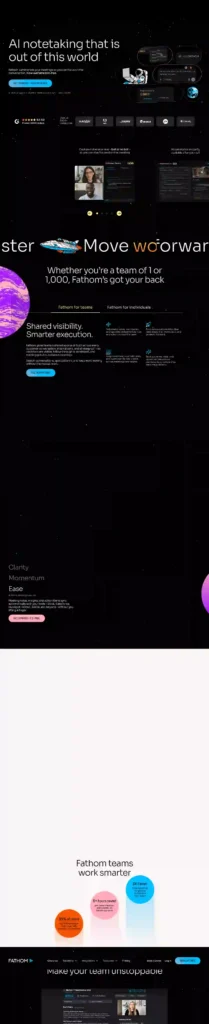
Fathom is an AI meeting assistant that records, transcribes, and summarizes calls on Zoom, Google Meet, and Microsoft Teams, so you can listen instead of scribbling notes.
Best first task: Summarize one short call.
Don’t start with: An important interview.
Start with: A low-stakes practice call.
First-time experience: Setup involves connecting your calendar or video account so Fathom can join. After the call, you get a transcript and summary without typing during the meeting. Fathom’s free plan offers bot-free capture (in beta) or a bot that joins the call.
Your first three steps:
1) Connect your meeting account.
2) Join a short call with Fathom enabled.
3) Review the summary against the transcript.
Beginner reality check: Expectation: it catches every detail. Reality: summaries can miss context, so check key decisions against the transcript.
Verified facts (checked October 6, 2026)
- Free plan: Free forever, with unlimited recordings and instant AI summaries, per Fathom’s pricing page. Independent reviews report that advanced AI summaries on the free plan apply to only the first 5 calls each month. Fathom’s page does not publish that number, so treat it as reported.
- Premium: $20 per month billed monthly, or $16 per month billed annually (about ₹1,900 or ₹1,520).
- Pricing confidence: High for Premium.
FutureFastAI assessment (editorial)
- Beginner friction: Medium. Estimated time to first useful result: about 10 to 15 minutes, because you need a call first.
- Scorecard: Ease 8.0/10 · Value 7.5/10 · Beginner fit 8.1/10 ·
- Overall 8.1/10
- Skill level: Beginner: Good · Intermediate: Excellent · Advanced: Good
Best for: ✓ Online classes ✓ Remote meetings ✓ Action items
Not best for: ✕ In-person meetings ✕ Workplaces that restrict recording
What could improve: A plain-language explanation of the free summary limit on the sign-up screen would help.
Choose it if you attend many online calls.
Skip it if your meetings are mostly in person.
Consider instead: typing short notes yourself.
Important: Tell participants you’re recording and follow your college or workplace rules.
Try this: After your next call, ask for “three decisions and who owns each action.”
6. Wordtune: Best for Making Your Writing Clearer
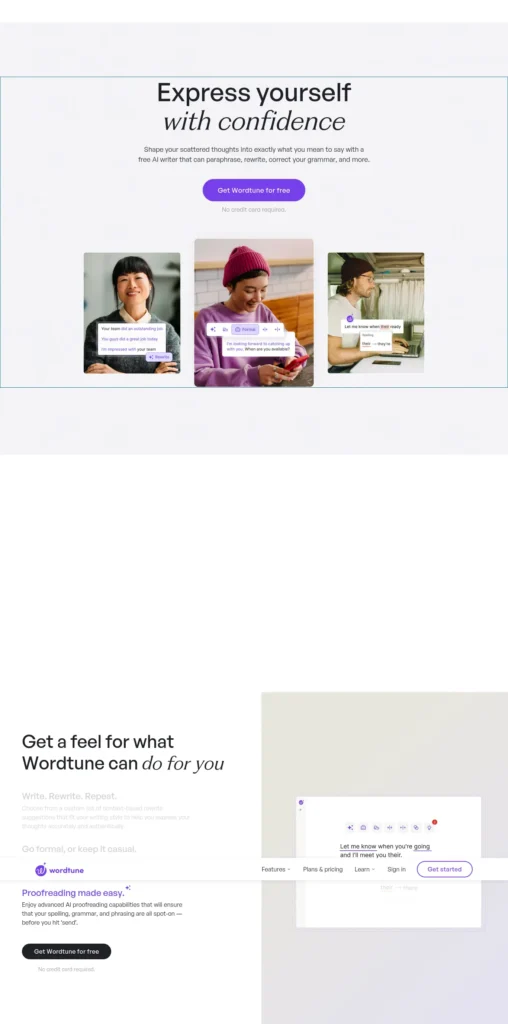
Wordtune is an AI writing assistant from AI21 Labs that rewrites sentences, adjusts tone, and corrects grammar, rather than generating whole articles from scratch.
Best first task: Polish one email.
Don’t start with: A full essay.
Start with: One paragraph.
First-time experience: A beginner pastes or highlights text and picks from alternative phrasings. You keep your own ideas and choose the version that sounds like you.
Your first three steps:
1) Paste one paragraph.
2) Choose a tone such as formal or casual.
3) Pick a rewrite, then read it aloud to check it still sounds like you.
Beginner reality check: Expectation: it writes my assignment. Reality: it improves what you wrote, which is better practice and safer for academic honesty.
Verified facts (checked October 6, 2026)
- Free plan: 10 rewrites and AI suggestions per day, 3 AI summaries per month, and unlimited spelling and grammar corrections, as reported consistently across independent reviews.
- Paid plans: Reviews list Advanced at about $6.99 per month billed annually (about ₹665) and Unlimited at about $9.99 billed annually (about ₹950). Monthly billing costs more.
- Pricing confidence: Medium. Official pages could not be read directly, and some older sources list different figures. Check Wordtune’s site before paying.
FutureFastAI assessment (editorial)
- Beginner friction: Low. Estimated time to first useful result: about 3 minutes.
- Scorecard: Ease 8.2/10 · Value 7.0/10 · Beginner fit 7.6/10 ·
- Overall 7.8/10
- Skill level: Beginner: Excellent · Intermediate: Good · Advanced: Limited
Best for: ✓ Emails ✓ Non-native English writers ✓ Tone changes
Not best for: ✕ Research ✕ Long-form drafting from scratch
What could improve: Pooling the free daily limit across devices more visibly would reduce confusion.
Choose it if your ideas are fine but your phrasing isn’t.
Skip it if you need content generated from scratch. Consider instead: a general assistant for drafting.
Try this: Paste a draft email and ask for a “more polite and concise” version.
7. Microsoft Clipchamp:
Best for Editing Videos With AI Help
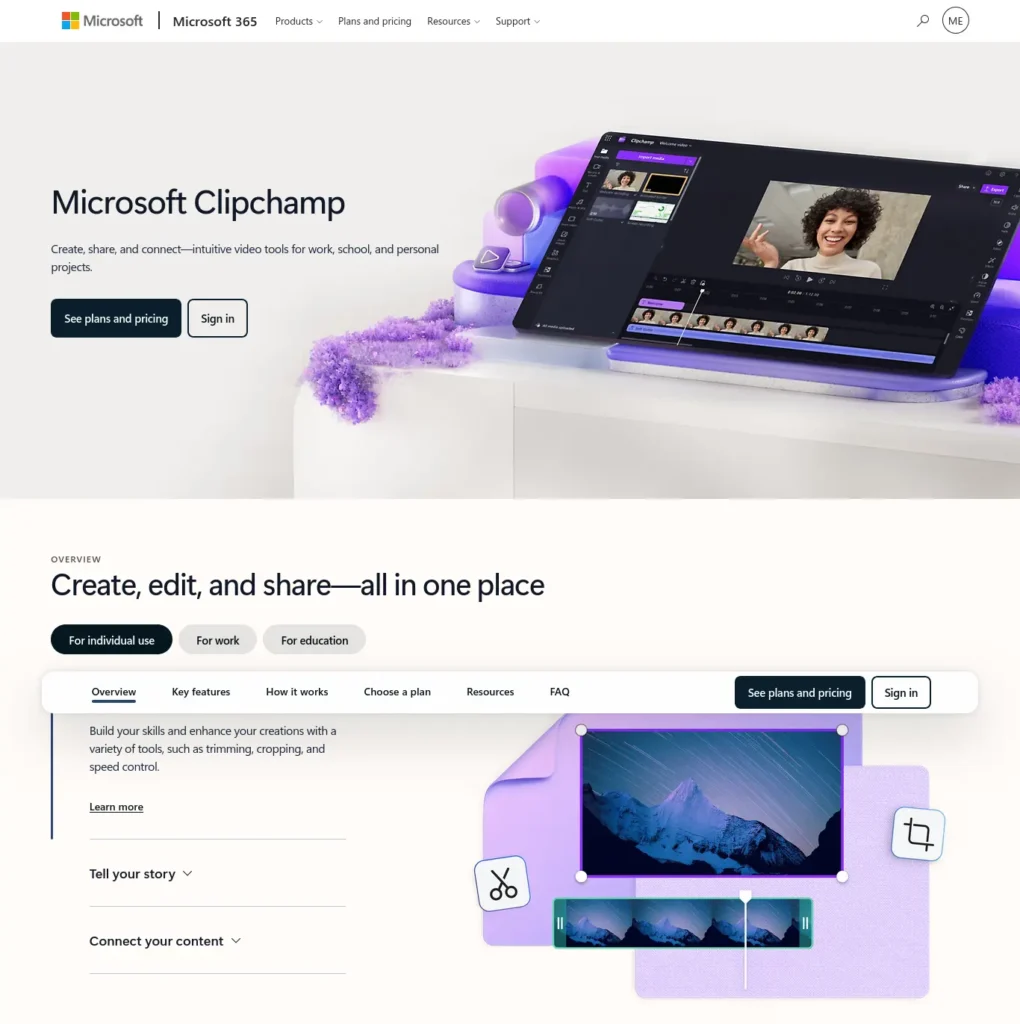
Microsoft Clipchamp is Microsoft’s browser-based video editor with beginner-friendly tools and AI features such as automatic subtitles, voiceovers, and silence removal.
Best first task: Add subtitles to a short clip.
Don’t start with: A 20-minute video.
Start with: A 30-second clip.
First-time experience: A beginner imports a clip, places it on the timeline, and uses built-in tools like trim and AI subtitles. Microsoft’s pricing page lists these as free features.
Your first three steps:
1) Import a short video.
2) Generate subtitles.
3) Proofread every line before you export.
Beginner reality check: Expectation: AI captions are always correct. Reality: you must proofread names, technical terms, and accents.
Verified facts (checked October 6, 2026)
- Free plan: Per Clipchamp’s official pricing page, you can export as many videos as you like in up to 1080p with no watermarks. Free tools include AI subtitles, voiceovers, and silence removal.
- Premium: Included with Microsoft 365 Personal and Family. Adds 4K UHD export, premium stock assets, and a brand kit. Check Microsoft’s India page for the rupee price.
- Pricing confidence: High.
FutureFastAI assessment (editorial)
- Beginner friction: Low. Estimated time to first useful result: about 10 to 15 minutes.
- Scorecard: Ease 8.2/10 · Value 9.5/10 · Beginner fit 7.7/10 ·
- Overall 8.2/10
- Skill level: Beginner: Excellent · Intermediate: Good · Advanced: Limited
Best for: ✓ Class projects ✓ Captions ✓ Free exports
Not best for: ✕ Advanced effects ✕ Slow connections with large files
What could improve: A clearer guide to which languages the AI captions support would help Indian users.
Choose it if you want simple video editing at no cost.
Skip it if you need professional color grading.
Consider instead: a desktop editor for heavy projects.
Try this: Record a 30-second introduction, generate subtitles, and fix any wrong words by hand.
8. Microsoft Designer: Best for Making Images and Social Graphics
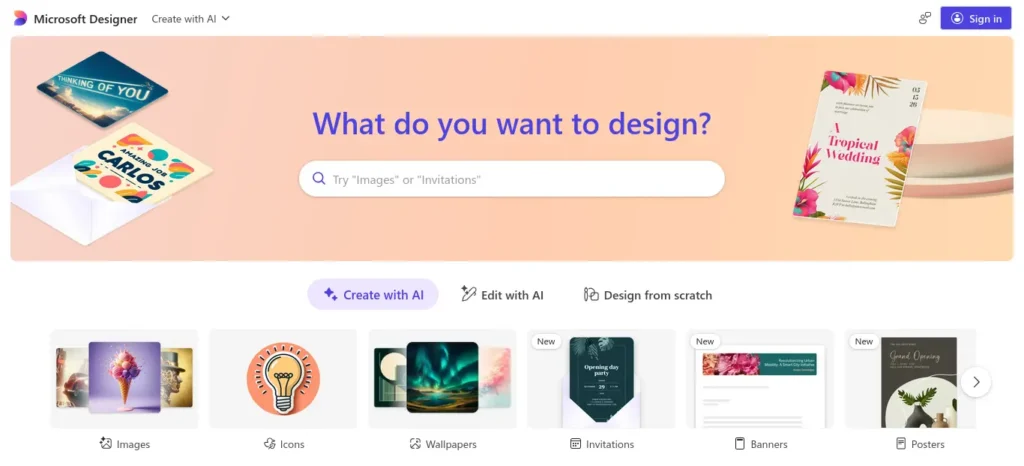
Microsoft Designer is a graphic design and image-editing app powered by AI, which Microsoft describes as a way to create and edit images from a text description.
Best first task: Create one social post.
Don’t start with: A full brand kit.
Start with: One poster.
First-time experience: A beginner describes what they want and gets options to edit. Expect to refine your description two or three times.
Your first three steps:
1) Sign in with a Microsoft account.
2) Describe your image in one sentence.
3) Pick a result and edit the text.
Beginner reality check: Expectation: the first image matches what I imagined. Reality: you usually refine your description.
Verified facts (checked October 6, 2026)
- Free plan: Per Microsoft’s Designer page, you receive a fresh set of credits each month. One credit is deducted each time you use Designer’s AI features or Copilot in Microsoft apps. The page does not list the monthly amount, so check inside the app.
- Paid access: Microsoft 365 Personal, Family, or Premium subscribers get up to four times more credits.
- Availability: Designer may not be available if your account doesn’t meet the minimum age in your region.
- Pricing confidence: High for the structure. Check Microsoft’s India page for rupee prices.
FutureFastAI assessment (editorial)
- Beginner friction: Low. Estimated time to first useful result: about 5 minutes.
- Scorecard: Ease 8.5/10 · Value 7.8/10 · Beginner fit 7.4/10 ·
- Overall 7.9/10
- Skill level: Beginner: Excellent · Intermediate: Good · Advanced: Limited
Best for: ✓ Posters and flyers ✓ Social posts ✓ Background removal Not best for: ✕ Print-ready layouts ✕ Precise brand control
What could improve: Showing the monthly credit balance on the first screen would help beginners plan.
Choose it if you want quick visuals without learning design software. Skip it if you need exact brand control. Consider instead: Napkin AI for diagrams.
Try this: “Create a clean Instagram post announcing a college coding workshop, blue and white colors, space for text.”
Which AI Tool Should You Try First?
You do not need all eight. Start with the one that matches your biggest problem this week.
Best AI Tools for Beginners With No Technical Skills: If X, Then Y
- If you are overwhelmed by a large task, start with Goblin.tools.
- If your information already exists in PDFs or notes, start with Gemini Notebook.
- If you need slides tomorrow, start with Gamma.
- If you need a visual explanation rather than a written one, try Napkin AI.
- If you sit through many online meetings, try Fathom.
- If your ideas are fine but your phrasing isn’t, try Wordtune.
- If you’re editing a short video, try Clipchamp.
- If you need a poster or social image, try Microsoft Designer.
Gamma is more suitable when you need a presentation quickly, while Napkin AI is better when the main requirement is a diagram rather than a complete slide deck.
How Easy Is Each Tool for a Beginner?
Which of the Best AI Tools for Beginners With No Technical Skills Is Easiest?
Goblin.tools scores highest for ease in this guide, followed by Gamma and Napkin AI. These ratings are FutureFastAI’s editorial assessment of usability and setup friction, not a laboratory benchmark.No AI experience? Start here—these beginner-friendly tools can save you hours of confusion and unnecessary effort.
What Can Non-Technical People Actually Use AI For?
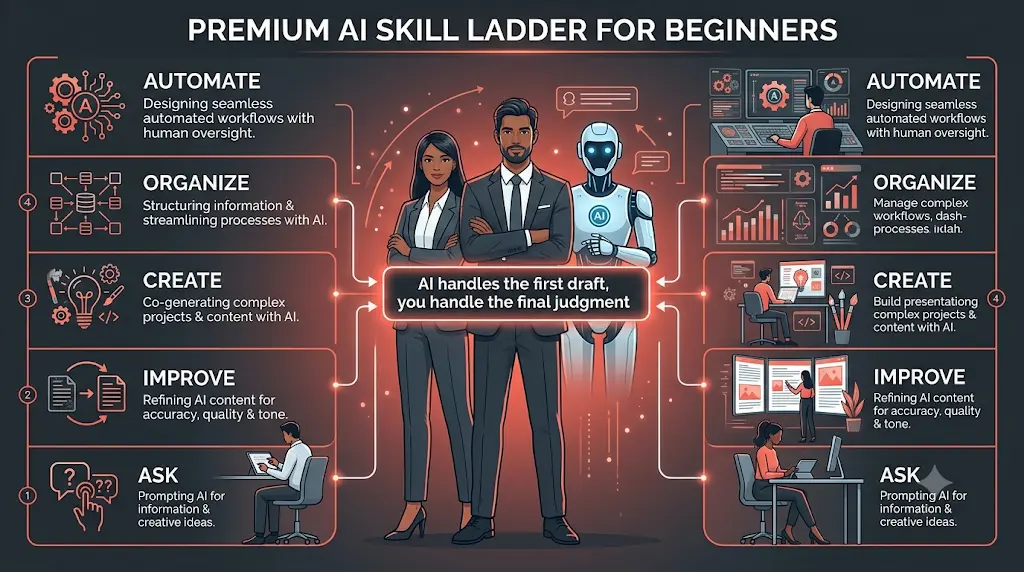
AI tools for non-technical users are most useful when they handle the first draft or the boring structure, while you supply the judgment. A simple principle runs through this guide: AI handles the first draft; you handle the final judgment. That is the human-in-the-loop approach.Most beginners waste more time choosing AI tools than actually using them—see which free AI tools for beginners are worth trying first, without needing any technical skills.
AI can help with: first drafts, summaries, organization, brainstorming, formatting, and repetitive tasks.
You should handle: final decisions, fact verification, sensitive information, personal judgment, academic integrity, and legal, medical, and financial decisions.
The AI Skill Ladder
- Level 1, Ask: Use AI for simple questions.
- Level 2, Improve: Rewrite, summarize, and explain (Wordtune, Gemini Notebook).
- Level 3, Create: Slides, diagrams, images, video (Gamma, Napkin AI, Designer, Clipchamp).
- Level 4, Organize: Tasks, meetings, documents (Goblin.tools, Fathom).
- Level 5, Automate: Connect tools and build workflows. This guide doesn’t cover it, and you don’t need it yet.
A Simple AI Prompt Formula for Beginners
A good prompt has five parts: Task + Context + Desired format + Tone + Constraint.
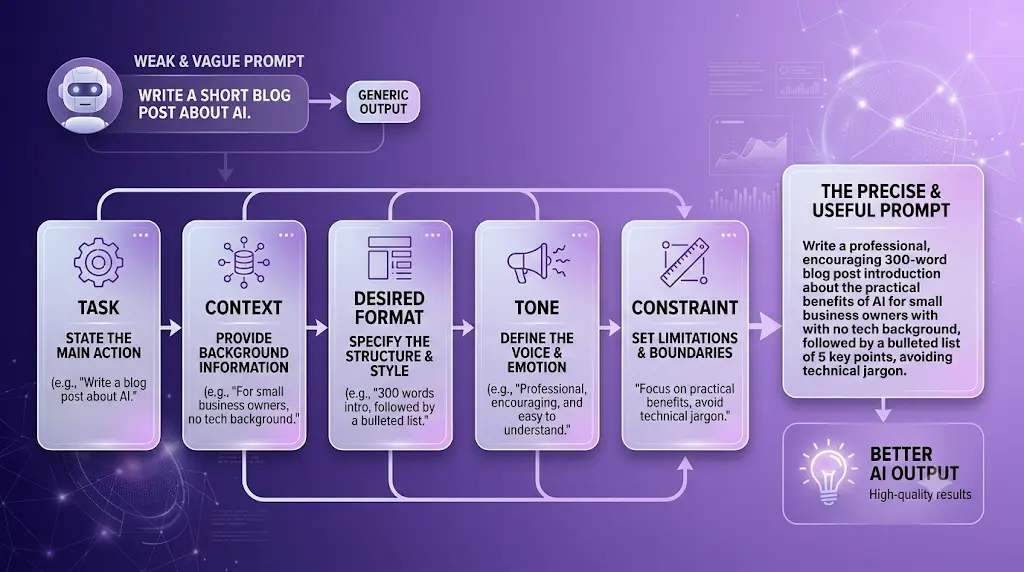
Example: “Rewrite this email to my professor. Keep it polite and under 80 words. Don’t change the meaning.”
- Task: rewrite the email
- Context: it’s for a professor
- Format: under 80 words
- Tone: polite
- Constraint: keep the meaning unchanged
Weak prompt: “Make this better.”
Better prompt: “Rewrite this paragraph in simple English, keep the meaning unchanged, remove repetition, and keep it under 100 words.”
Why it works: The second prompt gives the AI a clear task, a constraint, and an output requirement, so there is less to guess.
Which AI Tools Have the Best Free Plans for Beginners?
All eight tools have a free way to start, but “free” does not mean unlimited. The chart shows how each free plan limits you.
| Tool | Main free limit | Main paid trigger |
| Goblin.tools | Pro features (sync, history) | Need lists across devices |
| Gemini Notebook | Notebook, source, and chat caps | Hitting caps often |
| Gamma | 400 one-time credits | Credits run out |
| Napkin AI | 500 credits per week, watermark | Need clean PPT/SVG exports |
| Fathom | Advanced AI summaries capped | More than a few calls a month |
| Wordtune | 10 rewrites a day | Writing every day |
| Clipchamp | Premium assets, 4K | Need 4K or premium stock |
| Microsoft Designer | Monthly credits | Creating images often |
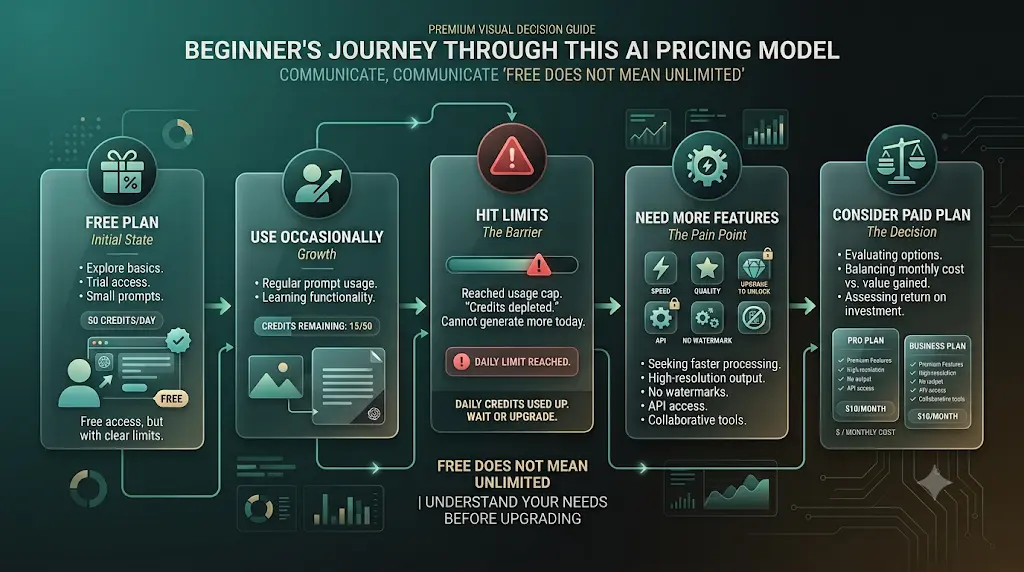
When Should a Beginner Pay for an AI Tool?
Stay free if you use the tool occasionally, the basics cover your need, and a watermark doesn’t matter.
Consider paying if you hit limits more than once a week, a paid feature clearly saves you hours, or you need clean output for work. Many of these tools bill in US dollars, so check whether your card allows international payments first.
Which AI Tools Are Worth Learning Long-Term?
A beginner does not need an AI toolbox. They need one reliable workflow.
- Learn deeply: Tools you’ll use every week.
- Learn casually: Tools you’ll use occasionally.
- Don’t learn yet: Tools that solve a problem you don’t currently have.
What Should Beginners Avoid When Using AI?
- Trusting the first output. Check facts, numbers, and names.
- Vague prompts. “Write an email” gives a generic result. Be specific.
- Subscribing on day one. Try the free plan on a real task first.
- Using five tools at once. Learn one before adding another.
- Pasting sensitive information. Keep passwords, ID numbers, and confidential documents out.
Are AI Tools Safe for Beginners?
AI tools are safe to start with if you treat them as assistants, not authorities. They can produce confident but wrong answers, so never rely on them without checking.
The 3-Check Rule
Before using important AI output:
- Check the facts.
- Check the source.
- Check whether it actually answers your question.
For academic or work use, add a fourth: check your institution’s or employer’s AI rules.
Privacy Basics
- Read the privacy policy before uploading personal or confidential files.
- Never paste passwords, bank details, or API keys.
- Tell people before you record them.
- Check whether free-plan content may be used to improve the service.
Do not rely on AI to handle legal, medical, or financial advice automatically.
Can Students Use These AI Tools for Assignments?
AI-tool policies vary by institution, instructor, course, and assignment. Use AI only as permitted, disclose use when required, and don’t submit generated work as your own when that breaks the rules.
Generally safer uses: brainstorming, explanations, practice questions, and grammar improvement.
Potentially problematic: submitting generated assignments, fabricated citations, and undisclosed AI use where it is prohibited.
Are These AI Tools Useful for Beginners in India?
Yes. Most of these tools run in a standard browser, and several offer meaningful free tiers. However, Indian users should check regional pricing, taxes, payment compatibility, language support, and data usage before upgrading.
Before Paying From India: A Checklist
- Is the price shown in rupees?
- Is GST shown at checkout?
- Does your card allow international transactions?
- Is UPI available?
- Is there a student discount?
- Is monthly or annual billing cheaper?
- What are the cancellation terms?
- Will your bank add a currency conversion fee?
Also test video and design tools on Wi-Fi first, and check how captions handle Indian-accented English or Hindi before relying on them.
The One-Tool Rule for Beginners
Don’t install ten AI tools because an article told you to. Choose one recurring problem and use one tool repeatedly until you understand where it genuinely saves you time. Tool overload makes it harder to learn any of them well.
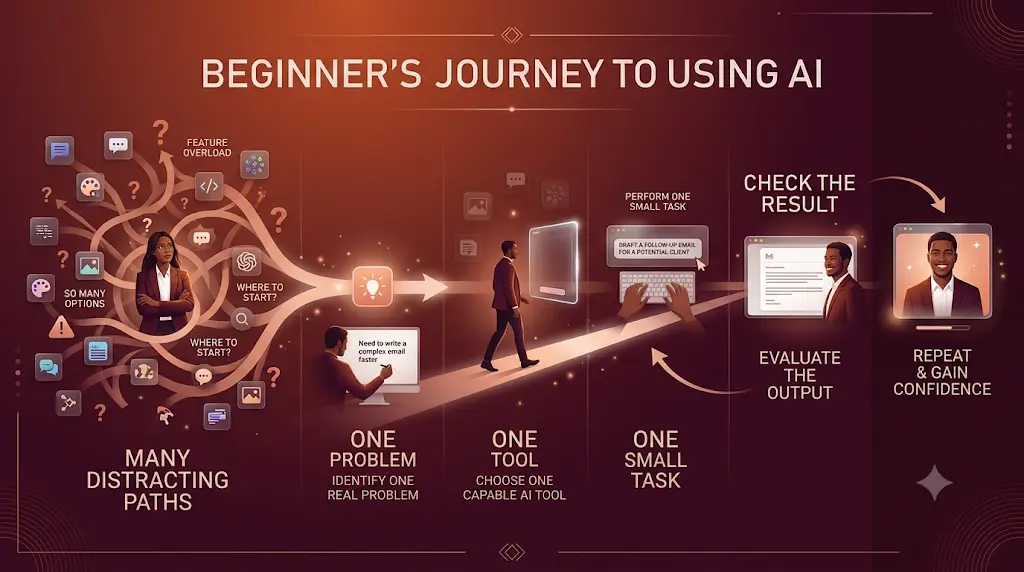
Your First 30 Minutes With AI
- 0 to 5 minutes: Pick one real problem you have today.
- 5 to 10 minutes: Open the matching tool and sign in.
- 10 to 15 minutes: Do one small task, such as rewriting one email.
- 15 to 20 minutes: Check the output for mistakes and missing details.
- 20 to 25 minutes: Improve your instruction and try again.
- 25 to 30 minutes: Repeat the task on your own without following the guide.
At the end of 30 minutes, you should have completed one real task, checked the AI output, learned one useful prompt, identified one limitation, and decided whether you actually need the tool.
Beginner AI Cheat Sheet
- Need to plan a big task? → Goblin.tools
- Need to study from documents? → Gemini Notebook
- Need slides? → Gamma
- Need a diagram? → Napkin AI
- Need meeting notes? → Fathom
- Need to polish your writing? → Wordtune
- Need to edit a video? → Clipchamp
- Need an image or poster? → Microsoft Designer
From Most Hidden to Most Mainstream
This ranking is FutureFastAI’s editorial judgment of how likely a typical beginner is to have already heard of each tool. It considers six factors: brand awareness, parent-company reach, distribution, media visibility, user adoption, and product integration. Hiddenness is not a quality score, and a mainstream product can still be the better choice.
- Goblin.tools: Independent, small, rarely mentioned.
- Napkin AI: Specialized and still niche.
- Wordtune: Known to writers but overshadowed by larger assistants.
- Fathom: Popular with remote workers, less with students.
- Gamma: Growing, widely discussed in presentation circles.
- Microsoft Clipchamp: Reaches many people through Microsoft products.
- Microsoft Designer: Also tied to Microsoft’s wider apps.
- Gemini Notebook: Backed by Google and most likely to go mainstream.
Frequently Asked Questions
What are the easiest AI tools for beginners?
The easiest AI tools for beginners have one clear job, a simple interface, and a free plan. In this list, Goblin.tools, Gamma, and Napkin AI have the lowest learning curve because you type or paste text and click once. Easy does not mean error-free, so always review the result.
What is the easiest AI tool for someone who has never used AI?
Goblin.tools is the easiest starting point for most people who have never used AI, because it needs no configuration and each tool does one thing. Type a task into Magic ToDo and get steps back. Choose another tool if your first problem is studying, slides, or video.
Can I use AI tools without knowing how to code?
You can use AI tools without coding skills because beginner-focused platforms expose their abilities through plain-language prompts and guided interfaces. Every tool in this article works through a browser or app. You describe what you want in everyday words, and the tool handles the technical work.
Which AI tools have the best free plans for beginners?
Goblin.tools and Microsoft Clipchamp have the most open free plans in this guide, while Gamma and Napkin AI limit you through credits. Fathom is free to record, but advanced summaries are capped. Check each tool’s current limits before relying on the free plan for a deadline.
Are task-specific AI tools easier than ChatGPT?
Task-specific AI tools are often easier for beginners because the workflow is built in, so you make fewer decisions. ChatGPT is more flexible but asks you to design the request. If you already know what to ask, a general assistant can do much of the same work.
Which AI tool should a beginner learn first?
A beginner should learn the tool connected to a task they do every week. If you don’t know where to begin, Goblin.tools is a gentle start because it needs no account to try. Practice on one small task before adding a second tool.
Can non-technical people use AI for work?
Non-technical people can use AI at work for drafting emails, summarizing meetings, preparing slides, and organizing tasks. Keep a human in charge: review outputs, check facts, and avoid sharing confidential information without checking your employer’s policy.
Are free AI tools good enough?
Free AI tools are good enough for learning, small projects, and occasional use. They usually fall short on volume, export quality, and advanced features. If you hit the limits repeatedly, that is your signal to consider a paid plan.
What should beginners avoid when using AI?
Beginners should avoid trusting the first output, writing vague prompts, subscribing before testing the free plan, and pasting sensitive information. Using too many tools at once also slows learning. Start with one tool and one task.
Are AI tools safe for beginners?
AI tools are safe for beginners when used carefully. Avoid sharing passwords, financial details, or confidential files, read each privacy policy, and verify important facts. AI can sound confident while being wrong, so treat its output as a draft rather than a final answer.
Final Recommendation: The Best AI Tools for Beginners With No Technical Skills
You don’t need to learn eight tools. Pick one problem, one tool, and one small task today.
- Easiest first experience: Goblin.tools
- Best for studying: Gemini Notebook
- Best for presentations: Gamma
- Best for visual explanations: Napkin AI
- Best for meetings: Fathom
- Best for writing: Wordtune
- Best for video: Microsoft Clipchamp
- Best for images: Microsoft Designer
The best AI tools for beginners with no technical skills are the ones you actually open this week. Choose one, finish one small task, and check the result.
If I Were Starting From Zero
- Day 1: Use one simple tool on one task.
- Week 1: Repeat the same workflow until it feels easy.
- Month 1: Add one specialized tool for a new problem.
Continue Based on Your Goal
- I’m completely new to AI → beginner AI guide
- I’m a student → AI tools for students
- I want free tools → free AI tools for beginners
- I want productivity tools → AI tools for productivity
Sources and Verification
Pricing and plan limits checked October 6, 2026. Re-check before December 5, 2026. Official sources are listed first. Independent sources are used only where an official page could not be read or does not state a current limit.
Goblin.tools: Official site, Pro page
Gemini Notebook: Independent: Neowin, The Next Web, Elephas on plans and limits
Gamma: Official: help center, pricing page. Independent: eesel pricing breakdown
Napkin AI: Official: pricing page
Fathom: Official: pricing page. Independent: Sonix for the free-plan summary cap
Wordtune: Independent: iTechGuides (official page could not be read)
Microsoft Clipchamp: Official: pricing page
Microsoft Designer: Official: Designer page
About the Author
Nandhakumar is the Founder & Content Creator at FutureFastAI, where he researches AI tools, study workflows, and digital productivity solutions for students, beginners, and non-technical users. His work focuses on making AI easier to understand and use through practical, evidence-based guides. Tool features, pricing, and availability are checked against official sources whenever possible and updated as products change.
Editorial Policy
FutureFastAI aims to publish useful, accurate, and transparent content based on reliable sources and clear editorial judgment. AI tool features, pricing, limitations, and availability are verified against official documentation or product pages whenever possible. We do not present unverified claims, paid placements, or simulated personal experiences as facts. Because AI products change frequently, articles are reviewed and updated when important information changes.




One Comment