Best AI Tools to Create Presentations in Minutes: 9 Picks (Including 4 Hidden Gems)
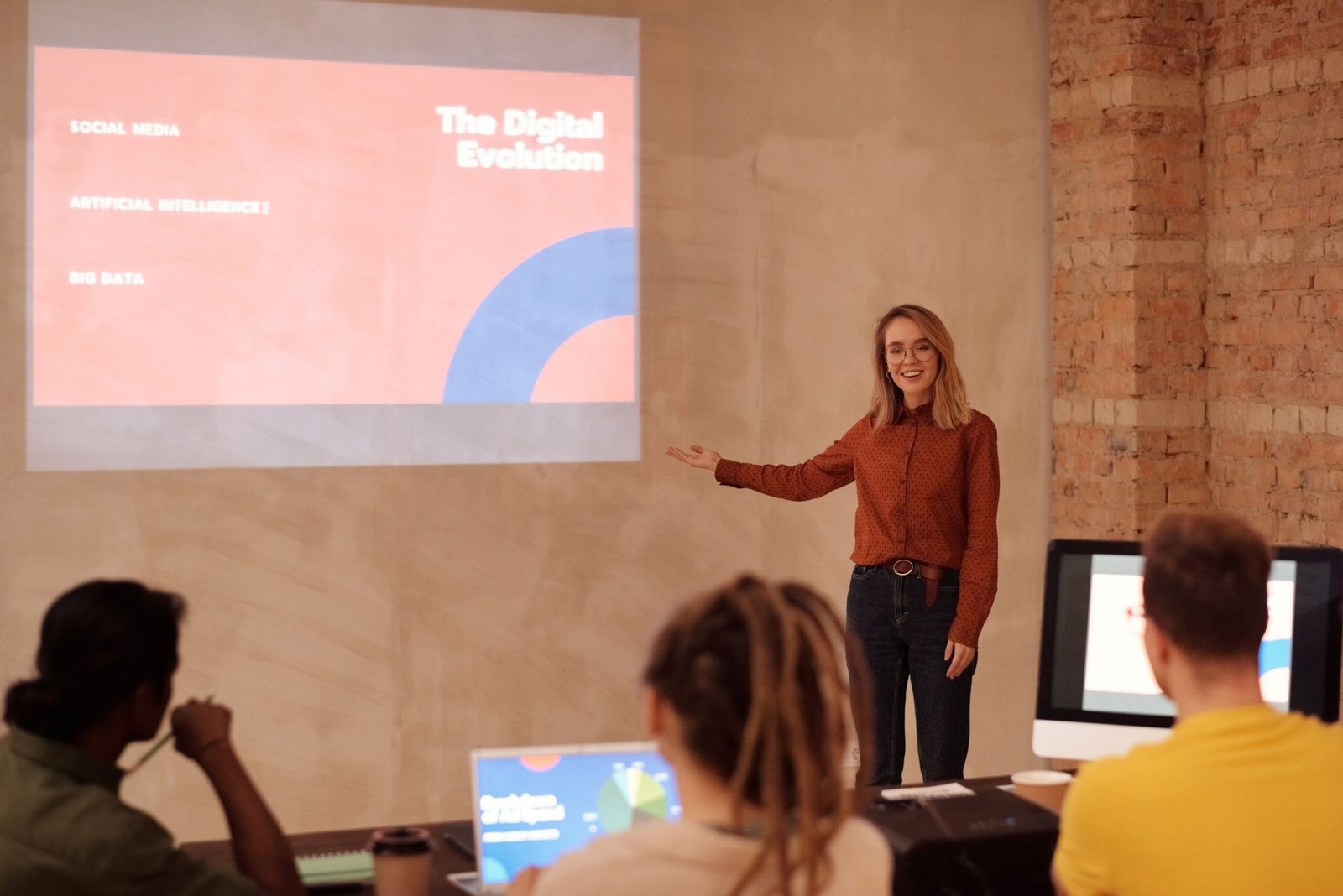
Your professor emails you a 30-page research paper on Monday and asks for a 10-minute seminar on Friday. Or your manager pings you at 6 PM: “Can you have a client deck ready by tomorrow’s 9 AM call?” Either way, the real question isn’t whether AI can produce 12 slides. It’s whether it can turn your material into a presentation you’re not embarrassed to stand up and give — without inventing facts, burying your point in six lines of text, or leaving you to rebuild half the deck by hand.
This is a guide to the best AI tools to create presentations in minutes — the mainstream names you’d expect, plus four genuinely underrated tools that solve specific problems the big names don’t. Every price, credit limit, and export detail below was checked directly against the vendor’s own pricing page as of September 2, 2026, and flagged clearly wherever a vendor’s own pages disagreed with each other.
Who this guide is for
If you’re an Indian student staring down tonight’s deadline for tomorrow’s seminar, a final-year student building a placement-portfolio deck, or a working professional who needs a client-ready pitch by morning, this is written for you. If you just need one quick chart-and-bullets slide, a free tier will cover it — see the free-tools section below.

What makes this list different
Most roundups rank tools by brand recognition. This one asks a sharper question for each pick: whose specific workflow does this actually fix? Decktopus pairs deck generation with delivery rehearsal. Presentations.AI leans hardest into clean PowerPoint export and brand consistency. Chronicle prioritizes narrative structure. Prezi AI trades linear slides for a zooming, spatial canvas. None of these are “best overall” — each is the right tool for a specific brief.
Quick answer: which AI presentation tool should you use?
| If you need… | Start with… |
| The fastest possible first draft | Gamma |
| A free student option | Canva Free or Gamma Free |
| PDF or research paper → deck | Decktopus or Presentations.AI |
| A native PowerPoint/Google Slides workflow | Plus AI |
| To rehearse before presenting live | Decktopus |
| Non-linear, spatial storytelling | Prezi AI |
| A narrative-heavy, story-first deck | Chronicle |
| A team co-editing one deck together | Pitch |
| Automatic design consistency, zero design skill | Beautiful.ai |
| Brand-consistent business/client decks | Presentations.AI |
Which AI presentation tools can create slides in minutes?
If you’re searching for the best AI tools to create presentations in minutes, the short answer is: several already do this reliably. Several AI presentation tools can generate a first draft — structure, text, and a design system — from a single prompt, a pasted outline, or an uploaded PDF or Word file within one to three minutes. Gamma, Decktopus, Presentations.AI, Chronicle, Prezi AI, Beautiful.ai, and Canva’s Magic Studio all do this today. The real difference isn’t speed, since most are fast enough — it’s what happens after generation: how much of the deck is actually usable, whether the export opens cleanly in PowerPoint, and how much editing is left for you.
How we evaluated these AI presentation tools
We used two separate checks, which we’re keeping distinct on purpose.
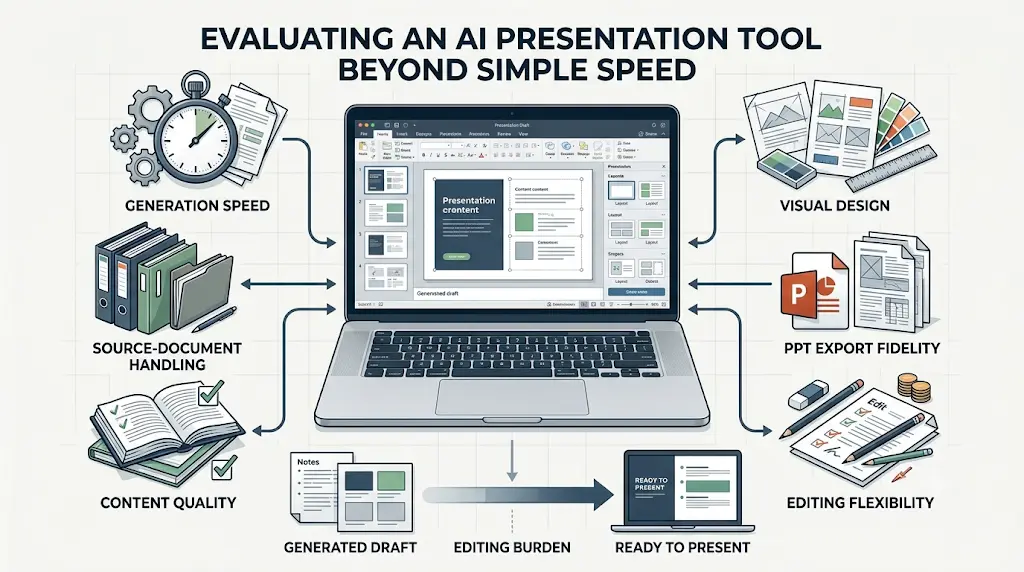
The 5-minute test asks one narrow question: can someone go from a blank page to a genuinely usable first draft inside roughly five minutes? This is a speed test, nothing more.
Our seven evaluation criteria are the broader comparison framework applied to every tool: generation speed, source-document handling (PDF/DOCX/PPTX/URL), content quality, visual design, PowerPoint export fidelity, editing flexibility, and pricing/free-tier value.
Two more things worth stating plainly: we don’t treat a vendor’s polished demo deck as evidence of real-world output quality, and every price below is checked against the vendor’s live pricing page rather than assumed to be stable — several tools in this category (Chronicle and Gamma especially) show different numbers on their own pricing page depending on monthly vs. annual billing, so we’ve called those out explicitly rather than picking one and hiding the discrepancy.
A note on “editing burden”
Generation speed is becoming a commodity — most tools here produce a draft in under three minutes. The number that actually matters is how much work is left after that. We rate each tool’s editing burden as:
- Low — minor wording or design tweaks needed
- Medium — several slides need restructuring
- High — significant rewriting or redesign required
This is the gap between “generated” and “ready to present,” and it’s the metric most reviews skip.
The best AI tools to create presentations in minutes: full reviews
This is the core list — the best AI tools to create presentations in minutes, reviewed in the order that matches our “who does this actually fix” approach from earlier, not alphabetically or by hype.
1. Decktopus AI — best for rehearsal, not just generation
Best for: students, teachers, and salespeople who also need to practise delivery ·
Free plan: none as of Sept 2026 — new sign-ups get a one-time credit pool, then need Pro ·
Price: $9.99/month billed annually (₹950/month, ≈₹11,388/year), or $24.99/month billed monthly ·
PDF/PPT/PNG export: yes, all paid plans ·
AI credits: 750/month on Pro (≈150 slides; 5 credits per slide generated, 5 more per AI edit), 1,000/seat on Business ·
Editing burden: Low–Medium
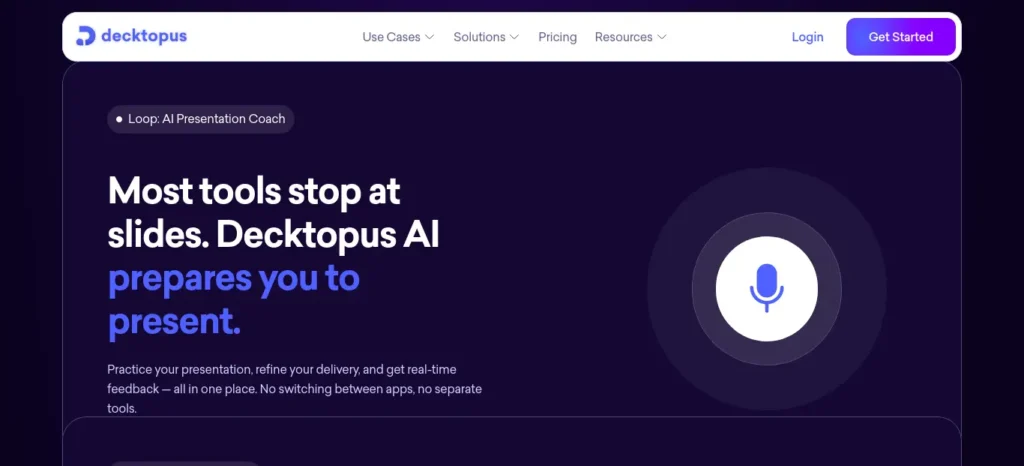
Decktopus is the one tool here that treats “presenting” as a skill worth practising, not just a file to export. Give it a topic or your website URL, and Studio builds a complete deck — structure, content, and design — applying your brand automatically. What makes it different is
Loop: once your deck is built, four sequential AI agents rehearse the actual delivery with you, simulating audience questions and giving feedback on pacing and clarity. No other tool on this list builds that step in.
Key features: prompt-to-deck and file-upload generation with brand auto-detection from a URL; Loop rehearsal mode with simulated Q&A; PDF, PPT, and PNG export on every paid plan; 50% student discount with code SUPPORTEDUCATION.
Quick fit — Choose this if you’ll be questioned live (viva, sales pitch, client meeting) and want to rehearse before you walk in. Avoid it if you want a genuinely free, no-card option, since Decktopus doesn’t currently offer one.
Decktopus vs. Gamma: choose Decktopus if delivery rehearsal matters as much as the slides; choose Gamma for the fastest possible draft with no coaching layer.
Verdict: Best for rehearsal — Decktopus, because Loop combines deck generation with AI-supported delivery practice that competitors skip entirely.
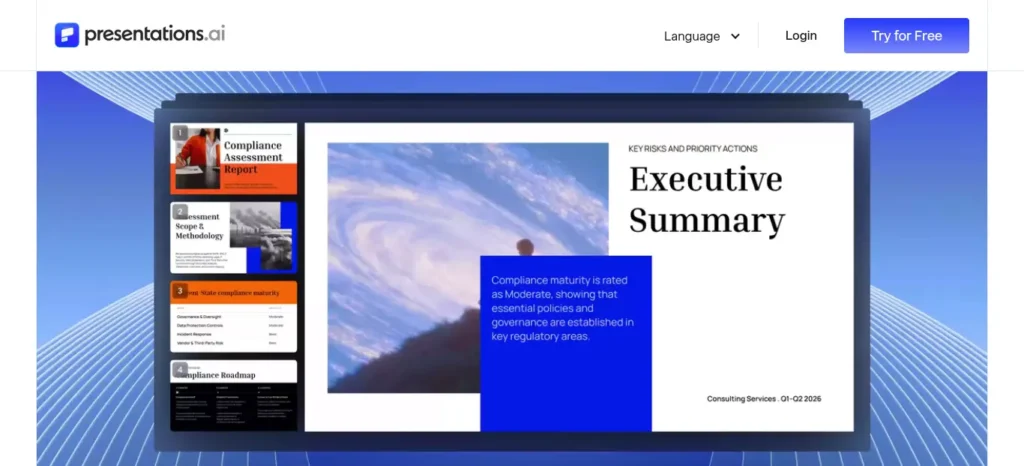
2. Presentations.AI — best for clean, brand-consistent PowerPoint output
Best for: business users who need reliable, on-brand PowerPoint export ·
Free plan: yes — Starter, $0, 100 AI credits, up to 20 slides, no PowerPoint export on this tier ·
Price: $20/month billed annually only ($240/year, ≈₹22,800/year) for Pro; Gold at $100/month billed annually adds frontier AI models and shared knowledge bases ·
PPT/PPTX export: Pro and above only ·
Editing burden: Low, once Brand Sync is configured
Presentations.AI positions itself as a research-and-design partner rather than a slide-by-slide editor. Its standout for business users is Brand Sync, which locks fonts, colors, and logo placement to your company identity across every deck generated, plus presentation analytics on paid tiers showing which slides an audience actually spent time on. Note that pricing adjusts by country for purchasing power parity, so your actual checkout price in India may differ from the $20 US headline figure — confirm at checkout.
Key features: generation from prompts, documents, or URLs including live-updating data snapshots; Brand Sync; presentation analytics on paid plans; only annual billing available, no monthly option.
Quick fit — Choose this if brand consistency and PowerPoint reliability across a team matter more than raw speed. Avoid it if you’re a budget-conscious student — the free tier’s 100-credit, 20-slide cap works for one short seminar deck, but it doesn’t export to PowerPoint, and Pro at $240/year with no monthly option is a real commitment for occasional use.
Verdict: Best for brand-governed business decks — Presentations.AI, because Brand Sync automatically applies your company’s visual identity without manual theme setup.
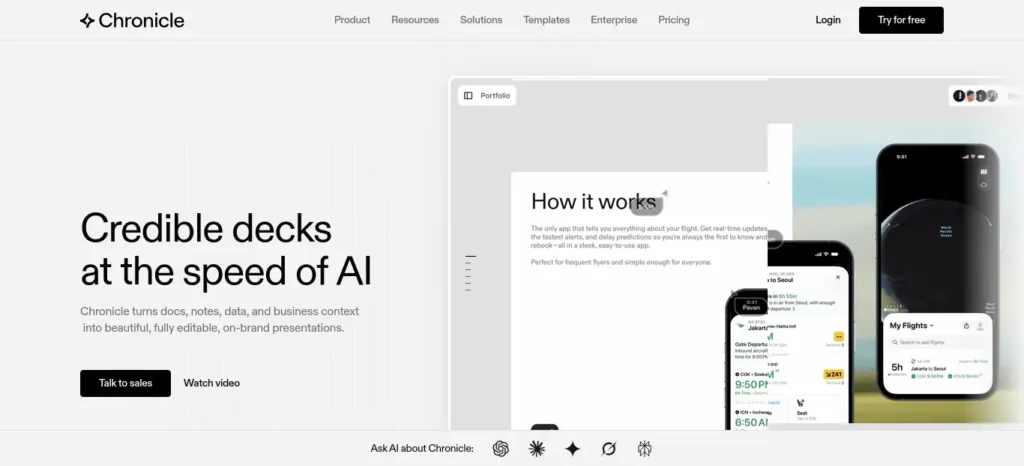
3. Chronicle — best for narrative-driven, visually distinctive decks
Best for: startups, marketers, and product teams who care about storytelling ·
Free plan: yes — $0/month, up to 10 decks, professional editing tools, basic themes, publish to web, PDF and social export, 3 guest editors — but no AI features at all on Free; AI is unlocked starting at Pro ·
Price: Pro $12/user/month billed annually ($15 monthly), 500 AI tokens/seat/month; Plus $25/user/month billed annually ($30 monthly), 1,000 tokens/seat/month, adds the Muse AI agent and
PowerPoint export; Max $45/user/month billed annually ($59 monthly), 2,000 tokens/user/month ·
Editing burden: Low–Medium
Correction from our first pass: Chronicle’s Free plan does not include any AI generation — it’s a manual deck-building and editing tier only. AI features, including the outline-first generation this tool is known for, start at Pro (500 tokens/month), and PowerPoint export specifically requires Plus, not Pro. Once you’re on a paid tier, Chronicle’s approach is genuinely distinctive: it builds a narrative outline — problem, tension, resolution — before rendering a single slide, using “widgets” (pre-built interactive, motion-designed components) on a freeform canvas.
Key features: outline-first, narrative-structured generation (Pro and above); Muse AI agent for chat-based edits and chart generation (Plus and above); 30+ native integrations; early-access API.
Quick fit — Choose this if your deck needs a clear narrative arc, not just a feature list, and you’re comfortable paying for Plus if you need PowerPoint export. Avoid it if you want free AI generation — Chronicle’s free tier doesn’t include it.
Chronicle vs. Canva: choose Chronicle for a presentation-first, story-driven build; choose Canva for a broader design toolkit that also covers social posts and documents.
Verdict: Best for narrative structure — Chronicle, because it builds a story arc before generating slide visuals, which produces decks that read as a coherent argument rather than a list of points.
4. Prezi AI — best for non-linear, spatial storytelling
Best for: presenters who want to show relationships between ideas, not just list them ·
Free plan: yes — Basic, $0, includes 500 AI credits/month per Prezi’s own support documentation, though presentations are public-only with a watermark and third-party trackers sometimes report Basic as AI-less — confirm your account’s actual allowance after signup ·
Price: Standard $7/month billed annually (still 500 AI credits, adds privacy controls); Plus $15–19/month billed annually depending on the pricing page you land on (unlimited AI, offline access, PDF export) — treat $15 as the commonly cited figure but verify at checkout; education plans from around $4/month ·
PPTX export: Plus and above, but Prezi’s signature zoom/pan animations don’t survive conversion, so exported files look flatter than the live version ·
Editing burden: Medium, mainly due to the learning curve of the canvas itself
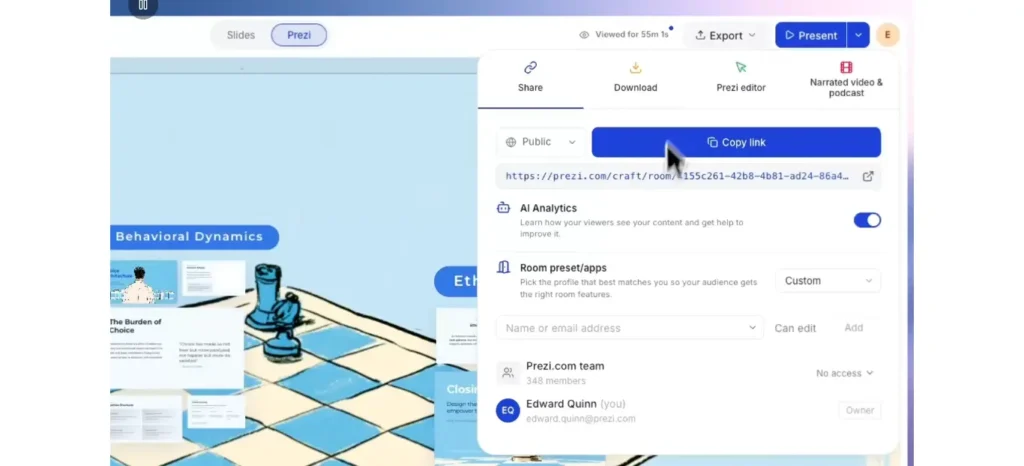
Prezi isn’t fundamentally about slides. Its zooming canvas (ZUI) lets you place ideas spatially and move between them non-linearly — genuinely useful for a product roadmap, research methodology, or system architecture where showing how parts relate matters more than a linear argument.
Key features: AI generation from a prompt, topic, PDF, Word document, or PowerPoint file; zooming non-linear canvas; Prezi Video for live presenter overlay on Zoom, Teams, and Webex; editable AI outline before final generation.
Quick fit — Choose this if your content is genuinely about relationships between ideas and you’re comfortable with a real learning curve (reviewers report 2–4 hours before comfortable use). Avoid it if you need to hand over a clean, editable PowerPoint file — the zoom effects don’t survive export.
Prezi AI vs. Gamma: choose Prezi if movement and spatial storytelling matter more than a standard slide sequence; choose Gamma for a fast, conventional linear deck.
Verdict: Best for non-linear presentations — Prezi AI, because its core format uses a spatial zooming canvas rather than a conventional slide sequence.
5. Gamma — best mainstream benchmark for speed
Best for: anyone who wants the fastest, most flexible AI-native first draft ·
Free plan: yes — 400 one-time starter credits (not monthly, so heavy free use runs out) ·
Price: Plus $8/month billed annually ($10 monthly), 1,000 credits/month; Pro $18/month billed annually ($20–25 monthly depending on source — confirm at checkout), 4,000 credits/month; Ultra $90–100/month, introductory pricing, monthly billing only, 20,000 credits ·
PPT/PPTX export: all paid plans ·
Editing burden: Low–Medium
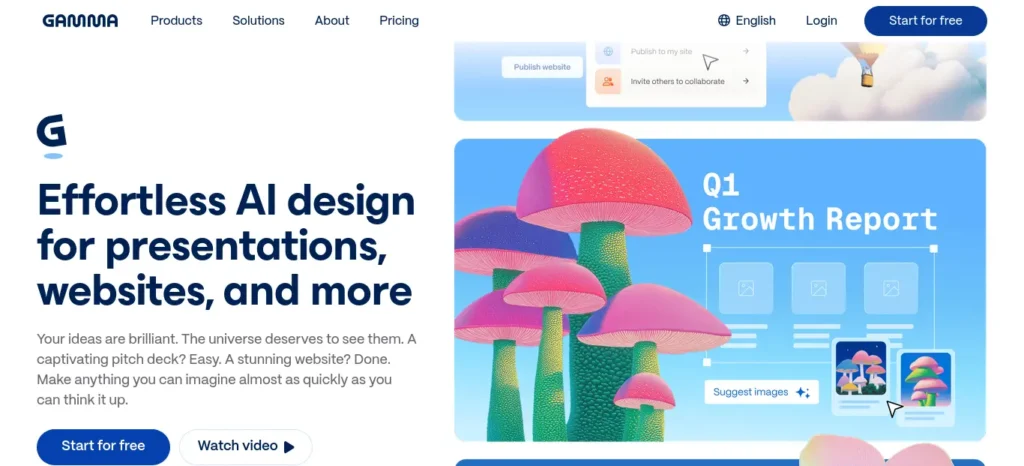
Gamma remains the fastest, most talked-about name in this category: type a topic, and it produces a complete, reasonably well-designed draft in well under a minute, with an Agent Mode for conversational editing. It’s the benchmark every other AI-native tool here gets compared against.
Key features: under-a-minute generation; flexible “card” format usable as slides, a web page, or a document; AI image generation and Agent Mode; Team ($20/seat/month, min. 2 seats) and Business ($40/seat/month, min. 10 seats) for organizations.
Quick fit — Choose this if you want the fastest possible starting point and don’t mind doing the final editing yourself. Avoid it if you need enforced brand governance out of the box on an individual plan — that requires Team or Business.
Verdict: Best for speed — Gamma, because it produces a complete first draft in under a minute from a single prompt, faster than any other tool on this list.
6. Pitch — best for collaborative teams
Best for: teams that co-edit one deck together ·
Free plan: yes — $0 forever, up to 5 members, unlimited presentations, AI creation, custom templates ·
Price: Pro ≈$22/month billed annually (2 seats included); Business ≈$85/month billed annually (5 seats included) ·
PPT/PPTX export: available — verify formatting fidelity for your specific template before relying on it for a client deliverable ·
Editing burden: Low, for teams; the value here is collaborative speed, not solo editing depth
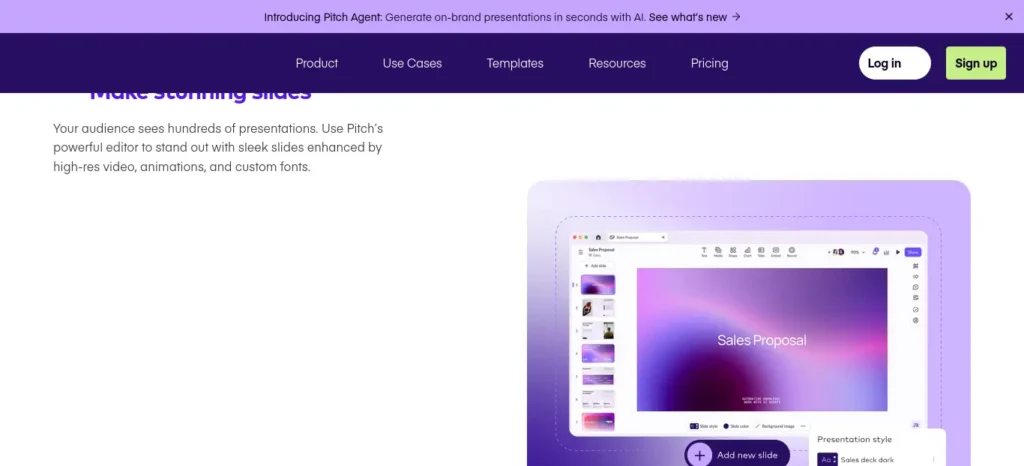
Pitch is built around the idea that decks are rarely made by one person. Its free plan already covers unlimited presentations and AI generation for up to five team members, with paid tiers adding advanced sharing links, “pitch rooms” for live client walkthroughs, and viewer analytics.
Key features: ~30-second AI-generated first draft; real-time co-editing with slide assignments and comments; pitch rooms and viewer engagement analytics.
Quick fit — Choose this if more than one person needs to edit the same deck simultaneously. Avoid it if you’re a solo student or freelancer — you won’t use most of what you’re paying for.
Verdict: Best for teams — Pitch, because its free plan already supports five collaborators with real-time co-editing, which the solo-focused tools above don’t attempt to match.
7. Beautiful.ai — best for enforced design consistency
Best for: teams and professionals who want it to be structurally hard to make an ugly slide ·
Free plan: none — every path starts with a 14-day trial that requires a credit card and auto-charges unless cancelled ·
Price: Pro $14.50/month billed annually (some of Beautiful.ai’s own pages show $12 — the discrepancy is real and unresolved as of this writing, so confirm the number shown at your checkout); Single Presentation $45 with no subscription; Team $40/seat/month billed annually, 2–20 seats ·
PPT/PPTX export: all paid plans, though Smart Slide animations and some layouts can shift on export ·
Editing burden: Low — this is the whole premise of the product
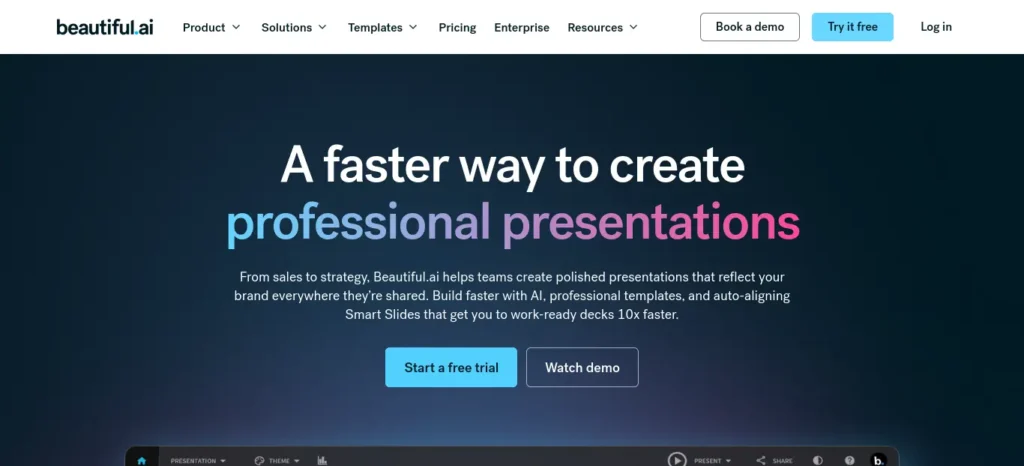
Beautiful.ai’s core promise is design guardrails, not raw generation speed. Its Smart Slide system automatically rebalances layout, spacing, and alignment as you add or remove content, so a fifth bullet point doesn’t break your design — genuinely useful for teams where brand consistency across many contributors matters more than any one person’s creative flexibility.
Key features: Smart Slide auto-layout with no credit-based usage caps; unlimited AI content generation on all paid plans; live data linking; SMB volume plans (50 or 100 users at a flat annual rate) that undercut standard per-seat Team pricing.
Quick fit — Choose this if you’ve had brand-consistency problems with other AI tools and want the software to enforce the rules automatically. Avoid it if you’re budget-conscious — there’s no free plan, and the trial’s mandatory card and auto-renewal catch a lot of first-time users off guard; set a reminder if you try it.
Verdict: Best for design consistency — Beautiful.ai, because its Smart Slide system structurally prevents inconsistent layouts across contributors, with no credit system to track.
8. Canva — best free option for Indian students specifically
Best for: students and professionals who want one tool for decks, social posts, and everything else ·
Free plan: yes — genuinely usable, large template library, basic Magic Studio AI, 5GB storage ·
Price: Pro is commonly listed around $12–18/month depending on billing cycle and region (₹499/month or roughly ₹3,999–4,999/year are commonly seen figures for Indian checkout, but Canva’s India pricing has shifted more than once in recent years — confirm the number shown at your own checkout, not a figure quoted elsewhere) ·
PPT/PPTX export: Free and Pro ·
Editing burden: Low–Medium, since Magic Studio’s AI generation is less structurally sophisticated from a bare prompt than AI-native tools like Gamma, but strong when customizing a template
Important correction on the education program: Canva’s free education offer (Canva Education) is currently available only to K–12 (primary and secondary) students and teachers, invited individually by a verified teacher. College and university students are explicitly not eligible for Canva Education. Higher-education students can get free Pro-level access only if their specific university has separately signed up for Canva for Campus — this is an institutional decision, not something you can request individually with a college email address. If your university hasn’t enabled Campus, your options are Canva Free or a paid Pro subscription, the same as anyone else.
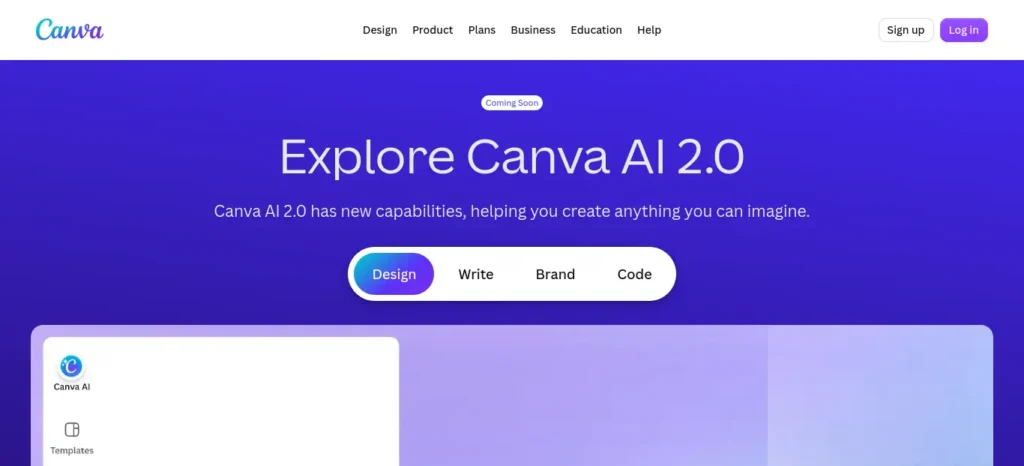
Key features: Magic Studio AI presentation generation plus manual drag-and-drop editing; background remover, Magic Resize, and a large stock template/asset library; free access for registered nonprofits; one account covers presentations, social posts, documents, and video.
Quick fit — Choose this if you want one design tool for more than just slides, and check with your university whether Canva for Campus is enabled before assuming you qualify for free Pro. Avoid it if your primary need is sophisticated AI generation from a long, complex prompt — dedicated AI-native tools generally handle that better.
Verdict: Best free starting point for most Indian students — Canva, because its free tier is genuinely usable on its own, independent of any education program you may or may not qualify for.
9. Plus AI — best for staying inside PowerPoint or Google Slides
Best for: professionals who don’t want to leave their existing workflow ·
Free plan: none — a 7-day trial with roughly 1,000 trial AI credits is available, card required ·
Price: Basic ≈$10/month billed annually ($15 monthly); Pro ≈$20/month annually; Team ≈$30/month annually ·
Export: not applicable in the usual sense — Plus AI generates natively inside PowerPoint or Google Slides, so there’s no separate export/conversion step ·
Editing burden: Low, precisely because there’s no export step to introduce formatting breakage
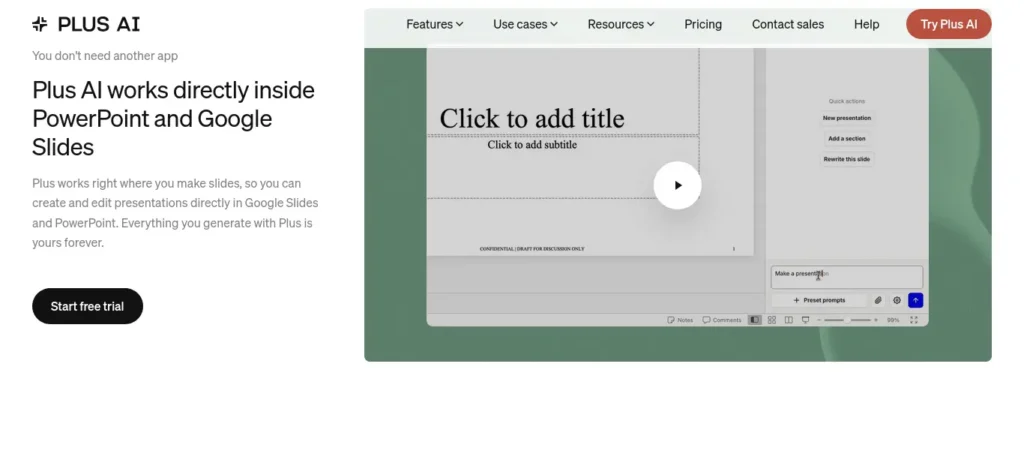
If PowerPoint export quality is your biggest worry with AI presentation tools, Plus AI sidesteps the problem entirely by never leaving PowerPoint or Google Slides in the first place. It installs as an add-on and generates, rewrites, and remixes slides directly inside the app you already use.
Key features: native add-on for both Google Slides and PowerPoint; full deck generation from prompts, PDFs, Word documents, or articles; custom branding maintained across generated decks; SOC 2 Type II compliant.
Quick fit — Choose this if broken PowerPoint exports from other AI tools are your specific frustration. Avoid it if you’re a budget-conscious student — there’s no genuinely free plan, only a short trial.
Verdict: Best for PowerPoint-native editing — Plus AI, because it generates directly inside PowerPoint or Google Slides rather than requiring a separate export workflow that can break formatting.
Full comparison table
| Tool | Best for | Free plan | PDF → PPT | PPTX export | Collaboration | Rehearsal |
| Decktopus | Rehearsal | No (trial credits only) | Yes | Yes | Limited | Yes — Loop |
| Presentations.AI | Brand-consistent PPT | Yes (no PPTX on free) | Yes | Pro+ only | Guest editors on Pro+ | No |
| Chronicle | Narrative storytelling | Yes (no AI on free) | Yes | Plus+ only | Guest editors | No |
| Prezi AI | Non-linear/spatial | Yes | Yes | Plus+ only | Teams tier | No |
| Gamma | Speed | Yes (one-time credits) | Yes | All paid | Team/Business plans | No |
| Pitch | Team collaboration | Yes (5 members) | No | Yes | Strong, real-time | No |
| Beautiful.ai | Design consistency | No (trial only) | Limited | All paid | Team plan | No |
| Canva | All-round free option | Yes | Yes | Free & Pro | Teams plan | No |
| Plus AI | PowerPoint-native | No (trial only) | Yes | N/A — native | Google Workspace-native | No |
If you’re an engineering student, don’t waste hours switching between random AI tools—see which AI tools actually fit your engineering branch, from coding and research to calculations and project work.
Best AI presentation tool for different student needs
Students rarely search for “brand governance” — they search for their actual situation. Here’s the honest match for each one:
- College seminar, quick turnaround: Gamma or Canva
- Research paper → deck: Presentations.AI or Chronicle
- Viva or thesis defense where you’ll be questioned: Decktopus
- Final-year engineering/major project: Gamma or Presentations.AI
- Group/team assignment: Pitch or Canva
- PDF-to-presentation, no rewriting needed: Decktopus, Presentations.AI, or Prezi AI
- Completely free, no card required: Gamma Free or Canva Free
- Visually striking, non-standard presentation: Prezi AI or Canva
- Need an editable PowerPoint others will open: Plus AI, or double-check export fidelity with Presentations.AI Pro
- Placement/internship portfolio deck: Beautiful.ai (if budget allows) or Canva
How to turn a PDF or research paper into a presentation with AI
This is the workflow most guides skip, and it’s the difference between a usable deck and a wall of text with your professor’s name on the title slide.
Don’t ask the AI to “turn this PDF into 15 slides.” That produces a summary, not an argument. Instead:
- Ask it to identify the structure first — the thesis or research question, methodology, key findings, limitations, and conclusion — before generating any slides.
- Turn that structure into an outline of 7–12 slide topics, one idea per slide.
- Generate the visual deck from the approved outline, not directly from the raw PDF.
- Verify every statistic and claim the AI pulled from the source against the actual document — AI extraction can misattribute numbers or blend two data points together.
- Cut anything that doesn’t serve the specific point you’re making to this specific audience.
Before you start writing your assignment, it’s important to know how to use AI for college research projects effectively. A strong research process helps you find credible sources, organize ideas, and avoid common mistakes that can lower your grades.
Example workflow
Input: 30-page research paper
↓
AI extracts: research question + methodology + findings
↓
Outline: 10 slide topics, one idea per slide
↓
AI presentation tool: generates the visual draft from the outline
↓
Human: verifies every statistic and citation against the source
↓
Final deck: 8–10 focused slides
↓
AI rehearsal (Decktopus Loop, or a friend): simulated professor questions
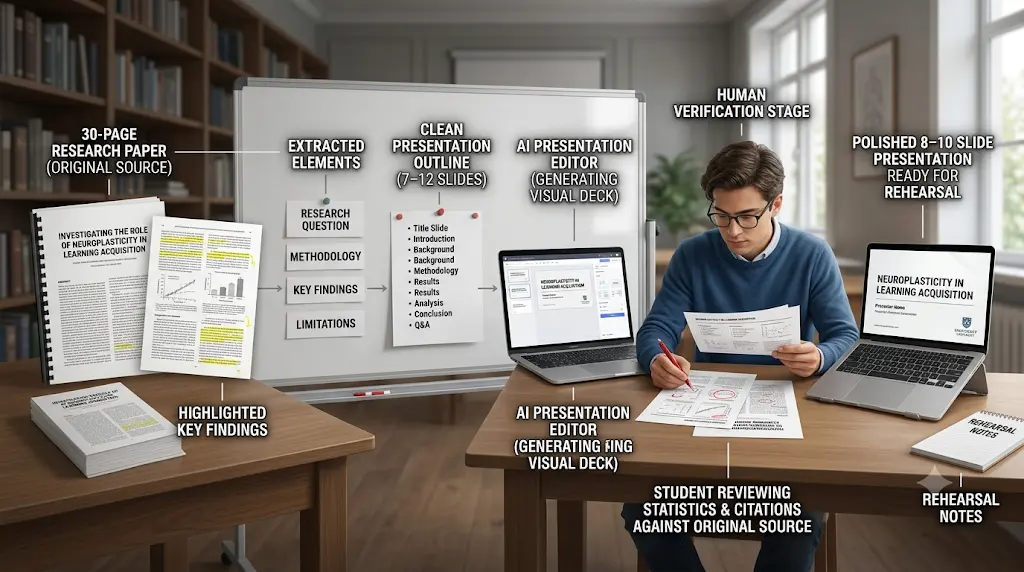
The 10-minute AI presentation workflow
- Write a specific brief, not a vague topic — “explain photosynthesis to a Class 10 audience in 8 slides” beats “presentation about photosynthesis.”
- Ask AI to identify the central argument before generating slides (see the PDF workflow above).
- Generate a 7–12 slide outline.
- Remove any slide that doesn’t serve the specific point.
- Generate the visual deck from the approved outline.
- Verify every statistic against a real source.
- Replace generic visuals with something specific to your example or data.
- Add citations where your institution requires them.
- Export to PPTX and open it in PowerPoint to confirm formatting held.
- Rehearse out loud — with Decktopus Loop, or just once to yourself.
Don’t waste hours turning long PDFs into messy notes—learn how to use AI to transform your study materials into clear, exam-ready notes in minutes.
How much do AI presentation tools really cost?
The headline monthly price is rarely the full picture. Before paying for any tool on this list, check:
- Do I need this once, or every month?
- Do I actually need PPTX export, or will a PDF or link work?
- Do I need private sharing, or is a public link fine?
- Do I need AI generation beyond the first draft, or just editing?
- Do I need real-time collaboration?
- Do I need enforced brand templates?
- Is the free plan actually enough for this one deck?
- Is there a student or education discount I qualify for (check eligibility carefully — see the Canva correction above)?
- Does the trial require a card, and will it auto-charge if I forget to cancel?
- Do unused AI credits or tokens expire monthly, or roll over?
For a single college assignment, there’s rarely a reason to commit to an annual plan — nearly every tool here has either a usable free tier or a one-month paid option that covers a one-off deadline.
Want to finish your study sessions faster without losing quality? Then explore How to Use AI to Study Faster: 7 Powerful Methods to Save 2 Hours Every Day in 2026 and discover smart workflows that help productive students save time every day.
AI presentation makers vs. traditional PowerPoint
AI tools win decisively on first-draft speed — a rough deck in one to three minutes versus the 30–90 minutes it typically takes to build the same thing manually — and they remove the blank-page problem entirely. Traditional PowerPoint, including its own Copilot AI features, still wins on precise formatting control, complex data charting, and universal compatibility, since every institution already knows how to open and edit a .pptx file with zero friction. If your final deliverable needs pixel-precise charts or must match an exact template, expect to finish an AI-generated draft inside PowerPoint rather than treating the AI tool’s own editor as the final step.
How to Make AI-Generated Slides Look Human
AI-generated presentations often have a recognizable fingerprint. The most common signs are:
- Every slide follows the same visual structure.
- Generic motivational language replaces specific, useful details.
- Words such as “unlock,” “transform,” “empower,” and “leverage” appear too often.
- Stock images have little connection to the actual argument or topic.
- Three-column layouts are repeated across too many slides.
- Every bullet follows the same sentence structure and length, making the deck feel mechanical.
- There are no specific examples — everything stays at a broad, category-level.
- The presentation offers summary without genuine interpretation, judgment, or opinion.
- Important claims appear without proper source attribution.
- Too much text is packed onto each slide.

How to Fix It
Replace generic images with visuals that are specific to your audience, topic, or data. Rewrite any sentence that could be copied into almost any presentation without changing a word. Add your own examples, interpretation, and point of view where they genuinely improve the explanation.
Finally, read your speaker notes out loud once. If a sentence sounds like it was written to be read rather than spoken, simplify it.
The goal isn’t to hide the fact that AI helped create the presentation. The goal is to make sure the final deck sounds, looks, and thinks like you.

Can Students Use AI-Generated Presentations for College Assignments?
Yes — AI can genuinely help students with organization, summarization, visual design, brainstorming, and presentation rehearsal. But it should not be trusted to invent research findings, fabricate citations, interpret unfamiliar research without verification, select statistics without checking the original source, or make scientific claims without validation.
In practice, that means:
- Understand the material yourself before presenting it.
- Verify every source and citation provided by AI.
- Check statistics against the original source before using them.
- Disclose AI use if your college or instructor requires it.
- Follow your institution’s specific AI policy for assignments and presentations.
- Never present an AI-generated claim as verified research until you have checked it yourself.
Looking for the best AI tools for writing college assignments? Explore our detailed guide to discover the top AI writing assistants that help you research, draft, edit, and improve academic assignments faster while maintaining quality and originality.
A Practical Student Workflow
For a safer and more effective AI-assisted presentation, use this simple process:
1. Start with your own material
Use your lecture notes, textbook, research paper, assignment brief, or verified sources as the foundation.
2. Let AI organize, not invent
Ask the AI tool to turn your material into a logical slide structure. Don’t ask it to fill gaps with unsupported facts.
3. Verify before designing
Check important statistics, research findings, quotations, dates, and citations against the original sources.
4. Personalize the slides
Add your own examples, explanations, diagrams, and interpretation. Remove anything that doesn’t match what you actually understand.
5. Rehearse the final deck
Present the slides without reading them word-for-word. If you cannot explain a slide in your own words, go back and understand the material before presenting it.
This distinction — what AI should help with versus what it should never be trusted to decide — matters especially in academic work. A polished slide deck can still contain a fabricated statistic or misleading claim, and an examiner who knows the subject may spot it immediately.
Use AI to make your presentation process faster, not to replace your responsibility for what the presentation says.

AI presentation quality checklist
Before you present, ask:
- Does every slide have one clear purpose?
- Can I explain the slide in a single sentence?
- Are all statistics verified against a real source?
- Are citations included where my institution requires them?
- Is the text readable from the back of the room?
- Are the visuals actually helping the explanation, or just decorating it?
- Does the presentation fit the required time?
- Is the conclusion clear?
- Can I answer the questions I’m likely to get?
- Did I open the exported PPTX and check the formatting held?
- Have I rehearsed it out loud at least once?
Free Student Download: Get the printable AI Presentation Final Checklist and use it before your next seminar, project, or viva.
Presentation accessibility checklist
A quality signal most roundups skip, and genuinely useful if you’re presenting to a mixed audience:
- Readable font sizes — nothing smaller than roughly 24pt on a slide meant to be read from a distance
- Sufficient contrast between text and background
- Alt text on images where the platform supports it
- Don’t rely on color alone to convey meaning (e.g., in charts)
- Captions on any embedded video
- Simple, uncluttered charts over dense ones
- Accessible PDF or PPT export where your audience needs it
- Avoid excessive animation that can be distracting or disorienting
- Readable, well-structured speaker notes
Common AI presentation mistakes to avoid
- Choosing based only on the demo. A polished sample deck tells you little about how a tool handles your actual, messier source material.
- Ignoring PPTX export until the last minute. Test it early — several tools on this list have known export quirks.
- Trusting AI-generated statistics without checking them.
- Putting a full paragraph on one slide. If a slide needs more than ~25 words, split it or move detail to speaker notes.
- Paying before testing the free tier. Every tool here has either a free plan or a trial.
- Skipping audience customization. A generic AI draft written for “students” is different from one written for your specific classmates or client.
- Confusing “generated in 30 seconds” with “ready to present in 30 seconds.” These are not the same claim, and no tool on this list fully closes that gap.
Best Free AI Presentation Tools for Students
🎓 Canva Free — Best Overall for Students
Canva Free is a strong starting point for students because you can create presentations without paying for a premium plan. University and college students can use Canva Free, while free premium access depends on whether their institution provides Canva Campus. Canva Education itself is currently for K–12 students, not higher education.
Best for: College presentations, seminars, projects, group assignments, and visually polished slides.
⚡ Gamma Free — Best for Fast AI-Generated Decks
Gamma’s free plan includes 400 one-time AI credits at signup, with no monthly refill. It can generate up to 10 slides per prompt and supports PDF/PPTX import plus PDF, PPTX, PNG, and Google Slides export.
Best for: Students who need a complete first draft quickly from a topic, notes, PDF, or existing presentation.
🎥 Prezi Basic — Best for Visual, Non-Linear Presentations
Prezi’s free Basic plan includes a limited number of AI credits, while the Standard plan provides 500 AI credits per month. The free Basic experience has limitations around privacy and presentation branding, so check the current plan details before using it for coursework containing sensitive information.
Best for: Students who want presentations that feel more dynamic and spatial than traditional slide-by-slide PowerPoint decks.
Quick pick: If you’re a college student in India, start with Canva Free for flexibility, Gamma Free for fast AI generation, and Prezi Basic when visual storytelling matters more than conventional slides.
Are AI presentation tools worth using for students in India?
Yes, with a few India-specific things worth knowing:
- Most tools price in USD by default; Presentations.AI, for example, adjusts pricing for purchasing power parity by country, so your actual checkout price may differ from the US figure — always check at checkout.
- Canva’s free access for college students depends on whether your specific university has enabled Canva for Campus, not on having a college email address — ask your institution before assuming.
- Decktopus’s 50% student discount code (SUPPORTEDUCATION) is worth using before paying full price.
- For low-bandwidth situations on mobile data, browser-based tools may load lighter than heavier canvas-based tools, though actual performance depends on your device, browser, and network — this varies enough that it’s worth testing yourself rather than assuming.
- For a single seminar or project presentation — a common Indian-student scenario across engineering projects, MBA case studies, medical seminars, group assignments, and placement presentations — there’s rarely a reason to commit to an annual subscription; a free tier or one month of the cheapest paid plan usually covers it.
Frequently Asked Questions
What is the best AI tool to create presentations in minutes? There isn’t one universal answer — it depends on what you need after generation. Gamma is fastest for a rough first draft. Decktopus adds rehearsal. Chronicle prioritizes narrative structure. Match the tool to what happens after the first draft, not just how fast it appears.
What is the fastest AI presentation maker? Gamma is the fastest mainstream option, producing a complete first draft in under a minute from a single prompt or pasted outline, with an Agent Mode for conversational follow-up edits.
What is the best free AI presentation maker? For most Indian students, Canva Free is the strongest all-around free option, since it’s usable without any education-program eligibility check. Gamma’s free tier is best for a single quick deck; Prezi AI Basic offers more AI credits but publishes everything publicly.
What is the best AI PPT maker for students? Canva for budget and flexibility; Decktopus (with the student discount) if you also need to rehearse before presenting.
Can AI make a PowerPoint from a PDF? Yes. Decktopus, Presentations.AI, Chronicle, and Prezi AI all accept PDF uploads and build a structured outline and deck from the extracted content — though export to an editable .pptx specifically requires a paid tier on several of these.
Can AI create a presentation from a research paper? Yes, but treat it as a two-step process: first ask the AI to extract the thesis, methodology, findings, and limitations; then generate slides from that structured outline rather than the raw document. See the PDF workflow above.
Which AI presentation maker has the best PowerPoint export? Plus AI sidesteps the export question entirely by generating natively inside PowerPoint. Among the standalone AI-native tools, Gamma and Presentations.AI’s Pro tier are generally reported as more reliable than Prezi AI, whose signature zoom animations don’t survive conversion.
Is Gamma better than Canva for presentations? Neither is universally better — Gamma is faster for AI-native generation from a prompt; Canva offers a broader design ecosystem (social posts, documents, video) and a more generous free tier for occasional Indian-student use.
Is AI-generated PPT safe for academic use? Only with verification. AI can help with structure, summarization, and visual design, but it can also invent statistics or misattribute citations. Treat every AI-generated claim as unverified until you’ve checked it against a real source, and follow your institution’s specific AI-use policy.
How accurate are AI-generated presentations? Not automatically accurate. None of the tools reviewed here independently fact-check the content they generate. Verify every number, date, and quoted claim before presenting it, especially for academic work.
How long does it take AI to make a presentation? Most tools here produce a first draft in one to three minutes. The more useful number is editing time afterward, which ranges from a few minutes (low editing burden) to significant restructuring (high editing burden) — see the ratings in each tool’s section above.
Which AI presentation tool is easiest for beginners? Canva and Gamma both have the shortest learning curves. Prezi AI’s zooming canvas has a documented learning curve — reviewers report two to four hours before comfortable use.
How much editing does an AI-generated presentation need? Plan on at least one editing pass for every deck: fact-checking claims, tightening any slide with more than roughly 25 words, replacing generic visuals, and reading your speaker notes aloud once before presenting.
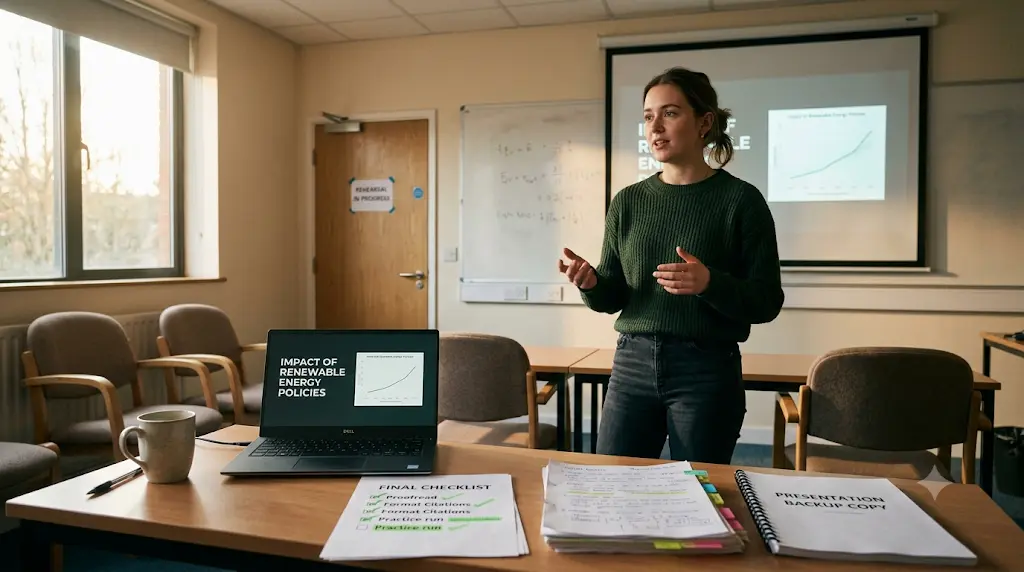
Choosing the Right Tool for Your Next Deadline
If you take one thing from this roundup of the best AI tools to create presentations in minutes, make it this: choose the tool based on your actual problem, not simply on whichever name appears first in search results.
A rushed seminar deck needs speed — Gamma or Canva.
A presentation you expect to defend or discuss live needs rehearsal — Decktopus.
A deck that must open reliably in someone else’s PowerPoint needs Plus AI, or at least a careful export check with Presentations.AI.
Start with the free plan that best matches your situation. Then test it with your real presentation material, not a generic demo topic. Only consider paying once you know the tool actually closes the gap between “generated” and “ready to present.”
Before your next deadline, take one real assignment, report, or set of notes and run it through the tool you’re considering. Spend 10 minutes checking the facts, slide flow, citations, visuals, and export quality. If you still need to rebuild most of the deck yourself, try another tool — the best AI presentation maker is the one that saves you meaningful editing time without taking away your understanding of the topic.
AI should remove the mechanical work of making slides. It should never remove the intellectual work of understanding what you’re presenting.
About the Author
Nandhakumar is the founder and content creator behind FutureFastAI, where he writes about AI tools, productivity, study techniques, and practical ways students can use artificial intelligence to learn and work smarter.
His content focuses on testing AI tools, simplifying complex technology, and turning new AI developments into practical workflows that students and beginners can actually use. He especially focuses on AI-powered study tools, presentation makers, research workflows, productivity tools, and emerging AI technologies.
Through FutureFastAI, his goal is simple: help students understand AI clearly, choose the right tools, and use them effectively without unnecessary complexity.
Editorial Policy
At FutureFastAI, we are committed to publishing accurate, useful, and trustworthy content about AI tools, technology, productivity, and student learning.
Our content is researched and reviewed for factual accuracy, clarity, originality, and practical usefulness. When discussing AI tools, features, pricing, or availability, we aim to verify important information using reliable and official sources whenever possible.
We may use AI tools to assist with research, brainstorming, or editing, but published content is human-reviewed and edited before publication. We do not publish unreviewed AI-generated content.
Because AI products and pricing can change frequently, some information may become outdated. We regularly update important articles when significant changes are identified.
Our goal is to provide transparent, practical, and reader-focused information that helps students and beginners make better decisions about using AI.





2 Comments