
Best AI Email Writing Tools for Beginners: 5 Easy Options
Last verified: 19 October 2026. Free-plan limits and prices change often, so confirm them on each official page before you pay for anything. Rupee figures use roughly ₹96 per US dollar and are approximate.
Ravi, a second-year student (an illustrative example, not a real person), has been staring at “Dear Sir,” for ten minutes while an email about a missed lab sits unwritten.

The best AI email writing tools for beginners fix exactly that moment, but each one fixes a different part of it. Mailmeteor’s free writer is the easiest place to start. WriteMail.ai gives you a guided form. MailMaestro and Ellie work inside Gmail or Outlook. QuillBot polishes a draft you already wrote. Free limits range from 3 requests a week to no stated cap.Looking for the best AI tools for writing college assignments? Explore our detailed guide to discover the top AI writing assistants that help you research, draft, edit, and improve academic assignments faster while maintaining quality and originality.
Which AI Email Writing Tool Is Best for Beginners?
For most beginners, start with Mailmeteor’s free AI Email Writer. Its site says it needs no sign-up, no card and no usage quota, and it runs in a phone browser. If you want drafts inside Gmail or Outlook, try MailMaestro or WriteMail.ai. If you mostly reply to emails, try Ellie. If you already wrote the draft, polish it with QuillBot.
Best AI Email Writing Tools for Beginners at a Glance
Each card below is a quick snapshot. Full details, pricing and limits follow in the next section.
Mailmeteor at a glance
Best for: A free first draft with no account.
Strengths:
- Free web writer, no sign-up (vendor’s claim)
- Optional Gmail extension for replies and rewrites
Watch out:
- Extension is Gmail and desktop Chrome only
- Paid assistant price not confirmed
Free plan: Yes. Official site: mailmeteor.com/tools/ai-email-writer
WriteMail.ai at a glance
Best for: Guided drafts and writing in your own language.
Strengths:
- Tone, length and mood controls
- Hindi, Bengali, Urdu and dozens more languages
Watch out:
- Free plan is 5 AI emails a month
- Expect a sign-up step to view your draft
Free plan: Yes. Official site: writemail.ai
MailMaestro at a glance
Best for: Outlook users (Gmail supported too).
Strengths:
- Compose, reply and improve-draft tools
- Outlook-only inbox sorting on paid plans
Watch out:
- Free plan is 3 AI requests a week
- Paid plan is priced in dollars, per seat
Free plan: Yes. Official site: maestrolabs.com
Ellie at a glance
Best for: Replying quickly in Gmail or Outlook.
Strengths:
- Drafts replies in your tone
- Never sends without your check
Watch out:
- Replies only, no cold or first-contact emails
- Paid prices not shown on the page I checked
Free plan: Yes (10 draft replies a day). Official site: tryellie.com
QuillBot at a glance
Best for: Polishing an email you already wrote.
Strengths:
- Free grammar check and rewriting
- Browser extension
Watch out:
- Not an email generator
- Free rewrites are capped at 125 words
Free plan: Yes. Official site: quillbot.com
What Are the Best AI Email Writing Tools for Beginners?
How the order works. This is a documentation-based comparison, not a hands-on lab test. I checked official pages, help centres and pricing pages on 19 October 2026, and I only call something free or paid when a source supports it. The order is my editorial judgment, weighing beginner-friendliness, how usable the free plan is, verified features, price and honest limits. Where a figure came from a third party instead of the vendor, I say so.
One rule for every tool: try it first with a non-sensitive example email.Before submitting your assignment, learn how to use AI ethically for academic writing to avoid plagiarism and create original work.
1. Mailmeteor: Best for a Free, No-Sign-Up First Draft
Mailmeteor is best known for Gmail mail merge. It also offers a free AI Email Writer on the web and a separate AI Email Assistant extension for Gmail. For a beginner, the web writer is the simpler of the two: describe the email, get a draft, edit it, paste it into your inbox.
Key Features
- Prompt to draft: you describe the context, intent and tone, and it returns a draft you can edit or copy.
- Tone, length and language by prompt: you can ask for a “polite but direct” tone or “under 80 words” directly in your request.
- Gmail assistant: the extension can draft replies, and lets you highlight text to fix grammar, shorten it, or make it more formal or friendly.
- Mobile use: the web writer works in a phone browser. The extension’s AI writing features are on desktop Chrome only.

How to Use It to Write an Email
- Open the AI Email Writer page and describe who the email is for, why you are writing and the key details.
- Add the tone and length you want.
- Generate the draft, use the refine option if needed, then copy it into your inbox and check every name and date.
Free Plan and Pricing
- Web writer: free. The vendor says there is no sign-up, credit card or usage quota (vendor’s own statement, checked 19 October 2026).
- Gmail AI Email Assistant: 7-day free trial, no card. The product page also mentions free tiers, but I could not confirm a current paid price, so check Mailmeteor’s pricing page.
- Upgrade trigger: you are replying to Gmail messages every day and want AI inside the compose window.
- Value for money (editorial view): strong for the web writer, because it costs nothing.
Pros and Cons
Pros
- Almost no friction: nothing to install for the web writer.
- The vendor states prompts are not used to train models and are not stored beyond a short abuse-prevention window.
Cons
- It is a general text box. It does not learn your writing style.
- The vendor itself advises against using it for legal, medical, financial, HR or confidential emails.
Why It Ranks Among the Best AI Email Writing Tools for Beginners
It ranks first here because it asks for the least: no account, no install and no form.
Choose it if you want a free draft in under a minute and do not want another account.
Skip it if you want AI built into your inbox on a phone, or need Outlook support.
Official Sources
2. WriteMail.ai: Best for Guided Drafts in Your Own Language
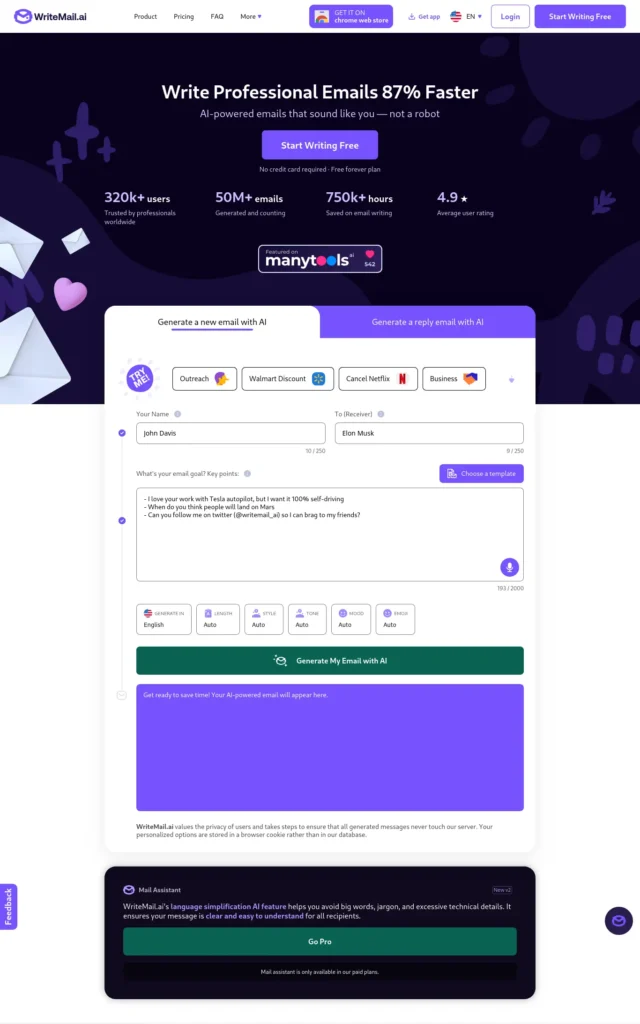
WriteMail.ai uses a form instead of a blank chat box. You enter your name, the recipient, and a few key points, then pick tone, length and style. That structure helps beginners who do not know what to type into a prompt. You can also paste a received email and generate a reply.
Key Features
- Guided form: key points in, complete email out. The site suggests listing your main point and a few supporting points.
- Controls: length, style, tone (casual, formal, friendly, professional), mood and emoji settings. Some options are marked Premium only.
- Languages: the site lists dozens of output languages, including Hindi, Bengali and Urdu. I did not test output quality in non-English languages.
- Where it works: the plan table lists a Chrome extension, a Firefox extension, a Google Workspace add-on and an Outlook add-in. Check which plan includes each one.
How to Use It to Write an Email
- Choose “Generate a new email” or “Generate a reply.”
- Fill in your name, the receiver and your key points (rough notes are fine).
- Set tone and length, generate, then read and edit before sending.
Free Plan and Pricing
Checked 19 October 2026, billed monthly. Rupee amounts are approximate at about ₹96 per US dollar.
- Free: $0, 5 AI emails a month.
- Regular: $6.95 a month (about ₹667), 50 AI emails.
- Basic: $11.95 a month (about ₹1,147), 150 AI emails.
- Pro: $19.95 a month (about ₹1,915), 500 AI emails.
- Annual billing is cheaper. The page lists Regular at 5amonth(60 a year, about ₹480 a month).
- Upgrade trigger: you write more than one AI-assisted email a week.
- Value for money (editorial view): good, if the guided form suits you. The free plan is a sampler, not a daily tool.
Pros and Cons
Pros
- The form removes prompt-writing guesswork.
- Wide language support, useful if you think in Hindi or Bengali first.
Cons
- Five free emails a month runs out quickly.
- The page’s own text shows a sign-up prompt before your generated draft appears, even though its description says no sign-up is needed.
- Privacy messaging is mixed: the site says generated emails never touch its servers, yet paid plans offer email history. Read the privacy policy before pasting anything real.
Who Should Choose This Tool?
Choose it if you want structure and multilingual output.
Skip it if you need a generous free plan.
Official Sources
3. MailMaestro: Best for Outlook Users Who Reply to Lots of Email
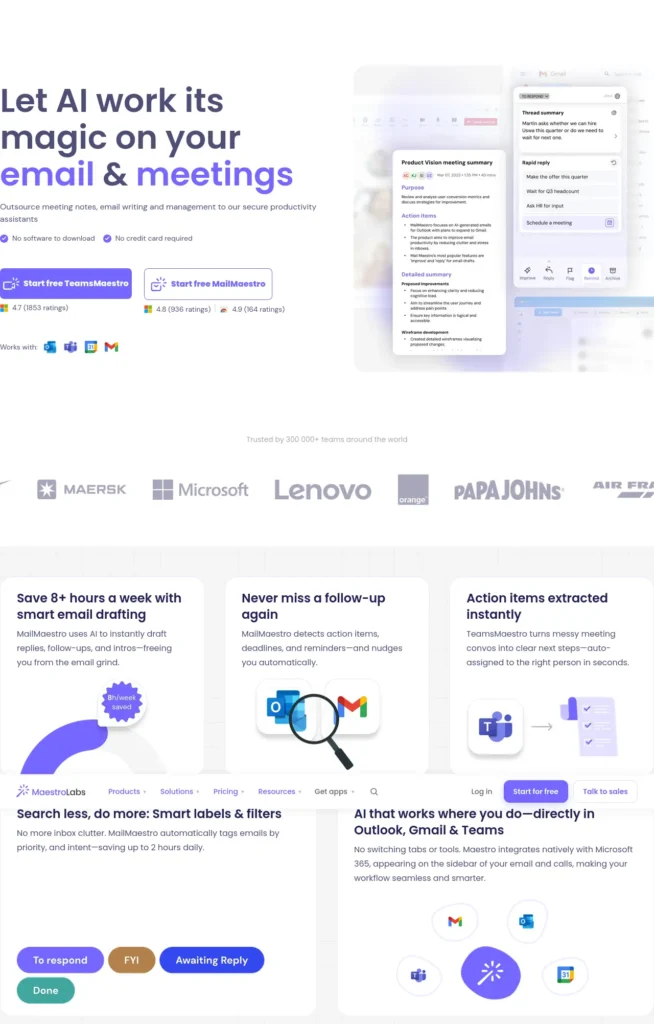
MailMaestro, from Maestro Labs, is an AI assistant that lives inside Outlook (as an add-in) and Gmail (as a Chrome extension). It is also the product that absorbed Flowrite, an older AI email writer. Maestro Labs’ own Flowrite page says it acquired Flowrite’s email business in September 2024, so Flowrite is no longer a separate product to sign up for.
Key Features
- Compose and reply: draft from a short prompt or answer an email with AI.
- Improve draft: tidy a draft you wrote.
- Summaries: thread summaries appear on paid plans.
- Outlook-only extras: AI Priority Inbox and email triage are marked as exclusive to Microsoft Outlook.
How to Use It to Write an Email
- Install the Outlook add-in or the Gmail Chrome extension.
- Open a new email or reply, then choose the compose or reply option and type a short prompt.
- Edit the draft and check the details before you send.
Free Plan and Pricing
Checked 19 October 2026, from Maestro Labs’ own listing. Rupee amounts are approximate.
- Free: 3 AI requests per week, no credit card needed.
- Professional: $15 per seat per month billed monthly (about ₹1,440), or $12 per seat per month billed annually (about ₹1,152). A 14-day free trial is listed.
- Enterprise: custom pricing.
- Upgrade trigger: you hit the weekly cap, or you want summaries and Outlook inbox sorting.
- Value for money (editorial view): situational. Reasonable for daily Outlook users, hard to justify for occasional emails.
Pros and Cons
Pros
- Works where many workplaces already live, which is Outlook.
- Covers writing, replying and improving in one place.
Cons
- Three free requests a week is a trial, not a routine.
- Paid plans mention removing a “MailMaestro watermark,” which suggests free output may carry one. Check this before emailing a recruiter.
- Pricing is in US dollars, per seat.
Who Should Choose This Tool?
Choose it if you use Outlook for college or work email.
Skip it if you send a few emails a month and just need a draft.
Official Sources
4. Ellie: Best for Replying Fast in Gmail or Outlook
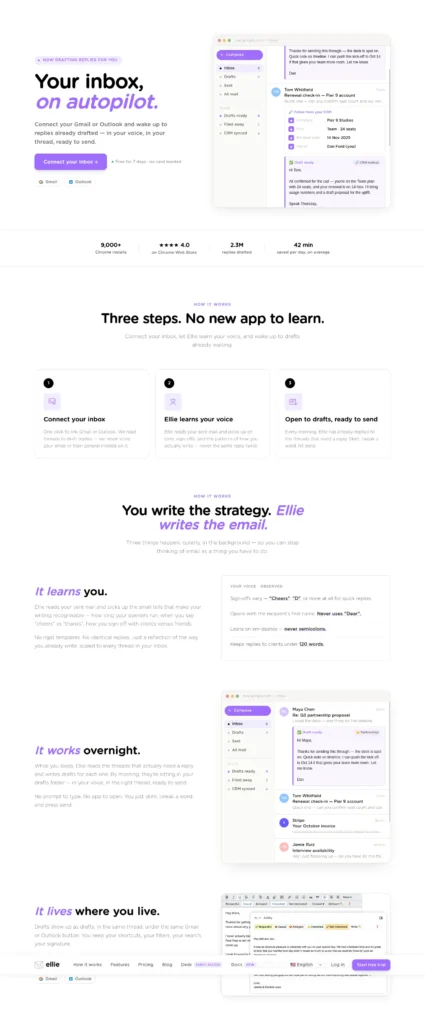
Ellie only writes replies. It reads the thread you are answering and drafts a response meant to sound like you. That is useful when your problem is a pile of unanswered messages rather than a blank page.
Key Features
- Reply drafting in Gmail, Outlook on the web and Fastmail through a browser extension, plus an Outlook desktop add-in.
- Auto-drafts (Business and Professional plans): connect your mailbox once and Ellie places draft replies in your Drafts folder.
- Roles and knowledge base: you can give Ellie documents to draw on for specific kinds of email.
- Any language: the vendor says it replies in any language.
How to Use It to Write an Email
- Install the browser extension and sign in.
- Open the email you need to answer and click reply.
- Trigger Ellie, read the draft line by line, edit, then send it yourself. Ellie does not send for you.
Free Plan and Pricing
Free-plan details from Ellie’s help centre, updated 13 August 2026.
- Free: 10 draft replies per day, no auto-drafts, one connected account.
- Trial: new accounts get 7 days of Business features, no card needed.
- Casual: manual mode through the extension, with a higher daily limit.
- Paid prices: the official pricing page I loaded did not display amounts. A third-party directory lists about $19, $39 and $79 a month for the three paid tiers (about ₹1,824 for the lowest). Treat that as unconfirmed.
- Upgrade trigger: you want drafts waiting in your inbox every morning.
- Value for money (editorial view): good for heavy repliers, unnecessary for occasional use.
Pros and Cons
Pros
- A generous free daily limit for manual replies.
- The vendor says it is powered by OpenAI and does not train general models on your email.
Cons
- It will not write cold emails, so it cannot help with a first-contact job application or a new request.
- Auto-drafts need you to connect your mailbox, which is a bigger permission than pasting text.
Who Should Choose This Tool?
Choose it if your pain is replying.
Skip it if you need help starting new emails.
Official Sources
5. QuillBot: Best for Polishing an Email You Already Wrote
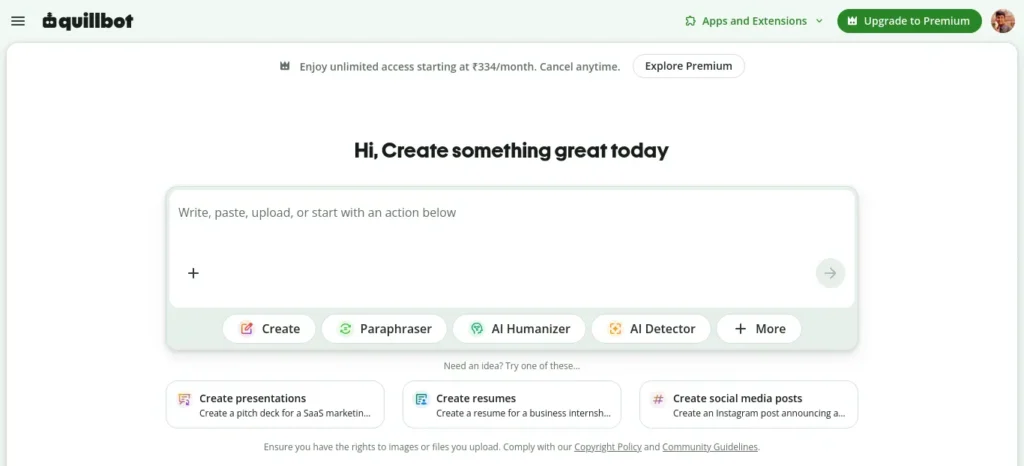
QuillBot is not an email generator. It rewrites and proofreads text. That makes it a good second step: write a rough draft yourself, then clean it up. Because most emails are short, its free limit is less painful here than it would be for essays.
Key Features
- Paraphraser: rewrites a draft in a different style or tone.
- Grammar checker: catches spelling, punctuation and grammar mistakes.
- Browser extension: works where you type, according to its own listings.
How to Use It to Write an Email
- Write your rough draft in your own words.
- Paste it into QuillBot’s grammar checker, then try the paraphraser with a standard or fluent style.
- Compare with your original and keep only the changes that still sound like you.
Free Plan and Pricing
Third-party sourced. I could not confirm these on QuillBot’s official pages, so verify before paying.
- Free: a permanent free plan with a 125-word limit per paraphrase and two paraphrasing modes (Standard and Fluency), plus a grammar checker.
- Premium: reported at $99.95 a year, about $8.33 a month (roughly ₹800 a month).
- Upgrade trigger: you regularly rewrite texts longer than 125 words.
- Value for money (editorial view): the free plan is enough for most emails.
Pros and Cons
Pros
- Free tier fits short emails.
- Keeps your own draft as the starting point, so the result sounds more like you.
Cons
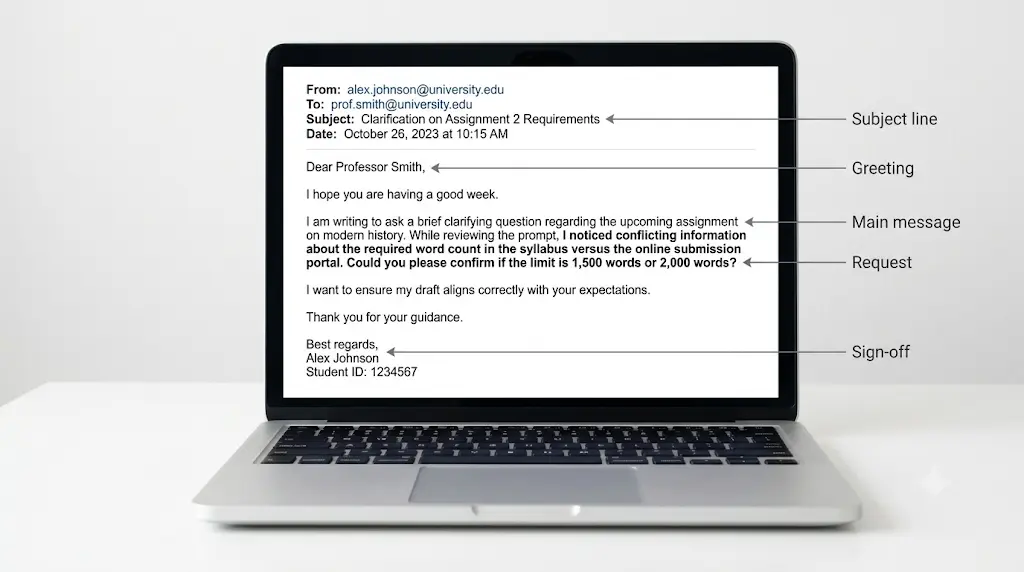
- It does not know email conventions such as subject lines, greetings or sign-offs.
- Rewriting can swap plain words for fancy ones. For a professor or recruiter, that can read as unnatural.
Who Should Choose This Tool?
Choose it if you can write a rough draft and want it cleaner.
Skip it if you cannot get started without a first draft.
Official Sources
Which AI Email Writing Tool Is Best for Your Needs?
This section matches tools to tasks. Where my evidence does not show a clear winner, I say so instead of inventing one.
Best for Beginners Who Need Simple Email Drafts
Mailmeteor’s free writer, because it asks for the least: no account, no setup and no form to learn.
Best for Free Email Writing
Mailmeteor’s web writer is the only tool here with no stated usage cap. For replies, Ellie’s free plan allows 10 draft replies a day. For polishing, QuillBot’s free plan works for short emails. WriteMail.ai (5 a month) and MailMaestro (3 a week) are closer to trials.New to AI? Start with our Ultimate Beginner Guide to AI Tools for Students to discover the best AI tools for research, note-taking, writing, revision, and productivity—all explained in a beginner-friendly, step-by-step format.
Best for Professional and Formal Emails
The evidence is inconclusive: none of these vendors publishes proof that its formal output beats another’s. WriteMail.ai has a built-in formal and professional tone setting, which helps if you do not want to write tone instructions. Otherwise, use the formal-email prompt later in this guide with any tool.
Best for Students and Job Seekers
Start with Mailmeteor’s free writer and polish with QuillBot’s free plan. WriteMail.ai’s site also lists dedicated pages for leave applications, job application emails and thank-you emails after interviews. Ellie cannot help with first-contact emails, so it is a weaker fit for applications.
Best for Grammar, Clarity, and Tone
QuillBot for rewriting and grammar. Mailmeteor’s Gmail assistant also lets you highlight text and make it more formal or friendly. Gmail’s own Proofread feature is limited to Google AI Plus, Pro or Ultra plans for English, or eligible Workspace plans, according to Google’s help page.
Best for Writing and Replying to Emails in Gmail or Outlook
For Gmail, the options are Mailmeteor’s assistant, WriteMail.ai, MailMaestro and Ellie. For Outlook, MailMaestro, Ellie and WriteMail.ai each list an Outlook add-in.
What about the built-in AI? Google’s Gmail help page says “Help me write” is currently available to personal Gmail accounts without a paid plan only in the US. In India, it needs a Google AI Plus, Pro or Ultra plan, or an eligible Workspace plan. Microsoft’s support page says Copilot in Outlook supports work or school accounts and Outlook.com-style accounts (outlook.com, hotmail.com, live.com, msn.com), not Gmail or Yahoo addresses opened in Outlook. Google says it will expand to more countries over time, so recheck.
Best for Users Who Prefer Simple English
WriteMail.ai accepts rough key points and says its language simplification feature avoids big words and jargon (a vendor claim I did not test). With any tool, the simple-English prompt below does the same job.Most beginners don’t waste money on AI—they waste time choosing the wrong tools. Discover the free AI tools that beginners can start using today and build confidence from your very first AI experience.
The 60-Second Chooser for the Best AI Email Writing Tools for Beginners
Answer in order and stop at the first match:
- Need a draft right now, no account? Use Mailmeteor’s web writer.
- Already wrote a draft and want it cleaner? Use QuillBot.
- Drowning in replies? Use Ellie’s free plan.
- Live in Outlook? Try MailMaestro’s free tier.
- Want guided input or Hindi/Bengali output? Try WriteMail.ai.
- Not sure? Start with number 1, then add number 2.
How to Write a Professional Email Using AI
Short answer: tell the AI who the email is for, why you are writing and what tone you want. Then check every fact yourself before sending. These seven steps work in any tool.
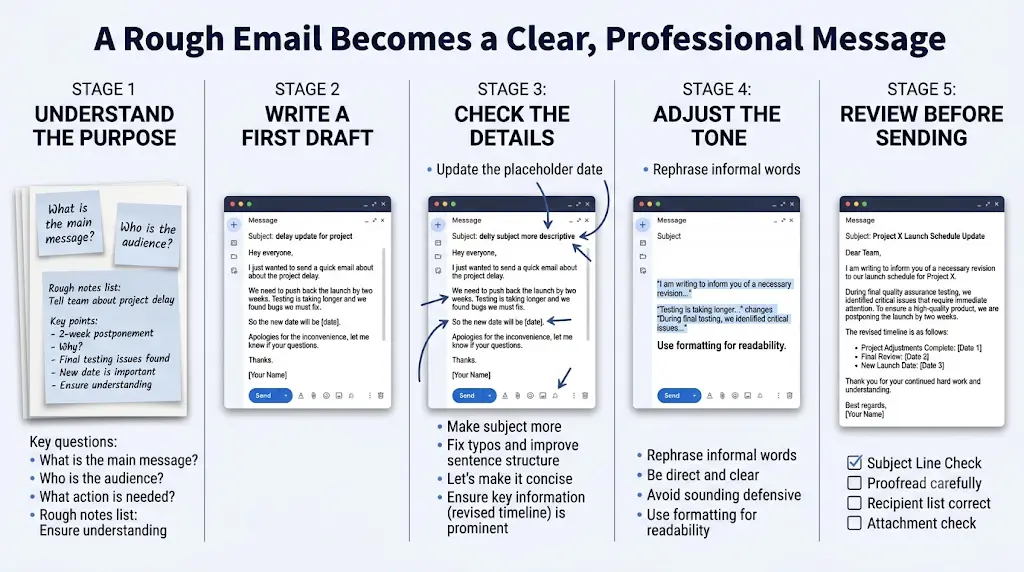
Step 1: Identify the Purpose of Your Email
Write one sentence: “I want [person] to [do something] by [date].” If you cannot finish that sentence, the AI will not be able to either.
Step 2: Provide the Recipient and Essential Context
Give the recipient’s role, your relationship to them and the facts that matter, such as dates, course names or reference numbers. Leave out anything private.
Step 3: Specify the Tone and Desired Length
Say “formal and polite” or “friendly but professional,” and set a word limit such as “under 120 words.” Without limits, AI drafts tend to run long.
Step 4: Generate the First Draft
Generate once, read it, then ask for one specific change at a time, such as “shorter” or “less formal.” Small, specific requests beat starting over.
Step 5: Verify the Details and Personalize the Message
Check names, dates, attachments, commitments, factual claims and recipient details. AI can invent or mix these up. Then add one sentence only you could write, such as the lecture you attended or the project you worked on.
Step 6: Check the Subject Line, Greeting, and Closing
A clear subject line (“Request for lab make-up: [Your Name], [Section]”) matters as much as the body. Confirm the greeting uses the right title and spelling.
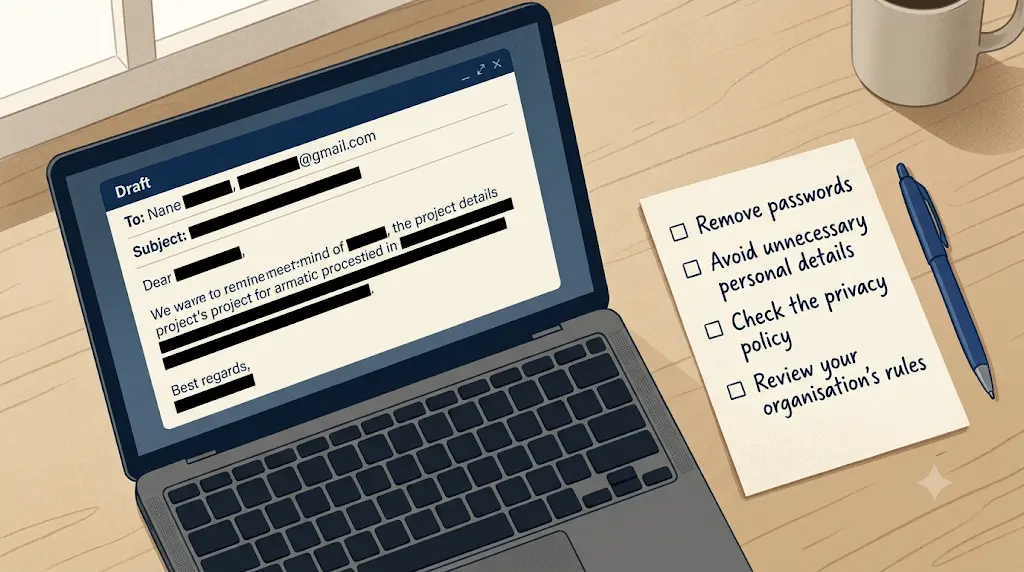
Step 7: Review Privacy and Send the Email Yourself
Make sure no confidential details slipped in, then press send yourself. Never let a tool send on your behalf without reading.
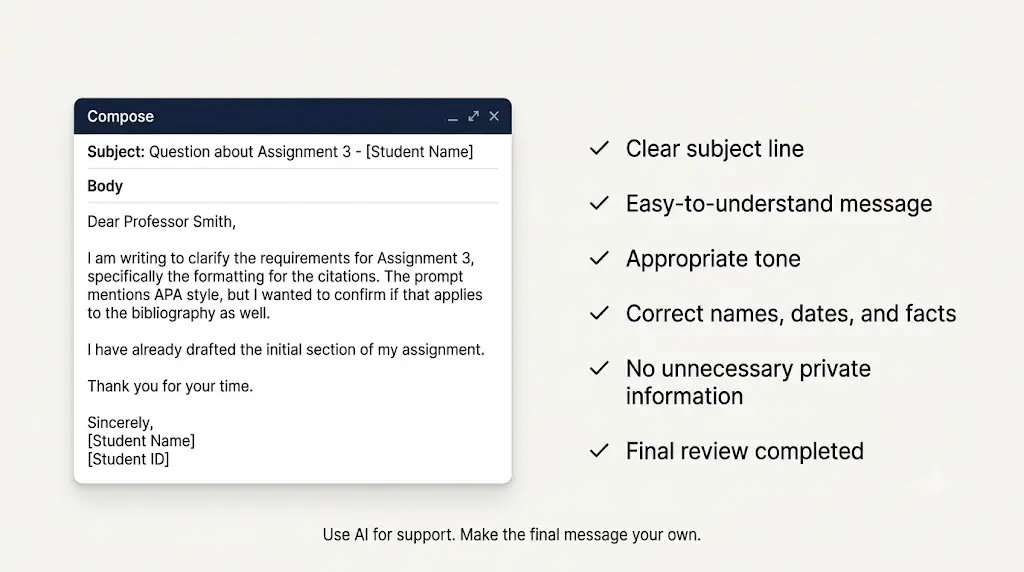
Bookmark-worthy pre-send checklist
- Recipient name and title spelled correctly
- Dates, times and numbers match your records
- Attachment mentioned and actually attached
- Nothing promised that you cannot deliver
- No private or sensitive data
- Sounds like something you would say aloud
Practical Prompts to Use With the Best AI Email Writing Tools for Beginners
Copy a prompt, replace everything in [square brackets], and paste it into any tool above or a general assistant. Clear placeholders work because they force you to supply the facts the AI cannot guess.
Prompt for Writing a Formal Email
Write a formal email to [recipient and their role] about [purpose]. Key details: [dates, names, numbers, attachments]. Tone: [formal and polite]. Length: [under 120 words]. Include a clear subject line and end with one specific request: [what you want them to do, and by when].
Prompt for Asking a Professor or Teacher for Help
Write a respectful email to Prof. [surname] from [your name], a [year] student in [course and section]. I need help with [specific topic or assignment]. What I have already tried: [one or two sentences]. Ask for [a 10-minute meeting / a clarification / a deadline extension]. Tone: polite, not pushy. Under 130 words. Add a subject line.
Illustrative example (not a real email):
Write a respectful email to Prof. Rao from Ravi Kumar, a second-year student in Data Structures, Section B. I need help with Assignment 3, question 2 on linked lists. What I have already tried: I drew the pointer diagram but my deletion function fails on the last node. Ask for a 10-minute meeting this week. Tone: polite, not pushy. Under 130 words. Add a subject line.
Why it works: it names the course, the exact question, what you already tried and one small ask. A professor can answer that in seconds.
Prompt for a Job Application Email
Write a job application email for the [job title] role at [company]. I am [your name], [degree and year, or experience, in one line]. Attached: my resume and [other file]. Mention these two strengths, each with a real example: [strength 1], [strength 2]. Tone: confident and respectful. Under 150 words. Do not invent achievements, numbers or company facts.
Prompt for a Polite Follow-Up Email
Write a polite follow-up email to [recipient]. Context: I [applied / sent a request / attended an interview] on [date] for [purpose] and have not heard back. Ask for [an update / the next step]. Tone: friendly, patient, not demanding. Under 90 words. Include a subject line that mentions [reference or role].
Illustrative example (not a real email):
Write a polite follow-up email to Ms. Iyer, the HR coordinator. Context: I attended an internship interview on 8 October for the Content Intern role and have not heard back. Ask for an update on the timeline. Tone: friendly, patient, not demanding. Under 90 words. Include a subject line that mentions Content Intern interview, 8 October.
Why it works: the date and role let the recipient find your file immediately, and “not demanding” keeps the tone from sliding into pressure.
Prompt for Replying to a Professional Email
Here is the email I received:
“””
[paste the email, with private details removed]
“””
Write a reply from me ([your name]). My answer is: [yes / no / I need more time because …]. Points to cover: [list them]. Tone: [professional and warm]. Length: [short]. Do not promise anything I have not listed.
Prompt for Requesting Leave
Write a leave request email to [manager or teacher name]. Reason: [brief, personal details optional]. Dates: [from] to [to]. How I will cover work or missed classes: [plan]. Ask for approval by [date]. Tone: respectful and straightforward. Under 100 words. Add a subject line.
Prompt for Rewriting an Email in Simple English
Rewrite the email below in simple, clear English. Use short sentences and common words. Keep all names, dates and numbers exactly as they are. Keep the tone [polite]. Email: [paste your draft]
Prompt for Making an Email More Polite and Professional
Make this email more polite and professional without making it longer. Remove anything that sounds rude, demanding or too casual. Keep my meaning, names, dates and numbers unchanged. Email: [paste draft]. Show the improved version first, then list what you changed in 3 bullets.
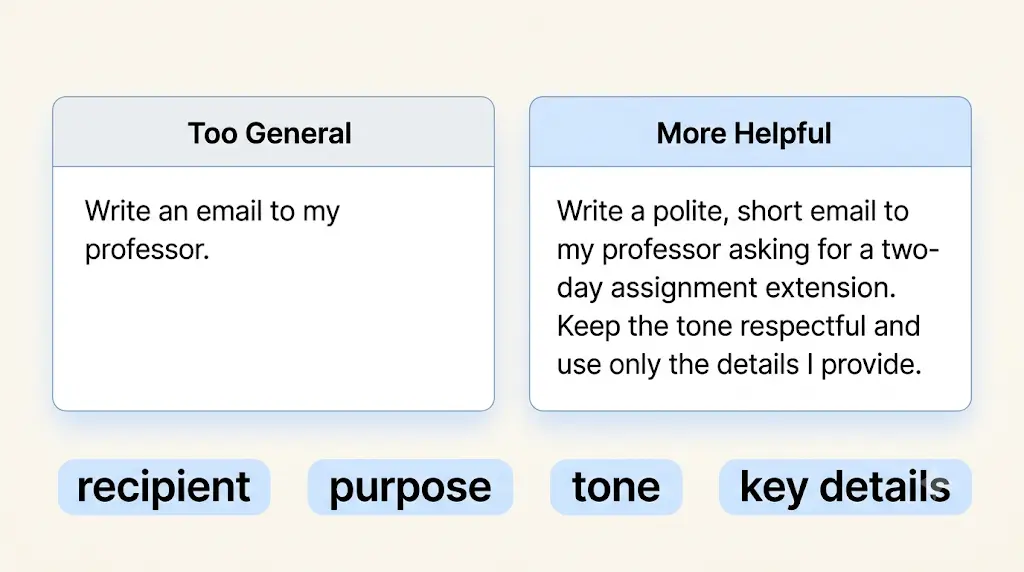
Are the Free Versions of the Best AI Email Writing Tools for Beginners Good Enough?
Yes, for occasional emails. No, if you want AI help on every message. Free plans differ a lot, so here is what each one allows as of 19 October 2026:
- Mailmeteor web writer: no sign-up and no stated usage quota (vendor’s claim). The Gmail assistant has a 7-day trial.
- Ellie: 10 draft replies a day, manual only, one account.
- QuillBot: free grammar checker and rewrites capped at 125 words each (third-party sourced).
- WriteMail.ai: 5 AI emails a month.
- MailMaestro: 3 AI requests a week.
Upgrade only when a specific limit blocks you, such as hitting a weekly cap or needing inbox integration. Nothing I found proves a paid plan always writes better emails. Paid plans mainly add volume, integration and speed. Compare the free versions on the same non-sensitive email before you spend ₹500 to ₹2,000 a month.
Outdated Advice About AI Email Tools: What Changed in 2025 and 2026
Many older roundups are now wrong. Watch for these:
- Flowrite is no longer a separate product. Maestro Labs says it acquired Flowrite’s email business in September 2024 and folded it into MailMaestro.
- LanguageTool’s browser extension is now Premium-only, according to LanguageTool’s own help centre. Free users can still use its grammar checker and paraphraser on the website, with usage limits. Guides that call the extension free are out of date.
- Grammarly is still called Grammarly, but its parent company renamed itself Superhuman in October 2025. Reports said the combined suite includes Superhuman Mail and a new assistant called Superhuman Go. Check the live plans page for current pricing.
- “Gmail’s AI is free for everyone” is only true for personal accounts in the US, per Google’s help page. Expect that to change gradually.
How to Choose a Safe and Reliable AI Email Writing Tool
Treat an email tool like anyone you would hand your inbox to: give it the least access that gets the job done.
- Data privacy: read what the vendor says about training and storage. Mailmeteor and Ellie each state they do not train models on your email. WriteMail.ai’s messages are mixed, so read its policy.
- Permissions: pasting text into a web writer shares one email. Connecting your mailbox shares much more. Start with paste-in tools.
- Sensitive information: keep out marksheets, ID numbers, bank details, medical or legal matters and offer-letter terms. Mailmeteor itself advises against sensitive emails.
- Human review: you are responsible for what you send, not the tool.
- Pricing transparency: prefer tools that show prices clearly. Ellie’s page did not show amounts when I checked, so confirm before you subscribe.
- No automatic sending: the safest setup creates a draft and waits for you.
Common Mistakes to Avoid When Writing Emails With AI
- Vague prompts. “Write an email to my teacher” gets a generic reply. Add the purpose, details and tone.
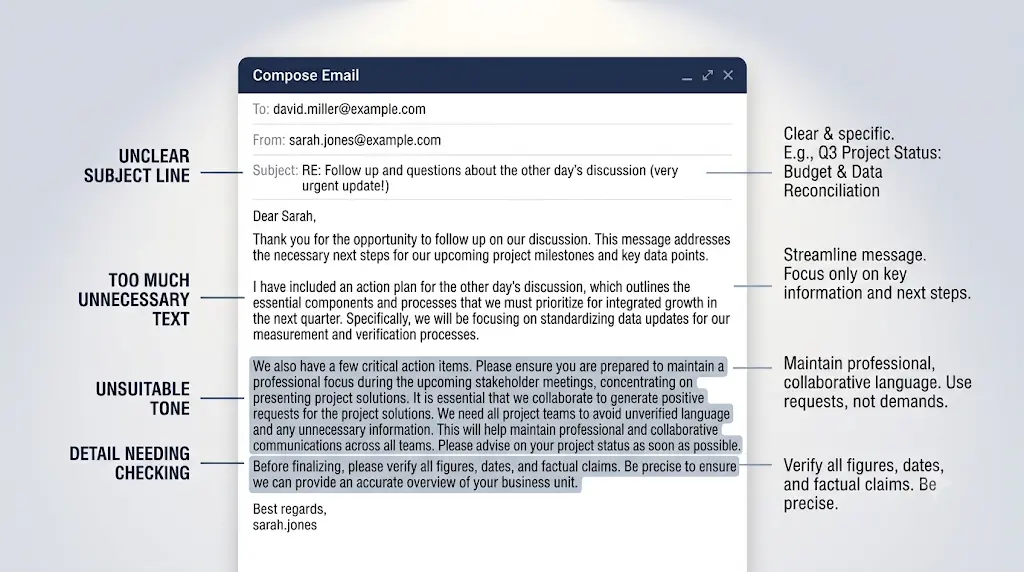
- Fabricated details. AI can invent dates, achievements or company facts. Verify everything.
- Too formal. “I hope this email finds you well” in every email sounds like a template. Match the relationship.
- Generic wording. Add one specific sentence that proves you wrote it.
- Wrong names. Check spelling, title and designation.
- Unverified claims. Do not send a statistic or promise you cannot back up.
- Confidential content. Do not paste what you would not want stored.
- No proofreading. Read it aloud once before sending.
Frequently Asked Questions About AI Email Writing Tools
What is the best AI email writing tool for beginners?
Mailmeteor’s free AI Email Writer is the easiest start, because its site says it needs no sign-up or usage quota. For Gmail or Outlook, try MailMaestro or WriteMail.ai. For replies, try Ellie. For polishing your own draft, try QuillBot.
Are there free AI tools for writing emails?
Yes. Mailmeteor’s web writer is free with no stated cap. Ellie’s free plan gives 10 draft replies a day, and QuillBot has a free plan with a 125-word rewrite limit. WriteMail.ai and MailMaestro have free plans but with small allowances: 5 emails a month and 3 requests a week.Using AI for the first time can feel confusing, but you don’t need to be tech-savvy—this beginner-friendly guide shows you exactly where to start.
Can AI write a professional email for me?
Yes, but it needs your facts. Give the recipient, purpose, key details, tone and length. Then check names, dates and promises yourself. AI drafts a starting point; you stay responsible for accuracy and what you send.
Which AI tool is best for writing formal emails?
I found no evidence that one tool clearly beats the others. WriteMail.ai has formal and professional tone settings, and any tool works with the formal-email prompt in this guide. Pick the one that fits your inbox and budget, then edit the draft.
Can AI tools help me reply to emails?
Yes. Ellie is built for replies and drafts them in your tone. WriteMail.ai lets you paste a received email to generate a reply, and MailMaestro and Mailmeteor’s Gmail assistant also support replies. Always read the draft before sending.If you want AI to do more than just answer questions, discover these AI Tools for People With No Coding Skills that can save you at least one hour every day.
Can AI email writers improve grammar and tone?
Yes. QuillBot offers a grammar checker and paraphraser, and Mailmeteor’s Gmail assistant can fix grammar and shift tone when you highlight text. Review the changes, because rewriting can make text sound unnatural.
Are AI email writing tools safe to use?
They can be, if you limit what you share. Pasting one non-sensitive email is lower risk than connecting your whole mailbox. Read each vendor’s privacy policy and never include ID numbers, financial data or confidential details.
Can I use AI to write emails for job applications?
Yes, as a starting point. Give the real job title, your real strengths and ask it not to invent achievements. Then rewrite the opening in your own voice. Ellie will not help here, because it only writes replies, not new emails.
Do AI email writing tools work with Gmail and Outlook?
Some do. Mailmeteor’s assistant is Gmail-only. MailMaestro, Ellie and WriteMail.ai list both Gmail and Outlook support. Gmail’s built-in “Help me write” is not free for personal accounts in India, according to Google’s help page.
How can I make an AI-written email sound more human?
Write the key points yourself, ask for a shorter draft, then replace the opening and closing with your own words. Add one specific detail only you would know, and cut stock phrases such as “I hope this finds you well.”
Final Verdict: Which AI Email Writing Tool Should You Choose?
Among the best AI email writing tools for beginners in this guide, the right pick depends on your task.
Choose Mailmeteor’s free writer if you want a no-account draft today. Skip it if you want AI inside your inbox on a phone.
Choose WriteMail.ai if you like a guided form or write in Hindi or Bengali. Skip it if you need more than five AI emails a month for free.
Choose MailMaestro if you use Outlook every day. Skip it if you email only occasionally.
Choose Ellie if replying is your bottleneck. Skip it if you need to write first-contact emails.
Choose QuillBot if you can write a rough draft and want it cleaner. Skip it if you need a draft created from nothing.
Your first step: pick a non-sensitive email you have to write this week, try Prompt 1 or Prompt 4 above in Mailmeteor’s free writer, then compare the result with what you would have written alone. Keep whatever sounds like you.
About the Author
Nandhakumar — Founder & Content Creator at FutureFastAI
Nandhakumar is the founder and content creator of FutureFastAI, a platform dedicated to helping students, beginners, and lifelong learners discover practical AI tools and smarter ways to learn, research, and improve productivity.
Through FutureFastAI, he focuses on explaining AI tools, their features, practical applications, pricing, free-plan limitations, and potential benefits in clear, accessible language. His goal is to help readers understand which tools may suit their needs, compare available options, and make informed decisions without unnecessary complexity.
His content emphasizes practical usefulness, clear explanations, reliable sources, and responsible AI adoption. Articles are developed to help readers understand how AI can support studying, assignment planning, research, writing, and everyday productivity while recognizing the importance of human judgment, independent thinking, and academic integrity.
FutureFastAI aims to make AI more accessible to students and beginners by providing informative guides, tool comparisons, tutorials, and actionable recommendations. The platform prioritizes reader value, factual accuracy, transparency, and continuous content improvement as AI technology evolves.
Editorial Commitment: FutureFastAI aims to provide useful, accurate, and accessible information. Product features, pricing, and availability may change, so readers should consult official sources for the latest details. Any hands-on testing or personal experience is identified only when it has genuinely taken place.
Learn more at FutureFastAI.