
7 Best AI Tools to Save Time for Beginners (2026)
Last verified: 9 October 2026. Prices are in US dollars as listed by each tool or its help pages. Rupee figures are approximate (about ₹96.5 per US dollar) and exclude GST, card fees and exchange-rate changes.
It is 10:40 pm. Your assignment is due Friday, your notes are split between WhatsApp, a notebook and three browser tabs, and your to-do list says only “finish project.” You are not short of effort. You are losing time to organising, rewriting and remembering.If you want to go beyond individual productivity tools, learn how to automate repetitive tasks with AI without coding and simplify the routine work that keeps taking up your time.
That is the problem the best AI tools to save time for beginners actually solve. Not by doing your work for you, but by removing one repetitive chore at a time.

Quick Answer: What Are the Best AI Tools to Save Time for Beginners?
The best AI tools to save time for beginners are small, specialised tools that each fix one chore: Goblin Tools for breaking big tasks into steps, Reclaim.ai for automatic scheduling, Voicenotes for capturing ideas by voice, Fathom for meeting notes, Napkin AI for turning text into diagrams, Magical for repeated messages, and Bardeen for browser automation. Start with one, not all seven.
This list deliberately favours lesser-known tools over the usual chatbot roundup. Each one has a free way to start, a stated limitation, and a clear point at which paying starts to make sense.
One honest expectation: results depend on your task and habits. No tool here guarantees a specific number of saved hours. Later in this guide you will find a simple method to measure your own.If managing deadlines and daily tasks is your biggest challenge, explore AI tools for people who struggle with time management to find a more organized way to plan your day.
How We Compared These Tools
This guide is a documentation-based comparison, not a hands-on lab test, and it reports no timing results. Product facts come from official pricing pages and help centres where available, and from third-party reviews where official figures were unclear. Third-party figures are labelled as such. The rankings and “choose it if” advice are editorial judgment, not measured scores.You don’t need programming skills to explore practical automation—see our guide to AI tools for people with no coding skills to discover more ways to simplify digital tasks.
To compare the best AI tools to save time for beginners fairly, each tool was judged on six criteria:
- Learning curve: how quickly a first-time user can finish a real task.
- Useful free access: whether the free plan covers genuine work.
- Task fit: whether it solves one clear chore.
- Output reliability: how much checking its results need.
- Privacy and consent: what to read before uploading or recording.
- Net time: whether the saving survives setup and corrections. Only you can measure this, so a template follows later.
Which AI Tools Help Beginners Save the Most Time?
It depends on the chore. Match your problem to one of the categories below, then read that tool’s full profile.

A quick vocabulary check helps, because these tools solve different problems. Task planning splits work into steps. Scheduling places those steps on a calendar. Transcription turns speech into text, and a meeting summary condenses that text into key points. Diagram generation turns written ideas into visuals, text expansion swaps short codes for saved messages, and browser automation repeats clicks and copying for you.For more ways to reduce manual planning, explore AI tools for organizing daily tasks automatically and discover how automation can simplify your everyday workflow.
Goblin Tools
- Solves: Task planning for overwhelming work.
- Easiest start: Open the website and type a task. No setup.
- Free-plan limit: Nothing is saved without an account or Pro.
- Best fit: Students who freeze at the start of a big task.
Reclaim.ai
- Solves: Scheduling study or focus time.
- Easiest start: Connect your calendar on the free Lite plan.
- Free-plan limit: Fewer features than paid tiers.
- Best fit: People with a changing, busy calendar.
Voicenotes
- Solves: Capturing ideas by voice.
- Easiest start: Record a short memo and read the transcript.
- Free-plan limit: 100 transcription minutes per week; 30-day history.
- Best fit: Anyone who thinks faster than they type.
Fathom
- Solves: Meeting transcripts and summaries.
- Easiest start: Join your next supported online call with it on.
- Free-plan limit: Advanced AI summaries for five calls per month.
- Best fit: Frequent online-meeting attendees.
Napkin AI
- Solves: Diagram generation from text.
- Easiest start: Paste a paragraph and pick a generated visual.
- Free-plan limit: 500 weekly credits; watermarked exports.
- Best fit: Students and freelancers who explain ideas visually.
Magical
- Solves: Text expansion for repeated messages.
- Easiest start: Install the Chrome extension and save one shortcut.
- Free-plan limit: Paid details unconfirmed; Chrome and Edge only.
- Best fit: Anyone who retypes similar emails daily.
Bardeen
- Solves: Browser automation without code.
- Easiest start: Run one ready-made automation manually.
- Free-plan limit: Small monthly credit allowance; sources disagree.
- Best fit: Comfortable experimenters with one repeated web task.
What Are the Best Underrated AI Tools for Beginners?
“Underrated” here means specialised and less talked about, not obscure for its own sake. Each profile follows the same order: what it does, who it suits, what it costs, where it falls short, and when to upgrade.
Goblin Tools: Best for Breaking Down Overwhelming Tasks
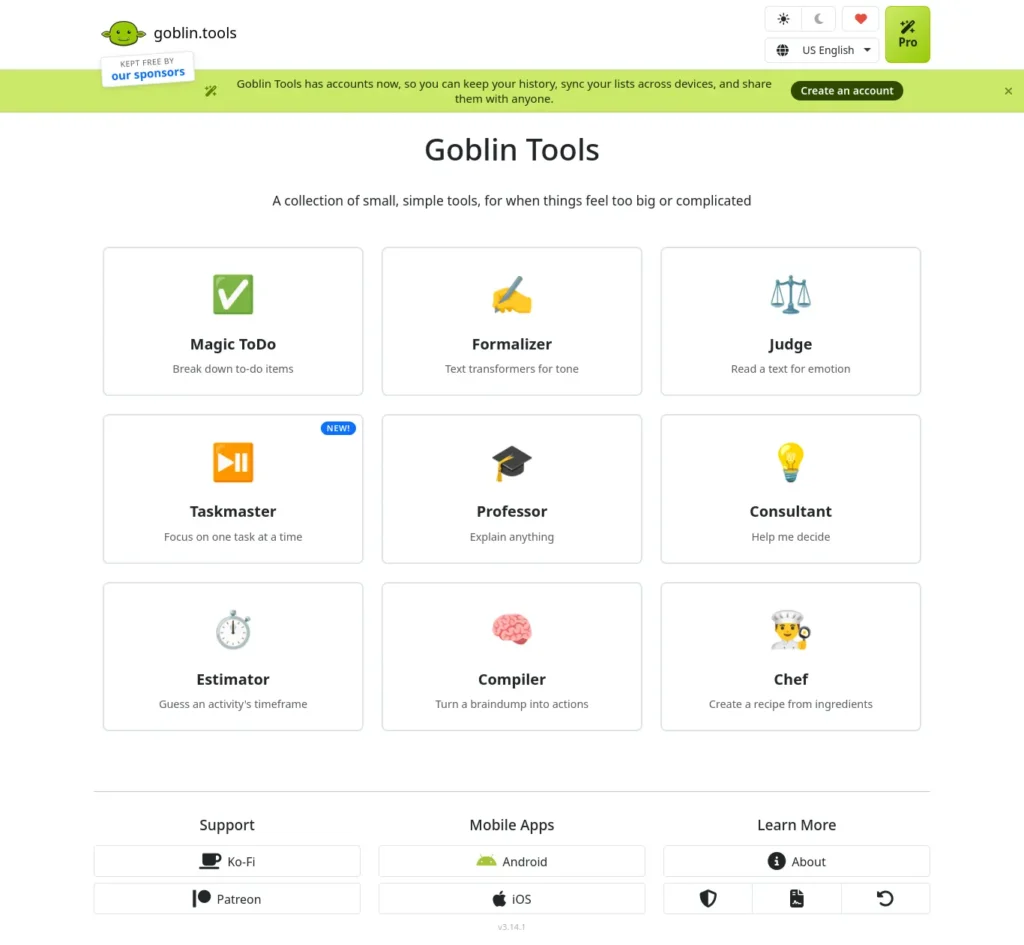
Goblin Tools is a collection of small single-purpose tools at goblin.tools. Its flagship, Magic ToDo, takes a vague task such as “write my lab report” and splits it into smaller steps, with a “spiciness” setting that controls how detailed the breakdown gets. Another tool, Compiler, turns a messy brain dump into a task list.
Best for: Students and beginners who freeze at the start of a big task.
Free plan and price: The core tools on the website are free. Goblin Tools Pro is listed at about $3 per month (roughly ₹290) and adds synced lists, templates and history. Per third-party reviews, nothing you generate is saved without an account or Pro.
What It Looks Like (Illustrative)
You enter: “Prepare a 10-minute presentation on renewable energy.” The tool returns a step list, such as research, outline, slides and practice. You then check that the steps match your marking criteria and add your own deadlines. It may not save time if you already have a clear plan.
Watch out:
- Breakdowns are AI suggestions and can be generic or wrongly ordered.
- It is a task splitter, not a full to-do app. It will not replace Todoist or a calendar.
- Only install the official app. The official listing warns that lookalike apps exist.
Upgrade trigger: Pay only if you keep losing lists between devices and want them synced.
Choose it if your problem is “I don’t know where to start.”
Skip it if your problem is a packed calendar rather than an unclear task.
Voicenotes: Best for Capturing Ideas by Voice
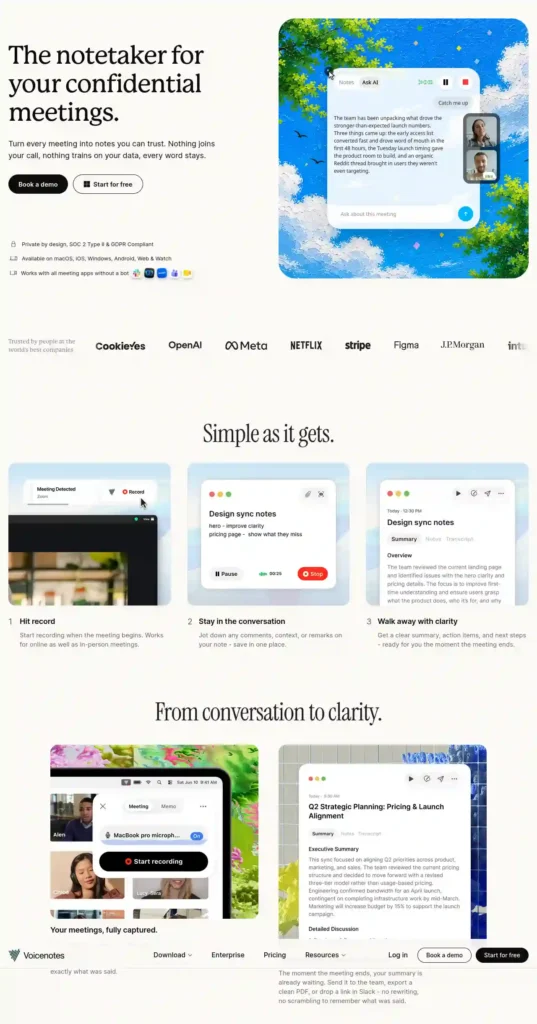
Voicenotes records spoken notes, meetings and dictation, then turns them into searchable transcripts and summaries. It is built for people who think faster than they type.
Best for: Revision ideas on the bus, project brainstorming, or capturing thoughts before they disappear.
Free plan and price: According to its pricing page, Basic is free with 100 minutes of transcripts and summaries per week, unlimited raw recordings and 30 days of history. Pro is $9 per user per month (about ₹870) with unlimited transcription and history. Recordings beyond the weekly limit are still saved and can be transcribed when your minutes refresh.
Languages: Official pages cite more than 60 languages, with one page saying 100+. Test your own language before relying on it.
What It Looks Like (Illustrative)
You speak a two-minute idea for a project. The tool returns a transcript and summary. You check names, numbers and dates, since those are where errors hide. It may not save time for a short thought you could type in twenty seconds.
Watch out:
- Transcripts contain errors, especially with accents, noise or technical terms.
- Do not record other people without their permission.
- The free 30-day history window means older notes become harder to reach.
Upgrade trigger: You hit the 100-minute weekly limit most weeks, or you need your old notes searchable beyond 30 days.
See the Tools in Action
Choose it if typing is your bottleneck.
Skip it if you rarely need to capture ideas away from a keyboard.
Reclaim.ai: Best for Automatic Time Scheduling
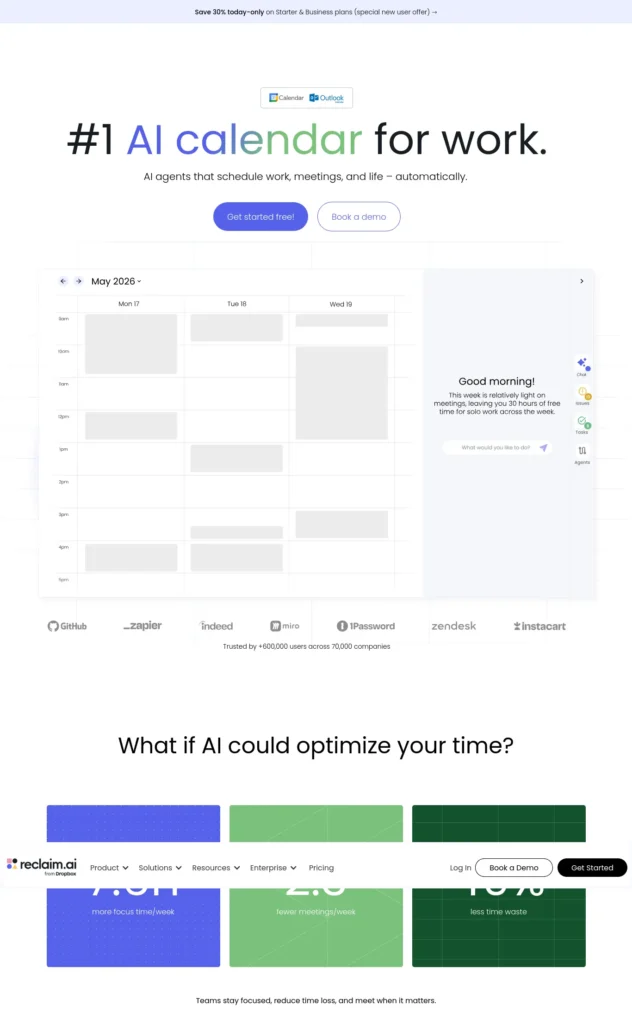
Reclaim.ai is a calendar assistant that places focus time, tasks and habits around your existing events and adjusts when your day changes. Instead of dragging blocks around by hand, you tell it what needs to happen and by when.
Best for: Students juggling classes and study blocks, and freelancers with shifting client work.
Free plan and price: The official pricing page lists a free Lite plan for individuals, described as free forever, plus paid Starter, Business and Enterprise tiers. Third-party trackers disagree on exact paid prices (figures between about $8 and $10 per seat per month appear), so check the official page before paying. Lite also has fewer features than paid plans.
Watch out:
- It works through your calendar, so setup takes effort and it assumes you already keep one.
- Automatic rescheduling can surprise you until you learn its rules.
- Confirm which calendar services it supports before signing up.
Upgrade trigger: You need features the free tier locks, such as longer planning horizons or integrations, and you can name the specific feature.
See the Tools in Action
Choose it if you keep manually rearranging your day. Skip it if your schedule is simple and a plain calendar already works.
Fathom: Best for Meeting Notes and Summaries
Fathom is an AI notetaker for online meetings. It records and transcribes supported calls, then generates summaries and action items so you do not have to write minutes while someone is talking.
Best for: Freelancers, interns, remote workers and anyone attending frequent video calls.
Free plan and price: Per Fathom’s help documentation and 2026 pricing breakdowns, the free plan includes unlimited recording and transcription, but advanced AI summaries are limited to the first five calls each month, after which a basic template applies. Premium is commonly listed at about $20 per month, or about $16 per month billed annually (roughly ₹1,930 or ₹1,545). Treat the paid figures as third-party-sourced and confirm on Fathom’s site.
What It Looks Like (Illustrative)
After a call, you open the transcript and summary. You check that action items and owners match what was actually agreed, and fix gaps before sharing anything. It may not save time if the call was short or very sensitive.
Watch out:
- Always tell participants you are recording. Rules vary by country, workplace and platform.
- Summaries can miss nuance or misattribute points, so skim the transcript for anything important.
- If you rarely attend online meetings, you will not get value from it.
Upgrade trigger: You regularly exceed five important calls a month and need full AI summaries for each.
See the Tools in Action
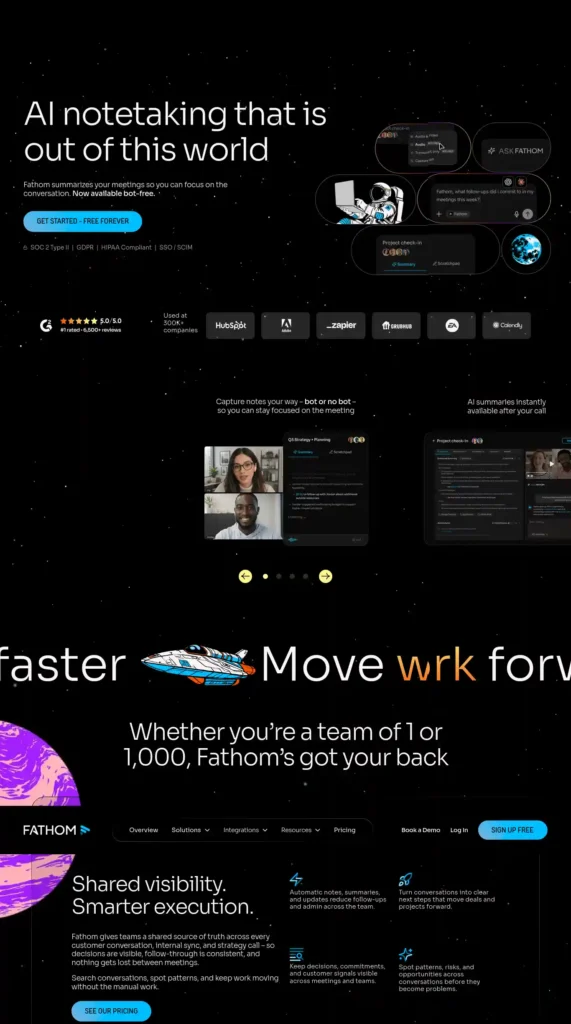
Choose it if you attend several online calls a week. Skip it if most of your conversations are in person or very sensitive.
Napkin AI: Best for Turning Text into Visuals
Napkin AI converts a paragraph of text into editable diagrams, flowcharts and infographics. You paste text, select a passage, and choose from generated visuals.
Best for: Study diagrams, project explanations and simple presentation graphics when you understand the idea but dislike drawing it.
Free plan and price: Napkin’s help centre lists 500 AI credits per week on Free, 10,000 per month on Plus and 30,000 per month on Pro. Pricing pages report Plus at about 9permonthbilledannually(12 monthly, roughly ₹870 to ₹1,160) and Pro at about 22annually(30 monthly, roughly ₹2,120 to ₹2,900). Confirm on Napkin’s pricing page, because credit rules change.
Watch out:
- Free exports carry a Napkin watermark, and some formats such as PowerPoint and SVG sit behind paid plans, according to reviews.
- Layouts may need tidying, and it is not suited to precise technical schematics.
- It makes single visuals, not full slide decks.
Upgrade trigger: You need clean, watermark-free exports for a submission or client deliverable.
Choose it if you need a clear diagram in minutes.
See the Tools in Action
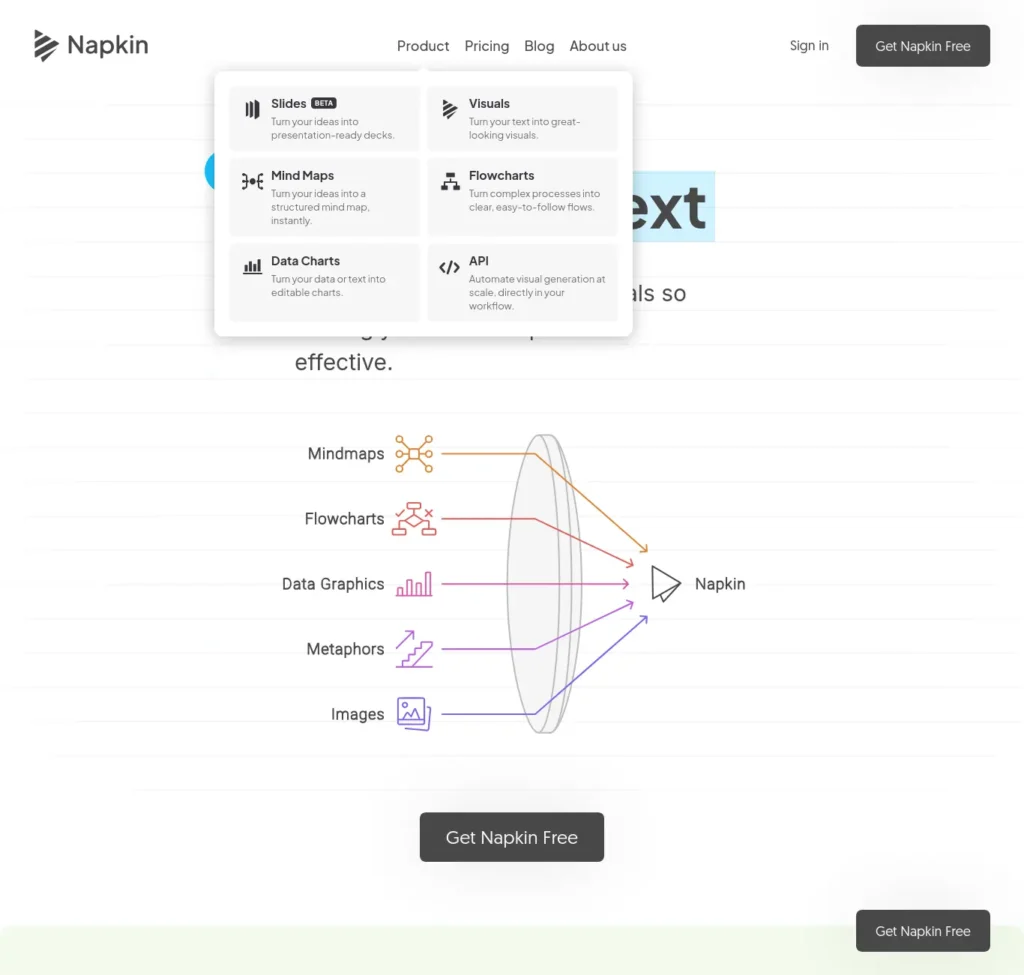
Skip it if your work is mostly plain text or needs exact engineering drawings.
Magical: Best for Repeating the Same Messages Less
Magical is a Chrome extension for text shortcuts. You type a short code such as //thanks and it expands into a full saved message. Its marketing also mentions autofill for forms and spreadsheets. A fair note: shortcut expansion is automation, not necessarily AI, and Magical’s pages do not make clear which features use AI. We include it because the time saving is real for repetitive typing.
Best for: Placement emails, internship follow-ups, customer replies and any message you write the same way again and again.
Free plan and price: The official site offers the text expander as a free Chrome extension. Paid plan details were not confirmed, so check current limits yourself.
Watch out:
- It works in Chrome and Edge, not Firefox or Safari, per third-party listings.
- Shortcut text still needs personalising. A copy-paste email that ignores the recipient hurts you.
- Review which websites it can read before installing any extension that works inside text boxes. Magical states it does not collect or store keystrokes.
Upgrade trigger: Only consider paying if you want to share shortcut libraries with a team.
See the Tools in Action

Choose it if you type similar messages daily. Skip it if you rarely repeat yourself.
Bardeen: Best for Automating Repetitive Browser Work
Bardeen automates browser tasks such as copying data from web pages into spreadsheets, without code. You build or pick an automation, and it runs the clicks for you.
Best for: Beginners who are comfortable experimenting and have a clear repetitive task, such as collecting listings or contact details from pages into a sheet.
Free plan and price: 2026 pricing trackers consistently report a free tier with 100 credits per month, with paid plans from about $10 per month (roughly ₹965). Sources disagree on plan names and what the free tier includes, so confirm on Bardeen’s site. One source reported no free plan, so do not assume.
Watch out:
- It is the hardest tool here for a first-time user, and credits are consumed by runs.
- Automating the wrong task wastes more time than doing it by hand.
- Do not scrape pages in ways their terms forbid.
Upgrade trigger: You have one automation that clearly saves time and keeps running out of credits.
Choose it if you do the same copy-and-paste web task every week.
See the Tools in Action

Skip it if you are brand new to AI tools. Start with Goblin Tools or Voicenotes first.
Which AI Tools Save Time on Everyday Tasks?
If you would rather start from the task than the tool, use this map. A tool appears only where it genuinely fits.
Two Tool Combinations Worth Trying
Both combinations below use a manual hand-off. No integration between the tools is assumed.
Goblin Tools, Then Reclaim.ai
Paste a vague project into Magic ToDo and delete steps that do not apply. Then enter the remaining tasks in Reclaim.ai yourself. Review the order, deadlines and whether each duration is realistic.
Voicenotes, Then a Human-Reviewed Checklist
Record your ideas and read the transcript for errors. Turn the confirmed points into a short checklist, by hand or with an assistant. Re-check names, numbers and dates before relying on it.
Writing Emails and Documents
Magical saves typing on repeated messages. Goblin Tools’ Formalizer can change the tone of a draft, according to the Goblin Tools site. For a first draft from scratch, a general AI assistant is more flexible than any tool on this list, which is worth saying plainly.
Planning Tasks and Managing Deadlines
Use Goblin Tools to break a task into steps, then Reclaim.ai to place those steps on your calendar. The first answers “what do I do?” and the second answers “when?”
Researching Information and Summarising Documents
None of the seven is built mainly for research. For summarising long reading material, a general assistant is the better fit. Use Bardeen only for collecting repeated web data, not for judging whether a source is trustworthy.
Taking Notes and Remembering Important Details
Voicenotes handles spoken ideas and Fathom handles online meetings. Choose by where the information appears: your own thoughts or a call with others.
Creating Presentations and Visual Explanations
Napkin AI covers the diagram part. If you need full slide decks, treat it as a helper for individual visuals rather than a replacement for presentation software.
How Can Beginners Use AI to Save Time Without Coding?
You do not need code for any tool above. You need one repeated task and a way to check the result. Follow this four-step routine.
- Pick one task you repeat weekly. For example, planning study sessions or writing meeting notes.
- Time it manually once. Note the minutes it takes without AI.
- Try one tool on that exact task. Record setup time, running time and the time you spend fixing the output.
- Compare the totals. Keep the tool only if the net time is lower.
The Net-Time Rule: Time saved = (manual time) minus (setup time + AI run time + correction time). Setup is a one-off cost, so repeat the task three or four times before judging. If the result is zero or negative, the tool is not right for that task yet.
Measurement Template
Copy this into a note or spreadsheet. Use the same task, the same input and equivalent output quality each time.
- Task and date:
- Manual time (minutes):
- Setup time (first run only):
- AI processing time:
- Correction time:
- Net saving: manual time minus (setup + AI + correction)
- Quality check: accurate, complete, usable? Yes or no.
Repeat the task three or four times. Setup counts once, so the net saving often improves after the first run. Compare like with like: a rough AI draft is not equal to a polished manual one, so count the time you spend bringing it to the same standard. Never compare your results with someone else’s numbers.
Starter Prompts You Can Copy
Use these in Goblin Tools’ Magic ToDo or any AI assistant:
- “Break this assignment into six tasks I can finish in 30-minute study sessions. Tell me what to do first.”
- “Turn these rough notes into a checklist, ordered by deadline: [paste notes].”
- “Rewrite this email to sound polite and professional without making it longer: [paste email].”
How to Check the Output
Make sure every step is something you can actually do, the order makes sense, and nothing important from the original assignment is missing.
Illustrative Example (Not a Real Case Study)
Imagine a second-year engineering student, Ravi, with a lab report due in four days. He pastes the assignment into Magic ToDo, gets a long step list, deletes two steps that do not apply, then books the remaining steps into his calendar. The saving, if any, comes from not spending evening time deciding where to begin. Ravi would still measure the minutes before deciding the tool is worth keeping.
This scenario is made up to show the method. It reports no real results and no time savings.
When Doing It by Hand Is Faster
If a task takes five minutes and you do it twice a month, setting up automation is rarely worth it. Spend your effort on tasks that are repeated, tedious and predictable.
Are There Free AI Tools That Help You Save Time?
Yes. All seven tools here have a free way to start, though the free plans differ a lot in what they allow. Begin free, and pay only when a specific limit blocks a task you do regularly.
Here is what each free plan looks like in practice:
- Goblin Tools: the core website tools are free, but nothing is saved without an account or Pro.
- Voicenotes: 100 transcription minutes per week and 30 days of history.
- Reclaim.ai: a free Lite plan for individuals, with fewer features than paid tiers.
- Fathom: unlimited recording and transcription, but AI summaries capped at five calls per month.
- Napkin AI: 500 credits per week, with watermarked exports.
- Magical: a free Chrome text-expander extension.
- Bardeen: a small free credit allowance, if still offered, so verify.
The Upgrade Trigger Test
Before paying, answer yes or no: Have I hit this specific limit at least three times in the past month, and did it stop me finishing real work? If the answer is no, stay on the free plan.
A Note on Rupee Pricing
Most of these tools bill in US dollars. Your card may add currency conversion and foreign-transaction fees, and GST can apply. At roughly ₹96.5 per dollar, a $9 plan lands near ₹870 before fees. Always check the final amount at checkout, and prefer monthly billing until you are sure you will keep using the tool.

How Do You Choose the Right AI Productivity Tool?
Answer one question at a time and stop at the first match.
- If your problem is “I don’t know where to start,” go with Goblin Tools.
- If your problem is “my day keeps falling apart,” go with Reclaim.ai.
- If your problem is “I forget ideas or can’t type fast enough,” go with Voicenotes.
- If your problem is “I take too many meeting notes,” go with Fathom.
- If your problem is “I need a diagram,” go with Napkin AI.
- If your problem is “I retype the same messages,” go with Magical.
- If your problem is “I copy data from websites by hand,” consider Bardeen after you have tried a simpler tool.
Three Quick Filters
Before choosing, run these checks:
- Frequency: Will I use this at least weekly? If not, skip it.
- Privacy: Does this involve confidential college, client or employer information? If yes, read the tool’s privacy terms first.
- Cost: Does the free plan cover my need? If yes, do not upgrade.
Save this tip: One tool, one task, one week. Add a second tool only after the first has earned its place.
What Are the Limitations of AI Productivity Tools?
Knowing these in advance saves more time than any shortcut.
- Wrong or generic output. Transcripts, summaries and task breakdowns can be incomplete or incorrect. Always review anything that affects a grade, a client or a deadline.
- Setup time. Every tool costs time to learn. If the learning exceeds the saving, you are worse off.
- Privacy. Uploading recordings, notes or documents sends that information to a third party. See the checks below.
- Recording consent. Meeting recorders and voice tools are only appropriate when everyone involved agrees.
- Recurring costs. A few small monthly subscriptions add up quickly. Review them monthly and cancel what you do not use.
- Over-automation. Automating a task you have not mastered can hide errors. Do it by hand first.
- Changing plans. Free limits, credits and prices change often. This guide’s figures reflect the date at the top.
Privacy and Responsible-Use Checks
Before you upload or record anything, check:
- Consent: everyone being recorded agrees, and local rules allow it.
- Retention and deletion: how long your data is kept and whether you can delete it.
- Third-party access: whether the privacy policy mentions sharing or model training. Voicenotes’ pricing page says it does not train on user data; for the other tools, read the policy yourself.
- Permission: your college, employer or client allows the tool.
No tool in this guide should be treated as completely private.
Frequently Asked Questions
What are the best AI tools to save time for beginners?
Goblin Tools, Reclaim.ai, Voicenotes, Fathom, Napkin AI, Magical and Bardeen each save time on one specific chore. For most beginners, Goblin Tools (breaking tasks into steps) or Voicenotes (capturing ideas by voice) are the easiest starting points, and both have free plans.
Are there free AI tools that help with everyday tasks?
Yes. Goblin Tools’ core tools are free, Voicenotes offers 100 free transcription minutes weekly, Napkin AI gives 500 free credits weekly, and Fathom gives free recording and transcription. Free plans have limits, so check them before depending on one.
Which AI productivity tool is easiest to learn?
Goblin Tools is likely the easiest, because you type a task and click a button without creating an account. Bardeen is typically the hardest on this list, since you build automations. Ease is a judgment, so try the free version before deciding.
Can AI tools automate repetitive work without coding?
Yes. Bardeen is built for no-code browser automation, and Magical expands text shortcuts without code. Automating a task you do not fully understand can cause mistakes, so do it manually a few times first.
Which AI tools are useful for students and freelancers?
Students often benefit from Goblin Tools, Voicenotes, Reclaim.ai and Napkin AI. Freelancers who attend online calls may add Fathom, and those who send repeated client messages may use Magical. Match each tool to a task you actually repeat.
Do AI productivity tools actually save time?
They can, but not automatically. Time saved equals manual time minus setup, run and correction time. If you spend longer fixing the output than doing the task by hand, the tool is not helping that task. Measure before you commit.New to AI tools? Follow our guide on how to start using AI tools as a beginner to build confidence before adding more tools to your workflow.
Are free AI tools enough for beginners?
Often yes. Most beginners hit a free limit only after regular use, such as Voicenotes’ weekly minutes or Fathom’s five AI-summary calls. If you have not hit a limit that blocked real work, there is no need to pay.
How can I choose between AI productivity tools?
Pick the tool that matches your biggest repeated chore: unclear tasks, a messy schedule, forgotten ideas, meeting notes, visuals or repeated messages. Then check frequency, privacy and cost. Start with one free tool for one week.
Should beginners use a general AI assistant instead of these tools?
A general assistant is more flexible for drafting and summarising, and may be enough to start. Specialised tools help when you repeat one chore and want a dedicated interface, saved history or calendar connection. Try your existing assistant first, then add a specialised tool when you hit a clear gap.
Is it safe to upload personal or work information to AI tools?
Not automatically. Uploaded content goes to a third-party service. Avoid uploading confidential college, client or employer information unless the tool’s privacy terms and your organisation’s rules allow it, and never record people without consent.Before paying for a subscription, check out these free AI tools that beginners can start using today and find options that fit your needs and budget.
How can I measure the time saved by an AI tool?
Time the task manually once. Then time setup, the AI run and your corrections across three or four repeats. Subtract the total from your manual time. Write the date and plan tier in a note so you can recheck later.
Final Takeaway
The best AI tools to save time for beginners are the ones that remove a chore you already repeat, cost nothing until they prove their value, and tell you honestly where they fall short.
- Break overwhelming tasks with Goblin Tools.
- Protect focus time with Reclaim.ai.
- Capture ideas with Voicenotes.
- Handle meeting notes with Fathom.
- Make diagrams with Napkin AI.
- Type less with Magical.
- Automate browser chores with Bardeen, once you are comfortable.
Your next step: Choose one task you repeat every week, try one tool from this list on its free plan, and measure whether it genuinely saves time before paying.
Want to go further? Read our guide to free AI tools for students, compare options in AI productivity tools for beginners, or see how to choose AI tools without wasting money.
About the Author
Nandhakumar — Founder & Content Creator at FutureFastAI
Nandhakumar is the founder and content creator of FutureFastAI, a platform focused on helping students, beginners, and everyday users understand AI tools and use them more effectively. His work explores practical AI applications for productivity, learning, research, and digital workflows, with an emphasis on accessible tools, useful features, pricing considerations, and real-world limitations.
For this guide to AI tools that save time, the editorial focus is simple: help beginners identify the right tool for a specific task, understand free-plan restrictions, and evaluate whether the time saved justifies the setup and correction effort. Product features, pricing, and usage limits should be checked against available official documentation because they can change.
At FutureFastAI, the goal is to make AI easier to understand and use responsibly—as a practical assistant that supports human judgment, not a replacement for it.
Explore more: Visit FutureFastAI
Editor Policy
At FutureFastAI, editorial quality, accuracy, transparency, and reader usefulness guide the preparation and review of our content.
Articles are reviewed for clarity, factual consistency, relevance to the intended audience, and practical value. When content covers AI tools, software features, pricing, free-plan limits, or integrations, we aim to verify important claims against official product websites, pricing pages, help centres, and documentation wherever available.
Fact-checking and updates: Product features, prices, and usage limits can change. We identify information that requires further verification, avoid presenting uncertain claims as established facts, and update published content when meaningful corrections are necessary.
Experience and originality: We do not present hypothetical examples as real case studies or claim firsthand testing, personal experience, or measured results without supporting evidence. Our goal is to provide original explanations, useful comparisons, clear limitations, and practical guidance rather than reproduce generic summaries.
Responsible use of AI: AI tools may assist with research organisation, outlining, language refinement, and editorial review. Any AI-generated writing or imagery is handled transparently in accordance with the publishing platform’s applicable policies. AI outputs are not treated as automatically accurate and must be reviewed for factual errors, unsupported claims, and misleading statements.
Reader-first publishing: We aim to explain both the benefits and limitations of the tools we cover. Recommendations should reflect suitability, usability, cost, privacy considerations, and the reader’s needs—not promotional claims alone.
Corrections and accountability: If a factual error is identified, we aim to review it promptly and correct material inaccuracies. Readers can contact FutureFastAI through the contact details provided on our website to report errors or suggest improvements.
Our editorial objective is to publish clear, responsible, and useful information that helps readers make informed decisions about AI tools and digital productivity.





One Comment