

How to Automate Repetitive Tasks With AI Without Coding: A Beginner’s Guide
Priya is in her second year of college. Every Sunday night she opens a Google Form her club uses to collect event sign-ups, reads through each response, and copies the names and email addresses into a spreadsheet by hand. It takes about forty minutes. Halfway through, she always thinks: there has to be a faster way to do this.
There is. This guide is about finding it — and about learning the one skill that actually matters more than any tool: knowing which repetitive task is worth automating first, and which parts of it still need a human.
Quick answer: Yes — this guide covers exactly how to automate repetitive tasks with AI without coding. You can automate a large share of repetitive digital work — email sorting, meeting notes, data entry, file naming, simple replies — and you don’t need to write a single line of code to do it. The hard part isn’t the tool. It’s picking the right task and keeping a human in charge of the parts that matter.

Who This Guide Is For
You’ll get the most out of this if you’re one of the following:
A complete beginner who has never built an automation before
A student juggling forms, research, notes, and deadlines
A freelancer or solopreneur doing the same client admin every week
A small-business owner answering the same enquiries over and over
An office worker buried in repetitive data entry or reporting
A content creator or digital marketer managing recurring publishing tasks
Any non-technical professional who has heard “automate it with AI” and wants to know what that actually means in practice
Want to reclaim at least one extra hour every single day? Check out our detailed guide on the AI tools that can save you at least one hour every day in 2026 before choosing your workflow.
If any of those describe you, keep reading — nothing below assumes prior automation experience.
What You Can Automate Today: A Quick Answer
Before the theory, here’s the practical list. These are the repetitive tasks that beginners realistically automate first, roughly in order of how easy they are to set up:
- Sorting and labeling incoming emails
- Turning meeting recordings into summarized notes and action items
- Capturing form or WhatsApp leads into a spreadsheet
- Updating spreadsheets from recurring data sources
- Renaming and organizing files by type or date
- Researching and compiling information from a list of websites
- Drafting (not sending) responses to common customer questions
- Generating a weekly or monthly report from existing data
- Processing form submissions into structured records
- Repeating small content workflows, like formatting a weekly newsletter draft
Every one of these shows up later in this guide with a concrete example. Keep this list in mind as you read — the goal by the end is to have picked one of these and actually built it.
If you want AI to do more than just answer questions, discover these AI Tools for People With No Coding Skills that can save you at least one hour every day.
What Is AI Automation, in Plain Terms?
AI automation is a system that notices when something happens, uses AI to understand and decide what to do about it, then takes an action in another app — without you clicking through each step yourself.
Every automation, however advanced it looks, follows the same underlying shape:
Trigger → Collect → Understand → Decide → Act → Review → Log
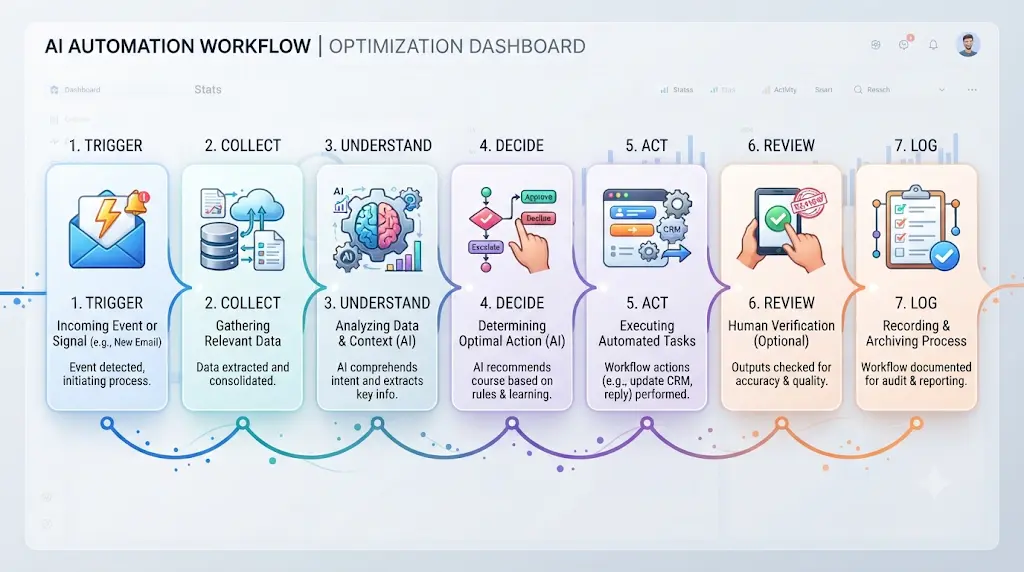
Take Priya’s Sunday task. A new form response comes in (trigger), the automation pulls in the name, email, and event choice (collect), an AI step reads it and checks it looks legitimate (understand), a rule decides whether it needs manual review or can go straight through (decide), a row gets added to her spreadsheet (act), she gets a notification to glance at it (review), and the system keeps a record of what happened (log). Forty minutes becomes closer to five.
AI Automation vs. Traditional Automation
The word “automation” existed long before AI did, and the difference matters:
- Traditional automation follows a fixed rule: when X happens, do Y. If a new row appears in a sheet, send an email. No interpretation involved.
- AI automation adds a reasoning step in the middle: when X happens, understand what X actually means, decide what it requires, then do Y. A new email doesn’t just trigger a fixed reply — the system reads it, works out what category it falls into, and chooses the right next step.
If your task never requires judgment — just moving data from one place to another — plain automation is faster, cheaper, and more predictable than adding AI to it.
AI Automation vs. AI Agents
You’ll see both terms used loosely in 2026, and they’re not the same thing.
| Workflow automation | AI agent | |
| Path | Fixed, predefined steps | More flexible, decided on the fly |
| Behavior | Predictable | Adaptive |
| Logic | Rule-driven | Goal-driven |
| Testing | Easier — same inputs, same outputs | Harder — outputs can vary |
| Risk profile | Usually safer for beginners | Needs stronger guardrails |
A workflow is a recipe. An agent is closer to a cook you’ve given a goal and some freedom. As a beginner, you’ll get more reliable results starting with fixed workflows and adding agent-like flexibility only once you trust the basics.
Do You Actually Need AI for This Task?
Not every repetitive task benefits from AI, and pretending otherwise wastes both money and trust in the system. A useful filter:
- If the task is pure data movement — copying a value from one field to another, moving a file from folder A to folder B — you need automation, not AI. Adding an AI step here just adds cost and unpredictability for no benefit.
- If the task requires understanding, classification, summarizing, extracting, or drafting language — deciding what an email is about, writing a first-pass reply, pulling key facts out of a document — that’s where AI genuinely earns its place in the workflow.
Ask this before building anything: could a simple rule handle this? If yes, skip the AI step entirely. Your workflow will be faster, cheaper, and far less likely to misfire.
The biggest mistake isn’t having too much work—it’s managing everything manually. Once your tasks are organized automatically, planning your day becomes much easier. Discover AI Tools for Organizing Daily Tasks Automatically: 6 Best Picks (2026) and build a workflow that saves time every day.
Which Repetitive Tasks Should You Automate First?
Some tasks are frequent but risky. Others feel tedious but only cost you thirty seconds. Start with ones that are frequent, predictable, and low-risk.
| Task | Frequency | AI usefulness | Risk | Beginner suitability |
| Email classification | High | High | Low | Excellent |
| Meeting summaries | High | High | Low | Excellent |
| File renaming or organizing | High | Low–Medium | Low | Excellent |
| Data entry (form to sheet) | High | Medium | Medium | Good |
| Weekly report drafting | Medium | High | Low | Good |
| Customer reply drafting | High | High | Medium | Good, with approval |
| Payments or refunds | Medium | Low | High | Avoid at first |
The Automation Score: A Simple Formula
Rather than guessing, score any candidate task out of 25 points:
Automation potential = frequency + repetition + predictability + clear output + reviewability − risk
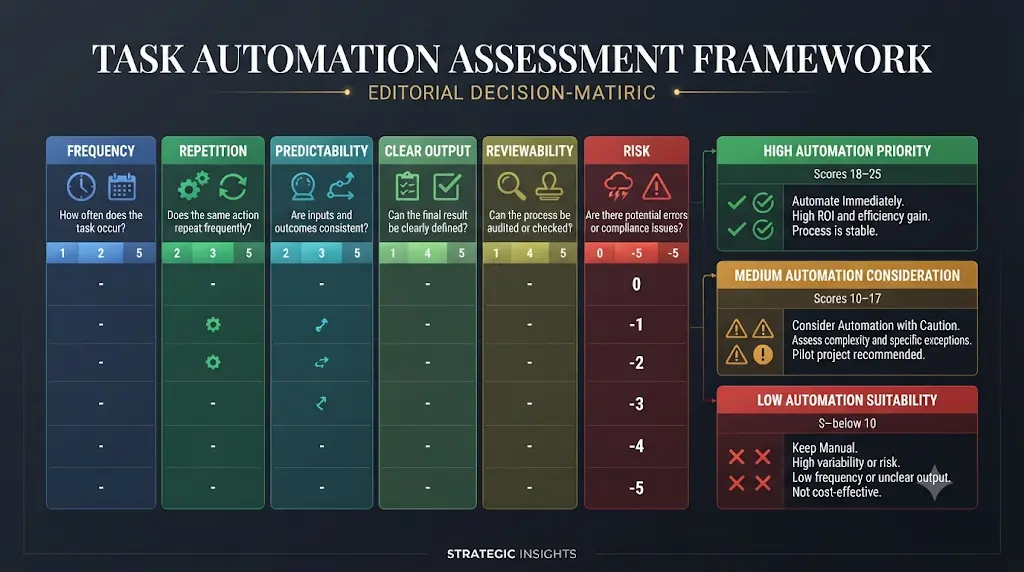
Rate each factor from 1–5:
- Frequency — how often does this happen?
- Repetition — are the steps basically identical each time?
- Predictability — do the inputs look similar from one instance to the next?
- Clear output — is there an obvious “finished” state?
- Reviewability — can you glance at the result and tell instantly if it’s right?
Then subtract for risk — financial exposure, privacy sensitivity, legal weight, or direct customer impact — using whatever penalty feels proportionate (a small deduction for minor annoyance, a large one for anything involving money or consent).
Reading the score:
- 18–25 (High): automate this first. Low friction, high payoff.
- 10–17 (Medium): automate it, but keep a human-approval checkpoint (see the ladder below).
- Below 10 (Low): don’t automate yet — the risk or unpredictability outweighs the time saved.
Priya’s Sunday task: frequency 4, repetition 5, predictability 5, clear output 5, reviewability 5, minus 1 for minor risk of a typo’d email address — a 23. Automate it immediately.
Before vs. After: What Automation Actually Saves
Here’s what that looks like in practice, using Priya’s example:
- Before: 40 minutes × 4 Sundays a month ≈ 160 minutes a month, done entirely by hand.
- After: roughly a 20-minute one-time setup, then about 5 minutes a month glancing over the results for anything that looks off.
These numbers are illustrative, not guaranteed — your mileage depends on task complexity and how much cleanup the first version needs. But the shape of the trade is typical: a real up-front cost in your first setup session, followed by a much smaller ongoing cost than the manual version ever had.
Don’t make the mistake of managing every task manually—it quickly becomes overwhelming as your workload grows.explore AI Tools for Organizing Daily Tasks Automatically: 6 Best Picks (2026) before choosing your next productivity app.
Do You Need Coding Skills to Automate Tasks With AI?
No. Most beginner automation platforms use a visual, drag-and-drop builder — you choose a trigger, choose an action, connect them, and the platform handles the rest behind the scenes. Coding becomes genuinely useful later, for custom logic or unusual integrations, but it isn’t a prerequisite for your first workflow.
One honest caveat, since a lot of marketing overstates this: “no-code” doesn’t always mean “zero setup.” Some platforms really are click-and-go from minute one. Others are technically no-code but still expect you to configure API connections and read documentation. Don’t take a “no coding required” tagline at face value — open the free plan yourself before assuming it’s beginner-friendly.
How Does an AI Automation Workflow Actually Work?
Breaking a workflow into its component parts makes building your first one far less intimidating. The full mental model:
Trigger → Collect → Understand → Decide → Act → Review → Log
- Trigger — something happens: a new email, a form submission, a scheduled time.
- Collect — the automation pulls in the relevant data.
- Understand — where needed, an AI step reads and interprets the input.
- Decide — a rule or condition determines the next step.
- Act — the workflow updates another app: adds a row, sends a message, creates a task.
- Review — a human checks anything above a certain risk threshold before it’s final.
- Log — the system records what happened, so you can audit it later.
Not every workflow needs all seven stages. Renaming files might skip “understand” entirely. A customer-facing reply should almost never skip “review.”
Your First Complete AI Automation, Walked Through Step by Step
Reading about workflows in the abstract only gets you so far. Here’s one, start to finish, that mirrors what a first-year student or a small shop owner would actually build.
Scenario: a college club collects event sign-ups through a Google Form and wants them organized without manual copying.
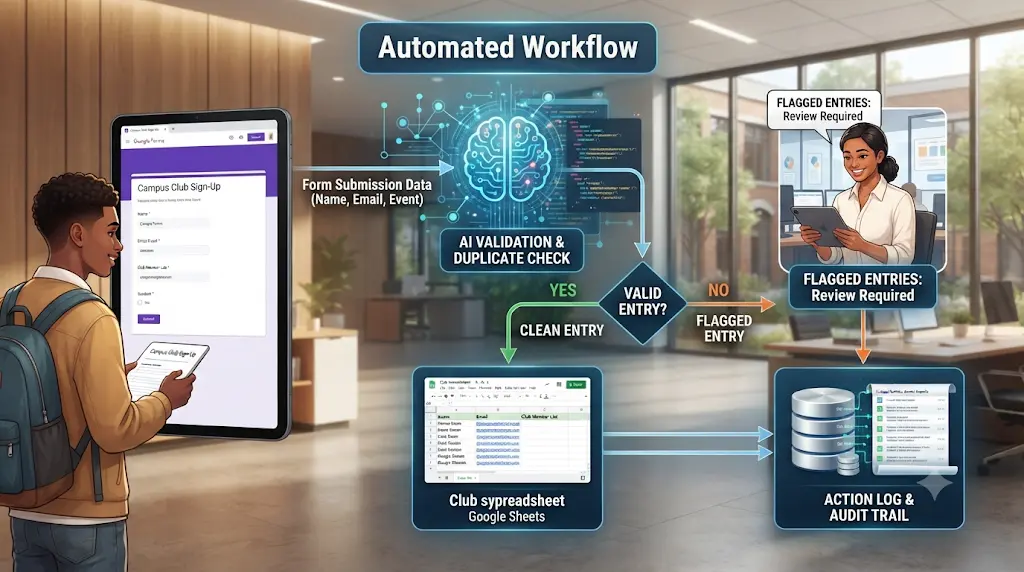
- Trigger: a new Google Form response is submitted.
- Collect: the automation grabs the respondent’s name, email, and event choice.
- Understand: an AI step checks the email format looks valid and flags anything that seems like a duplicate or spam entry.
- Decide: if the entry looks clean, it proceeds automatically; if the AI step flags it as uncertain, it’s routed for manual review instead.
- Act: a new row is added to a Google Sheet with the respondent’s details and a timestamp.
- Review: for flagged entries only, a notification goes to the club coordinator to check before the row is added.
- Log: every submission — clean or flagged — is recorded, so if a member is missing from the sheet later, there’s a trail to check.
Total build time for something like this, on a beginner-friendly platform: usually under thirty minutes, most of which is spent testing with a handful of real sample submissions rather than configuring the workflow itself.
5 Beginner Automations You Can Build This Weekend
If you want a shortlist to actually start with, these five cover the most common student, freelancer, and small-business needs:
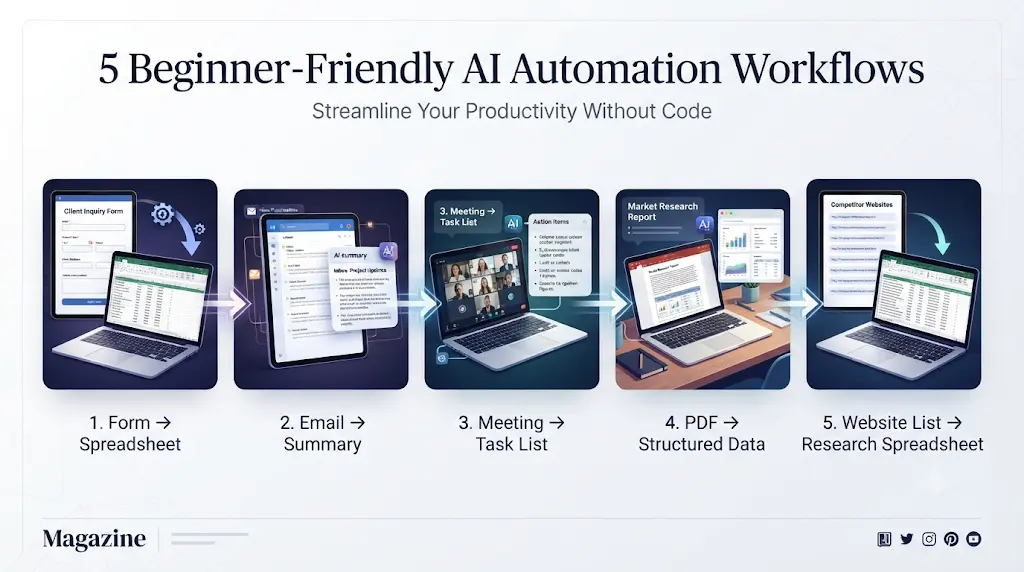
- Form → Spreadsheet. Every new form submission becomes a spreadsheet row automatically.
- Email → Summary. A daily digest that summarizes what came into your inbox overnight.
- Meeting → Task List. A recorded meeting turns into a short summary with action items pulled out.
- PDF → Structured Data. An invoice or document gets its key fields extracted into a spreadsheet for review.
- Website List → Research Spreadsheet. A batch of URLs turns into an organized sheet of extracted, comparable details.
Pick one. Not all five. Building one reliable workflow beats building five shaky ones.
New to AI? Start with our Ultimate Beginner Guide to AI Tools for Students to discover the best AI tools for research, note-taking, writing, revision, and productivity—all explained in a beginner-friendly, step-by-step format.
The Best AI Automation Tools for Beginners
Most “best AI tools” roundups put ChatGPT, Claude, Gemini, and Perplexity front and center. That’s a slightly misleading framing for this specific question. Those are the reasoning layer — genuinely useful for classifying, summarizing, and drafting text inside a workflow — but none of them are automation platforms by themselves. The tools below are the ones that actually connect a trigger, AI reasoning, and an action into something that keeps running on its own.
How These Tools Were Chosen
This isn’t a “most popular” list. Each tool below was weighed against the same criteria: how accessible it is to a complete beginner, whether it offers genuine free experimentation (not just a time-limited trial), how much real AI capability sits inside the workflow builder, how flexible the connections are, how transparently pricing is structured, whether it supports a human-approval step, and how steep the learning curve feels in the first hour of use. Feature and pricing claims below are drawn from official vendor pages and independently verified pricing trackers, checked in the weeks around September 2026 — not from hands-on, long-term use of every platform, and that distinction matters for how much weight you give any single claim here.
Why Zapier, Make, and n8n Aren’t the Focus Here
If you’ve searched around this topic already, you’ve likely seen Zapier, Make, and n8n mentioned constantly — and leaving them out entirely would create a real gap. They’re not absent because they’re weak; they’re absent from the spotlight because they solve a slightly different problem than the one this guide is built around.
Zapier and Make are broad, mature connector platforms — enormous app libraries, very reliable, but historically built around simple trigger-action logic rather than AI-native reasoning (both have added AI features, but as an add-on to an older architecture, not the foundation). n8n is powerful and genuinely flexible, including strong self-hosting options, but its interface leans more technical than the beginner-first tools below, even though it’s still no-code in the strict sense.
The seven tools featured here were chosen because they were built with AI reasoning as a first-class part of the workflow from the start, and because several of them offer meaningfully generous free access for someone testing their very first automation. If you outgrow them, Zapier, Make, and n8n are the natural next step up — worth knowing about, just not where a beginner should necessarily start.
Best Tools by Difficulty Level
- Very easy (first hour, zero setup friction): Taskade, Bardeen
- Beginner-friendly (some initial configuration): Activepieces, Workload
- Intermediate (more powerful, slightly steeper curve): Gumloop, TaskMagic
- Best once you’re ready to pay for reliability: Lindy
Now, the tools themselves — including where each one falls short, since no tool on this list is flawless.
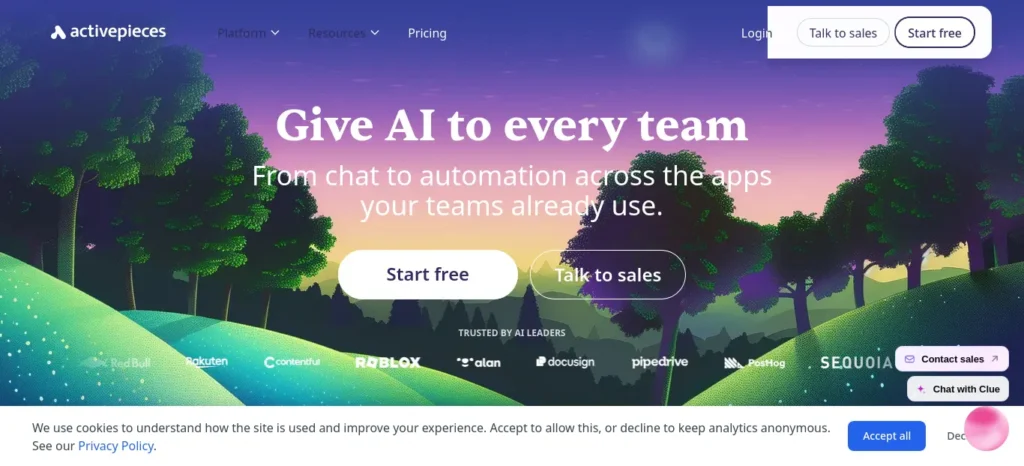
Activepieces — the open-source pick
Category: open-source / self-hostable no-code platform ·
Difficulty: Beginner ·
Pricing model: free self-hosted, or per-active-flow on cloud
Activepieces ships a genuinely free, MIT-licensed self-hosted Community Edition, plus a managed cloud option. As of mid-2026, the cloud Standard plan is free for up to 10 active flows (unlimited runs on each), then bills per additional active flow rather than per task — a flow you switch on costs the same whether it fires once a month or a thousand times. Verified against Activepieces’s official pricing page and independent pricing trackers, checked early September 2026.
- Best for: beginners who want a real, unlimited free option and don’t mind a slightly steeper learning curve.
- Limitation: self-hosting requires Docker and a database, so it’s not beginner-friendly on that path — most students will want the cloud free tier instead. Cloud pricing has shifted more than once during 2026, so confirm the current rate before committing.
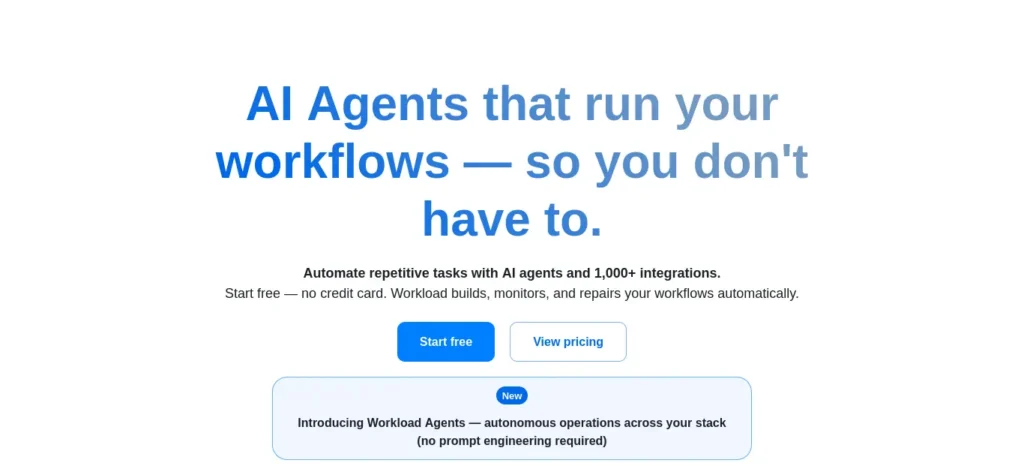
Workload — the self-healing pick
Category: emerging AI-native automation platform ·
Difficulty: Beginner ·
Pricing model: free lifetime-task allowance, then flat monthly
Workload connects over 1,000 apps and leans into an idea that matters a great deal to beginners specifically: automations that try to fix themselves. Its free Basic plan includes 300 lifetime tasks, unlimited workflows, and an AI workflow-building agent. The $49/month (billed annually) Premium tier adds AI-powered self-healing — automatically fixing expired credentials, filtering errors, and adapting to API changes when a connected app updates its system. Verified against Workload’s official pricing page, checked early September 2026.
- Best for: the question every beginner eventually asks — what happens when my automation just stops working?
- Limitation: the free plan’s 300 tasks are lifetime, not monthly, so they run out quickly if you’re experimenting with several workflows at once.
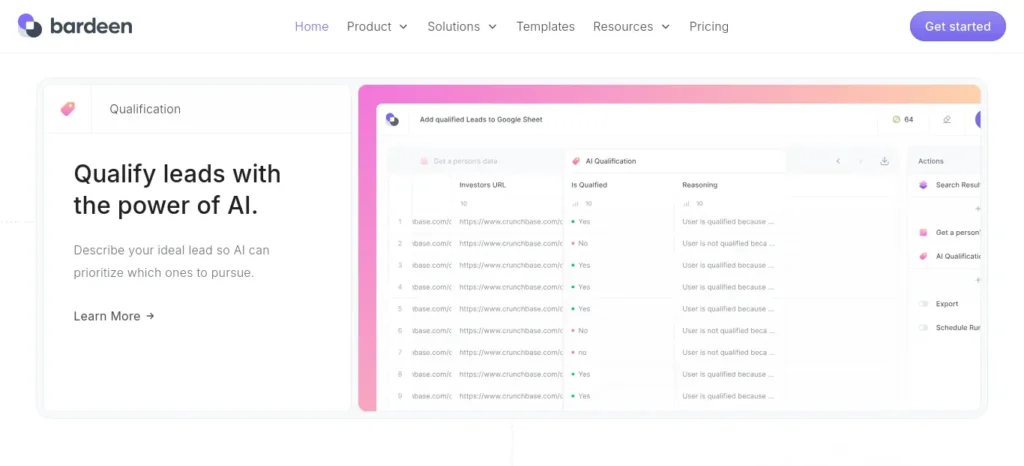
Bardeen — the browser-research pick
Category: browser automation and web-scraping specialist ·
Difficulty: Very easy ·
Pricing model: credit-based, additive on top of an always-free allowance
Bardeen lives inside Chrome and is built for pulling information off the web — scraping, enrichment, lead research — then pushing it into a spreadsheet or CRM. Every account gets 100 credits a month for free, permanently, with no card required; paid tiers add credits on top starting at $10/month. Verified against Bardeen’s official pricing page and independent trackers, checked July–September 2026.
- Best for: research-heavy tasks — pulling data from websites into a sheet, checking company details, gathering leads.
- Limitation: Chrome-only, and AI-heavy actions consume credits faster than simple scraping — budget accordingly.
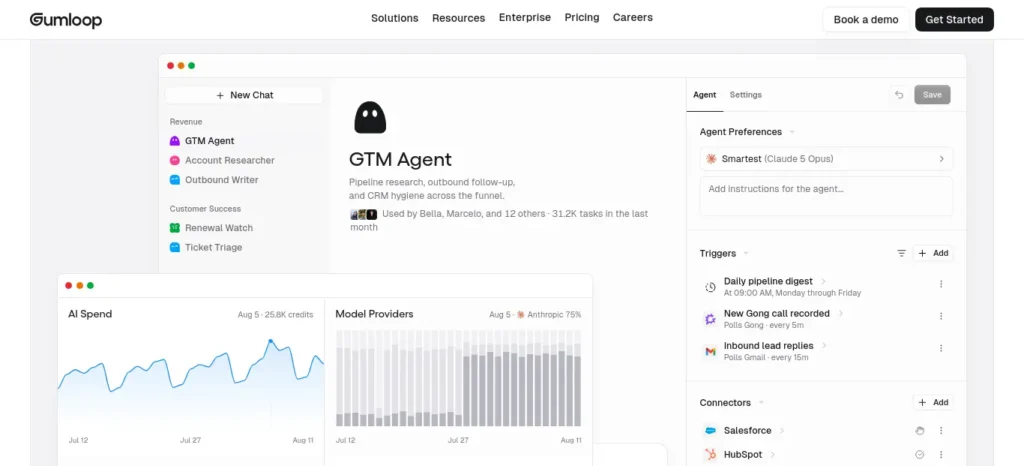
Gumloop — the AI-native workflow pick
Category: AI-heavy workflow and agent builder ·
Difficulty: Intermediate ·
Pricing model: credit-based subscription, no permanent free tier
Gumloop is built around a visual, node-based canvas for AI-heavy work — document parsing, unstructured data extraction, multi-model chaining. This is worth flagging clearly: Gumloop discontinued its permanent free tier during 2026 and now offers a 14-day free trial on its Pro plan, starting around $37/month for roughly 20,000 monthly credits. If you’re reading an older article describing a “free forever, 5,000 credits” plan, that no longer exists — confirm on Gumloop’s own pricing page before assuming a free option is available. Verified against Gumloop’s official pricing page, checked mid-August 2026.
- Best for: workflows that lean heavily on AI reasoning rather than simple app-to-app data movement.
- Limitation: credit-based pricing gets complicated once workflows grow sophisticated, and there’s no longer a free-forever tier for anyone on a strict student budget.
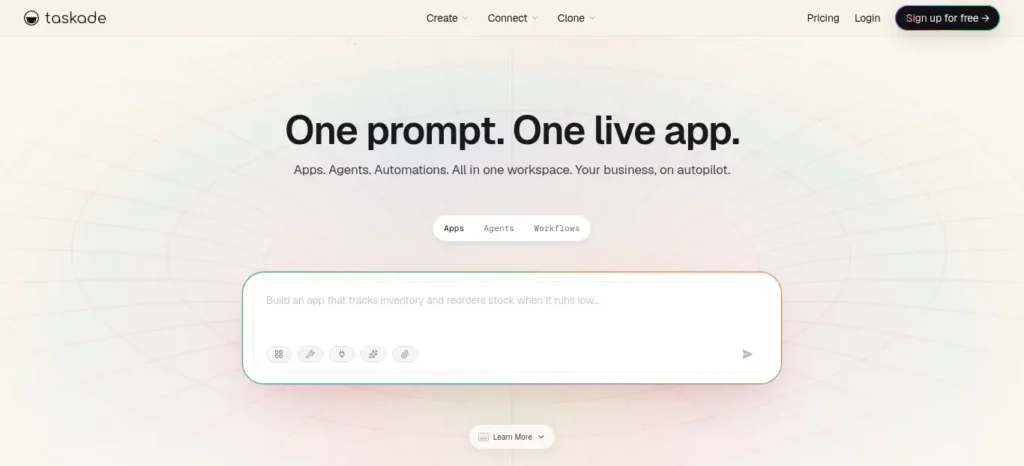
Taskade — the all-in-one workspace pick
Category: AI-powered workspace with built-in agents ·
Difficulty: Very easy ·
Pricing model: one-time free credit grant, then flat monthly tiers
Taskade combines projects, notes, AI chat, and automation in one workspace. Its free plan needs no credit card and includes a one-time grant of 3,000 AI credits alongside unlimited projects and real-time collaboration; the Starter tier is one of the cheapest upgrade paths in this category, at roughly $6/month. Verified against Taskade’s official pricing page, checked mid-2026.
- Best for: students who want project management and light automation in the same place, rather than juggling separate apps.
- Limitation: the free tier’s AI credits are a one-time grant, not a monthly refill — heavier AI use pushes you toward Starter fairly quickly.
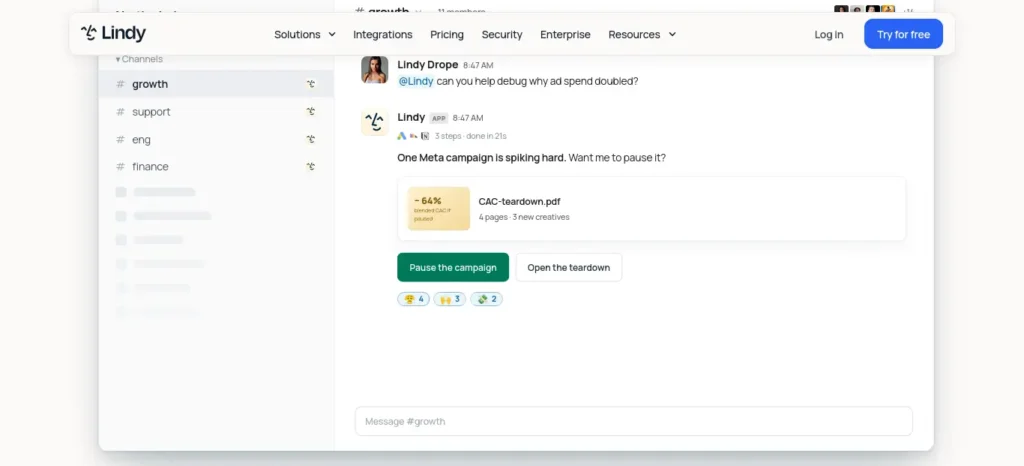
Lindy — the personal work-assistant pick
Category: AI agent for inbox, calendar, and meetings ·
Difficulty: Best once you’re ready to pay ·
Pricing model: usage-tiered subscription, no free tier
Lindy focuses specifically on the work you do every day inside email and your calendar: triage, drafting replies, scheduling, meeting notes. There’s no permanent free tier — only a 7-day trial — and paid plans start at $49.99/month for Plus, rising to $99.99/month for Pro and $199.99/month for Max (roughly 3x and 7x the usage allowance of Plus, respectively). Verified against Lindy’s official pricing page, checked June–July 2026.
- Best for: someone whose single biggest time drain is inbox and calendar management specifically.
- Limitation: meaningfully more expensive than everything else on this list, with no free-forever option — don’t reach for this as a “best free choice” on a tight student budget.
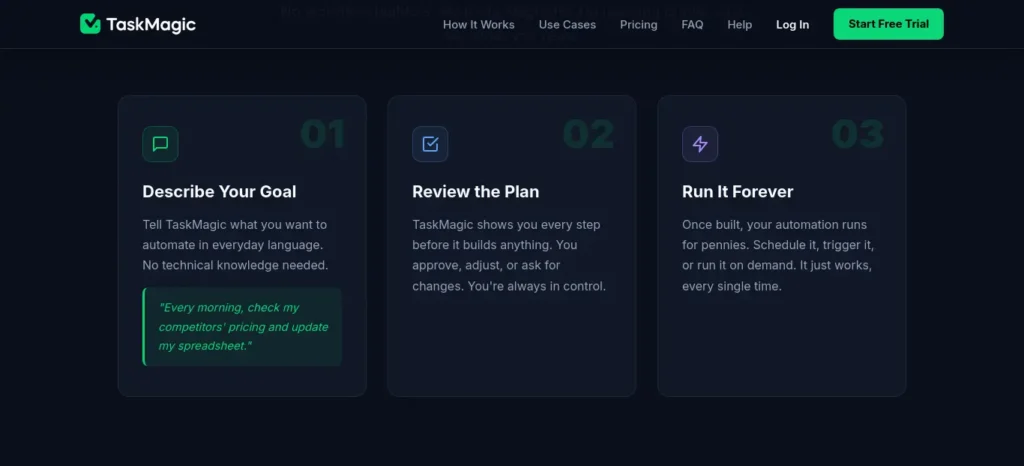
TaskMagic — the browser-recording pick
Category: browser-recording and desktop automation ·
Difficulty: Intermediate ·
Pricing model: desktop and cloud-hour based plans (confirm current tiers directly)
Where Bardeen and Gumloop connect your apps through integrations, TaskMagic works by recording your actual clicks and keystrokes in a browser or on your desktop, then replaying them — useful for older sites that don’t offer a clean API or a Zapier-style connector. It’s a genuinely different technique worth knowing exists, separate from everything else on this list.
- Best for: repetitive tasks on websites that don’t offer an integration you can connect to directly.
- Limitation: plan names and pricing have changed since its early “free forever” beta positioning. Check the current desktop and cloud-hours pricing on TaskMagic’s own site rather than assuming the old free framing still applies.
How to Choose the Right Tool for Your Task
If you mainly need to automate…
- Emails, calendar, meetings → Lindy
- Web research or lead scraping → Bardeen
- Sites with no clean integration → TaskMagic
- AI-heavy document or content work → Gumloop
- Open-source or self-hosted control → Activepieces
- General cross-app automation with self-repair → Workload
- A workspace that also handles projects and notes → Taskade
What Does an Automation Actually Cost?
The subscription price on a pricing page is rarely the whole story. Automation platforms bill in several different units, and the unit changes what your real monthly cost looks like:
- Per task or operation — you pay for each individual step the workflow performs.
- Per execution or run — you pay each time the whole workflow fires, regardless of how many steps it has.
- Per credit — a shared currency that AI-heavy steps consume faster than simple ones.
- Per active flow — you pay for workflows that are switched on, independent of how often they run (Activepieces’s current model).
- Per user or seat — a flat cost per person with access, regardless of usage.
- Per compute or runtime — you pay for the processing time a step actually takes.
A rough way to think about your real monthly bill:
Monthly cost ≈ platform subscription + AI usage/credits + any connected paid services + occasional overage charges
Two platforms advertising the “same” starting price can produce very different real bills depending on which of these units they use and how heavy your workflows are on the AI-reasoning steps specifically.
Free Doesn’t Always Mean Unlimited
Not every “free” label means the same thing, and mixing these up is one of the most common beginner mistakes:
- Free forever — a genuine, ongoing tier at no cost (Bardeen’s 100 monthly credits, Activepieces’s 10 free active flows).
- Free trial — full access for a limited window, then payment required (Lindy, and Gumloop as of 2026).
- Monthly credit allowance — a refreshing budget that resets each billing cycle.
- One-time or lifetime credit grant — a fixed pool that never refills (Taskade’s 3,000-credit grant, Workload’s 300 lifetime tasks).
- Limited active workflows — free up to a workflow count, not a usage count.
- Limited integrations — free tier works, but only with a smaller set of connected apps.
Before you build anything on a “free” plan, check which of these six categories it actually falls into. A lifetime grant and a monthly allowance both say “free,” but they run out on completely different timelines.
Real-World Workflow Examples
- Gmail → AI → Sheet: a new lead email arrives; AI extracts the name and company; a row is added automatically.
- Meeting transcript → AI → Task list: a meeting ends; AI summarizes it and pulls out action items as tasks.
- Form → AI → Draft reply: a form is submitted; AI classifies the request and drafts a response for you to approve before sending.
- Invoice PDF → AI → Spreadsheet: a document arrives; AI extracts the key fields and logs them for review.
- Website list → AI → Research sheet: a batch of URLs goes in; AI extracts and classifies the relevant details.
- Support question → AI → Draft response: an incoming question is classified, relevant context is retrieved, and a draft response waits for human approval.
- Spreadsheet → AI → Weekly report: at week’s end, AI reviews what changed and drafts a short summary for you to send.
If your study materials are scattered across notes, PDFs, and screenshots, learn how to organize your study materials using AI in just 7 simple steps.
AI Automation for Students
Beyond Priya’s sign-up sheet, a handful of workflows come up constantly across Indian campuses:
- Lecture notes → summary. Turn a long recorded lecture into a short set of key points before an exam.
- Assignment research → organized notes. Feed in a batch of source links and get back an organized comparison instead of ten open tabs.
- Forms → project spreadsheet. Group or hackathon sign-ups land directly in a tracking sheet.
- Internship applications → tracking sheet. Each application email logs itself with company, role, and status.
- Email → task list. Turn a professor’s or club coordinator’s email thread into a short action list.
- Research papers → structured extraction. Pull out methodology, key findings, and citations from a batch of PDFs for a literature review.
AI Automation for Small Businesses
The same underlying patterns apply just as well to a small shop, tuition center, or local service business:
- Lead form → AI qualification → spreadsheet → notification. A new enquiry gets sorted by likely intent before a human ever sees it.
- Customer enquiry → AI draft → human approval → reply. Common WhatsApp or email questions get a fast, reviewed first-draft response instead of a delayed one.
- Invoice → extraction → spreadsheet → review. Vendor invoices get logged automatically, with a human check before anything is marked paid.
For a business fielding the same five questions from customers every day — pricing, hours, availability, location, and order status — this is usually the highest-return place to start, precisely because the inputs are so predictable.
(Internal link opportunity: pair this section with a cluster article on AI tools for small business or local digital marketing.)
What Should You NOT Automate With AI?
This is the part most beginner guides skip, and it matters as much as anything above it.
Avoid handing full autonomy to AI for:
- Financial approvals and payments
- Medical or legal decisions
- Hiring decisions
- Sensitive personal data handling
- Security permissions and access control
- Irreversible deletion
- High-stakes customer decisions
Automate the preparation. Keep a person responsible for the consequence. Let AI draft the refund email; let a person decide whether to send it.
Common Automation Mistakes Beginners Make
- Automating too much, too soon. Five shaky workflows are worse than one reliable one.
- Using AI where a simple rule would do. Adds cost and unpredictability with no real benefit — revisit the “Do You Actually Need AI?” section above.
- Skipping testing. One clean test case tells you almost nothing about how the workflow handles messy real input.
- Granting excessive permissions. Connecting full account access when the workflow only needs to read one folder.
- Ignoring logs. The record of what happened is the only way you’ll catch a silent failure before it costs you something.
- Not calculating real cost. Forgetting that AI-heavy steps burn credits faster than simple ones, until the bill arrives.
- Automating a broken process. If the manual version is already inconsistent, automating it just makes the inconsistency faster.
- No fallback when AI gets it wrong. Building a workflow with no path for “I’m not sure” is asking for a quiet failure later.
What Can Go Wrong With AI Automation?
- Hallucinations — AI can generate confident, incorrect information.
- Wrong classification — an email gets routed to the wrong place.
- Missing context — AI only knows what you gave it, nothing more.
- API failures — a connected app changes something and the link breaks.
- Rate limits — services cap how many requests you can make.
- Permission problems — a connected account loses authorization silently.
- Cost creep — AI-heavy workflows burn through credits faster than expected.
- Silent failures — the most dangerous category. Not a crash — a workflow that succeeds incorrectly, and nobody notices for weeks.
That last one deserves more than a bullet point, so here’s what handling it actually looks like in practice:
- If the AI step fails outright → route to human review instead of letting the workflow continue blind.
- If a spreadsheet update fails → retry automatically once or twice before flagging it.
- If a record looks like a duplicate → skip creating a new one rather than guessing.
- If the AI’s confidence in its own classification is low → ask for approval instead of proceeding.
Confidence Thresholds: A Small Habit With a Big Payoff
For any workflow where AI is classifying or deciding something, build in three bands rather than treating every output the same:
- High confidence → let it proceed automatically.
- Medium confidence → flag it for a quick human glance.
- Low confidence → hold for full human review.
This single habit is the difference between an automation you can trust unattended and one you have to babysit — and it costs almost nothing to set up on most platforms.
How to Make AI Automation Safe: The Human Approval Ladder
Think of automation trust as a ladder you climb over time, not a switch you flip on day one.
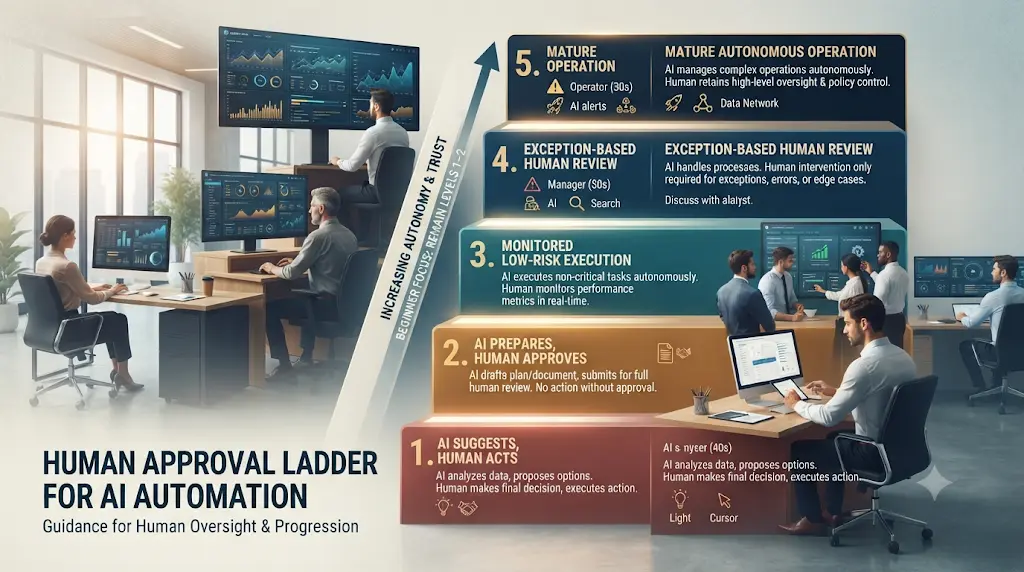
- Level 1 — AI suggests, human acts. AI drafts, you send.
- Level 2 — AI prepares, human approves. AI does the setup work; you click “approve” before anything final happens.
- Level 3 — AI executes low-risk actions, human monitors. Routine, low-stakes tasks run on their own; you spot-check.
- Level 4 — AI handles routine workflows, exceptions go to humans. The system flags anything unusual for review.
- Level 5 — Autonomous operation. Reserved for mature, well-tested processes with a long track record — not where a beginner should start.
Most students and beginners should live at Level 1 or 2 for their first month, and climb only once a workflow has proven itself reliable across dozens of real runs.
Security and Privacy: What You’re Actually Giving Access To
This is the part that’s easy to skip past and genuinely shouldn’t be. Connecting an automation platform to your inbox or documents means answering a few specific questions honestly:
- What permissions does the automation actually get? Read-only access to one folder is very different from full account control.
- Does the AI model see the contents of your email or documents? In most AI-step workflows, yes — the text is sent to a model to be read and processed.
- Where are your credentials stored? Usually with the automation platform itself, not the connected app — know who’s holding the keys.
- Is sensitive information ever sent to an AI model? Avoid routing financial details, health information, or anything genuinely confidential through an AI step unless you’ve checked the platform’s data-handling policy.
- Are you following least-privilege access? Grant only the specific permission a workflow needs, not blanket account access, wherever the platform allows it.
- Are you revoking integrations you’re no longer using? An old, forgotten connection is a live door left open.
- Are you keeping logs? Without them, there’s no way to reconstruct what an automation actually did if something looks wrong later.
- Are you keeping sensitive data out of prompts? Treat anything you type into an AI step the way you’d treat a message sent to a third party, because functionally, it is one.
None of this means automation is unsafe. It means treating access the way you would with any tool that touches your inbox or your documents — deliberately, not by default.
The Reliability Checklist: Test → Monitor → Log → Alert → Review → Improve
Beyond the conceptual Human Approval Ladder, it helps to have an operational habit for keeping a workflow healthy over time:
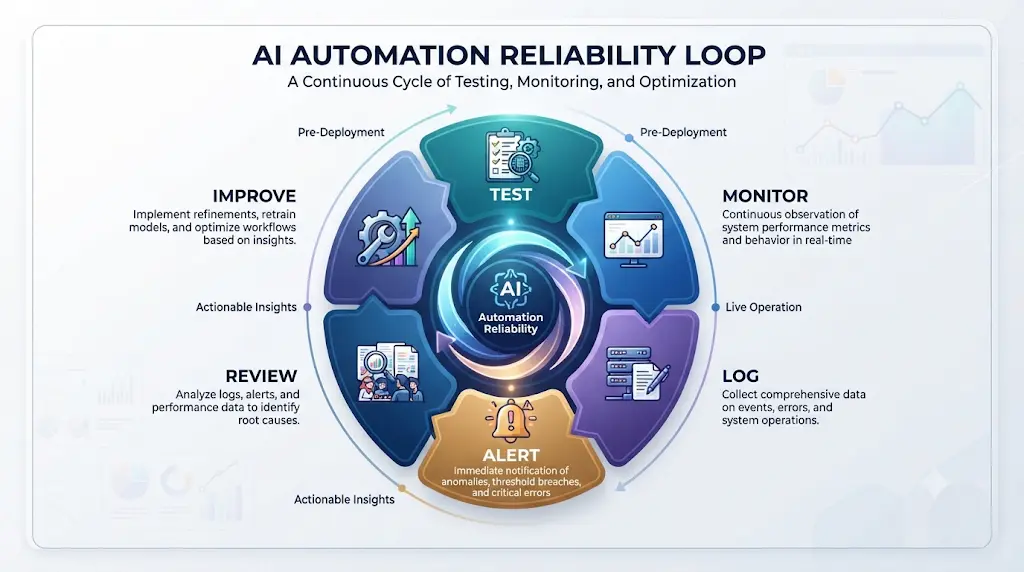
- Test — run it against several real, messy examples before trusting it with live data.
- Monitor — check in on it regularly for the first few weeks, not just on day one.
- Log — keep a record of every run, successful or not.
- Alert — set up a notification for failures or low-confidence cases, so you find out immediately, not a month later.
- Review — periodically look back at a sample of completed runs, not just the flagged ones.
- Improve — adjust the rules or prompts based on what you actually observe going wrong.
This loop, repeated, is what separates an automation that quietly degrades over months from one that keeps working reliably.
AI Automation vs. RPA (Robotic Process Automation)
You’ll sometimes see “RPA” used interchangeably with AI automation, and it’s worth knowing the actual distinction:
- RPA reproduces structured, rule-based computer actions — clicking the same buttons, filling the same fields, in the same order, every time. It’s excellent at repeating exactly what a human did, but it doesn’t interpret or adapt to variation.
- AI automation adds understanding, generation, and decision-making on top of that — reading unstructured input, classifying it, drafting language, and choosing between paths based on what it finds.
Browser-recording tools like TaskMagic sit closer to the RPA end of this spectrum — they replicate your literal clicks — while platforms like Gumloop and Lindy sit further toward the AI-reasoning end. Many real workflows blend both: an RPA-style recorded action to navigate an old website, paired with an AI step to interpret what it finds there.
Can Beginners in India Use AI Automation for Free?
Yes — and the free tiers matter more here than most marketing admits. Several tools already covered offer genuinely usable free access without payment: Activepieces’s 10 free active flows on the cloud tier, Bardeen’s always-free 100 monthly credits, and Taskade’s no-card-required 3,000-credit grant all cover a beginner’s first several workflows comfortably.
Where a paid plan is unavoidable, INR pricing at roughly ₹96 per USD (checked September 2026 — worth rechecking, since it moves) puts even the cheaper entry tiers within reach: Bardeen’s $10/month lands around ₹960, and Taskade’s Starter tier at $6/month lands around ₹575. That’s a meaningfully different decision than the $50–$200/month tools built primarily for teams abroad, like Lindy.
Stay free when: you’re experimenting, running only a handful of workflows, or your data volume is low. Consider upgrading when: workflows run daily and hit credit limits, you need integrations only paid tiers unlock, or you’re collaborating with a team.
How to Measure Whether Automation Actually Saved You Time
Before scaling up, be honest about the return. Track, for two weeks:
- How long the manual version used to take, per instance
- How many times the automation actually ran
- How much time went into fixing it when it broke
- Whether the output needed correction, and how often
If setup and babysitting time comes close to what the manual process cost, you haven’t automated the task — you’ve relocated the work. Worth knowing before you build a fifth workflow.
Frequently Asked Questions
What is AI automation? AI automation is a system where a trigger — like a new email — starts a process that uses AI to interpret information and take an action in another app, without a person clicking through each step manually.
How can I automate daily tasks with AI? Start by picking one repetitive daily task, scoring it with the Automation Score above, then connecting a trigger to an AI step and an action on a beginner-friendly no-code platform.
Can beginners automate repetitive tasks with AI? Yes. No-code platforms with visual builders let beginners create working automations without programming knowledge — the main skill is choosing the right first task, not writing code.
Do I need coding skills to automate repetitive tasks with AI without coding? No. Coding becomes useful for custom logic or unusual integrations later, but most starter workflows are built by connecting a trigger to an action visually, with no code involved — which is the whole premise of this guide.
What repetitive tasks can AI automate? Email classification, meeting summaries, data entry from forms, file organization, weekly reports, and drafting customer replies are strong beginner candidates. Payments, legal decisions, and other high-risk actions are not.
What is the easiest AI automation tool for a beginner? It depends on the task, but Taskade and Bardeen both offer genuine free access with no credit card required, making them low-risk starting points for a first experiment.
Can I automate tasks for free? Yes, for a while. Activepieces (10 free active flows), Bardeen (100 credits/month, always free), Taskade (one-time 3,000 AI credits, no card) and Workload (300 lifetime tasks) all offer usable free tiers as of September 2026 — though limits change often, so check each vendor’s current pricing page.
Can AI automate Gmail or Google Sheets specifically? Yes. Most of the platforms covered here connect directly to Gmail and Google Sheets, letting you trigger workflows from new emails and write results straight into a spreadsheet without manual copying.
Can AI automate office work generally? Yes, for the repetitive parts — sorting, summarizing, data entry, drafting. Judgment-heavy or high-stakes office work (approvals, hiring, legal review) should stay with a human, per the “what not to automate” section above.
Is no-code AI automation really free, or is that misleading? It depends entirely on the platform and the specific meaning of “free” — see the “Free Doesn’t Always Mean Unlimited” section above. Some free tiers are genuinely ongoing; others are one-time grants or short trials dressed up as free.
Is AI automation safe? It can be, if you keep a human-approval step on anything involving money, customer communication, sensitive data, or irreversible actions. The real risk isn’t the AI failing loudly — it’s the AI succeeding quietly at the wrong thing.
Is AI automation safe for a small business specifically? Yes, when it follows the same principle: automate customer-facing drafts and internal data entry, but keep a human approving anything that affects money, legal standing, or a customer’s final experience.
What should I never automate? Financial approvals, medical or legal decisions, hiring decisions, security permissions, and irreversible deletions. Automate the preparation for these; keep a human responsible for the final call.
How do AI agents differ from automation workflows? An AI agent reasons and can decide what to do next with more flexibility; a traditional workflow follows a fixed trigger-to-action path. Many modern platforms blend both, but a beginner workflow is usually closer to the fixed-path end of that spectrum.
What’s the difference between AI automation and RPA? RPA reproduces structured, rule-based clicks and actions exactly as recorded. AI automation adds understanding, classification, and decision-making on top of that structure.
How do I build my first AI automation? Pick one low-risk, high-frequency task, document your current manual steps, choose a trigger, add AI only where genuinely needed, connect the action, add a human-approval step for anything risky, then test with real examples before trusting it fully.
How much does no-code AI automation cost? Free tiers cover light beginner use on several platforms. Paid tiers for individuals commonly run $6–$50/month (roughly ₹575–₹4,800), and team-focused tools like Lindy start around $50/month with no free option at all. Always confirm current pricing directly with the vendor.
How to Automate Repetitive Tasks With AI Without Coding: A Quick Recap
If you only take one paragraph away from this guide, make it this one. To automate repetitive tasks with AI without coding: pick a task that’s frequent, predictable, and low-risk; score it before you build anything; choose a beginner-friendly no-code platform with a real free tier; add AI only for the steps that genuinely need judgment; keep a human approving anything that touches money, customers, or sensitive data; and measure whether it actually saved you time before automating a second task. Nothing above requires a programming background — just the willingness to start with one boring, repeatable task.
Your First-Week Automation Checklist
- [ ] Chosen one repetitive task and scored it with the Automation Score
- [ ] Written down the manual process step by step
- [ ] Picked a trigger and confirmed it’s reliable
- [ ] Added AI only where it’s genuinely needed
- [ ] Added a human-approval step for anything risky
- [ ] Tested with at least five real, varied examples
- [ ] Set a reminder to check results after one week
- [ ] Measured actual time saved before building workflow #2
“Free Download: Follow This Checklist to Build Your First AI Automation”
Find. Score. Simplify. Automate. Approve. Monitor. Measure.
That’s the whole process, compressed into seven words you can actually remember: find the task, score it, simplify the process before you touch a tool, automate the boring middle, approve anything that matters, monitor it while it’s new, and measure whether it actually helped.
Priya didn’t need to overhaul her entire Sunday. She needed to automate the most tedious five minutes of it first. That’s the actual challenge here: pick one task you personally repeat every week. Don’t automate your whole workflow. Automate the most boring five minutes of it — and see how far that alone takes you.
About the Author
Nandhakumar is a digital content creator and SEO enthusiast focused on making AI tools, productivity, and no-code technology easier to understand. Through FutureFastAI, he researches practical AI tools and workflows for students, beginners, creators, and small businesses.
His approach focuses on clear explanations, real-world use cases, transparent tool comparisons, and regularly updated information so readers can make informed decisions about the technology they use.
Editorial Policy
FutureFastAI aims to publish accurate, useful, and practical content about AI tools and technology. Articles are researched using reliable sources, including official product documentation and vendor websites where appropriate.
We review important information such as features, pricing, and availability when possible, and identify information that may change over time. We do not intentionally publish fabricated statistics, reviews, testimonials, or product claims.
Our recommendations are based on usefulness, features, accessibility, limitations, and relevance to the reader—not solely on popularity or affiliate relationships. When an article contains affiliate links, this will be disclosed clearly.
Because AI products and pricing can change quickly, readers should verify current details on the provider’s official website before making purchasing or business decisions.
If you believe an article contains outdated or incorrect information, please contact us so we can review and update it.
Pricing and feature details for Activepieces, Workload, Bardeen, Gumloop, Taskade, Lindy, and TaskMagic were checked against official vendor pricing pages and independently cross-verified sources between July and September 2026.
Editorially verified in this article: core feature descriptions, free-tier structures, and pricing figures for each tool named above, checked against official sources on the dates noted.
Worth re-checking yourself before you buy: exact current pricing, credit limits, and plan availability — this category updates its pricing more often than most software, and a number that was accurate in August can be outdated by October.





2 Comments