
8 Best AI Tools for Beginners With No Experience
You’ve heard AI can save hours. So you open five AI websites, skim three sign-up pages, and twenty minutes later you still haven’t done one useful thing.
If that sounds familiar, the problem usually isn’t you. Most lists of the best AI tools for beginners with no experience hand you a dozen famous names and no starting point.
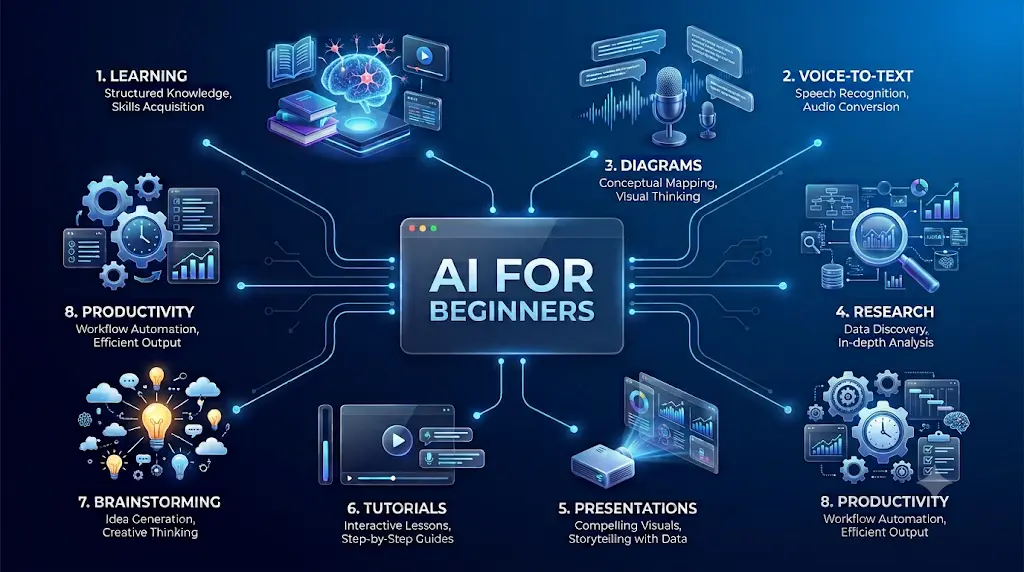
This guide matches eight beginner-friendly tools to eight specific problems: learning AI from zero, speaking instead of typing, turning notes into diagrams, finding research, building slides, making tutorials, and organising ideas. For each one you’ll see what it does, what the free plan really gives you, what it costs in rupees, and where it falls short.
The goal isn’t to convince you to use more AI. It’s to help you decide whether a particular tool actually makes your work easier.
Most beginners waste hours testing the wrong AI tools before finding what actually works. Save yourself the trial and error by reading our Ultimate Beginner Guide to AI Tools for Students and build a smarter AI workflow
Quick answer: For a complete beginner, the easiest AI tools are built around one clear task. bloom0 teaches AI, AudioPen turns speech into writing, Napkin AI makes diagrams, Consensus and Elicit help with research, Gamma builds presentations, Guidde creates tutorials, and Whimsical organises ideas. Start with the tool that solves a problem you already have.
Last verified: October 2026. Prices are in US dollars with approximate rupee conversions at about ₹96 per US dollar. AI tool pricing changes often, so confirm on the official page before you pay.
What Are the Best AI Tools for Beginners With No Experience?
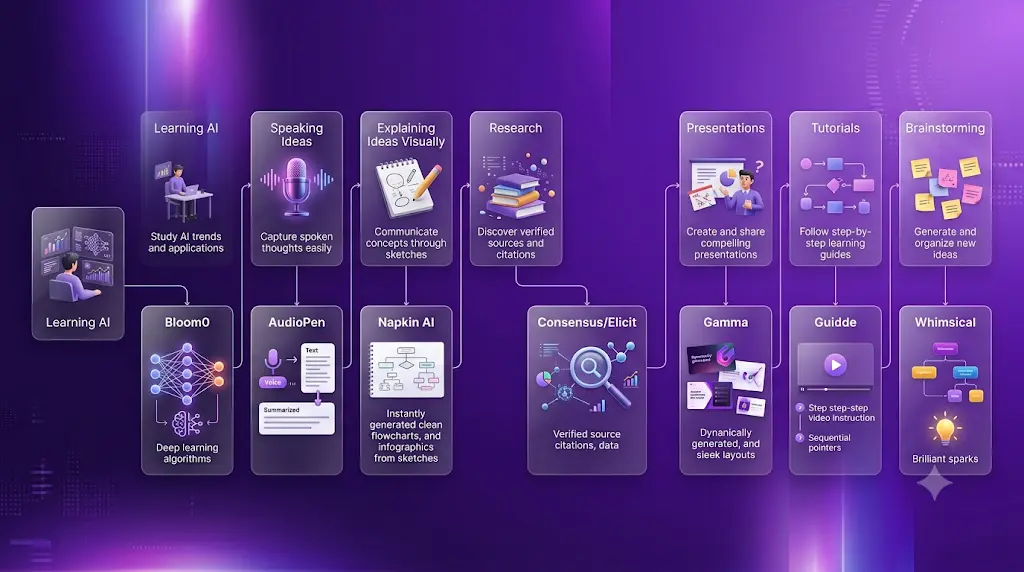
The best AI tools for beginners with no experience have one clear job and an obvious first step. Start with bloom0 to learn AI from scratch, AudioPen for speech-to-writing, Napkin AI for diagrams, Consensus or Elicit for research, Gamma for presentations, Guidde for tutorials, and Whimsical for mind maps.
If your problem is… look at this tool
- “I don’t know where to begin.” → bloom0
- “I hate typing.” → AudioPen
- “I need a diagram.” → Napkin AI
- “I need research evidence.” → Consensus
- “I need to analyse papers.” → Elicit
- “I need slides quickly.” → Gamma
- “I need to explain a website.” → Guidde
- “My thoughts are messy.” → Whimsical
Quick snapshot
- bloom0: friction very low; free.
- AudioPen: friction very low; limited free plan.
- Napkin AI: friction low; free with weekly credits.
- Consensus: friction low to medium; free with monthly limits.
- Elicit: friction medium; free with limits.
- Gamma: friction low; free with one-time credits.
- Guidde: friction low; free for up to 25 videos.
- Whimsical: friction low; free but tightly capped.
Who this guide is for: students, first-time AI users, job seekers, and freelancers. No coding is needed for any tool below.
What Can Beginners Actually Use AI For?
Beginners can use AI for ten everyday jobs: learning, writing, research, presentations, visuals, note-taking, planning, tutorials, productivity, and routine work. Each job has a tool built for it, and one real task is enough to start.New to AI? Start with our Ultimate Beginner Guide to AI Tools for Students to discover the best AI tools for research, note-taking, writing, revision, and productivity—all explained in a beginner-friendly, step-by-step format.
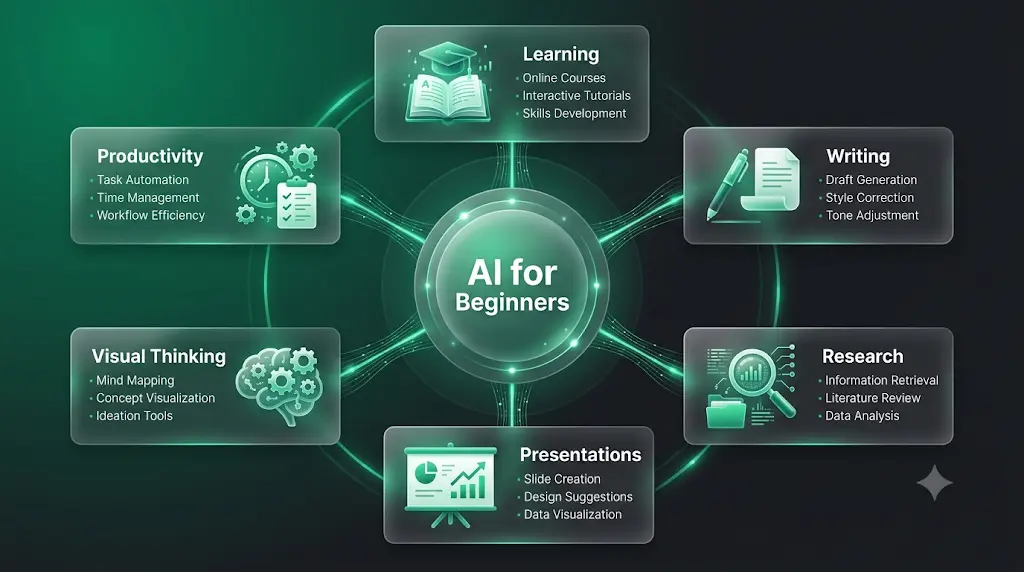
- Learning: ask an assistant to explain a topic in simple language.
- Writing and brainstorming: turn rough notes into an outline.
- Research: find papers on a question, with sources to check.
- Presentations: get a first-draft deck from your notes.
- Visualisation: turn a paragraph into a flowchart.
- Note-taking: speak an idea and get clean text.
- Planning: map a project before you start it.
- Tutorials: record a task and get a step-by-step guide.
- Productivity: draft a routine email or summary.
- Everyday work: reformat information from one shape to another.
You Don’t Need AI for Everything
If a task takes 30 seconds to do yourself, AI may add more friction than it removes. Use AI when it helps you understand something faster, organise messy information, produce a first draft, explore alternatives, convert one format into another, or handle repetitive work.
Skip it when the task is already easy, when you can’t check the accuracy, when you’d be uploading sensitive information, or when you don’t understand the output.
Key takeaway: The easiest AI tool isn’t the most famous one. It’s the one that solves a task you already need to finish.
Can Beginners Use AI Without Coding?
Yes. Many beginner-focused AI tools work through plain-language instructions or visual interfaces, so no programming is needed. However, “no coding required” doesn’t mean every tool has the same learning curve.If you want AI to do more than just answer questions, discover these AI Tools for People With No Coding Skills that can save you at least one hour every day.
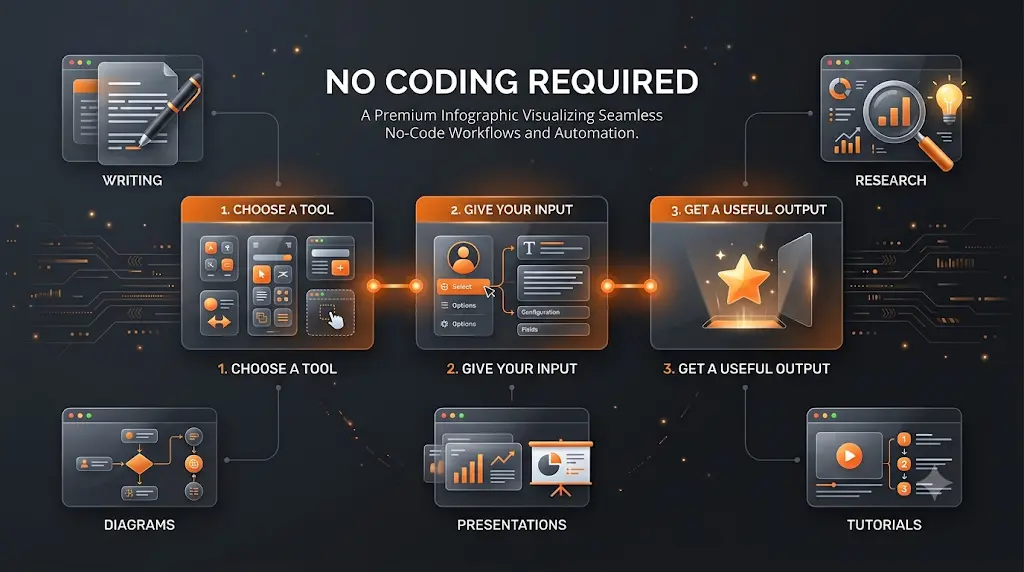
- No coding, very easy: AudioPen, Napkin AI, bloom0
- No coding, creates an output: Gamma, Guidde
- No coding, some learning needed: Whimsical, Consensus, Elicit
Research tools take longer because you must understand what a paper, abstract, or citation is. The interface is simple; the subject matter is not.
How These Tools Were Picked
A beginner-friendly AI tool is an AI application that gives useful results without programming or advanced technical knowledge. To make the shortlist of best AI tools for beginners with no experience, every tool had to meet these conditions:
- Works in a browser or app with no coding
- Offers a free plan or free access
- Solves one clearly named problem
- Can produce something useful in the first session
- Publishes its pricing openly
- Has a limitation you can state honestly
How to read the labels: “Beginner friction” is an editorial assessment of how many steps and decisions a first-time user faces. Low means an obvious interface and a quick first result. Medium means some learning is needed. These ratings are judgments from each tool’s published description and typical workflow, not lab scores, and this guide does not claim hands-on testing results.
Each tool also carries an Evidence line saying where its facts came from, so you can tell official information from third-party coverage.
Which AI Tool Should a Complete Beginner Start With?
Start with the tool that matches a problem you have this week, not the most famous one. The decision path above gives your answer; this version adds a default.Most people give up on AI because they try everything at once. Learn the best free AI tools for beginners and start with one simple tool that builds real confidence.

- Brand new and unsure what you need? bloom0.
- Have an assignment due? Gamma for slides or Consensus for evidence.
- Think better out loud? AudioPen.
- Already have notes and need structure? Napkin AI or Whimsical.
Choose this path if you want one clear default.
Skip it if you already use a general AI assistant daily and only need a specialised add-on.
What Is the Easiest Type of AI Tool?
For most first-time users, a specialised AI tool with one obvious workflow is easier to learn than a general-purpose platform with dozens of features. There are fewer decisions to make, and the first result arrives sooner.
1. bloom0 — Best for Learning AI From Zero
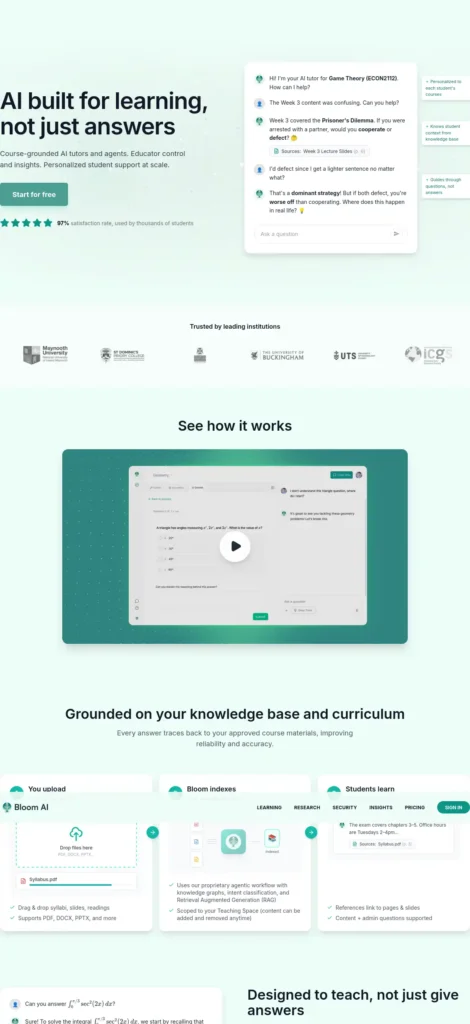
In one sentence: bloom0 is a free, lesson-based site that teaches complete beginners to build useful things with AI in plain language.
Category: AI learning platform.
Problem it solves: “I want to use AI but don’t know where to start.”
Input → Process → Output: your first goal → short lessons with quick checks → something you built yourself.
What it does well, and the catch
The useful part for a first-time user is that the first task is obvious. The homepage says the first lessons assume you’ve never written code, and you read a couple of ideas, answer a few checks, then build and paste your work in for feedback.
The site lists four tracks: Apps, Games, AI for Work, and Advanced AI Engineering. Skip the last one at first.
The catch: bloom0 teaches you to build with AI. It isn’t a quick-answer assistant, and it’s a smaller, newer site, so preview a lesson before investing time.
You still do: the building, the judgment, and the checking.
Free plan and pricing
Lessons are listed as free, with no sign-up needed to start. The Apps track lists 40 lessons and Games lists 30. Cost: ₹0. No paid plan was found in October 2026.
Evidence: official site.
Alternative: vAIble is a free 30-lesson course for non-technical learners, according to its listing. It is broader (it covers several named assistants) but less project-focused.
Skip it if
You need a finished deliverable today, or you only want quick answers.
Illustrative example (not a real case): A second-year student wants a simple exam-timetable app. They choose the Apps track and describe the timetable in plain language.
2. AudioPen — Best for Turning Voice Into Writing
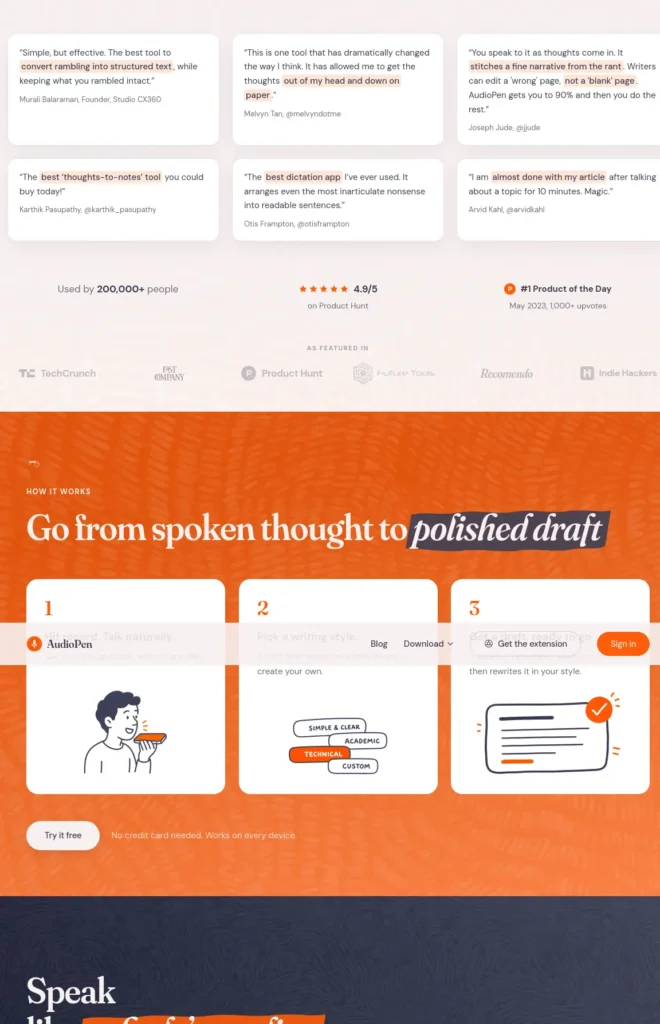
In one sentence: AudioPen turns spoken, rambling thoughts into cleaner written notes, which helps when speaking is easier than typing.
Category: AI voice-to-text.
Problem it solves: “I know what I want to say but can’t get it written.”
Input → Process → Output: speech → transcription and rewriting → structured text.
What it does well, and the catch
Where AudioPen stands out is the workflow: you press record and talk, with no prompt to write. That removes the blank-page problem, which is the real barrier for many first-time users.
The catch: automatic rewriting can change your meaning, so re-read everything. It’s also an online service, so avoid recording confidential material.
You still do: the fact-checking, the editing, and the final wording.
Free plan and pricing
The free plan allows recordings up to 3 minutes and about 10 saved notes, with no credit card needed. Prime is a one-time pass with no auto-renewal: about $33 for 3 months (about ₹3,200), $99 for 1 year (about ₹9,500), or $159 for 2 years (about ₹15,300). Prime raises recordings to 15 minutes and adds custom writing styles and audio uploads. Older sources show lower prices, so confirm before buying.
Evidence: third-party coverage; confirm on the official site.
Alternative: Voicenotes handles longer recordings, so it suits meetings and interviews better than AudioPen’s short-note focus.
Skip it if
You mostly write at a keyboard, or you need long recordings on a free plan.
Illustrative example (not a real case): A final-year engineering student speaks project-report ideas into AudioPen on a bus ride and edits the text later at a desk.
3. Napkin AI — Best for Turning Text Into Visuals
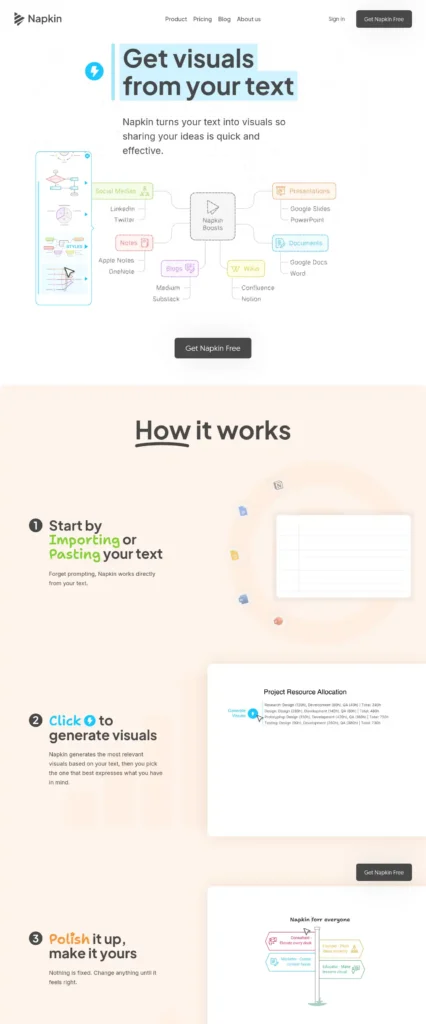
In one sentence: Napkin AI turns written information into editable diagrams, flowcharts, mind maps, infographics, and data charts, so you don’t need design skills.
Category: AI visualisation.
Problem it solves: “I have text but no way to show it visually.”
Input → Process → Output: pasted notes → AI-generated visual structure → editable diagram.
What it does well, and the catch
For turning existing text into diagrams, Napkin solves a narrower problem than a general design platform, and that narrowness is the point. You choose a generated visual and edit it, rather than building from a blank canvas.
The catch: credits are spent on generation, so long text can drain the weekly free allowance, and it isn’t a replacement for full design software.
You still do: confirm the diagram matches what your text actually says.
Free plan and pricing
The free plan gives 500 AI credits per week, unlimited editing, unlimited imports (PPT, DOC, PDF, HTML, MD), and unlimited PNG and PDF export, with Napkin branding on visuals. Editing doesn’t use credits. Plus is $9 per person per month (about ₹860) with 10,000 credits, no branding, and PPT and SVG export. Pro is $22 per person per month (about ₹2,100) with 30,000 credits and custom branding.
Evidence: free-plan terms from the official site; paid prices from third-party coverage of the official pricing page.
Alternative: Whimsical suits you if you want collaborative mind maps and flowcharts rather than text-to-visual conversion. Canva suits broader design work.
Skip it if
You need a clean, unbranded export but don’t want to pay, or your idea isn’t written down yet.
4. Consensus — Best for Evidence-Based Answers
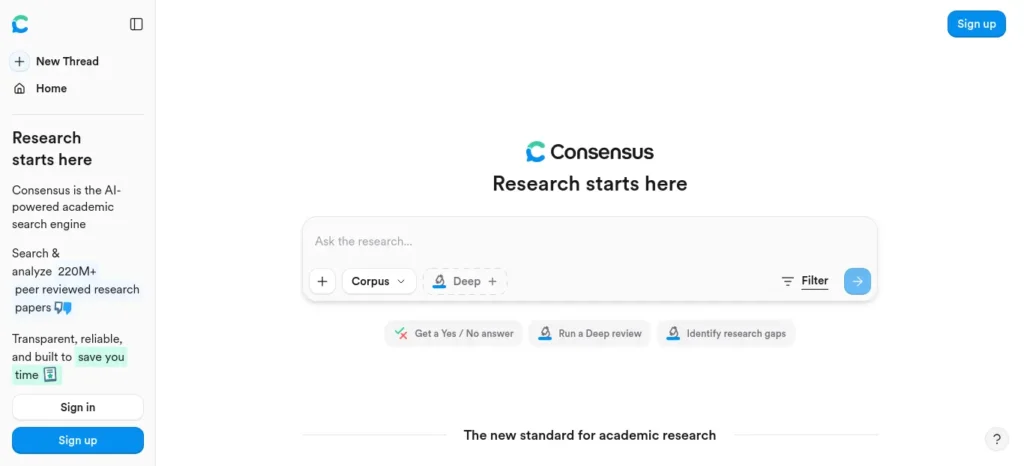
In one sentence: Consensus is an AI academic search engine, built by Consensus NLP, Inc., that answers questions using peer-reviewed research.
Category: AI academic search.
Problem it solves: “I need evidence, not opinions.”
Input → Process → Output: a research question → academic-paper retrieval and synthesis → an answer with linked papers.
What it does well, and the catch
Third-party reviews say it searches more than 200 million papers. For a beginner, the reliability benefit is that answers point back to real studies you can open.
AI research tools help you find and organise literature; they don’t remove the need to read and verify the underlying studies. It covers academic literature, not the general web, and summaries can miss nuance.
Research workflow: question → search → read abstract → open the paper → verify the claim → record the citation.
Free plan and pricing
Free includes unlimited basic paper search plus a limited monthly number of Pro messages and Deep reviews (reviewers report 15 and 3). Pro is listed at about $20 per month (about ₹1,920), or about $12 per month billed annually (about ₹1,150). Deep is about $65 per month. Prices have changed recently, so check the official page.
Evidence: third-party coverage; confirm on the official site.
Alternative: Elicit is better when you must extract and compare details across many papers; Google Scholar is free for manual search.
Skip it if
Your question isn’t a research question, or you need general web information.
5. Elicit — Best for Finding Academic Papers
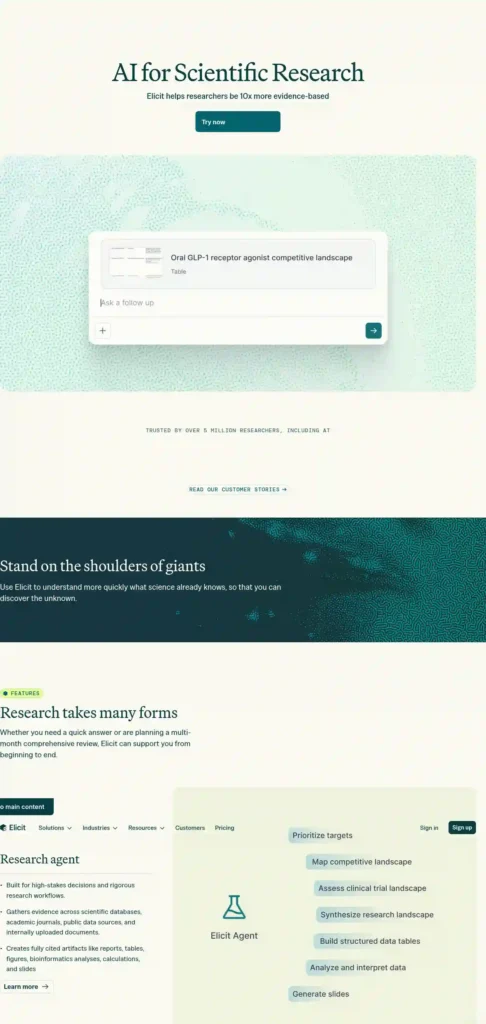
In one sentence: Elicit is an AI research assistant that finds, summarises, and extracts information from academic papers.
Category: AI research assistant.
Problem it solves: “I have a project and need to compare many papers.”
Input → Process → Output: a research question → paper search and extraction → a list of papers with structured details.
What it does well, and the catch
Elicit’s free plan is best seen as a trial. Third-party trackers disagree on exact limits, and those limits change, so test it on one real question before deciding.
It asks more of a beginner than Consensus: research terms and workflows take time, and credits cap heavy use. Start with Consensus if you’re brand new.
You still do: check every extracted detail against the original paper.
Free plan and pricing
A free Basic plan with limited credits exists. Plus is listed at roughly $10 to $12 per month (about ₹960 to ₹1,150), and Pro at roughly $42 to $49 per month (about ₹4,000 to ₹4,700).
Evidence: third-party coverage; confirm on the official site.
Alternative: Consensus gives simpler answers from a plain-language question.
Skip it if
You have no real research project yet.
Illustrative example (not a real case): A student compares eight studies for a final-year project by pulling sample size and findings into one table, then checks each entry against the paper.
6. Gamma — Best for Presentations and Documents
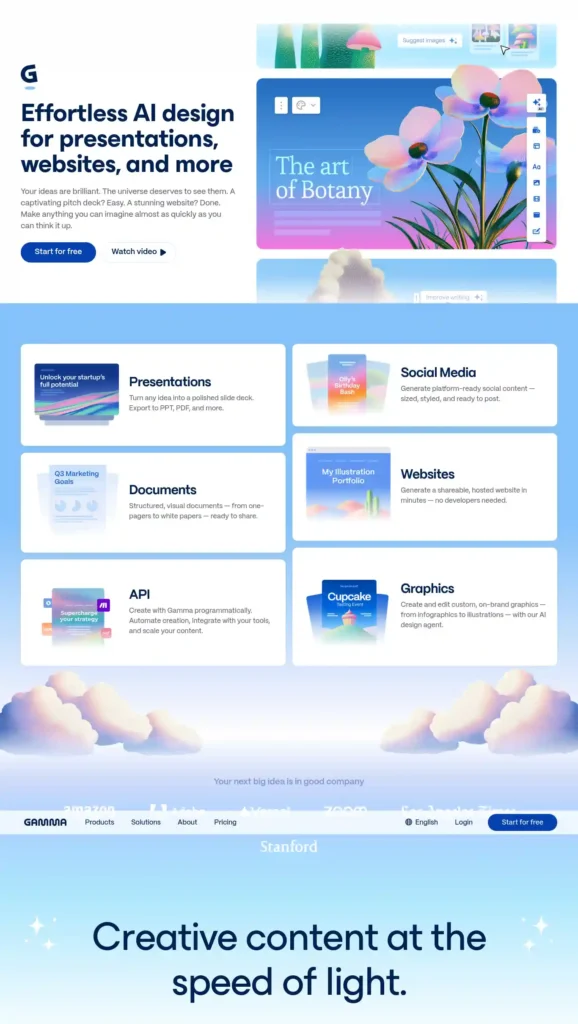
In one sentence: Gamma generates presentations, documents, and web pages from a prompt, giving beginners a fast first draft.
Category: AI presentation.
Problem it solves: “I need slides and have 20 minutes.”
Input → Process → Output: a topic or pasted notes → AI-generated structure → editable deck or page.
What it does well, and the catch
Gamma is no longer a hidden gem, so treat it as a benchmark. The output quality is good enough for a first draft, but it needs editing: AI-written slides can contain wrong facts, and decks can look alike.
The catch most beginners miss: free credits are one-time, not monthly.
You still do: fact-check, trim weak slides, and rehearse.
Free plan and pricing
Free gives 400 one-time AI credits, up to 10 cards per prompt, and a “Made with Gamma” badge. Plus is about $12 per month, or about $9 billed annually (about ₹1,150 or ₹860), with 1,000 monthly credits and no badge.
Evidence: third-party coverage; confirm on the official site.
Alternative: Napkin AI suits single visuals; Canva suits design control.
Skip it if
You need pixel-level design control, or you’ll exhaust free credits within a week.
Illustrative example (not a real case): A student pastes bullet notes into Gamma, deletes two weak slides, and corrects one wrong statistic before a seminar.
7. Guidde — Best for Creating How-To Tutorials
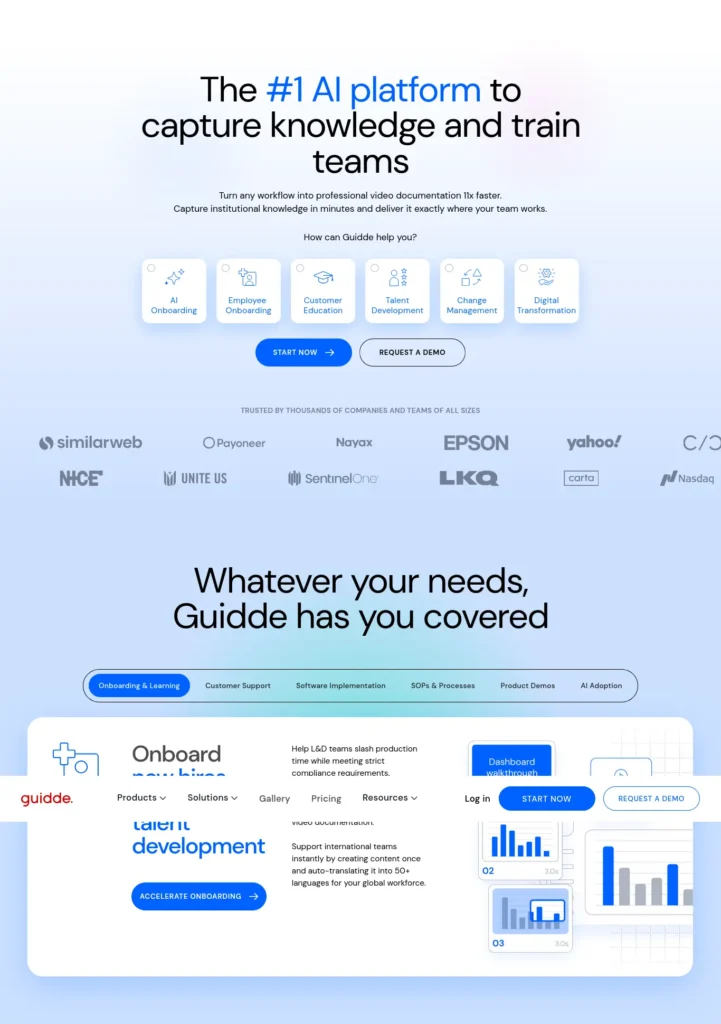
In one sentence: Guidde records your steps in a web app and builds a step-by-step video guide, so you skip manual editing.
Category: AI tutorial and documentation.
Problem it solves: “I need to show someone how to do this on a website.”
Input → Process → Output: your clicks in a web app → AI-built storyline → shareable video guide.
What it does well, and the catch
The real workflow saving is that capture, steps, and a shareable link come from one recording. You don’t touch a timeline editor.
The catch: free capture is limited to web apps, the free plan has a watermark and no AI voices, and the 25-video cap is a hard limit.
You still do: review each step and record your own voiceover on the free plan.
Free plan and pricing
Free allows up to 25 how-to videos, web capture, voiceover recording, and shareable links. Pro is listed at about $19 per creator per month billed annually, or $29 monthly (about ₹1,800 or ₹2,800), with unlimited videos, no watermark, and exports.
Evidence: Guidde’s published pages and third-party coverage; prices vary by source.
Alternative: Screencastify is plain screen recording, with no AI-built step guide.
Skip it if
You need desktop-app recording on a free plan.
8. Whimsical — Best for Mind Maps and Flowcharts
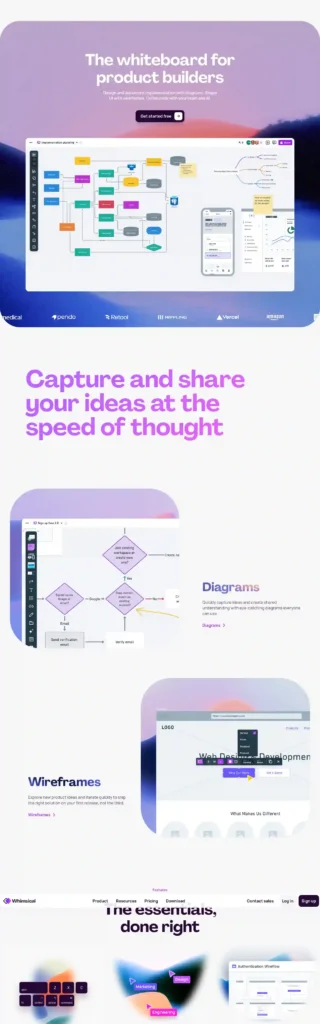
In one sentence: Whimsical is a visual workspace for mind maps, flowcharts, and wireframes, with AI features that draft diagrams from your ideas.
Category: AI visual planning. Problem it solves: “My ideas are messy and I need structure.”
Input → Process → Output: rough ideas → AI-drafted or hand-built map → organised board.
What it does well, and the catch
Whimsical works best before you write or build: map the argument, move a branch, and see the logic. It’s weaker if you need a single quick diagram from text, where Napkin AI is faster.
The catch: the free plan is tight, and free terms have changed.
Free plan and pricing
Per Whimsical’s current pricing page, Free includes unlimited boards, docs, teams, and guests, with a monthly allowance of 50 board objects and 50 doc blocks, plus 10 AI credits. An older help page lists different limits. Pro is $12 per editor per month or $120 per year (about ₹1,150 or ₹11,500). AI credits cost $0.10 each (about ₹10). Teachers and students can get the education plan free for one year; check whether your college qualifies.
Evidence: official pricing page.
Alternative: Napkin AI converts finished text to visuals; Miro suits team whiteboards.
Skip it if
You plan to diagram heavily on the free plan, or you want text-to-visual in one click.
How These Tools Differ
- bloom0: teaches; your goal in, a project out. Limit: building focus.
- AudioPen: speech in, text out. Limit: editing needed.
- Napkin AI: text in, diagram out. Limit: credits.
- Consensus: question in, papers and synthesis out. Limit: academic scope.
- Elicit: question in, extracted paper data out. Limit: learning curve.
- Gamma: notes in, slides out. Limit: one-time free credits.
- Guidde: web clicks in, video guide out. Limit: web-only free capture.
- Whimsical: ideas in, organised map out. Limit: tight free plan.
General AI Assistants vs Specialised AI Tools
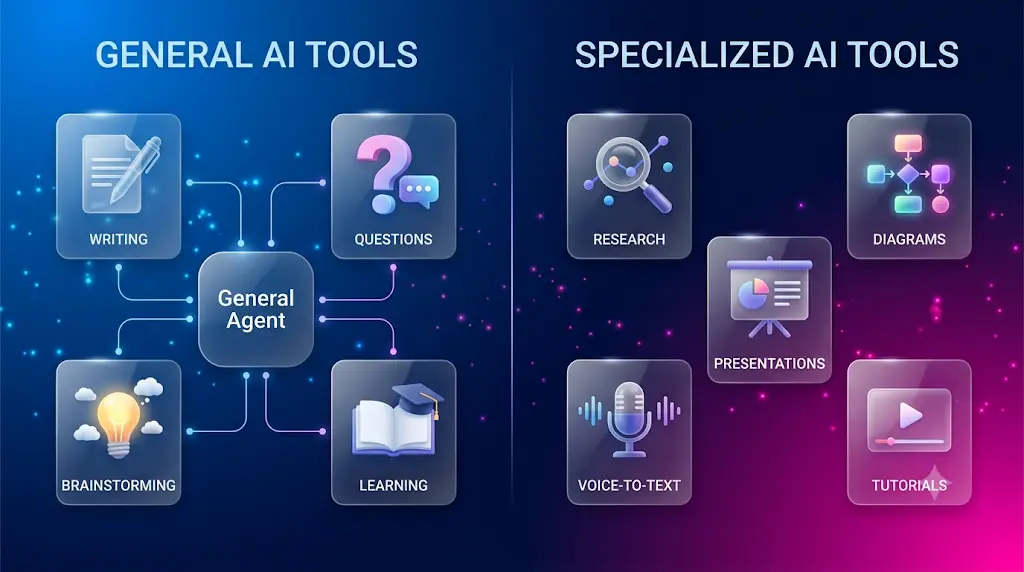
A general-purpose AI assistant handles many types of tasks, such as brainstorming, explaining, and drafting. ChatGPT, Gemini, and Claude are common examples. A specialised AI tool is built around one narrower job, such as research, slides, or voice notes.
Beginners often do well pairing one general assistant with one specialised tool. For college work, see our guides to AI tools for students and AI tools for writing college assignments.
How Many AI Tools Should a Beginner Learn?
Start with one tool and add a second only when a real task demands it. For most beginners, four tools are more than enough for a basic AI workflow.The biggest mistake isn’t using AI—it’s using only one AI tool. Discover the hidden AI tools that most students are not using yet and transform the way you study.
Your Beginner AI Stack:
- 1 general AI assistant
- 1 research tool (Consensus or Elicit)
- 1 creation tool (Gamma, Napkin AI, or Guidde)
- 1 organising tool (Whimsical or AudioPen)
Learning ten at once usually creates confusion instead of productivity.
Do Beginners Need to Learn Prompting?
No. Many AI tools work through simple interfaces, so choosing the right workflow matters more than memorising prompt formulas. A prompt is simply the instruction you give an AI tool.
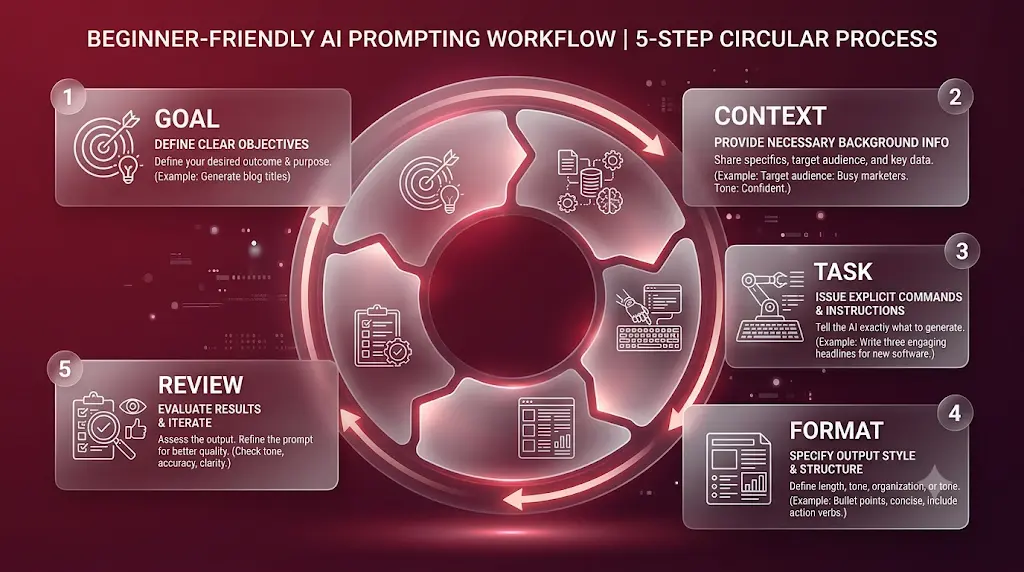
When you do write one, specifics help.
Beginner prompt: “Turn these notes into a study outline.”
Better prompt: “I’m a first-year college student. Turn these notes into a five-point study outline in simple language, and list any claims I should verify with reliable sources.”
Most students use AI as a simple chatbot, but the real advantage comes from following a complete workflow. Discover our AI study workflow for students and learn how to capture notes, create quizzes, schedule revision, and prepare for exams more effectively.
Five reusable prompts
- Explanation: “Explain [topic] in simple language for a beginner. Give one example and three questions to test my understanding.”
- Research: “Help me break this research question into smaller questions. Tell me what evidence I should verify using original academic sources.”
- Writing: “Turn these rough notes into a clear outline. Do not invent facts or citations. Mark anything that needs verification.”
- Presentation: “Turn these notes into a 7-slide presentation for a college audience. Keep each slide to one idea and flag claims that need checking.”
- Brainstorming: “Give me 10 approaches to this problem. Group them by difficulty and explain the trade-off of each.”
Prompt quality checklist
Before pressing Enter: did I explain the task, name the audience, specify the format, give context, state constraints, and ask the tool to flag uncertainty?
Four beginner workflows
- Research: question → search → papers → read → verify → notes
- Presentation: notes → outline → AI draft → fact-check → edit → present
- Writing: idea → outline → draft → critique → edit → final
- Visual: information → structure → visual → edit → verify
The 10-Minute Beginner Test (Run It Yourself)
Before you commit to any tool, run this test. It takes about ten minutes and tells you more than any review.
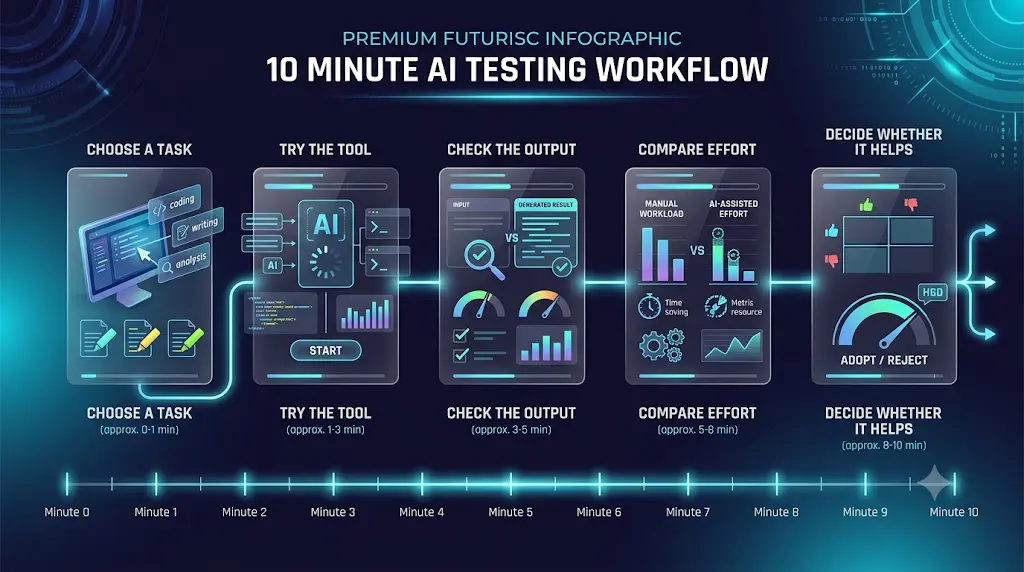
- Minutes 0–2: Can you understand the screen without a tutorial?
- Minutes 2–7: Can you finish one real task, such as one diagram, one note, or one slide?
- Minutes 7–10: Repeat the task without looking at instructions.
If you can repeat it unaided, the tool is worth learning. If you get stuck twice, switch.Most beginners don’t waste money on AI—they waste time choosing the wrong tools. Discover the free AI tools that beginners can start using today and build confidence from your very first AI experience.
Nine checks to score any tool
First-click clarity, time to first useful result, confusing steps, need for prompting knowledge, free-plan usefulness, output quality, editing required, limitations, and repeat-use value. Treat the scores as your own observations, not standardised measurements.
Productivity ROI mini-test
After using a tool, write down: time without AI, time with AI, and time spent editing and checking. Net time saved = time without AI minus (time with AI plus checking time). If a tool consistently saves little, you may not need it.
Key takeaway: A tool earns a place in your routine only if you can repeat the task without help and it saves net time.
How to Start Using AI Without Technical Experience:
A 7-Day Plan

- Day 1: Learn what AI can and can’t do. AI output isn’t automatically verified fact.
- Day 2: Try one general AI assistant on a simple question.
- Day 3: Try one specialised tool from this guide.
- Day 4: Complete one real task, such as a presentation or study outline.
- Day 5: Practise one better prompt using the example above.
- Day 6: Compare two tools on the same task.
- Day 7: Keep the one or two tools you actually used. Drop the rest.
Checklists to keep
Tool selection: What exactly am I trying to do? What should the output look like? Can I try it free? How much learning is needed? What happens at the free limit? Do I need to upload sensitive information? Can I verify the result? Will I use it again next week?
Productivity: Define the task, choose the narrowest tool, start free, give clear input, check the output, save useful prompts, and measure whether time was saved.
Common Mistakes Beginners Make With AI Tools
| Beginner mistake | Better approach |
| Trying ten tools in a week | Start with one |
| Trusting the first output | Check important claims |
| Paying immediately | Test the free version first |
| Copying AI text as-is | Edit it and understand it |
| Using AI for everything | Use it where it saves effort |
| Uploading sensitive files | Check privacy first |
Free doesn’t always mean useful—and some “free” AI tools come with frustrating limits. See which AI tools for students are actually worth trying before you spend time signing up for the wrong ones.
How to Verify AI-Generated Information
AI output isn’t automatically verified fact, because AI tools can state wrong things confidently. Use four steps: ask, inspect, verify, use.
AI output verification checklist
- Check important facts and numbers
- Open every cited source
- Check dates and names
- Check quotations
- Confirm the source actually supports the claim
- Remove anything you can’t support
Stronger sources: official documentation, government sources, universities, peer-reviewed research, primary research. Weaker sources: anonymous blogs, AI-generated summaries, unsourced social posts, screenshots.
Before You Upload Anything to an AI Tool
Check what data a tool collects, whether files or recordings are stored, whether an account is required, and whether the provider explains retention. Read the official privacy policy for specifics.
Ask yourself: Is this personal or confidential? Does the tool need it? Could I delete it later? Would I be comfortable sharing it publicly? If not, don’t upload it.
Do not use AI to make important medical, legal, or financial decisions without checking reliable sources, to submit generated work as your own, or to handle sensitive documents.
Using AI for College Work
AI can help with brainstorming, explanations, outlines, revision, practice questions, and research discovery. Institutional rules differ, so check your college or instructor’s AI-use policy before submitting AI-assisted work.If you’re a college student in India, don’t waste hours jumping between random AI tools—start with these free AI tools that can actually save you time on studying, assignments, research, and everyday college work.
| Beginner | Useful AI tasks |
| College student | Research, presentations, notes |
| Job seeker | Resume drafts, interview practice |
| Freelancer | Client documentation, research |
| Teacher | Lesson ideas, visual explanations |
| Small business owner | Drafts, documentation, brainstorming |
AI Tools for Beginners in India: What to Consider
Indian students often start free, so when choosing the best AI tools for beginners with no experience, free-plan limits matter more than headline features. Compare prices in rupees, watch for one-time credits that never refill (Gamma) against weekly ones (Napkin AI), and check student options such as Whimsical’s education plan.Don’t waste hours jumping between AI tools that barely help—discover these powerful AI tools for students in India that can make studying, assignments, and exam prep much easier.
This guide hasn’t verified payment-method availability (such as UPI), regional student discounts, or support for Indian languages on each tool, so check checkout and language settings before paying. Most tools here are browser-based, which suits a mid-range phone, but voice and video features use more data.
Are Free AI Tools Good Enough?
Free is not always free enough. Use these four labels:
- Truly useful free plan: you can finish a meaningful task without paying. Example: Napkin AI for light use.
- Limited free plan: you can test it but will hit caps quickly. Example: Whimsical, AudioPen.
- One-time credits: free access runs out and doesn’t refill. Example: Gamma.
- Freemium: core features are free, advanced ones paid. Example: Consensus.
Stay free when you use a tool occasionally, the limit isn’t blocking you, and you’re still learning. Consider paying when you use it repeatedly, one specific limit blocks your work, and the paid feature saves measurable time.
Frequently Asked Questions
Beginner basics
What is the easiest AI tool for a complete beginner?
For someone completely new, a tool with one narrow job is usually easiest. bloom0, AudioPen, and Napkin AI each have simple workflows. The easiest tool is the one matching a problem you already have, such as learning, writing by voice, or making diagrams.
Do I need coding skills to use AI tools?
No. Every tool in this guide works through plain-language prompts or point-and-click interfaces. Technical requirements vary by tool, but none of the eight needs programming to get started.
Are AI tools difficult to learn?
Many beginner-focused tools can be understood quickly, but research and multi-step tools may take longer. Use the 10-Minute Beginner Test to check whether a tool fits you.
Can I use AI without knowing how to write prompts?
Yes. Many tools, such as AudioPen and Napkin AI, work from speech or pasted text, not engineered prompts. Prompts help most with general assistants. A clear task, audience, and format is enough to start.
Choosing a tool
Which AI tool should I learn first?
Learn one tool that solves a task you do this week. With no task, start with bloom0 for guided learning. If you need a deliverable, pick Gamma for slides or Napkin AI for diagrams.
Are specialised AI tools easier than general AI assistants?
Often, yes. A specialised tool has fewer decisions and one obvious workflow, so the first result arrives sooner. A general assistant is more flexible but needs clearer instructions. Many beginners benefit from using one of each.
Which AI tools are useful for students?
Consensus and Elicit help with research, Gamma with presentations, Napkin AI and Whimsical with diagrams and planning, and AudioPen with drafting by voice. Always check facts before submitting any work.
Which AI tools can help with research?
Consensus and Elicit search academic papers. Consensus is simpler for beginners asking plain questions; Elicit offers deeper paper analysis. Both require you to open and verify the original studies.
Can beginners use AI for work?
Yes. Beginners can use AI for notes, slides, diagrams, and tutorials. Review all output before sharing and avoid uploading sensitive company information.

Cost, safety, and value
Can I use AI tools for free?
Yes. All eight tools have a free plan or free access. Limits differ: weekly credits, one-time credits, or caps on items created. Check each official pricing page for current limits.
How can I tell if an AI tool is worth paying for?
Pay only when a specific limit blocks a task you repeat. Run the productivity ROI mini-test: if the tool saves measurable net time after checking and editing, an upgrade may be justified. Otherwise stay free.
Are free AI tools safe to use?
Safety varies by tool. Before uploading files or recordings, read the privacy policy, check what data is stored, and avoid confidential material. Free tools aren’t automatically unsafe, but nothing is risk-free.
How should beginners verify AI-generated information?
Open the cited sources, check numbers, dates, and names, and confirm each source actually supports the claim. For academic, medical, financial, or legal topics, rely on primary sources instead of the AI summary.
How many AI tools should a beginner learn?
Start with one, then add a second when needed. For most beginners, four tools are enough: one general assistant, one research tool, one creation tool, and one organising tool.
Key Takeaways
- The best AI tools for beginners with no experience solve one clear problem and need no coding.
- Specialised tools can be easier to learn than broad platforms.
- Start with a real problem, not a tool.
- Free plans are good for testing, but limits matter.
- Check AI output before important use.
- One or two useful tools beat ten unused ones.
Choose by problem
Learn AI → bloom0 · Speak instead of type → AudioPen · Create visuals → Napkin AI · Research papers → Consensus or Elicit · Make presentations → Gamma · Create tutorials → Guidde · Organise ideas → Whimsical
Final Takeaway
The best AI tools for beginners with no experience are the ones you’ll actually use again next week. If you’re completely new, don’t start by learning ten tools. Pick one simple tool that solves a problem you already have, use it for one real task, check the result, and add a specialised tool only when you need it.
Start with bloom0 if you want a guided path, AudioPen if typing slows you down, or Napkin AI if you think in diagrams. Run the 10-Minute Beginner Test, keep what works, and drop what doesn’t.
About the Author
Nandhakumar is the Founder & Content Creator at FutureFastAI, an independent platform focused on AI tools for students and beginners, study workflows, and digital productivity.
He researches AI tools and develops practical guides that explain what each tool does, who it is suitable for, how beginners can use it, and what limitations they should consider. FutureFastAI content is created with a focus on clear explanations, practical use cases, current tool information, and responsible use of AI.
Where applicable, tool features, pricing, and important claims are checked against official product sources, while recommendations and editorial observations are clearly distinguished from factual information.
FutureFastAI’s approach is simple: AI should assist learning and productivity—not replace human judgment, critical thinking, fact-checking, or responsible decision-making.
Editorial Policy
FutureFastAI publishes practical content about AI tools, student productivity, study workflows, and digital tools for beginners.
Our editorial process focuses on:
- Accuracy: Tool features, pricing, availability, and important claims are checked against official sources where possible.
- Practical usefulness: Articles are written to help readers understand what a tool does, who it is for, and how it can be used.
- Original analysis: Editorial observations and recommendations are based on our research and, where stated, our own testing and experience.
- Transparency: Facts, sourced information, and editorial opinions are kept distinct. We do not present hypothetical examples as real experiences.
- Updates: Information that can change, such as pricing, features, and free-plan limits, is reviewed and updated when necessary.
- Responsible AI: AI-generated outputs can contain errors. We encourage readers to verify important information and follow their school, college, workplace, or institutional policies.
FutureFastAI may use AI-assisted tools during the content creation process, but published content is reviewed and edited before publication. AI is used to support the editorial workflow, not to replace human judgment, verification, or responsibility for the final content.
Some articles may contain affiliate links. If a reader makes a purchase through an eligible link, FutureFastAI may receive a commission at no additional cost to the reader. This does not determine our editorial conclusions or recommendations.





One Comment