
Best Free AI Tools for Beginners Who Are Not Tech Savvy (2026 Guide)
Imagine needing to write an email, finish homework, create a resume, or build a presentation—all without knowing anything about AI. That’s where many beginners start. Meera, a second-year commerce student in Nagpur, felt exactly the same way after her professor casually suggested, “Just use AI” for a group project. Like many first-time users, she didn’t know which tool to choose or where to begin.
(This is an illustrative scenario, not a real case study.)
If that sounds familiar, you’re not behind—you’re simply at the beginning of your AI journey. The good news is that you don’t need coding skills or technical knowledge to get started. This guide covers the best free AI tools for beginners who are not tech savvy, with honest free-plan limits, straightforward recommendations, and a simple learning path so you can confidently choose the right tool without feeling overwhelmed.
Who This Guide Is For
This guide is written for complete beginners who have never used AI software before. If you can browse the web, send emails, or use WhatsApp, you already have every technical skill needed to use each beginner AI software tool below. It’s built for students, teachers, freelancers, job seekers, and small business owners — anyone who wants practical AI apps for beginners handling everyday tasks, not a computer science lesson.
Our Testing Methodology
- Every tool was tested on its free plan only — no paid trials used to judge the beginner experience.
- Pricing and limits were checked against official pricing pages, not assumed from memory.
- Tools were tested on desktop Chrome and an Android mobile browser, since that’s how most beginners in India actually browse.
- Evaluation focused on beginner experience — first-use clarity, plain-language prompting, mobile usability — rather than advanced or developer-facing features.
- Verification date: August 2026. Pricing shown in USD and approximate INR (~₹96/USD — this rate fluctuates, so check it before budgeting). We won’t repeat the exchange-rate note again below.
Small Disclaimer
Free plans, pricing, and usage limits can change without notice. Always confirm the latest information on the official website before making a purchasing decision.

Quick Answer
For most beginners, start with ChatGPT or Claude for everyday writing,
Canva for visuals, and Perplexity for research you can verify.
All four have genuinely usable free plans, work on any phone or laptop browser, and need no technical skill beyond typing a sentence.
Pick one weekly task, try the matching tool today, and build from there.
Table of Contents
- How We Evaluated These Tools
- The START AI Framework
- Do You Need Coding Skills?
- Best Free AI Tools for Beginners
- Hidden Gems
- Common Beginner Myths
- Best AI Tool by Use Case
- Which Tool Should You Learn First?
- First-Day AI Checklist
- People Also Ask
- Prompting, Privacy, and Confidence
- When Should You Upgrade?
- Common Beginner Mistakes
- Your First 7 Days With AI
- India-Specific Advice
- FAQs
How We Evaluated These Tools
Every tool on this list was scored the same way, without a numeric ranking that pretends more precision than a beginner review can honestly claim:
- Ease of use — Can a first-time user get a useful result within five minutes?
- Free plan value — Is the free tier genuinely usable, or just a teaser for a paid plan?
- Beginner friendliness — Does it need plain-language prompts, or technical setup?
- Output quality — Is the result actually usable for real writing, research, or design tasks?
- Learning curve — How long until a beginner feels comfortable using it unassisted?
Tools that failed on beginner friendliness or free plan value, even with strong raw AI power, were left off this list on purpose.
The START AI Framework
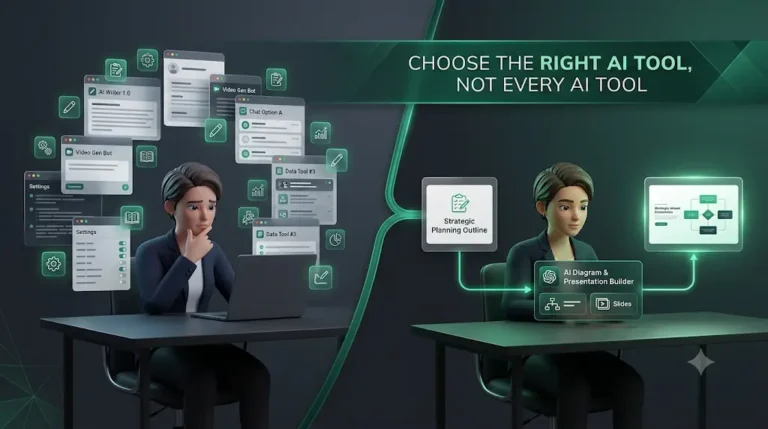
Most guides hand you a list of AI apps and leave you to figure out the rest. Instead, follow this simple sequence
the START AI Framework:
- S — Select one everyday problem to solve (a slow email, messy notes, a boring slide deck).
- T — Try one beginner-friendly AI tool that matches that exact problem.
- A — Automate a small, repeatable version of that task.
- R — Repeat the same workflow for a week until it feels routine.
- T — Track which AI assistant actually saved you time before adding a second one.
💡 Beginner Tip: Don’t open five apps on day one. The START framework works because it limits your first week to one tool, not because the tool itself is magic.
Fewer tools, used properly, beats a phone full of AI apps opened once and forgotten.
Before you move on, ask yourself this: do you have a learning system or just good intentions? Discover How to Build a Daily Learning System Using AI (Step-by-Step Guide) to create a simple AI-powered routine that actually sticks.
Do You Need Coding Skills? (Quick Answer)
No. Every free AI tool in this guide runs on plain-language prompting — typing normal sentences into a chat box or template — with zero installation, no terminal, and no code. These are genuinely no-code AI tools, easy AI tools built for typing, not programming: if you can send a WhatsApp message, you can use every one of them, on Android, iPhone, Windows, Mac, or a Chromebook.

Free AI Tools for Beginners: Where Should You Start?
If you’re looking for free AI tools for beginners, you don’t need to learn several apps at once. Start with one tool that solves a task you already do regularly. ChatGPT or Claude can help with writing, explanations, and brainstorming; Perplexity is useful when you want research with sources; Canva is a simple starting point for presentations, resumes, and visual content; and NotebookLM can help you study from your own PDFs and notes.
The best free AI tool for you depends on what you actually want to accomplish. If you are completely new to AI, choose one task—such as writing an email, summarizing notes, researching a topic, or creating a presentation—and practice that task with one tool for a few days. You can add more free AI tools once you are comfortable with the first one.
For beginners who are not tech savvy, the most useful starting point is usually an AI tool that works directly in a browser, requires no coding, and has a usable free plan. That keeps the learning curve simple and lets you focus on learning how to use AI rather than learning complicated software.
Best Free AI Tools for Beginners
This section is the core of the guide: the best free AI tools for beginners who are not tech savvy, tested on their free plans and compared side by side. Each entry below follows the same order — Best For, Why It’s Beginner-Friendly, Free Plan, Pros, Cons, Who Should Choose This, Who Should Skip This, Learning Time, How to Start, and an Alternative — so you can compare fairly at a glance.
Quick Comparison
| Tool | Best For | Free Plan |
| ChatGPT | General writing & questions | ~10 messages / 5 hrs |
| Claude | Long documents & careful writing | Rolling usage budget |
| Gemini | Gmail, Docs & Android users | Daily usage caps |
| Perplexity | Cited research | Unlimited basic search |
| Canva | Posters, resumes, slides | ~50 AI credits/month |
| Grammarly | Grammar & tone | ~100 AI prompts/month |
| Gamma | AI-generated presentations | 400 one-time credits |
| NotebookLM | Studying your own notes/PDFs | 50 sources, 50 chats/day |
| Microsoft Copilot | Office & Outlook workflows | Free chat, limited images |
ChatGPT
Best For: General-purpose writing, homework help, brainstorming, and quick research.
Why It’s Beginner-Friendly: It understands plain-language questions with zero setup and answers conversationally — it’s the AI assistant most people already mean when they say “AI.”
Free Plan: Free, no card required. Runs on GPT-5.5 Instant with roughly 10 messages every 5 hours before switching to a lighter model; US free users may see occasional ads.
Pros: Extremely versatile; huge library of beginner tutorials; works on web and mobile apps.
Cons: Message limits reset slowly during heavy use; doesn’t include the most advanced reasoning model.
Who Should Choose This: Anyone who wants one all-purpose assistant for writing, homework, and everyday questions.
Who Should Skip This: Anyone who mainly needs cited, fact-checked research — try Perplexity instead.
Learning Time: ⭐☆☆☆☆ (about 5 minutes)
How to Start in 5 Minutes: Go to chatgpt.com, sign up free, and type “Explain [your topic] like I’m a complete beginner.”
Alternative to Try: Claude, if you hit the message cap often.
Want to move beyond simple AI answers? Learn how to use ChatGPT as a personal learning assistant to create study plans, generate quizzes, and master new skills faster.
Claude
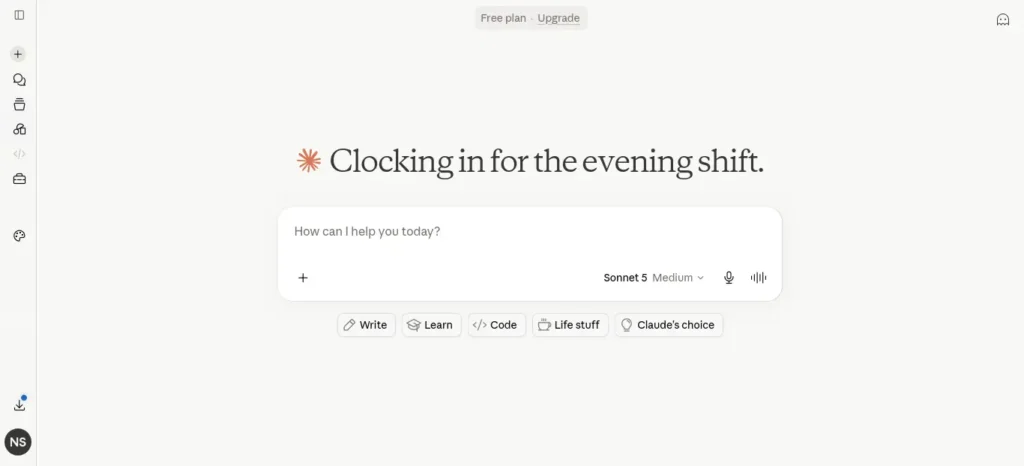
Best For: Long documents, careful writing, and accurately summarizing PDFs or lecture notes.
Why It’s Beginner-Friendly: It gives thorough, well-organized answers and handles long pasted text — a whole chapter, a full assignment brief — better than most free chatbots.
Free Plan: Free. Defaults to Claude Sonnet 5, with a rolling usage budget rather than a fixed message count, plus peak-hour caps.
Pros: Strong at summarizing and explaining; careful, non-pushy tone; handles long pastes well.
Cons: Usage caps can feel tighter during busy hours; fewer built-in plugins than ChatGPT.
Who Should Choose This: Students summarizing long PDFs, notes, or research papers.
Who Should Skip This: Anyone who wants heavy plugin or app integrations — ChatGPT has a broader ecosystem.
Learning Time: ⭐☆☆☆☆ (about 5 minutes)
How to Start in 5 Minutes: Go to claude.ai, sign up with Google or email, paste a long PDF, and ask, “Summarize this in five bullet points.”
Alternative to Try: NotebookLM, if you want answers grounded only in your own documents.
Google Gemini
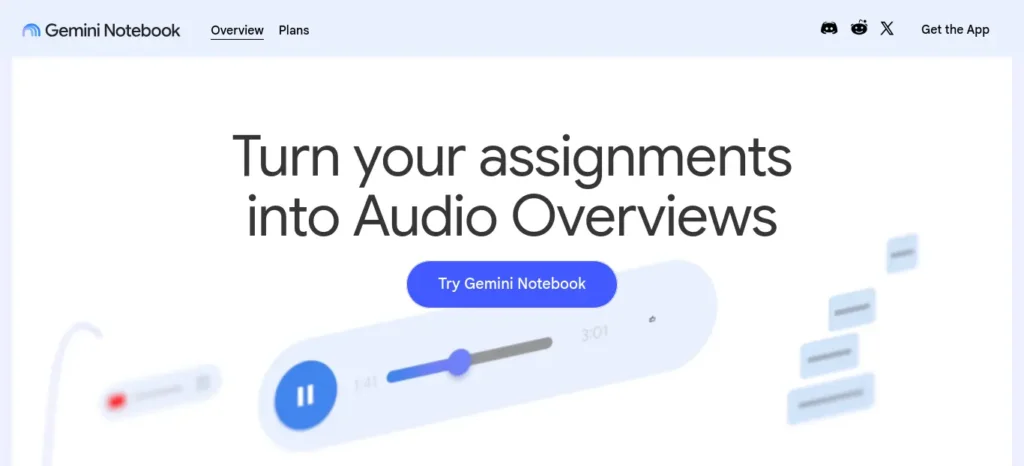
Best For: Anyone already living inside Gmail, Google Docs, or an Android phone.
Why It’s Beginner-Friendly: No new account is needed if you already use Google, and it can draft directly inside Gmail or Docs with permission.
Free Plan: Free. Runs on Gemini’s Flash-class models with daily usage caps; Deep Research is capped at a handful of uses per month.
Pros: Deep integration with Gmail, Docs, and Android; genuinely useful free tier.
Cons: Free tier’s context window is smaller than paid plans, so very long documents may need splitting.
Who Should Choose This: Anyone already using Gmail or an Android device daily.
Who Should Skip This: Anyone in a Microsoft-first workplace — Copilot fits that setup better.
Learning Time: ⭐☆☆☆☆ (about 5 minutes)
How to Start in 5 Minutes: Open gemini.google.com with your existing Google account and ask it to draft a reply to an email you’re stuck on.
Alternative to Try: Microsoft Copilot, if you live in Outlook and Word instead.
💡 Beginner Tip: If you already have a Google or Microsoft account, start with Gemini or Copilot before signing up for anything new — one less password to remember.
Perplexity
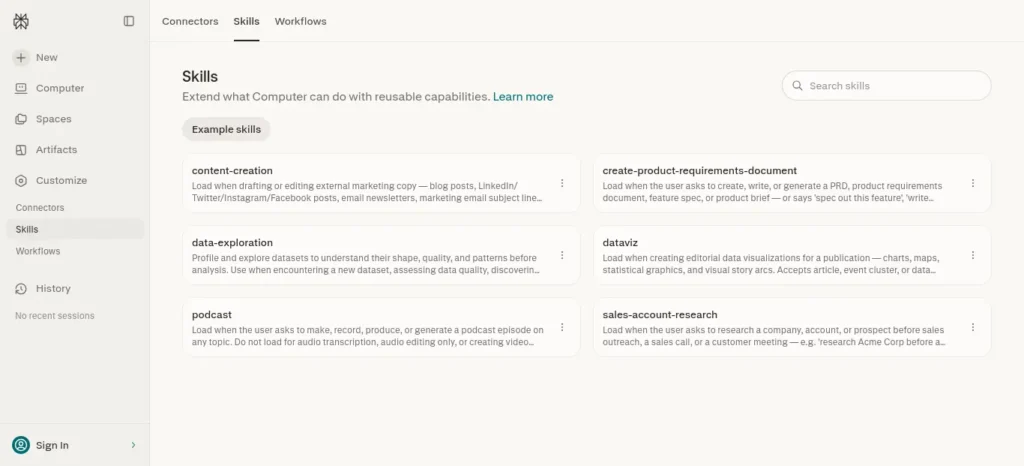
Best For: Research questions where you want sources, not just a confident-sounding answer.
Why It’s Beginner-Friendly: Every answer comes with clickable citations, so you can verify facts instead of trusting AI blindly — a genuinely useful research habit.
Free Plan: Free. Unlimited basic search with sources, plus a limited number of daily “Pro Search” queries.
Pros: Built-in fact-checking via citations; well suited to exam and assignment research.
Cons: Free tier’s advanced search count is capped and not publicly disclosed in exact numbers.
Who Should Choose This: Students and researchers who need verifiable, source-backed answers.
Who Should Skip This: Anyone who mainly wants creative or conversational writing help.
Learning Time: ⭐☆☆☆☆ (about 5 minutes)
How to Start in 5 Minutes: Go to perplexity.ai and ask a factual question like “What caused [event]?” — then check the linked sources.
Alternative to Try: Gemini’s Deep Research mode, if you’d rather stay inside a tool you already use.
Canva (Magic Studio)
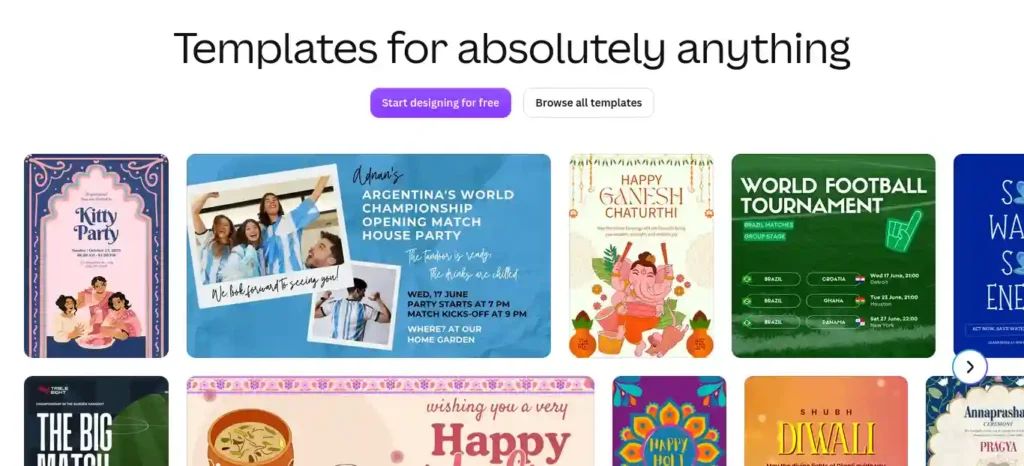
Best For: Posters, presentations, resumes, and social media graphics — no design skill needed.
Why It’s Beginner-Friendly: Drag-and-drop templates plus AI features (Magic Write, background removal, resizing) mean a first-time user can make something presentable in minutes.
Free Plan: Free. Includes over a million templates, 5GB storage, and roughly 50 AI credits per month.
Pros: Huge free template library; mobile app works well on budget Android phones; gentle learning curve.
Cons: AI credits run out quickly with heavy image generation; premium templates are Pro-only.
Who Should Choose This: Anyone making a resume, poster, or presentation who has zero design background.
Who Should Skip This: Anyone who specifically needs flowcharts or diagrams — try Napkin AI instead.
Learning Time: ⭐⭐☆☆☆ (about 10 minutes)
How to Start in 5 Minutes: Go to canva.com, search “resume” or “poster” in templates, and edit the text.
Alternative to Try: Napkin AI, for diagrams and flowcharts specifically.
Grammarly
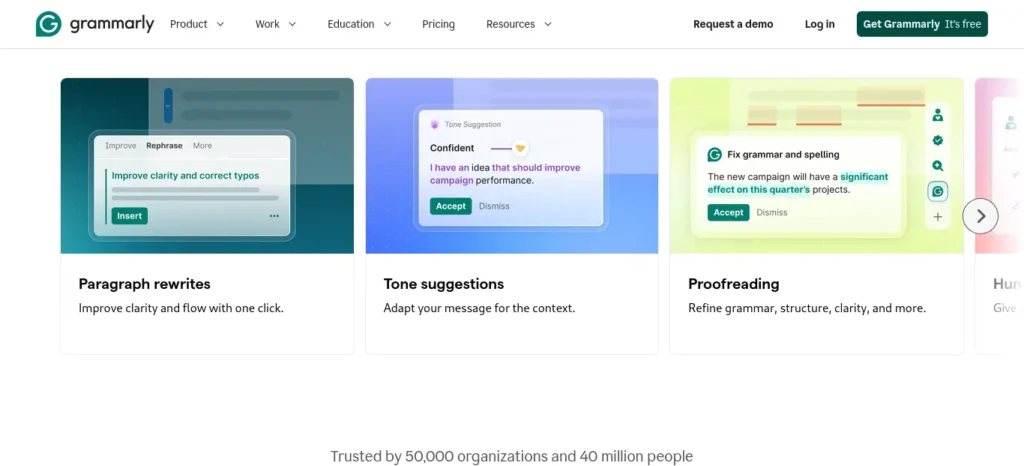
Best For: Fixing grammar, tone, and clarity in emails, essays, and job applications.
Why It’s Beginner-Friendly: It works quietly wherever you already type, correcting mistakes without requiring you to learn new software.
Free Plan: Free. Includes grammar and spelling checks, tone detection, and about 100 AI prompts per month; works inside Gmail, Word, and most browsers.
Pros: Near-invisible setup; catches mistakes spellcheck misses; builds real writing confidence over time.
Cons: Full-sentence AI rewrites and plagiarism checks are Pro-only (about $12/month billed annually, or $30/month billed monthly).
Who Should Choose This: Job seekers and students who write emails or applications in English regularly.
Who Should Skip This: Anyone who needs full paragraph rewrites, not just corrections — try ChatGPT or Claude for that.
Learning Time: ⭐☆☆☆☆ (about 5 minutes)
How to Start in 5 Minutes: Install the free browser extension, open Gmail, and start typing — suggestions appear automatically.
Alternative to Try: ChatGPT or Claude, if you’d rather paste a whole paragraph and ask for a rewrite in one go.
Gamma
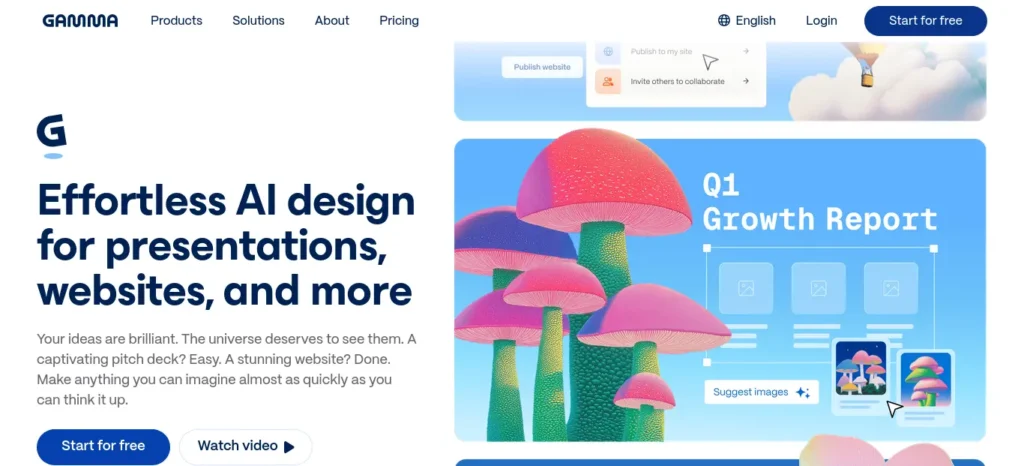
Best For: Turning a rough idea into a full slide presentation in minutes, without touching PowerPoint.
Why It’s Beginner-Friendly: Type one sentence describing your topic, and it generates a complete, decently designed deck you can then edit like a document.
Free Plan: Free. Includes 400 one-time AI credits (roughly 5–10 decks), with a small “Made with Gamma” watermark on shared work.
Pros: Fastest way to go from idea to presentable deck; no design skill needed.
Cons: Free credits don’t refresh monthly, so heavy users will need Plus (roughly $8–10/month).
Who Should Choose This: Students or freelancers who need a presentation fast and don’t have design time.
Who Should Skip This: Anyone who needs pixel-precise, brand-locked slide templates — Canva may suit that better.
Learning Time: ⭐⭐☆☆☆ (about 10 minutes)
How to Start in 5 Minutes: Go to gamma.app, choose “Generate,” type your topic, and let it build the first draft.
Alternative to Try: Canva’s presentation templates, for a design-first starting point.
NotebookLM
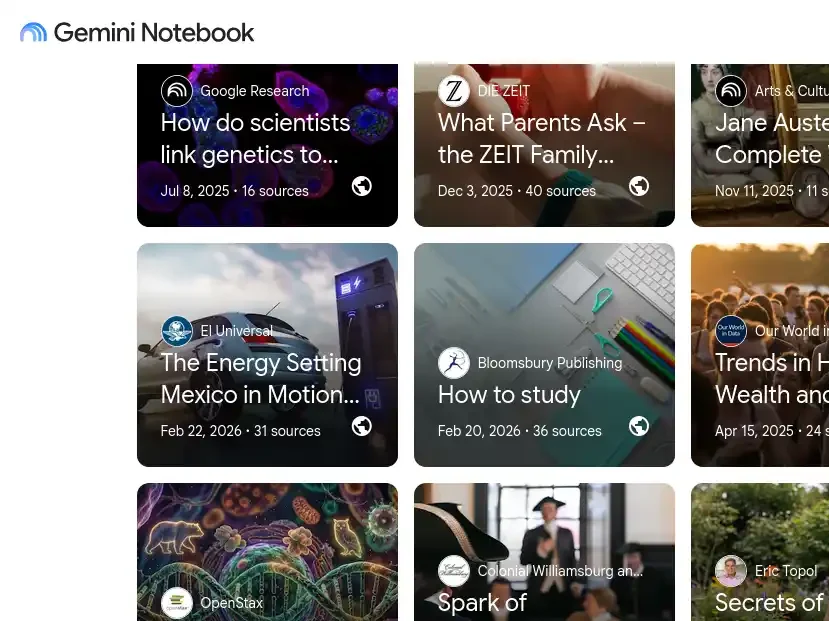
Best For: Studying from your own notes, textbook PDFs, or lecture recordings without distraction from unrelated web answers.
Why It’s Beginner-Friendly: It only answers from the sources you upload, so it’s far less likely to make things up, and it can turn notes into an audio-style explainer.
Free Plan: Free. Includes up to 100 notebooks, 50 sources per notebook, 50 chat queries a day, and a handful of daily Audio and Video Overviews.
Pros: Genuinely accurate for exam prep since it’s grounded in your own material; generous free tier for students.
Cons: Needs a stable internet connection since everything runs in the browser; no offline mode.
Who Should Choose This: Students preparing for exams from their own notes or textbook PDFs.
Who Should Skip This: Anyone who wants open-ended web research — Perplexity fits that better.
Learning Time: ⭐⭐☆☆☆ (about 10 minutes)
How to Start in 5 Minutes: Go to notebooklm.google.com, upload one PDF of your notes, and ask, “Quiz me on this chapter.”
Alternative to Try: Claude, if you’d rather chat about a document conversationally.
Creating good revision notes is one of the biggest time-savers during exam preparation. Learn how to create smart revision notes with AI and turn textbooks, PDFs, and class notes into structured, exam-ready study material in minutes.
Microsoft Copilot
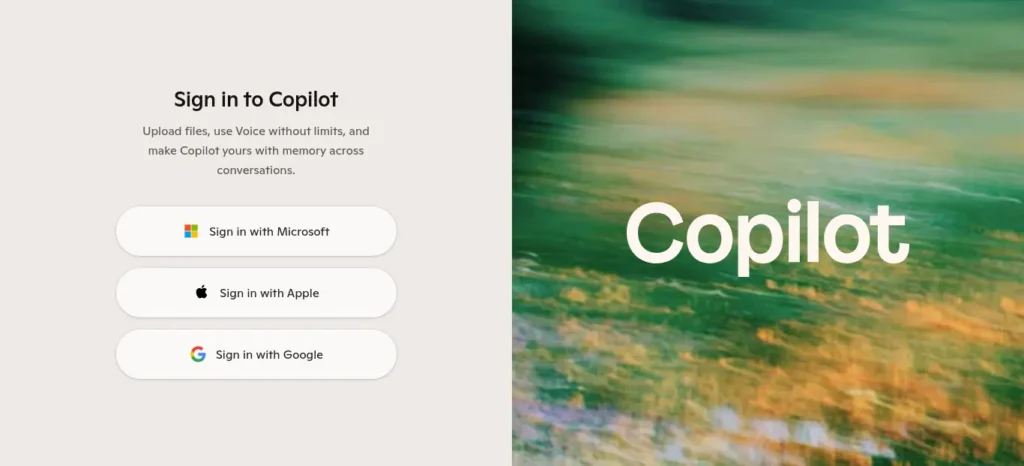
Best For: Anyone who mainly works inside Word, Excel, or Outlook and wants AI help without leaving those apps.
Why It’s Beginner-Friendly: The free chat version at copilot.microsoft.com needs no Microsoft 365 subscription and handles everyday writing and search questions well.
Free Plan: Free chat and limited image generation. Deep integration inside Word, Excel, and PowerPoint requires Microsoft 365 Premium (about $19.99/month).
Pros: Familiar Microsoft interface; free chat tier is capable for basic tasks. Cons: The features most useful for office work sit behind a paid Microsoft 365 plan, not the free tier.
Who Should Choose This: Office workers and small business owners already using Microsoft 365.
Who Should Skip This: Anyone without a Microsoft 365 subscription who wants deep document integration for free — Gemini’s free tier goes further there.
Learning Time: ⭐☆☆☆☆ (about 5 minutes)
How to Start in 5 Minutes: Go to copilot.microsoft.com and ask it to draft a formal email you’ve been putting off.
Alternative to Try: Gemini, if you’re equally comfortable switching to Gmail and Docs.
💡 Beginner Tip: Notice how every “Alternative to Try” above points to a different tool on this same list — you’ll rarely need more than two AI apps for everyday tasks.
Hidden Gems: Lesser-Known Tools Worth Trying
Most “best AI tools” lists stop at the famous names. These two solve real beginner problems and rarely get mentioned.
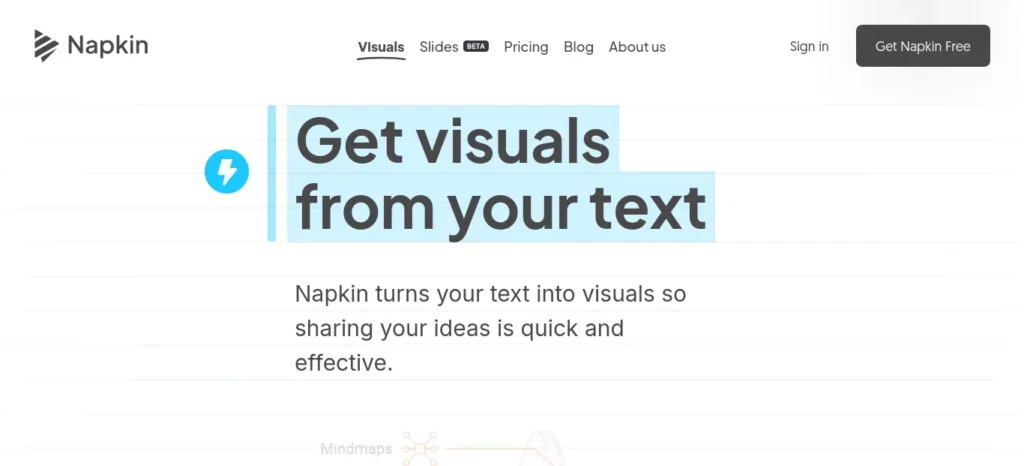
Napkin AI turns plain text into instant diagrams, flowcharts, and infographics — useful for turning a wall of notes into something presentable. Free plan: 500 AI credits per week with unlimited PNG and PDF export; paid plans for PowerPoint export and branding start around $9–12/month. (Verified July 2026; reconfirm exact credit counts before relying on them, since usage-based limits shift.)
Perplexity’s free tier is itself something of a hidden gem — most beginners default to ChatGPT for research and never realize a source-citing, easy AI alternative exists at no cost, which matters when you need to trust what you’re reading for an assignment.
Common Beginner Myths
A short reality check before you start:
- ❌ “AI replaces thinking.” No — it drafts, summarizes, and speeds up the boring parts. You still decide what’s actually good or true.
- ❌ “You must learn complicated prompting first.” No — plain sentences work fine for every tool above. Prompting skill improves with use, not study.
- ❌ “AI is only for programmers.” No — every tool in this guide is a no-code AI tool built for everyday typing, not code.
Best AI Tool by Use Case
A quick cheat sheet for “which AI assistant do I open right now” — these free AI apps cover most everyday tasks and AI for everyday tasks like homework, resumes, and research:
- Writing an email or essay → ChatGPT or Claude
- Homework or exam research with sources → Perplexity
- Studying from your own notes/PDFs → NotebookLM
- Making a presentation → Gamma
- Designing a resume or poster → Canva
- Fixing grammar and tone → Grammarly
- Working inside Word or Outlook → Microsoft Copilot
- Turning text into a diagram → Napkin AI
- Learning English or explaining a concept simply → ChatGPT or Claude
New to AI? Start with our Ultimate Beginner Guide to AI Tools for Students to discover the best AI tools for research, note-taking, writing, revision, and productivity—all explained in a beginner-friendly, step-by-step format.
Which Tool Should You Learn First?
Use this simple decision path instead of trying everything at once:
- Need writing help? → ChatGPT (most familiar, widely documented) or Claude (better for long documents).
- Need research with sources? → Perplexity.
- Need a presentation? → Gamma.
- Need to study from your own notes? → NotebookLM.
- Need visuals, not words? → Canva.
- Already living inside Google or Microsoft apps? → Gemini or Copilot, respectively — less new software to learn.
First-Day AI Checklist
Save or screenshot this before you start:
- [ ] Create a free account with just one tool from today’s list — not all of them at once.
- [ ] Test one real prompt tied to something you actually need done this week.
- [ ] Bookmark the tool or add it to your phone’s home screen so you’ll reopen it.
- [ ] Learn one prompting habit: always state the task, the audience, and the tone you want.
- [ ] Double-check one important fact the AI gave you against a real source before trusting it.
People Also Ask
Is ChatGPT free forever? Yes. The free tier is a permanent product, not a trial, though it has message limits and doesn’t include the newest reasoning models.
Which AI tool is easiest to learn? Canva, for visual tasks, since it uses templates instead of a blank chat box. ChatGPT is easiest for text-based tasks.
Can beginners use AI on mobile? Yes. Every tool in this guide works through an Android or iPhone browser, and most also offer a dedicated mobile app.
Writing Better Prompts, Protecting Your Privacy, and Building Confidence
Choosing a tool is only half the picture — how you use it matters just as much.
Writing better prompts. A vague prompt gets a vague answer. Instead of “write me a caption,” try “write a short, friendly Instagram caption for a photo of my study desk, under 20 words, no hashtags.” State the task, audience, and tone. If the first answer isn’t right, just reply “make it shorter” instead of starting over.
Want to move beyond simple AI answers? Learn how to use ChatGPT as a personal learning assistant to create study plans, generate quizzes, and master new skills faster.
Protecting your privacy. Avoid pasting sensitive details into any AI chat — ID numbers, passwords, bank details, or confidential documents. Most free consumer AI tools may use conversations to improve their models unless you turn off data sharing in account settings.
Verifying AI-generated content. AI can sound confident while still being wrong, especially on dates, statistics, or recent events. Before sending or submitting anything AI helped write, check any fact that matters against an independent source.
Avoiding overreliance. AI is fastest at first drafts and getting unstuck — not at replacing your own judgment on anything that matters, like a medical question or a graded submission.
Building confidence gradually. Most people get comfortable after about ten real tasks with one tool. Give yourself that runway before deciding whether AI “works for you.”
When Should You Actually Upgrade to a Paid Plan?
Upgrade only when a specific pattern shows up — not just because a paid plan exists:
- You hit the same usage cap three or more times in a week.
- You need a feature missing from free, like PowerPoint export on Gamma or Napkin, or full-sentence rewrites on Grammarly.
- AI has become part of your paid work, not just study or casual use.
- You’re collaborating with a team that needs shared access or admin controls.
If none of these apply yet, stay free. Upgrading before hitting a real limit is the most common way beginners overspend.
Common Beginner Mistakes
- Treating AI answers as always correct. Verify anything important — a date, statistic, or legal claim — before relying on it.
- Oversharing personal information. Keep IDs, passwords, and financial details out of AI chats.
- Trying five tools in one day. The biggest reason people quit. One tool, one task, repeated for a week, beats a scattered app folder.
- Writing vague prompts. Specific prompts about task, audience, and tone get specific, usable answers.
- Ignoring free-plan limits. Check the caps above so you’re not caught off guard mid-task.
Your First 7 Days With AI
A simple, low-pressure way to build the habit using the START AI Framework:
- Day 1: Ask ChatGPT to explain one thing you’ve always wondered about.
- Day 2: Try Perplexity for a research question and check its sources.
- Day 3: Make one graphic or poster in Canva using a template.
- Day 4: Let Grammarly check one real email before you send it.
- Day 5: Upload one document to NotebookLM and ask it to quiz you.
- Day 6: Turn a rough idea into a slide deck with Gamma.
- Day 7: Pick whichever tool saved the most time this week, and make it your default.
Most people use AI to get quick answers, but that’s only the beginning. If you want a step-by-step workflow that combines planning, note-taking, revision, and productivity into one streamlined system, explore AI Study Workflow for Students and learn how to build an AI-powered study routine that actually lasts.
India-Specific Advice
Most tools here work well on an average Indian mobile data connection since they’re browser-based with no large downloads. For students on tight budgets: ChatGPT, Claude, Gemini, Perplexity, NotebookLM, and Canva all offer free tiers built for genuine daily use, not just a demo. On a budget Android phone, prefer mobile web versions over heavy apps to save storage.
If you’re preparing for JEE, NEET, UPSC, GATE, CAT, or SSC, treat these tools as revision support, not a shortcut — use NotebookLM or Claude to summarize a chapter you’ve already read once, rather than learning something for the first time under exam pressure.
Before upgrading to any paid plan, check whether your college already provides free access; many Indian universities now offer Grammarly for Education or Google Workspace with Gemini bundled in at no extra student cost. Treat every price in this guide as an August 2026 snapshot, not a permanent number, and recheck the official page before paying for anything.
Preparing for semester exams? Don’t miss our detailed guide on the best AI tools for students that can help you summarize notes, create flashcards, solve doubts, and revise faster before exams.
Frequently Asked Questions
What is the easiest free AI tool for beginners?
Canva, for visual tasks, since it uses templates instead of a blank chat box. ChatGPT is easiest for text-based tasks, since it just needs a plain-language question.
Do I need coding skills to use AI tools?
No. Every tool here works through plain-language prompts or templates — no installation, command line, or code required.
Which AI tool should I learn first?
Start with whichever solves a problem you actually have this week, usually ChatGPT or Claude for writing, or Canva for visuals.
Are free AI tools safe to use?
Generally yes for everyday tasks, but avoid pasting sensitive personal, medical, or financial information, since inputs may be reviewed to improve the product unless you opt out.
Which AI tool is best for students?
NotebookLM for studying your own notes, Perplexity for cited research, and Claude or ChatGPT for general writing help.
Can I use AI tools on my phone?
Yes. ChatGPT, Claude, Gemini, Perplexity, Canva, Grammarly, NotebookLM, and Copilot all work on Android and iPhone browsers or apps.
What’s the difference between ChatGPT, Gemini, and Claude?
ChatGPT is the most widely used general-purpose AI assistant. Gemini integrates deeply with Gmail, Docs, and Android. Claude handles long documents and structured writing especially well. All three have usable free tiers.
When should I upgrade from a free plan?
Only after hitting a specific, repeated limit — a daily message cap, a missing export feature, or team collaboration needs. Don’t upgrade just because a paid plan exists.
Can AI replace Microsoft Office or Google Docs?
No, but it works alongside them — these tools help you draft and design faster, while you still finish and save work in Word, Docs, or Excel.
How do I write better prompts as a beginner?
Be specific about the outcome, audience, and tone. “Write a polite follow-up email to a professor about a missed deadline, under 100 words” works far better than “write an email.”
Want to reclaim at least one extra hour every single day? Check out our detailed guide on the AI tools that can save you at least one hour every day in 2026 before choosing your workflow.
Final Recommendation
Don’t bookmark this guide and forget about it. Instead, choose one AI tool, spend just 15 minutes using it to complete a real task today, and give yourself a week to build the habit before trying another. Learning AI isn’t about installing the most apps—it’s about consistently using the right one for the problems you actually face.
The best free AI tools for beginners who are not tech savvy aren’t necessarily the ones with the most features. They’re the tools you’ll confidently return to whenever you need help writing, studying, researching, designing, or getting everyday work done. Start small, stay consistent, and let your confidence grow one task at a time.
Key Takeaways
- 📌 The best AI tools for beginners need zero coding — ChatGPT, Claude, Gemini, Perplexity, Canva, Grammarly, Gamma, NotebookLM, and Microsoft Copilot all work through plain typing.
- 💡 Use the START AI Framework: pick one problem, try one tool, repeat for a week, then track what actually saved time.
- ⚠️ Free plans have real limits — check them before you get stuck, and never paste sensitive information into any AI chat.
- ✅ Start today with one small, real task, not a test question.
About the Author
Nandhakumar is the founder of FutureFastAI, where he researches, tests, and explains AI tools in simple, practical language for beginners, students, and everyday users. His work focuses on hands-on testing, clear comparisons, and creating step-by-step guides that help readers choose the right AI tools without unnecessary complexity.
Every guide on FutureFastAI is reviewed for accuracy, beginner usability, and pricing transparency before publication. Because AI tools evolve quickly, articles are regularly updated to reflect changes in features, free plans, and pricing whenever possible.
Editorial Policy
At FutureFastAI, our goal is to help readers make informed decisions by publishing accurate, practical, and beginner-friendly content about AI tools and productivity.
Every article is created using a consistent editorial process:
- Independent Research: We research each topic using official documentation, pricing pages, product announcements, and other reliable sources whenever possible.
- Hands-On Evaluation: Whenever practical, we test tools using their free plans to evaluate ease of use, beginner friendliness, and real-world usefulness.
- Accuracy First: We verify important details such as features, pricing, and free-plan limitations before publication. Because AI products change frequently, we review and update articles on a regular schedule.
- Reader-First Recommendations: Recommendations are based on usability, value, and practical benefits—not on sponsorships or affiliate relationships.
- Transparency: If an article contains affiliate links in the future, they will be clearly disclosed so readers can make informed decisions.
- Continuous Updates: We periodically review published content to keep information current as AI tools evolve.
Our priority is to create trustworthy resources that help beginners learn AI with confidence, without unnecessary jargon or misleading claims.





4 Comments