
How to Create a Weekly Plan Using AI Tools (2026 Step-by-Step Guide)
Reading Time: 12 minutes
Quick Answer
If you want to create a weekly plan using AI tools, start by listing all your tasks and deadlines, separate fixed events from flexible study sessions, and let an AI planner organize your schedule automatically.
Tools like Reclaim.ai, TickTick, and Google Calendar with Gemini can help you save time, reduce stress, and adapt your weekly plan when unexpected changes happen.
It’s Tuesday, and Your Perfect Sunday Plan Is Already Dead
You spent forty minutes on Sunday building a color-coded weekly plan. It looked great. By Tuesday afternoon, a lab session ran long, an assignment took twice as long as expected, and the whole thing quietly fell apart.
If that sounds familiar, you’re not bad at planning. You built a plan using AI tools — or paper, or a plain calendar app — that had no way to absorb a single disruption. And in a real week, disruption isn’t the exception. It’s the default.
This guide isn’t another list of “10 best AI planner apps.” It’s a working method for how to create a weekly plan using AI tools that’s designed to survive Tuesday, not just look good on Sunday — plus honest notes on which tools are actually worth your time (and which aren’t, no matter how often they show up in “best of” lists).
Important: AI can reorganize your week automatically, but it can’t decide your priorities for you. Review your schedule at least once a week to keep it realistic.
Why Weekly Plans Actually Fall Apart (It’s Not What You Think)
Most students assume their plan failed because they didn’t try hard enough to follow it. That’s rarely the real reason.
A weekly plan built by hand is a static object — it captures your intentions for one moment on Sunday. The moment reality changes even slightly, that plan is instantly out of date, and updating it by hand feels like starting over. Most people don’t start over. They just stop planning.
This is the actual gap AI closes. A good AI planning tool doesn’t just list your tasks — it holds your whole week as a live system, so when one thing shifts, everything downstream shifts with it automatically. That’s the difference between a plan and a to-do list with a date stamped on it.
Think of it like the difference between a printed train timetable and a live tracking app. The timetable tells you what should happen. The live app tells you what’s actually happening and adjusts your options in real time. Most students are still running their week off the printed timetable — which is exactly why learning how to create a weekly plan using AI tools, rather than by hand, makes such a practical difference.
What You’ll Learn
By the end of this guide you’ll know how to:
✔ build a weekly plan with AI
✔ choose the right planning app
✔ automatically reschedule missed tasks
✔ avoid common planning mistakes
✔ maintain a weekly planning habit
Who Should Read This Guide?
This guide is perfect for students, college learners, working professionals, and anyone who struggles to organize weekly tasks. If you often miss deadlines, feel overwhelmed by assignments, or spend too much time planning instead of doing, this guide will help you build a smarter weekly planning system with AI.
“Who This Isn’t For”
This Guide Isn’t For You If…
- You only need a simple paper planner.
- You don’t use a digital calendar.
- You want AI to finish your work instead of organizing it.
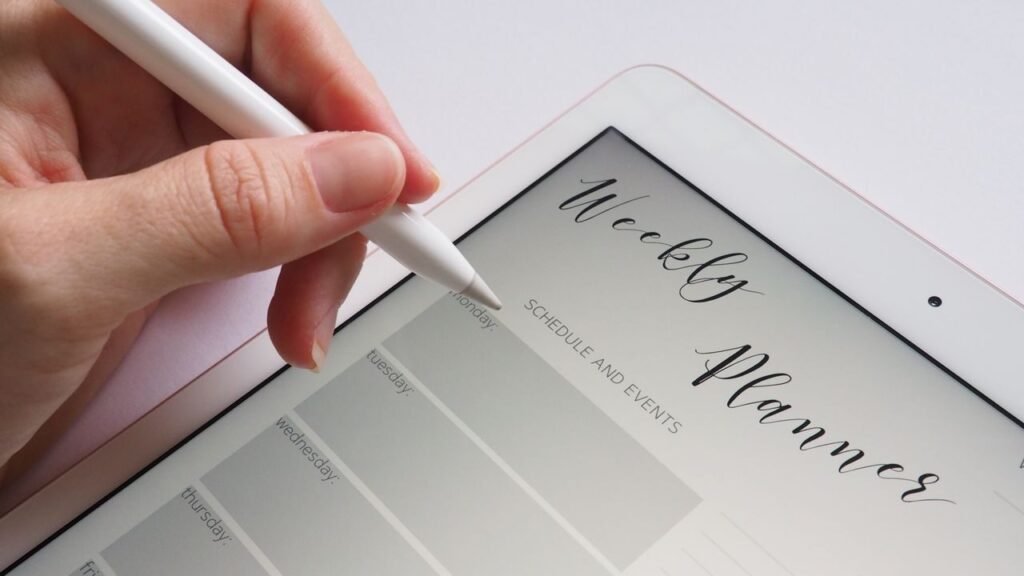
Weekly Planning Framework (Best)
The PLAN AI Framework
P — Prioritize
Identify deadlines.
L — Lock Fixed Events
Classes, meetings, work.
A — Allocate Flexible Time
Study blocks.
N — Notice and Adjust
Review every Thursday.
What You Need Before You Create a Weekly Plan Using AI Tools
Many students struggle because they do not have a structured study schedule. If that sounds familiar, check out AI Tools for Creating a Study Timetable Automatically: 9 Powerful and Smart Solutions for Students in 2026 to learn how AI can create a personalized timetable in just a few minutes.
Before comparing tools, it helps to know what any AI scheduler — free or paid — needs to work well. Skip this step and even the smartest tool will build you a confidently wrong week.
A complete task and deadline list. The AI can only protect time for what it knows exists. Half-remembered assignments don’t get scheduled.
A clear split between fixed and flexible time. Classes and work shifts are fixed — they happen at one time, no matter what. Study sessions and reading are flexible — they can move within a deadline window. Tools like Reclaim.ai and TickTick only auto-reschedule the flexible pieces, so this split has to be explicit.
A weekly five-minute check-in. This is the step almost every guide skips. AI handles the mechanical rescheduling; it doesn’t notice that you keep underestimating how long chemistry problem sets take. Only you catch that pattern, and only if you look.
Benefits of AI Weekly Planning
- Reduces decision fatigue
- Prevents deadline overload
- Protects study time
- Balances work and personal life
- Makes schedule adjustments automatic
“Signs Your Weekly Plan Isn’t Working” (important)
Signs Your Weekly Plan Needs Improvement
- You constantly move unfinished tasks.
- You ignore your planner after Tuesday.
- You underestimate study time.
- You forget assignment deadlines.
- You never schedule breaks.
A Real Weekly Planning Example: Before AI vs. After AI
Theory is easy to agree with and hard to picture. Here’s what the same disrupted week actually looks like for a student — first planned by hand, then planned with an AI scheduler like Reclaim.ai handling the fixed/flexible split described above.
The setup: classes 9 AM–1 PM on weekdays, a part-time internship 4–6 PM, a coaching class Monday and Wednesday at 7 PM, and a physics assignment due Thursday that needs about four hours of focused work.
Before AI — planned by hand on Sunday night:
- Monday: Classes 9–1. Physics study block penciled in for 2–4 PM. Internship 4–6. Coaching at 7.
- Tuesday: Classes 9–1. Physics study block penciled in for 2–4 PM again. Internship 4–6.
- Wednesday: Classes 9–1. Physics study block for 2–4 PM. Internship 4–6. Coaching at 7.
Here’s what actually happens: Monday’s physics lab runs 90 minutes over, straight through the 2–4 PM study block. Nothing on the paper plan moves — it just becomes wrong. Tuesday’s study block is now the only one left before Thursday’s deadline, so it gets rushed and half-finished. By Wednesday, the plan has effectively been abandoned; the student is just reacting to whatever feels most urgent.
After AI — same week, same disruptions, with Reclaim.ai holding the calendar and TickTick holding the task list:
- Monday: Classes and internship sit as fixed events. Physics gets flagged as a flexible task with a Thursday deadline, and the tool slots it into 2–4 PM by default — same as the hand-written plan so far.
- Tuesday: The lab runs over, which shows up on the calendar as a conflict. Reclaim automatically moves the missed Monday study block to the next open slot — 8–9:30 PM Tuesday — instead of just deleting it. The student gets a notification, not a blank space.
- Wednesday: Because Monday’s block was rescheduled rather than lost, Wednesday’s plan is untouched. The remaining physics hours are still on track to be finished before Thursday’s deadline, without any manual replanning.
The difference isn’t that AI made the week less busy — the same lab overran either way. The difference is that one version of the plan could absorb that disruption automatically, and the other just broke. That’s the entire case for using an AI tool here: not less work, just work that survives contact with a real Tuesday.
Most students use AI as a simple chatbot, but the real advantage comes from following a complete workflow. Discover our AI study workflow for students and learn how to capture notes, create quizzes, schedule revision, and prepare for exams more effectively.
Bonus : Expert Tips for Better Weekly Planning
- Plan your week around energy, not just time.
- Keep one empty buffer block every week.
- Never schedule more than three deep-work sessions per day.
- Review your weekly plan every Thursday, not just Sunday.
- Let AI handle scheduling, but review priorities yourself.
How to Create a Weekly Plan Using AI Tools: Choosing the Right One for You
Here’s where most comparisons get generic — “Tool A has more integrations, Tool B has a nicer interface.” What actually matters is which tool matches your specific bottleneck.
If your bottleneck is that tasks never make it into any system at all, the fix isn’t a smarter scheduler — it’s lower friction at the capture step. TickTick’s natural-language quick-add (“submit assignment Friday 6pm”) solves this well, because it removes the multi-step form-filling that makes people give up on logging tasks in the first place. The limitation: its paid tier’s exact pricing varies across sources, so check ticktick.com directly before assuming a number.
Struggling to finish assignments before the deadline? Discover the best AI tools for assignment planning and deadline management that help you organize tasks, prioritize work, and submit projects on time.
If your bottleneck is that study time keeps getting eaten by other things, you need active defense, not just a list. Reclaim.ai sits on top of Google Calendar and automatically re-slots protected study blocks when something else intrudes — it’s built for exactly this. It’s a strong fit for exam-season planning specifically because it’s free at the Lite tier, with no card required. The limitation: it’s a calendar layer, not a standalone task app, so it works best if you’re already living in Google Calendar.
Don’t make the mistake of managing every task manually—it quickly becomes overwhelming as your workload grows.explore AI Tools for Organizing Daily Tasks Automatically: 6 Best Picks (2026) before choosing your next productivity app.
If you already organize your academic life in Notion, adding a separate planner is often the wrong move — it’s one more app to check. Notion Calendar syncs your existing Notion tasks with Google Calendar for free, with zero cost. The honest limitation: as of this writing it doesn’t auto-schedule anything for you; it’s a clean display and sync layer, not an AI scheduler, so pair it with a reset habit rather than expecting automation.
If money is genuinely tight and you don’t want any subscription at all, Super Productivity is worth knowing about specifically because it’s rarely mentioned in mainstream roundups. It’s free, open-source, works offline, and needs no account. Who shouldn’t use it: anyone who wants a polished, app-store-style mobile experience — it’s built by and for people who don’t mind a slightly more technical setup.
If you want fully automatic scheduling and don’t mind paying, Motion is the closest thing to “set it and forget it” — it takes your tasks and deadlines and builds the day without manual time-blocking. Who should skip it: budget-conscious students, since multiple sources report its AI scheduling plan running well beyond what a typical Indian student budget for a productivity app would look like — verify current pricing before committing, since figures conflicted across sources at the time of writing.
If you don’t want to add a new app at all, Google Calendar paired with Gemini is a reasonable free starting point, since Gemini’s free tier in 2026 is reportedly capable enough for basic scheduling help inside Gmail and Calendar. It’s worth including here on merit, not by default — but it won’t actively protect time blocks the way a dedicated scheduler like Reclaim.ai does, so treat it as a conversation partner for planning, not an auto-scheduler.
Best AI Weekly Planning Tools Compared
Last verified for pricing and features: July 2026. Tool pricing and free-tier limits change often — if you’re reading this more than a couple of months after that date, double-check the numbers below directly on each vendor’s site before trusting them.
🗓️ Reclaim.ai
Try It: Start free — no card required, upgrade only if you want deeper controls.
Price: Free (Lite plan, forever). Paid Starter tier reported around $10/month (~₹960/month) — unverified, confirm on reclaim.ai/pricing.
Best For: Auto-defending study time on Google Calendar
Key Benefits:
- Free tier is genuinely usable long-term, not a stripped demo
- Automatically re-slots flexible tasks around fixed commitments — strong fit for exam season
- Reported education discount on paid tiers (~50% off, eligibility applies) — unverified, check current terms
Quality Check: Even at the free tier, Reclaim does something a plain calendar can’t — it re-runs the scheduling logic every time something on your calendar changes, instead of leaving a gap. That’s the “deep” part of the quality: it’s solving a constantly-moving problem, not just displaying a static list.
Watch Out:
- Calendar layer only, not a full task app
- Works best if you’re already living in Google Calendar
✅ TickTick
Try It: Free plan first, upgrade later for less than the cost of a cup of coffee a month.
Price: Free tier available.
Premium most commonly cited around $2.99/month (~₹287/month), or roughly $35.99/year (~₹3,454/year) — sources conflicted (some cited figures as high as $35.99/month), so verify the exact number on ticktick.com for current price of a tool
Best For: Low-friction task capture with a built-in calendar view
Key Benefits:
- Natural-language quick-add (type “submit report Friday 6pm” and it parses the date automatically)
- Free tier includes a real calendar view, which many free planners hold back
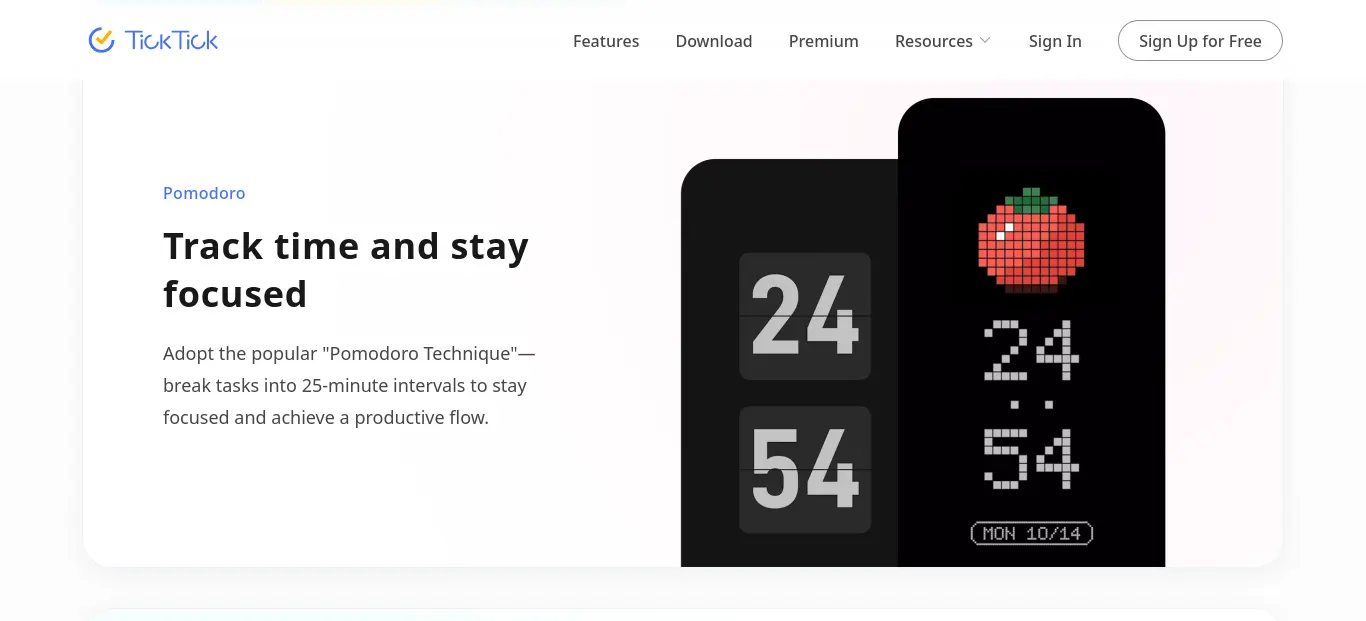
- Premium adds Pomodoro timer, habit tracking, and deeper calendar sync
Quality Check: TickTick’s premium tier feels inexpensive relative to what it replaces — a habit tracker, a Pomodoro app, and a calendar view combined would normally mean three separate subscriptions. If the price still feels like a stretch, the free tier alone (9 lists, 99 tasks/list) is enough for most single-semester planning.
Watch Out:
- Free tier caps out at 9 lists — you’ll feel it once your workload grows past one semester’s worth of tasks
- Paid-tier pricing varies by source — verify directly before relying on a number
🗂️ Notion Calendar
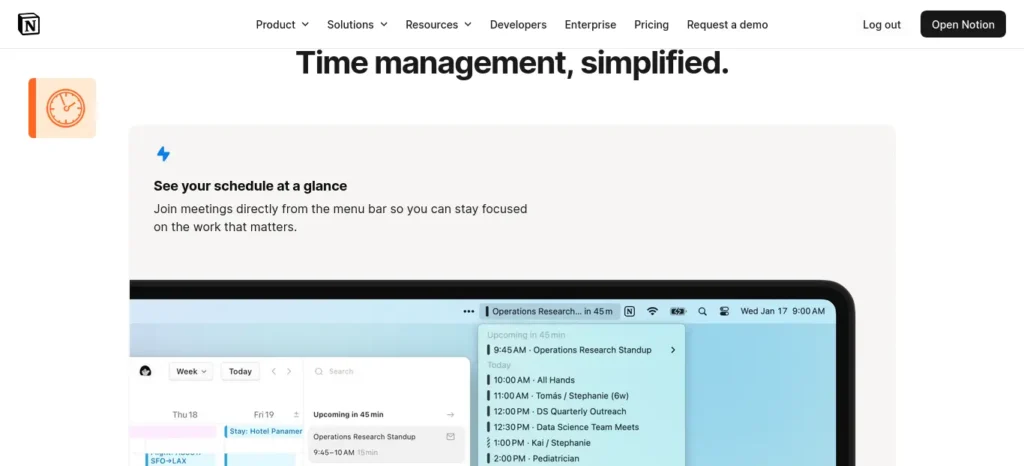
Try It: Completely free — connect your existing Notion workspace in about two minutes.
Price: Free — $0 (₹0), no paid tier as of this writing.
Best For: Students already living in Notion
Key Benefits:
- Zero cost, with no feature-gated “premium” version to eventually push you toward
- Syncs existing Notion tasks and Google Calendar events into one view
- Two-way sync means updating a task in Notion updates the calendar too
Quality Check: There’s no price to justify here, which is itself worth noting — Notion Calendar is fully free without a limited free tier and does one job (calendar display and sync) cleanly, rather than being a stripped preview of a paid product.
Watch Out:
- No built-in AI auto-scheduling — it displays and syncs, it doesn’t build your week for you
🔓 Super Productivity
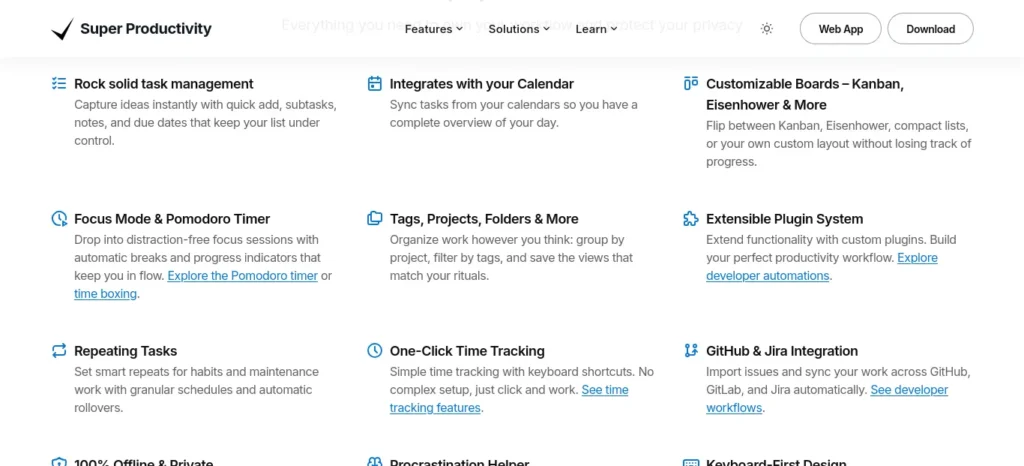
Try It: Download free — no signup, no card, no subscription, ever.
Price: Free — $0 (₹0), permanently. It’s open-source, so there’s no paid tier to upgrade into.
Best For: Zero-cost, offline, privacy-first planning
Key Benefits:
- Fully free, open-source, no account required
- Works offline and keeps your data local — nothing leaves your device
- Includes time-boxing, Pomodoro, and task tracking without a single locked feature
Quality Check: Because it’s community-built rather than venture-funded, it doesn’t have the same polish budget as paid apps — but the core scheduling and time-tracking logic is genuinely solid, which is why it keeps showing up in developer and privacy-focused communities despite near-zero marketing.
Watch Out:
- Less polished than app-store-style planners
- Needs a bit more manual setup
⚙️ Motion
Try It: Free trial reported by some sources — confirm current trial length on usemotion.com before signing up.
Price: Sources conflicted significantly here. One source cited a Basic free tier with Personal at $9/month (~₹864/month) and Pro (AI Planner) at $15/month (~₹1,440/month), with a 25% student discount; another cited AI Pro scheduling starting around $49/month (~₹4,704/month). This is flagged unverified — confirm the actual current tier and price on usemotion.com before publishing either figure.
Best For: Fully automatic day-building for heavy multitaskers
Key Benefits:
- Builds your entire day from tasks and deadlines with close to zero manual time-blocking
- Dynamically rebuilds your schedule when a task runs long or a meeting shifts
- Good fit for complex weeks with many moving deadlines (internships + coursework + coaching)
Quality Check: This is the one where the price genuinely buys something different, not just a nicer interface. Most free tools ask you to accept their scheduling suggestion; Motion continuously recalculates your whole day in the background as things change, which is a heavier, ongoing computation most free tools don’t attempt. Whether that’s worth the price depends on how chaotic your week actually is — a fairly stable weekly routine won’t get much extra value from full automation.
Watch Out:
- Pricing reported inconsistently across sources — verify current cost before committing
- Likely not the best starting point for budget-conscious students; try Reclaim.ai’s free tier first
🔍 Google Calendar + Gemini
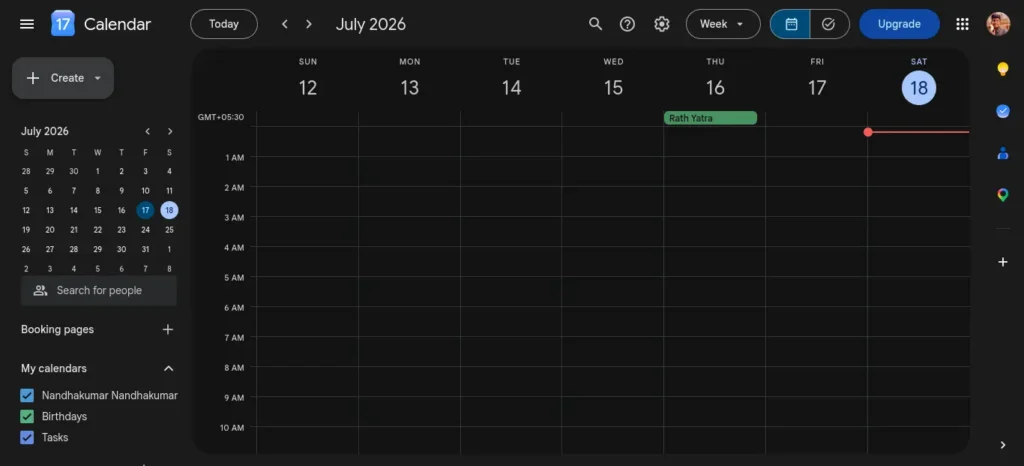
Try It: Start completely free with any Google account — upgrade only if you consistently hit free-tier limits.
Price: Free — $0 (₹0) for the standard Gemini tier.
Google AI Pro (needed for higher usage limits and deeper Gmail/Calendar integration) is reported around $19.99/month (~₹1,919/month), or discounted to about $9.99/month (~₹959/month) for some verified students — unverified, eligibility and pricing vary by country and require checking gemini.google.com/students directly.
Best For: Students who want zero new setup
Key Benefits:
- No new app to install — works inside Gmail and Calendar you already use
- Free tier reportedly includes Deep Research and document analysis, not just chat
- Good for talking through a rough weekly structure in plain language
Quality Check: The free tier’s actual usefulness comes from being genuinely unrestricted for light use — daily caps exist, but most students planning a single week won’t hit them. The paid tier mainly buys higher usage ceilings and deeper Workspace integration, not a fundamentally different planning capability.
Watch Out:
- Doesn’t actively protect time blocks the way a dedicated scheduler does
- Better for planning conversations than ongoing schedule maintenance
Pricing details above were cross-checked across multiple sources at the time of writing; several conflicted with each other, so treat any specific number as a starting point to verify on the vendor’s own site, not a final figure.
Common Mistakes to Avoid When You Create a Weekly Plan Using AI Tools
Scheduling every single minute. A week with zero buffer means one late class collapses the rest of the day. Leave real gaps on purpose.
Treating the AI’s first draft as final. Every AI scheduler will occasionally propose something unrealistic, like a study block at 6 AM for someone who’s never once studied at 6 AM. Edit it once, and most tools learn the pattern.
Switching tools every time a week goes badly. The tool usually isn’t the problem — a missing weekly reset or an incomplete task list is. Fix the habit before blaming the app.
Skipping the capture step and going straight to scheduling. An AI planner working from a half-complete task list will confidently build a schedule around the wrong picture of your week.
Chasing 100% adherence. A realistic week rarely runs above roughly 70–80% as planned. Expecting perfect compliance just guarantees you’ll feel like you failed, even on a genuinely productive week.
Finding the right AI tools is only part of the equation. If distractions keep interrupting your study sessions, don’t miss our guide on AI Tools for Distracted Students,
Pro Tips for Creating a Weekly Plan Using AI Tools
Want to reclaim at least one extra hour every single day? Check out our detailed guide on the AI tools that can save you at least one hour every day in 2026 before choosing your workflow.
Schedule your hardest task in your actual best hour, not the “ideal” one from a productivity article. If you focus best at 9 PM, don’t force deep work into a 7 AM slot because a blog post said mornings are optimal. Let the tool learn your real pattern instead of an assumed one.
Use your weekly reset to look for a repeating pattern, not just a to-do checklist. If the same type of task gets rescheduled three weeks running, that’s data — it usually means you’re underestimating that task’s real length, not that you’re undisciplined.
Keep one flexible “catch-up” block per week, unassigned until Thursday. This absorbs the one thing every week seems to produce — an unplanned obligation — without wrecking the rest of your schedule.
Don’t connect every app to your calendar at once. Adding five integrations in one sitting usually creates duplicate events and false busy-blocks. Add one tool, run it for a week, then decide if you need another.
FAQs
How do I create a weekly plan using AI tools? Start by capturing every task and deadline in one place, then split your week into fixed commitments (classes, work) and flexible tasks (study, reading) so an AI tool like Reclaim.ai or TickTick knows what it’s allowed to move. Let the tool generate a first draft, review it, and add a short weekly reset to keep adjusting it over time.
What is the best AI tool for weekly planning? There’s no single best tool — it depends on your specific bottleneck. Reclaim.ai works well if you need automatic time protection on Google Calendar, while Notion Calendar is a better fit if you already organize your academic life in Notion.
Can ChatGPT or Gemini build a weekly schedule for me? Yes, in conversation — you can ask either to draft a rough weekly structure based on your tasks and deadlines. Neither one syncs with your calendar or reschedules automatically when your day changes, so they’re better for the initial planning conversation than for ongoing schedule maintenance.
How do students plan their week with AI without spending money? Pair a free capture tool like TickTick or Notion Calendar with Google Calendar, and add a fixed weekly reset to manually catch what the free tools can’t automate. Super Productivity is worth checking too, since it’s fully free with no account required.
Which free AI tools help organize weekly tasks for students? Reclaim.ai’s Lite plan, TickTick’s free tier, Notion Calendar, and Super Productivity all had genuinely usable free tiers at the time of writing — confirm current limits before relying on any of them during exam season, since free-tier terms do change.
How can AI help balance study and personal life in a weekly plan? AI tools can automatically protect personal time the same way they protect study blocks, by treating rest as a fixed commitment rather than something that only happens if time is left over. The tool won’t decide this priority for you — you have to mark personal time as protected, the same way you’d mark a class as fixed.
Quick Recommendations (Recap)
Scrolled straight to the bottom? Here’s the short version again:
- Best Free AI Planner: Reclaim.ai
- Best for Task Management: TickTick
- Best for Notion Users: Notion Calendar
- Best Completely Free Tool: Super Productivity
- Best Premium AI Scheduler: Motion
- Best Without Installing Anything: Google Calendar + Gemini
Key Takeaways
- A weekly plan fails most often because it can’t absorb disruption, not because the student lacked discipline.
- Every AI scheduler needs three things from you: a complete task list, a clear fixed-vs-flexible split, and a weekly five-minute check-in.
- Pick a tool based on your actual bottleneck — capture, time protection, or full automation — not on which app has the most features.
- Reclaim.ai, TickTick, Notion Calendar, and Super Productivity all have real free tiers worth starting with.
- Expect roughly 70–80% adherence in a realistic week; anything closer to 100% expectation just sets you up to feel like you failed.
Want to study smarter instead of studying longer? Discover how to use AI to improve academic productivity and build a simple study system that helps you stay organized, learn faster, and achieve better results.
One Next Step
If you take one thing from this guide on how to create a weekly plan using AI tools, make it this: pick one tool from the cards above, spend fifteen minutes today capturing everything currently on your plate, and let it generate a rough first draft before you touch anything else. Fix the plan on Thursday, not Sunday — that’s usually when the real pattern shows up.
New to AI? Start with our Ultimate Beginner Guide to AI Tools for Students to discover the best AI tools for research, note-taking, writing, revision, and productivity—all explained in a beginner-friendly, step-by-step format.
Author Bio
Nandhakumar writes about AI productivity tools, student workflows, and practical ways to use artificial intelligence for learning and organization. At FutureFastAI, he tests AI tools and explains how students can use them to study smarter and save time.





5 Comments